> ## Documentation Index
> Fetch the complete documentation index at: https://docs.qtap.qa/llms.txt
> Use this file to discover all available pages before exploring further.
# The Insights panel on your analytics page
> Three plain-language observations Qtap works out from your member list, and what each one is counting.
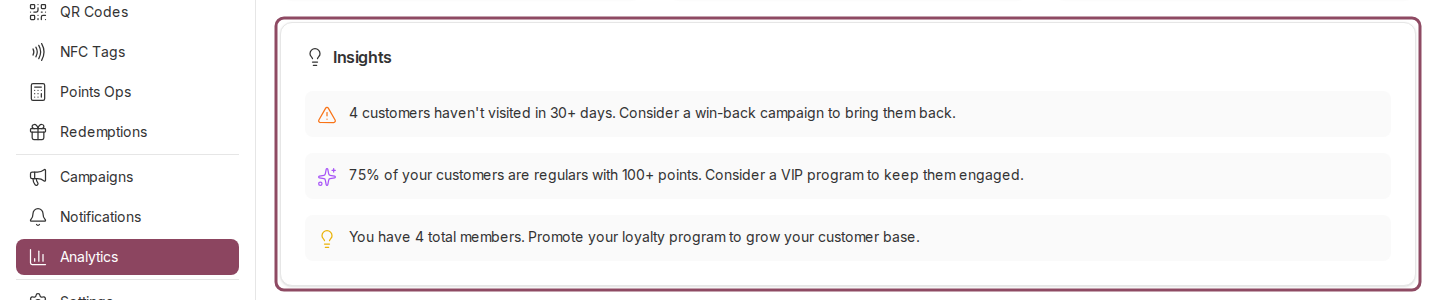
Partway down **Analytics**, under the charts and above Churn Risk, is a card called
**Insights**. Qtap reads your member list and puts up to three short observations
there, each with a suggestion attached.
 Every plan gets this card, and there is nothing to switch on.
## What each line is counting
Every plan gets this card, and there is nothing to switch on.
## What each line is counting
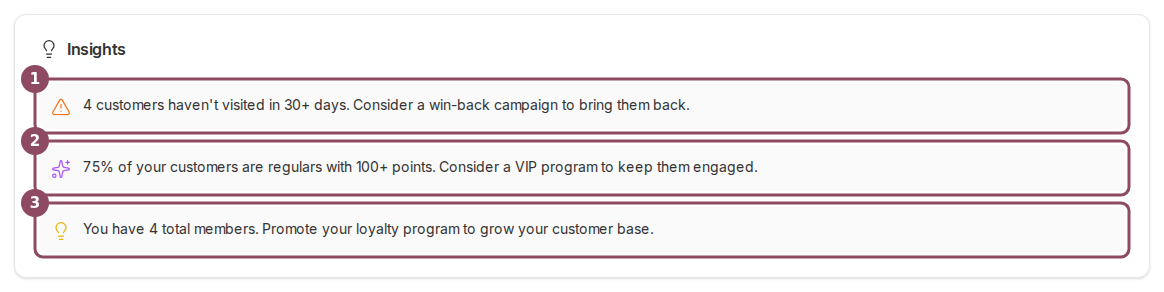 1. **Customers who have gone quiet.** The orange triangle counts members whose last
recorded visit was more than 30 days ago. It appears only when at least one
member is that quiet, and it points you at a
[win-back campaign](/merchants/campaigns/winback).
2. **How many of your customers are regulars.** The purple line is the share of your
members who have earned 5 or more stamps, or 100 or more points, over their whole
history with you. It appears only when that share is above 10%.
3. **How many members you have.** The yellow line is your total member count, with a
nudge to keep promoting the program. It appears as soon as you have one member.
The 5 stamps and 100 points figures are the same line Qtap uses to fill the
**Regulars** slice of the Customer Segments chart higher up the page, so the two
never disagree.
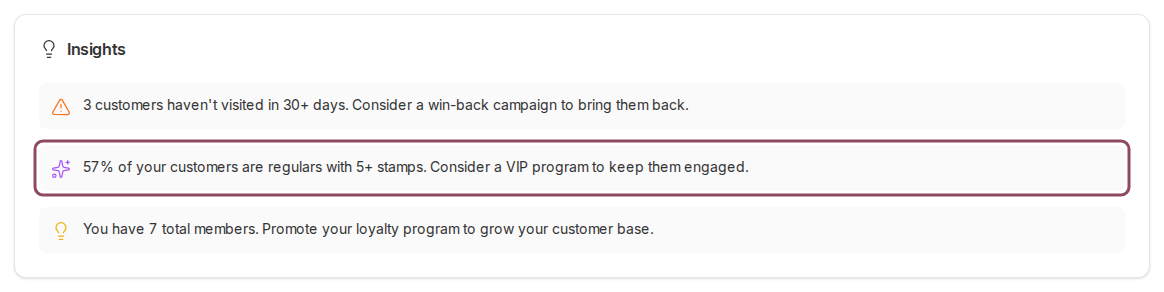
On a stamp card program the wording changes to match.
1. **Customers who have gone quiet.** The orange triangle counts members whose last
recorded visit was more than 30 days ago. It appears only when at least one
member is that quiet, and it points you at a
[win-back campaign](/merchants/campaigns/winback).
2. **How many of your customers are regulars.** The purple line is the share of your
members who have earned 5 or more stamps, or 100 or more points, over their whole
history with you. It appears only when that share is above 10%.
3. **How many members you have.** The yellow line is your total member count, with a
nudge to keep promoting the program. It appears as soon as you have one member.
The 5 stamps and 100 points figures are the same line Qtap uses to fill the
**Regulars** slice of the Customer Segments chart higher up the page, so the two
never disagree.
On a stamp card program the wording changes to match.
 ## What the card ignores
The time period picker at the top of the page does not reach this card. Switching to
Today or Last 7 days leaves all three lines where they were: the quiet-customer
window is always 30 days, and the other two count your members from the day you
opened. The branch picker in the top bar does not reach it either, so on a
multi-branch account these numbers are always the whole business.
The first line also counts only members who have a visit on record. Someone who
joined and never came back at all has no last visit, so they sit outside that count.
The [Churn Risk list](/merchants/analytics/customer-lists) further down picks those
members up, because it falls back to the day they joined.
## When the card is empty
With no members yet, the card reads "Start collecting data to see personalized
insights about your loyalty program." Give a QR code to a few customers and the
member count line appears on your next visit to the page.
## Insights and AI Insights are two different cards
This card is arithmetic. It runs the same three checks in the same order every time,
and the numbers move only when your member list does. **AI Insights** is a separate
card that writes a fresh read of your data on each run. It belongs to the Elite and
Franchise plans and spends an insight credit every time it runs. On the other plans
it does not appear at all, which is why most accounts see this card and then go
straight to Churn Risk.
## Who can see it
Anyone who can open Analytics. Owners and managers can by default; a teammate on the
Staff role cannot, and gets an access-denied screen instead. To let one in, turn on
custom permissions for them and tick **View analytics**. See
[Staff roles and permissions](/merchants/staff/roles-permissions).
This documentation is built and hosted on [Mintlify](https://mintlify.com), a developer documentation platform.
## What the card ignores
The time period picker at the top of the page does not reach this card. Switching to
Today or Last 7 days leaves all three lines where they were: the quiet-customer
window is always 30 days, and the other two count your members from the day you
opened. The branch picker in the top bar does not reach it either, so on a
multi-branch account these numbers are always the whole business.
The first line also counts only members who have a visit on record. Someone who
joined and never came back at all has no last visit, so they sit outside that count.
The [Churn Risk list](/merchants/analytics/customer-lists) further down picks those
members up, because it falls back to the day they joined.
## When the card is empty
With no members yet, the card reads "Start collecting data to see personalized
insights about your loyalty program." Give a QR code to a few customers and the
member count line appears on your next visit to the page.
## Insights and AI Insights are two different cards
This card is arithmetic. It runs the same three checks in the same order every time,
and the numbers move only when your member list does. **AI Insights** is a separate
card that writes a fresh read of your data on each run. It belongs to the Elite and
Franchise plans and spends an insight credit every time it runs. On the other plans
it does not appear at all, which is why most accounts see this card and then go
straight to Churn Risk.
## Who can see it
Anyone who can open Analytics. Owners and managers can by default; a teammate on the
Staff role cannot, and gets an access-denied screen instead. To let one in, turn on
custom permissions for them and tick **View analytics**. See
[Staff roles and permissions](/merchants/staff/roles-permissions).
This documentation is built and hosted on [Mintlify](https://mintlify.com), a developer documentation platform.