> ## Documentation Index
> Fetch the complete documentation index at: https://docs.qtap.qa/llms.txt
> Use this file to discover all available pages before exploring further.
# Downgrading your plan
> Move to a lower Qtap plan. Qtap checks your usage first and schedules the change for your renewal date.
You move to a lower plan when you need less than your current one gives you. Before the change goes through, Qtap runs a pre-flight check: it makes sure your current usage fits inside the lower plan's limits. If it fits, the downgrade is scheduled for the end of your billing period. If it doesn't, Qtap tells you exactly what to reduce first.
Only the account owner can change the plan. If you're a manager or staff member with billing access, each plan card shows **Contact Owner** instead of a button. Ask the owner to make the change.
## Check your usage first
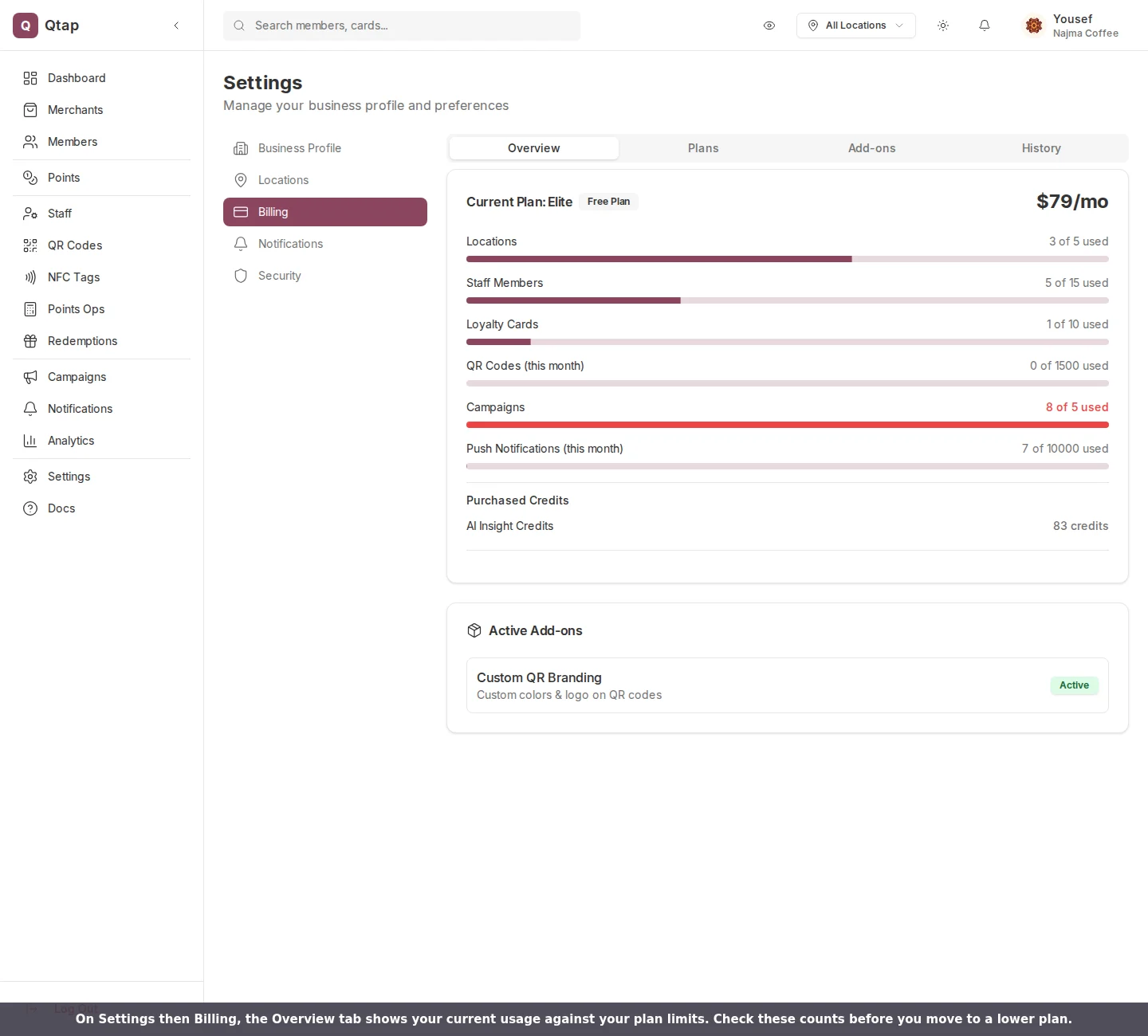
Go to **Settings**, open **Billing**, and stay on the **Overview** tab. Each meter shows how much of your current plan you're using: locations, staff members, loyalty cards, QR codes, campaigns, and push notifications. A meter that turns red is already past the limit of a lower plan, which is a sign that plan will block the downgrade until you bring the count down.
 ## Start the downgrade
Open the **Plans** tab. Plans below your current one show a **Downgrade** button. Click it to run the pre-flight check. The check compares four things against the plan you picked: active locations, active staff members, active loyalty cards (stamp cards and points programs counted together), and campaigns.
## Start the downgrade
Open the **Plans** tab. Plans below your current one show a **Downgrade** button. Click it to run the pre-flight check. The check compares four things against the plan you picked: active locations, active staff members, active loyalty cards (stamp cards and points programs counted together), and campaigns.
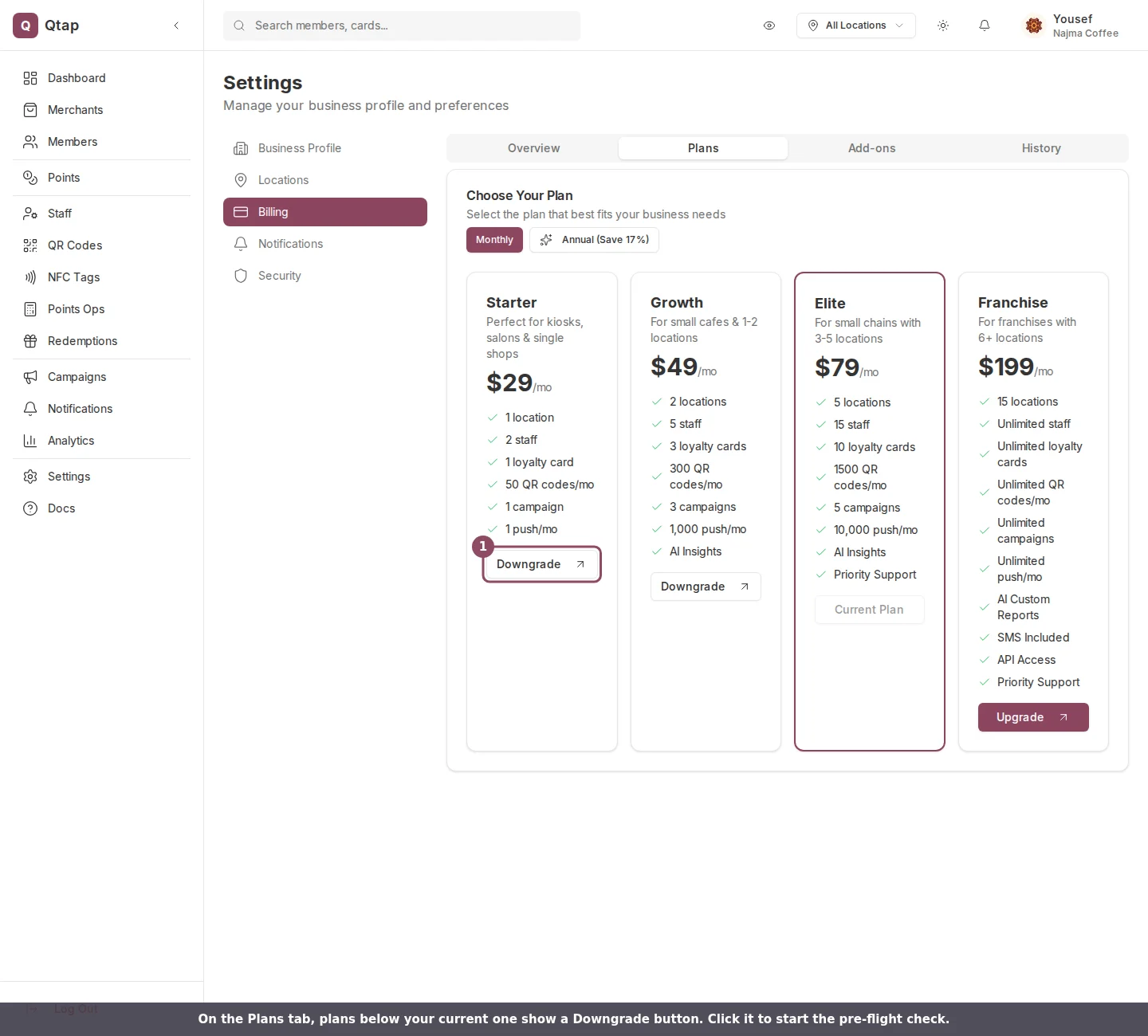 Here is what each plan allows, so you know the target before you click:
| Plan | Locations | Staff | Loyalty cards | Campaigns |
| --------- | --------- | --------- | ------------- | --------- |
| Starter | 1 | 2 | 1 | 1 |
| Growth | 2 | 5 | 3 | 3 |
| Elite | 5 | 15 | 10 | 5 |
| Franchise | 15 | Unlimited | Unlimited | Unlimited |
## If your usage is too high
If any of those four counts is over the lower plan's limit, Qtap blocks the downgrade and shows a **Cannot downgrade yet** box. It lists each resource that's over, how many you have, how many the new plan allows, and how many to reduce.
Here is what each plan allows, so you know the target before you click:
| Plan | Locations | Staff | Loyalty cards | Campaigns |
| --------- | --------- | --------- | ------------- | --------- |
| Starter | 1 | 2 | 1 | 1 |
| Growth | 2 | 5 | 3 | 3 |
| Elite | 5 | 15 | 10 | 5 |
| Franchise | 15 | Unlimited | Unlimited | Unlimited |
## If your usage is too high
If any of those four counts is over the lower plan's limit, Qtap blocks the downgrade and shows a **Cannot downgrade yet** box. It lists each resource that's over, how many you have, how many the new plan allows, and how many to reduce.
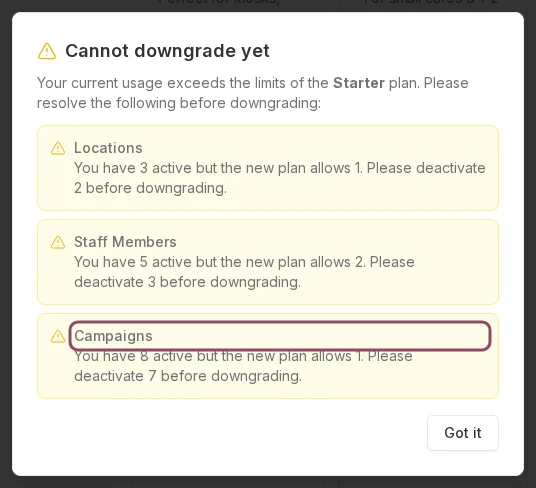 Bring each listed count down to the new limit, then click **Downgrade** again. To reduce a count, deactivate the extra locations on the Locations page, remove team members from Staff, deactivate the extra loyalty cards, and end or delete the extra campaigns. Deactivating keeps your data: past stamps, points, and member history stay intact.
## When the change takes effect
Once your usage fits, the downgrade is scheduled for the end of your current billing period. You keep your current plan and its features until that date, then the lower price and limits take over. You aren't charged to downgrade, and you can pick a different plan before the scheduled change lands if you change your mind.
If you downgrade during a free trial, confirming ends the trial and starts billing at the new plan's price right away.
Move to a higher plan and unlock more room
View your plan, usage, invoices, and payment method
Deactivate the extra locations a lower plan can't hold
Remove the team members over your new plan's limit
Bring each listed count down to the new limit, then click **Downgrade** again. To reduce a count, deactivate the extra locations on the Locations page, remove team members from Staff, deactivate the extra loyalty cards, and end or delete the extra campaigns. Deactivating keeps your data: past stamps, points, and member history stay intact.
## When the change takes effect
Once your usage fits, the downgrade is scheduled for the end of your current billing period. You keep your current plan and its features until that date, then the lower price and limits take over. You aren't charged to downgrade, and you can pick a different plan before the scheduled change lands if you change your mind.
If you downgrade during a free trial, confirming ends the trial and starts billing at the new plan's price right away.
Move to a higher plan and unlock more room
View your plan, usage, invoices, and payment method
Deactivate the extra locations a lower plan can't hold
Remove the team members over your new plan's limit