> ## Documentation Index
> Fetch the complete documentation index at: https://docs.qtap.qa/llms.txt
> Use this file to discover all available pages before exploring further.
# Understanding your usage meters
> Read the meters on Settings > Billing to see how much of each plan limit you have used and what to do when one fills up.
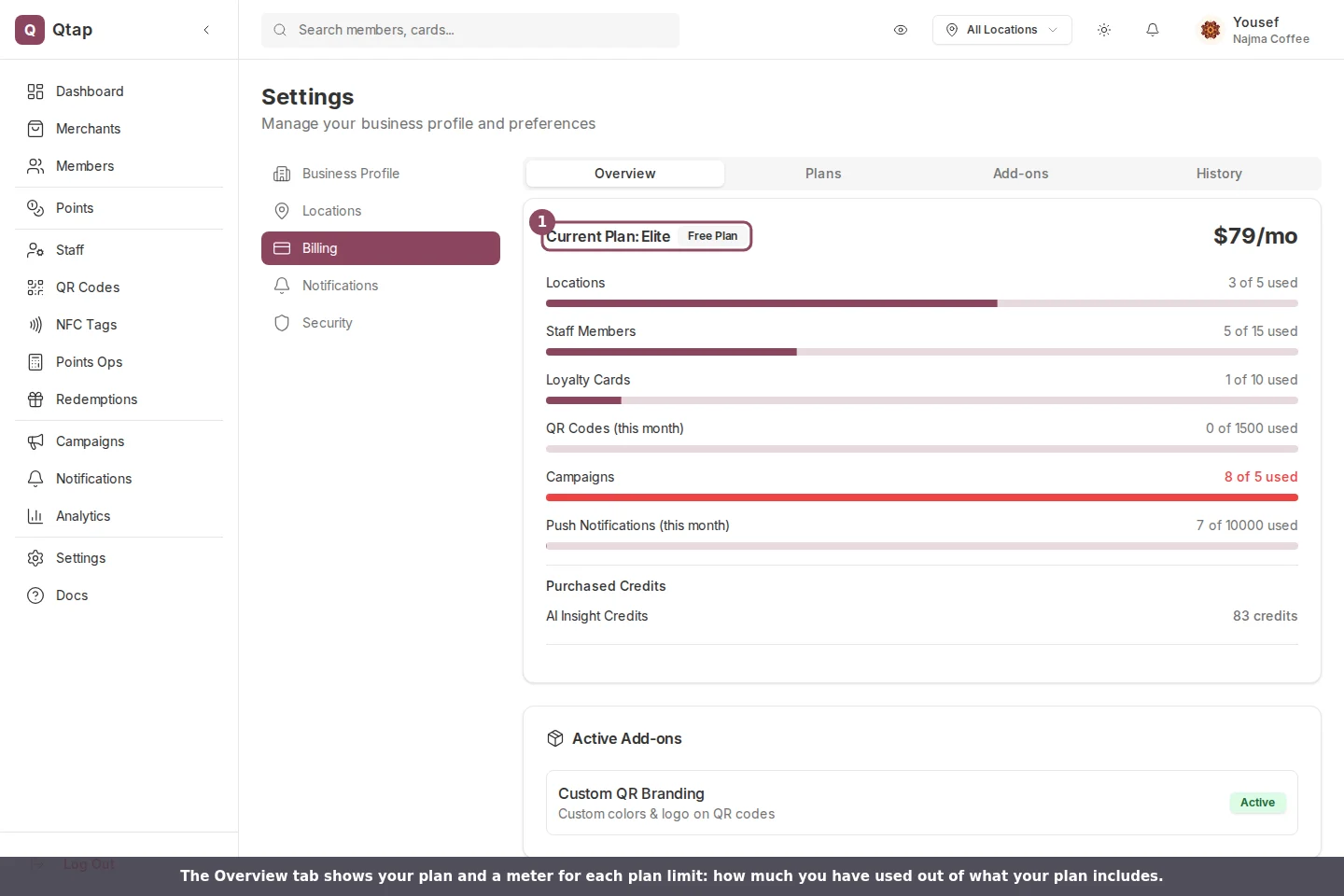
Your plan comes with a set number of locations, staff seats, loyalty cards, QR codes, campaigns, and push notifications. The Billing page shows a meter for each one, so you can see how much you have used and how much is left. Open **Settings > Billing** and stay on the **Overview** tab.
 ## What each meter counts
Every meter reads **X of Y used**, where Y is your plan's limit. Each one counts something different:
* **Locations:** your active locations. A location you have deactivated does not count.
* **Staff Members:** your active staff accounts. Anyone you have removed does not count.
* **Loyalty Cards:** your active stamp cards and points programs added together. A salon with one stamp card and one points program uses two.
* **QR Codes (this month):** the QR codes you have generated since the first of the current month.
* **Campaigns:** every campaign in your account.
* **Push Notifications (this month):** the pushes you have sent since the first of the current month.
Two of these reset. The **QR Codes** and **Push Notifications** meters start again from zero on the first of each month, so a full QR meter clears itself when the next month begins. The other four are running totals that change only when you add or remove something.
## What each meter counts
Every meter reads **X of Y used**, where Y is your plan's limit. Each one counts something different:
* **Locations:** your active locations. A location you have deactivated does not count.
* **Staff Members:** your active staff accounts. Anyone you have removed does not count.
* **Loyalty Cards:** your active stamp cards and points programs added together. A salon with one stamp card and one points program uses two.
* **QR Codes (this month):** the QR codes you have generated since the first of the current month.
* **Campaigns:** every campaign in your account.
* **Push Notifications (this month):** the pushes you have sent since the first of the current month.
Two of these reset. The **QR Codes** and **Push Notifications** meters start again from zero on the first of each month, so a full QR meter clears itself when the next month begins. The other four are running totals that change only when you add or remove something.
 ## When a meter turns red
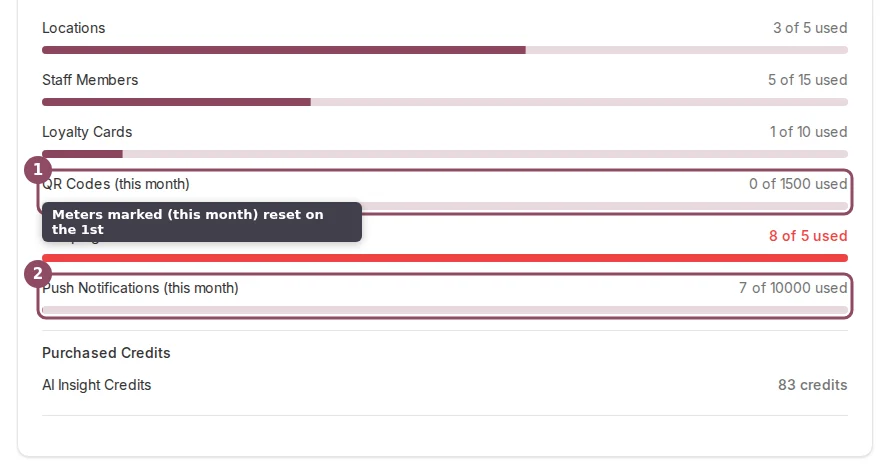
A meter fills as you get closer to the limit. Once you reach it, the count and the bar turn red so you can spot it at a glance. The number stays a plain fraction the whole time, so the figure you read is always the real one.
## When a meter turns red
A meter fills as you get closer to the limit. Once you reach it, the count and the bar turn red so you can spot it at a glance. The number stays a plain fraction the whole time, so the figure you read is always the real one.
 The Campaigns meter can read over its limit, like 8 of 5, when you have more campaigns saved than your current plan allows. You can still run the campaigns you already have, but you cannot start a new one until you are back under the limit. The same rule applies across the board: while a meter sits at its limit, you cannot add another location, invite more staff, or create another campaign until you free up room or raise the limit.
## What to do when one fills up
You have three ways to make room:
* **Upgrade your plan** to raise the limit on everything at once.
* **Buy a single add-on** from the Add-ons tab if you only need more of one thing, like an extra location or an extra loyalty card.
* **Wait or remove items.** The two monthly meters clear on the first. For the running totals, deactivate a location, remove a staff member, or delete a campaign you no longer run.
Buying an add-on raises that meter's limit right away, so an extra-location add-on moves your Locations meter from 5 of 5 to 5 of 6.
On a plan with unlimited limits, a meter shows the count next to an infinity sign and no bar, since there is nothing to fill up.
The meters live under Settings, so the account owner always sees them, and a manager or staff member sees them only with Settings access.
What each plan includes and how the limits differ.
Move up a plan when a meter keeps filling up.
The Campaigns meter can read over its limit, like 8 of 5, when you have more campaigns saved than your current plan allows. You can still run the campaigns you already have, but you cannot start a new one until you are back under the limit. The same rule applies across the board: while a meter sits at its limit, you cannot add another location, invite more staff, or create another campaign until you free up room or raise the limit.
## What to do when one fills up
You have three ways to make room:
* **Upgrade your plan** to raise the limit on everything at once.
* **Buy a single add-on** from the Add-ons tab if you only need more of one thing, like an extra location or an extra loyalty card.
* **Wait or remove items.** The two monthly meters clear on the first. For the running totals, deactivate a location, remove a staff member, or delete a campaign you no longer run.
Buying an add-on raises that meter's limit right away, so an extra-location add-on moves your Locations meter from 5 of 5 to 5 of 6.
On a plan with unlimited limits, a meter shows the count next to an infinity sign and no bar, since there is nothing to fill up.
The meters live under Settings, so the account owner always sees them, and a manager or staff member sees them only with Settings access.
What each plan includes and how the limits differ.
Move up a plan when a meter keeps filling up.