> ## Documentation Index
> Fetch the complete documentation index at: https://docs.qtap.qa/llms.txt
> Use this file to discover all available pages before exploring further.
# Push Notifications
> Send a one-off message to your members — a quick update, a flash offer, or anything you want them to see today.
Push notifications let you reach your members directly, outside of automated campaigns. You write the message, choose who receives it, and either send it immediately or schedule it for a specific time.
## Notifications vs campaigns
Campaigns run automatically when a trigger condition is met — a birthday this week, 60 days without a visit, a stamp milestone. Push notifications are manual. You write them when you have something specific to say, and they go out once. There are no triggers or repeating rules.
Use campaigns for evergreen, condition-based outreach. Use push notifications for time-sensitive messages like a same-day promotion, a one-time announcement, or a follow-up with a specific member.
## The Notifications page
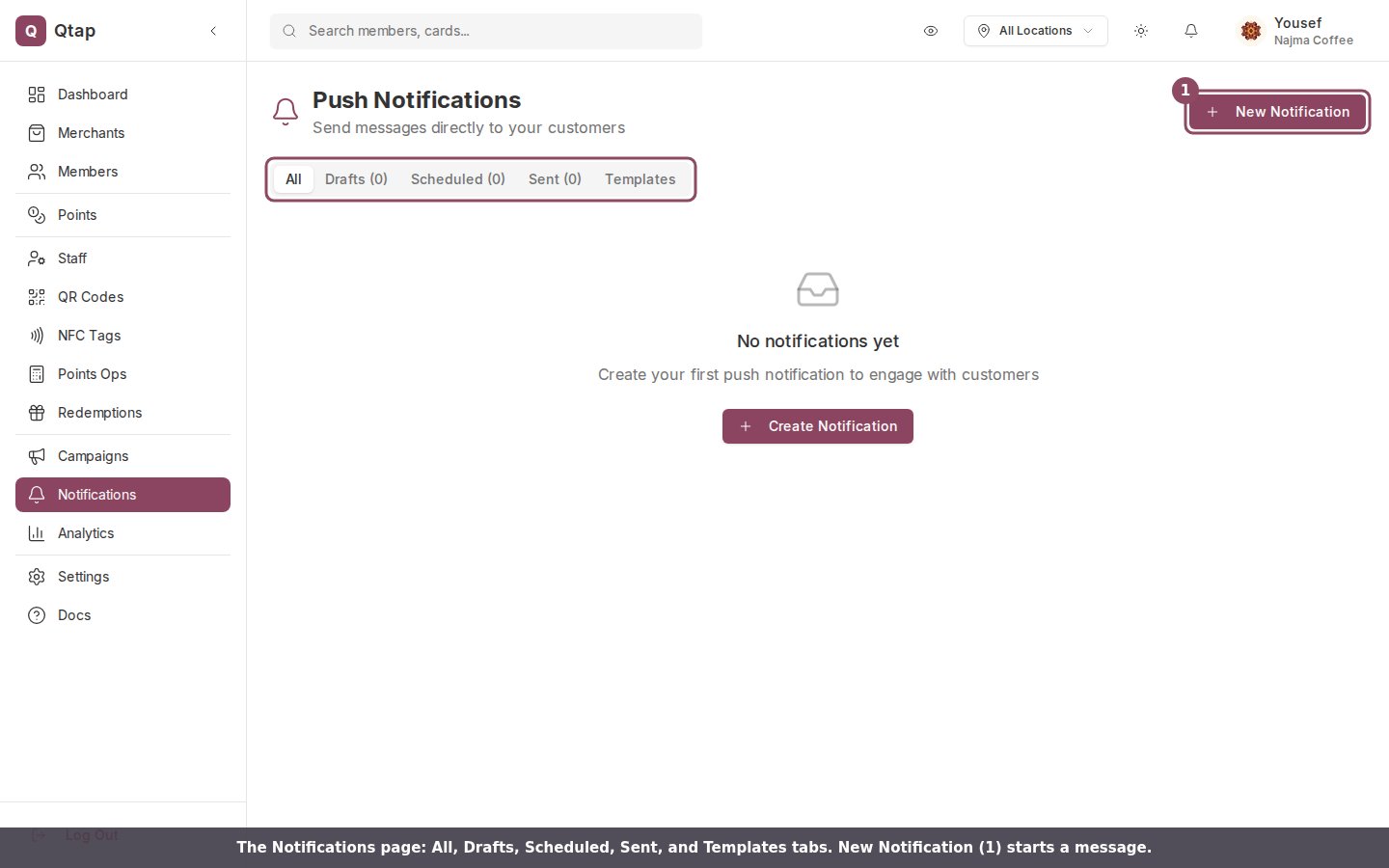
Go to **Notifications** in the left sidebar. The page has five tabs:
**All** — every notification in any state.
**Drafts** — saved but not yet sent or scheduled.
**Scheduled** — notifications queued to go out at a future time.
**Sent** — notifications that have already been delivered.
**Templates** — reusable message drafts you can load when creating a new notification.
Each card shows the notification title, its current status, and a short preview of the message. Cards in the Sent tab also show how many members received the notification, the open rate, and the click rate.
 ## Creating a notification
Click **New Notification** from the Notifications page.
### Title and message
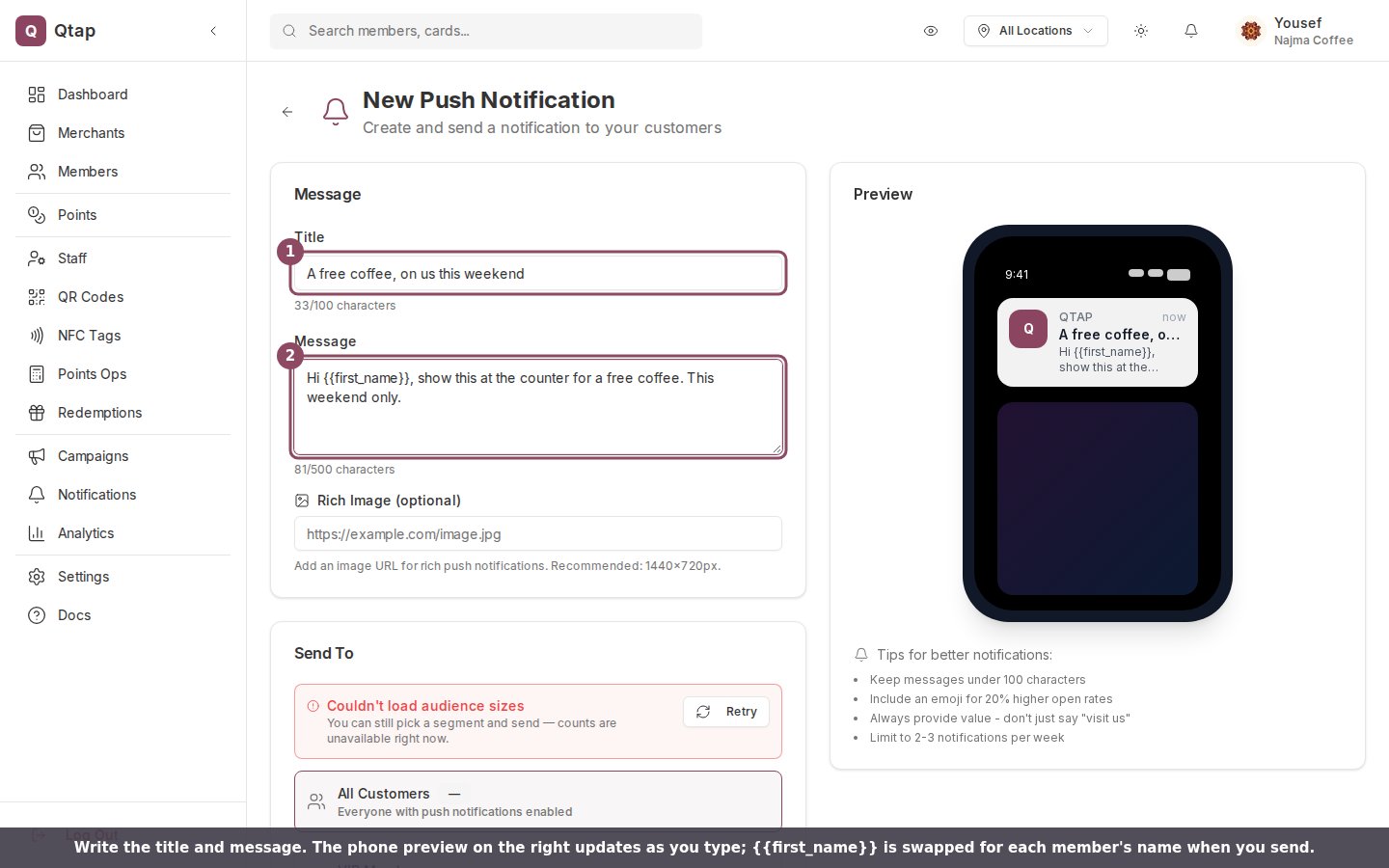
**Title** — the bold first line of the push notification as it appears on the member's phone. Maximum 100 characters.
**Message** — the body text. Maximum 500 characters. This is what the member reads after tapping to expand.
A phone preview on the right side of the form updates as you type, so you can check how the message will look before sending.
## Creating a notification
Click **New Notification** from the Notifications page.
### Title and message
**Title** — the bold first line of the push notification as it appears on the member's phone. Maximum 100 characters.
**Message** — the body text. Maximum 500 characters. This is what the member reads after tapping to expand.
A phone preview on the right side of the form updates as you type, so you can check how the message will look before sending.
 ### Adding an image
You can attach an image to the notification. It appears below the message text when the member expands the notification. Images are optional.
### Choosing an audience
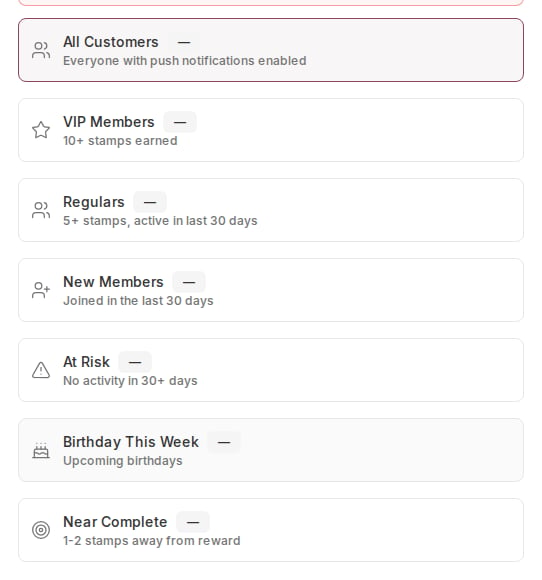
The **Audience** selector determines which members receive the notification. There are seven segments:
**All Customers** — every member who has push notifications turned on in the Qtap app.
**VIP Members** — members who have earned 10 or more stamps total.
**Regular Customers** — members with 5 or more stamps who have visited in the last 30 days.
**New Members** — members who joined in the last 30 days.
**At Risk** — members with no recorded activity in 30 or more days.
**Birthday This Week** — members whose birthday falls within the current calendar week.
**Near Reward** — members who are 1 or 2 stamps away from earning their next reward.
Each segment shows a live count of how many members currently qualify, calculated from your member list at the time you're composing the notification.
### Adding an image
You can attach an image to the notification. It appears below the message text when the member expands the notification. Images are optional.
### Choosing an audience
The **Audience** selector determines which members receive the notification. There are seven segments:
**All Customers** — every member who has push notifications turned on in the Qtap app.
**VIP Members** — members who have earned 10 or more stamps total.
**Regular Customers** — members with 5 or more stamps who have visited in the last 30 days.
**New Members** — members who joined in the last 30 days.
**At Risk** — members with no recorded activity in 30 or more days.
**Birthday This Week** — members whose birthday falls within the current calendar week.
**Near Reward** — members who are 1 or 2 stamps away from earning their next reward.
Each segment shows a live count of how many members currently qualify, calculated from your member list at the time you're composing the notification.
 ### Using variables
To address members by name or include their account stats in the message, use variables in the title or body. Qtap replaces each variable with that member's actual data when it sends.
Available variables:
* `{{first_name}}` — the member's first name
* `{{customer_name}}` — the member's full name
* `{{stamps_count}}` — how many stamps they have
* `{{points_count}}` — their current points balance
* `{{reward_name}}` — the name of a reward available to them
Example: `Hi {{first_name}}, you're just {{stamps_count}} stamps away from your next reward.`
When a notification contains a variable, Qtap sends each qualifying member a personalized copy of the message individually, rather than a single broadcast to all recipients. Delivery takes a bit longer for large audiences, but members receive a message that references their actual account.
### Using a template
If you've saved templates, click **Use Template** to load one into the form. You can edit the text after loading it. Templates save time for messages you send regularly — weekly specials, event reminders, seasonal offers.
To manage your templates, go to the **Templates** tab on the Notifications page.
## Sending options
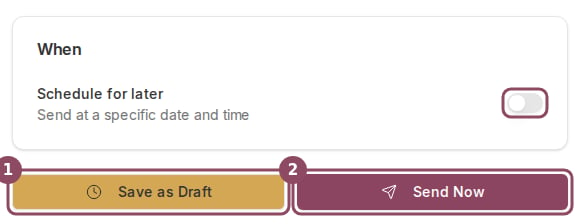
Once you've written the notification, you have three choices:
**Send Now** — delivers immediately to all members who qualify for the selected segment.
**Schedule** — opens a date and time picker. The notification goes out at the time you choose. Scheduled notifications appear in the **Scheduled** tab until they send, and you can edit or delete them there at any time before they go out.
**Save as Draft** — saves the notification without sending. You can return to it from the **Drafts** tab.
### Using variables
To address members by name or include their account stats in the message, use variables in the title or body. Qtap replaces each variable with that member's actual data when it sends.
Available variables:
* `{{first_name}}` — the member's first name
* `{{customer_name}}` — the member's full name
* `{{stamps_count}}` — how many stamps they have
* `{{points_count}}` — their current points balance
* `{{reward_name}}` — the name of a reward available to them
Example: `Hi {{first_name}}, you're just {{stamps_count}} stamps away from your next reward.`
When a notification contains a variable, Qtap sends each qualifying member a personalized copy of the message individually, rather than a single broadcast to all recipients. Delivery takes a bit longer for large audiences, but members receive a message that references their actual account.
### Using a template
If you've saved templates, click **Use Template** to load one into the form. You can edit the text after loading it. Templates save time for messages you send regularly — weekly specials, event reminders, seasonal offers.
To manage your templates, go to the **Templates** tab on the Notifications page.
## Sending options
Once you've written the notification, you have three choices:
**Send Now** — delivers immediately to all members who qualify for the selected segment.
**Schedule** — opens a date and time picker. The notification goes out at the time you choose. Scheduled notifications appear in the **Scheduled** tab until they send, and you can edit or delete them there at any time before they go out.
**Save as Draft** — saves the notification without sending. You can return to it from the **Drafts** tab.
 ## Sending to a specific member
You can send a notification directly to one member from their profile. Go to **Members**, open the member's profile, and click **Send Notification**. The notification form opens with that member pre-selected as the audience. This is useful when you want to contact a specific customer about their account — a missed stamp, a reward that's about to expire, or anything personal.
## Delivery stats
Open any notification in the **Sent** tab to see how it performed:
* **Sent** — the number of members the notification was delivered to
* **Opened** — the percentage who opened the notification
* **Clicked** — the percentage who tapped a link inside it
Stats update in near real time as members interact with the notification.
## Rate limit
Qtap sends up to 10 notifications per minute per organization. For large segments, the system queues messages and delivers them in batches automatically. You don't need to do anything — delivery continues on its own until all members have received the message.
Only members who have downloaded the Qtap app and enabled push notifications will receive messages. Members without the app, or who have turned off notifications, won't see them.
Scheduled notifications send at the time you set, based on the timezone configured in your account settings. If you change your timezone after scheduling a notification, the send time does not adjust automatically.
How automated campaigns work and what types are available.
View member profiles and send notifications directly from a member's profile.
## Sending to a specific member
You can send a notification directly to one member from their profile. Go to **Members**, open the member's profile, and click **Send Notification**. The notification form opens with that member pre-selected as the audience. This is useful when you want to contact a specific customer about their account — a missed stamp, a reward that's about to expire, or anything personal.
## Delivery stats
Open any notification in the **Sent** tab to see how it performed:
* **Sent** — the number of members the notification was delivered to
* **Opened** — the percentage who opened the notification
* **Clicked** — the percentage who tapped a link inside it
Stats update in near real time as members interact with the notification.
## Rate limit
Qtap sends up to 10 notifications per minute per organization. For large segments, the system queues messages and delivers them in batches automatically. You don't need to do anything — delivery continues on its own until all members have received the message.
Only members who have downloaded the Qtap app and enabled push notifications will receive messages. Members without the app, or who have turned off notifications, won't see them.
Scheduled notifications send at the time you set, based on the timezone configured in your account settings. If you change your timezone after scheduling a notification, the send time does not adjust automatically.
How automated campaigns work and what types are available.
View member profiles and send notifications directly from a member's profile.