> ## Documentation Index
> Fetch the complete documentation index at: https://docs.qtap.qa/llms.txt
> Use this file to discover all available pages before exploring further.
# Campaign stats
> See how a single campaign performed: who it reached, and how many opened it and redeemed the reward.
Every campaign you run keeps its own scorecard. Once a campaign is active and Qtap has started sending notifications, you can open it to see how many members it reached, and of those, how many opened the message and came back to redeem the reward. This page explains how to open that view and what each number means.
## Open a campaign's stats
Click **Campaigns** in the left sidebar. Each campaign shows as a card with its name, status, a short description, and quick figures for sent, opened, and redeemed.
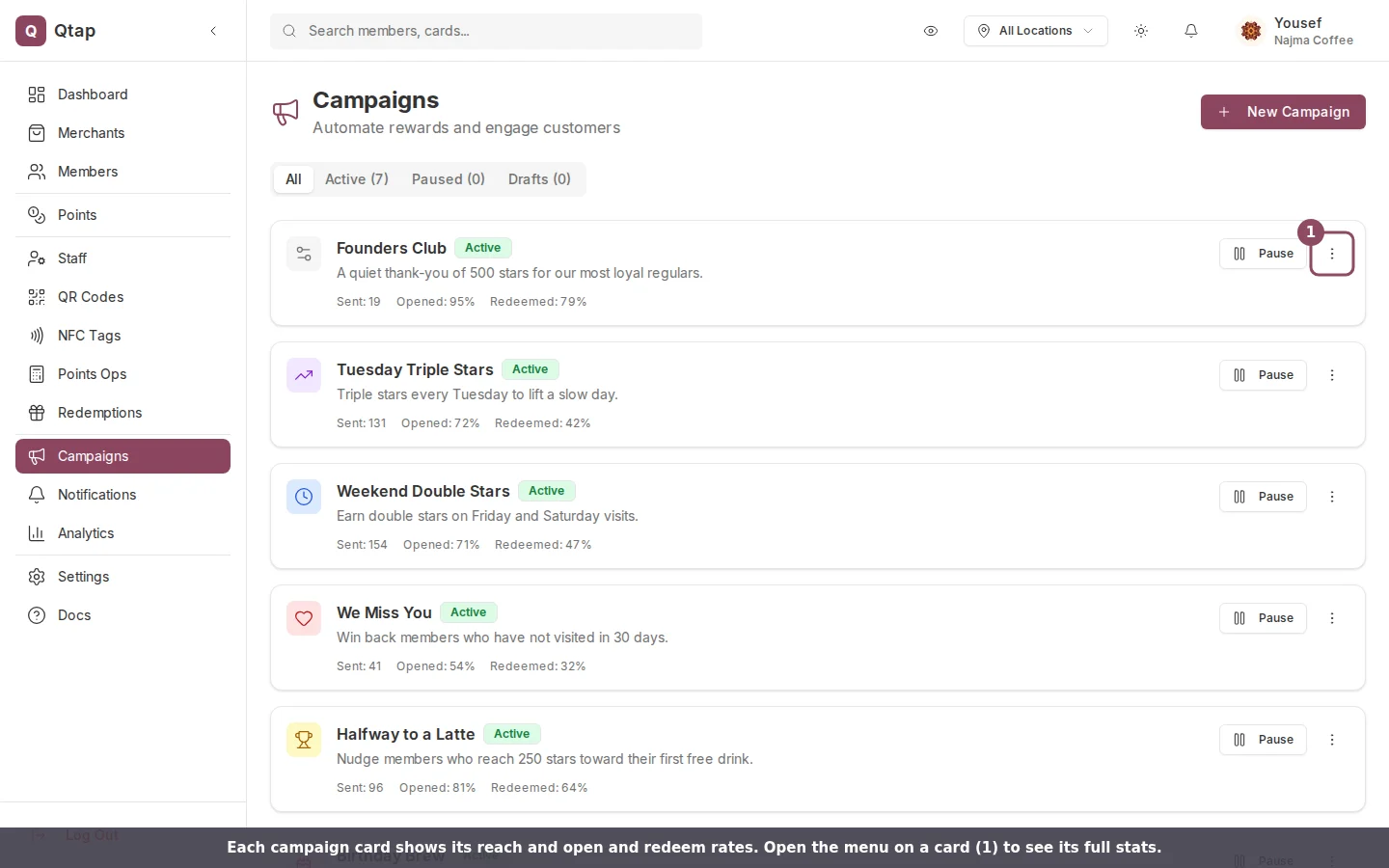 Click the menu button (the three dots) on the campaign card you want to look at. The menu has two options: View Stats and Delete.
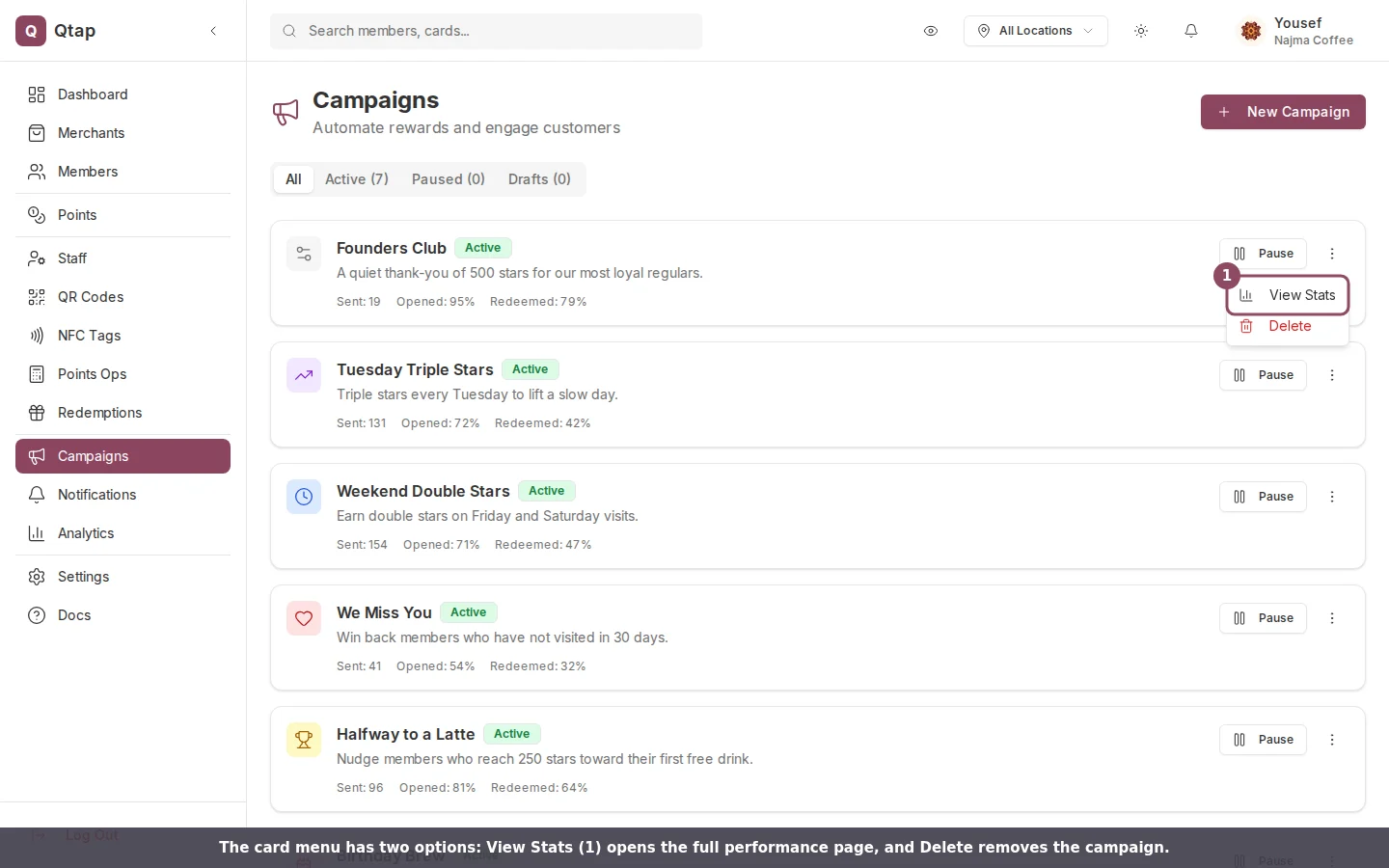 This opens the campaign's full stats page, with its headline numbers at the top and its settings below.
## The four headline numbers
At the top of the page are four cards. They cover the whole life of the campaign so far, not a date range.
This opens the campaign's full stats page, with its headline numbers at the top and its settings below.
## The four headline numbers
At the top of the page are four cards. They cover the whole life of the campaign so far, not a date range.
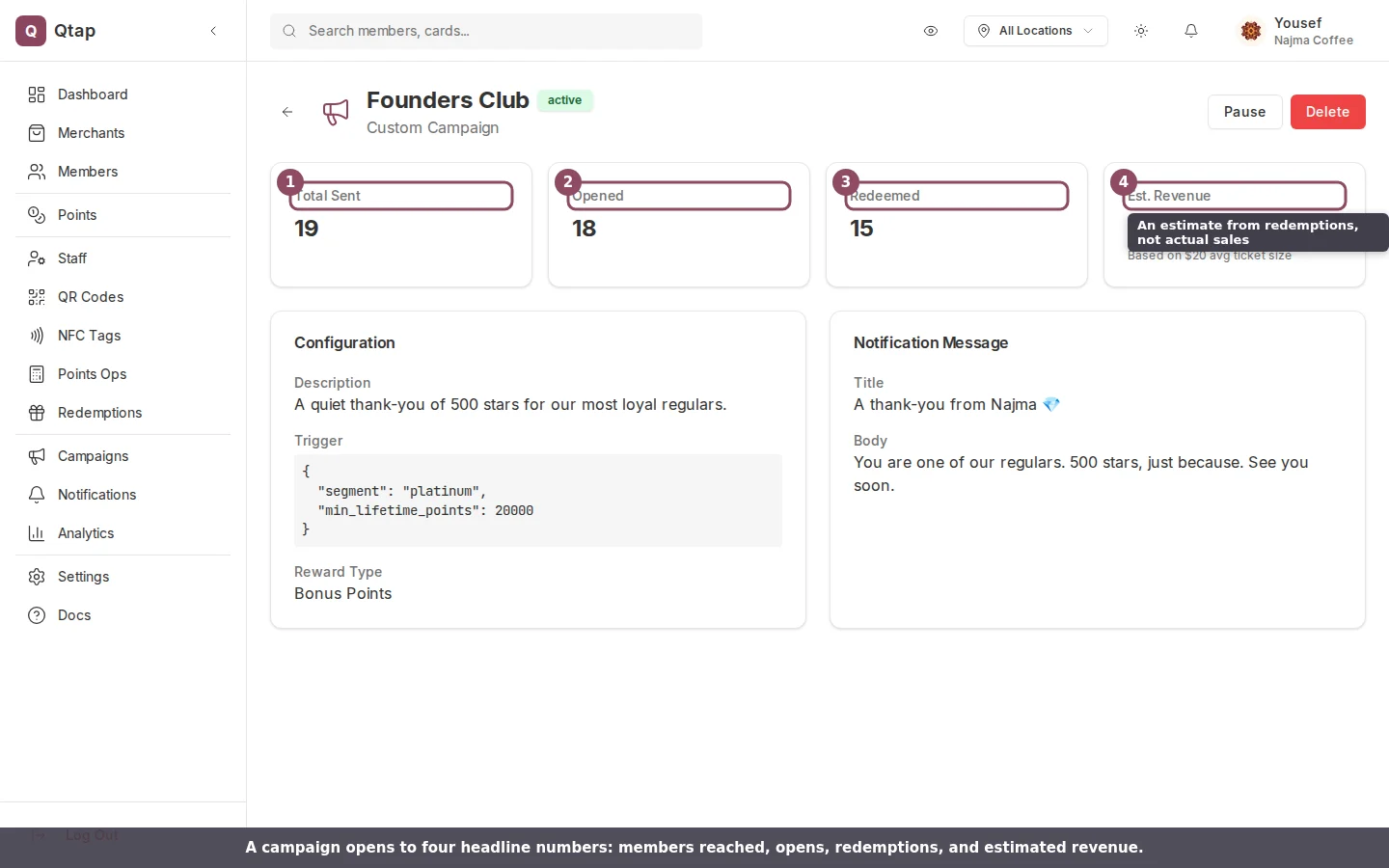 * **Total Sent** is how many members received the notification.
* **Opened** is how many of them opened it.
* **Redeemed** is how many claimed the reward attached to the campaign.
* **Est. Revenue** is a rough guide, not a record of actual sales. Qtap multiplies the number of redemptions by an assumed average ticket size, shown on the card itself. Use it to compare campaigns against each other, not as an accounting figure.
Only members who have the Qtap app installed and notifications turned on can receive a campaign, so Total Sent counts reachable members, not your whole member list.
## Campaign settings and message
Below the numbers are two panels that show how the campaign is set up. Both are read-only here. To change anything, you edit the campaign from the Campaigns page.
* **Total Sent** is how many members received the notification.
* **Opened** is how many of them opened it.
* **Redeemed** is how many claimed the reward attached to the campaign.
* **Est. Revenue** is a rough guide, not a record of actual sales. Qtap multiplies the number of redemptions by an assumed average ticket size, shown on the card itself. Use it to compare campaigns against each other, not as an accounting figure.
Only members who have the Qtap app installed and notifications turned on can receive a campaign, so Total Sent counts reachable members, not your whole member list.
## Campaign settings and message
Below the numbers are two panels that show how the campaign is set up. Both are read-only here. To change anything, you edit the campaign from the Campaigns page.
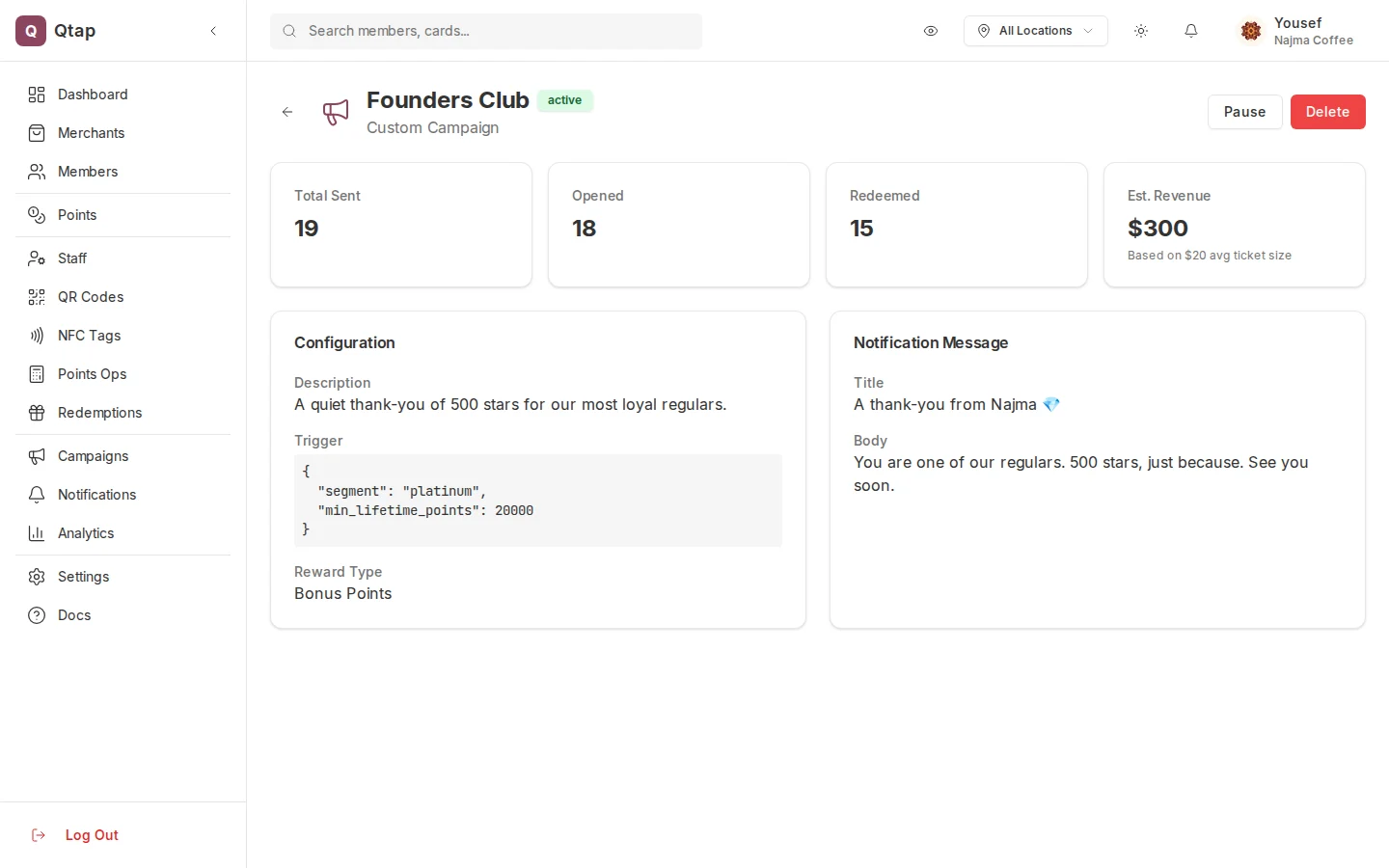 The **Configuration** panel lists the campaign's description, the trigger that starts it, and the type of reward it gives. The **Notification Message** panel shows the exact title and body members see on their phone. Checking the message here is a quick way to confirm the wording before you decide whether to keep a campaign running.
## Pause or delete from the stats page
The buttons at the top right act on the campaign itself. **Pause** stops an active campaign from sending any more notifications while keeping all its settings, and it turns into **Resume** so you can start it again later. **Delete** removes the campaign for good.
Deleting a campaign is permanent. Its stats go with it, and you can't bring them back. If you only want to stop the sends for now, pause it instead.
The numbers refresh as members open and redeem over time, so it's worth checking back on a campaign a few days after it starts rather than judging it on the first hour.
How automated campaigns work and the types you can run.
Send a one-off message and track its opens and clicks.
The **Configuration** panel lists the campaign's description, the trigger that starts it, and the type of reward it gives. The **Notification Message** panel shows the exact title and body members see on their phone. Checking the message here is a quick way to confirm the wording before you decide whether to keep a campaign running.
## Pause or delete from the stats page
The buttons at the top right act on the campaign itself. **Pause** stops an active campaign from sending any more notifications while keeping all its settings, and it turns into **Resume** so you can start it again later. **Delete** removes the campaign for good.
Deleting a campaign is permanent. Its stats go with it, and you can't bring them back. If you only want to stop the sends for now, pause it instead.
The numbers refresh as members open and redeem over time, so it's worth checking back on a campaign a few days after it starts rather than judging it on the first hour.
How automated campaigns work and the types you can run.
Send a one-off message and track its opens and clicks.