> ## Documentation Index
> Fetch the complete documentation index at: https://docs.qtap.qa/llms.txt
> Use this file to discover all available pages before exploring further.
# Welcome Campaigns
> Greet every new member with an automatic message and an optional welcome gift.
A welcome campaign sends a push notification to members a set time after they join your loyalty program. You can attach a reward so a new member's first impression comes with a small gift.
## How it works
Qtap checks for new members every 15 minutes. Once the delay you chose has passed since someone joined, they receive your welcome notification. If you attached a reward, it goes into their wallet when they open the message.
Each member is greeted once. After Qtap sends the welcome to a member, it never sends that campaign to them again, so nobody gets a second welcome.
The campaign only greets people who join while it is active. Turning it on does not message the members you already have, so it stays focused on genuinely new sign-ups.
## Setting up a welcome campaign
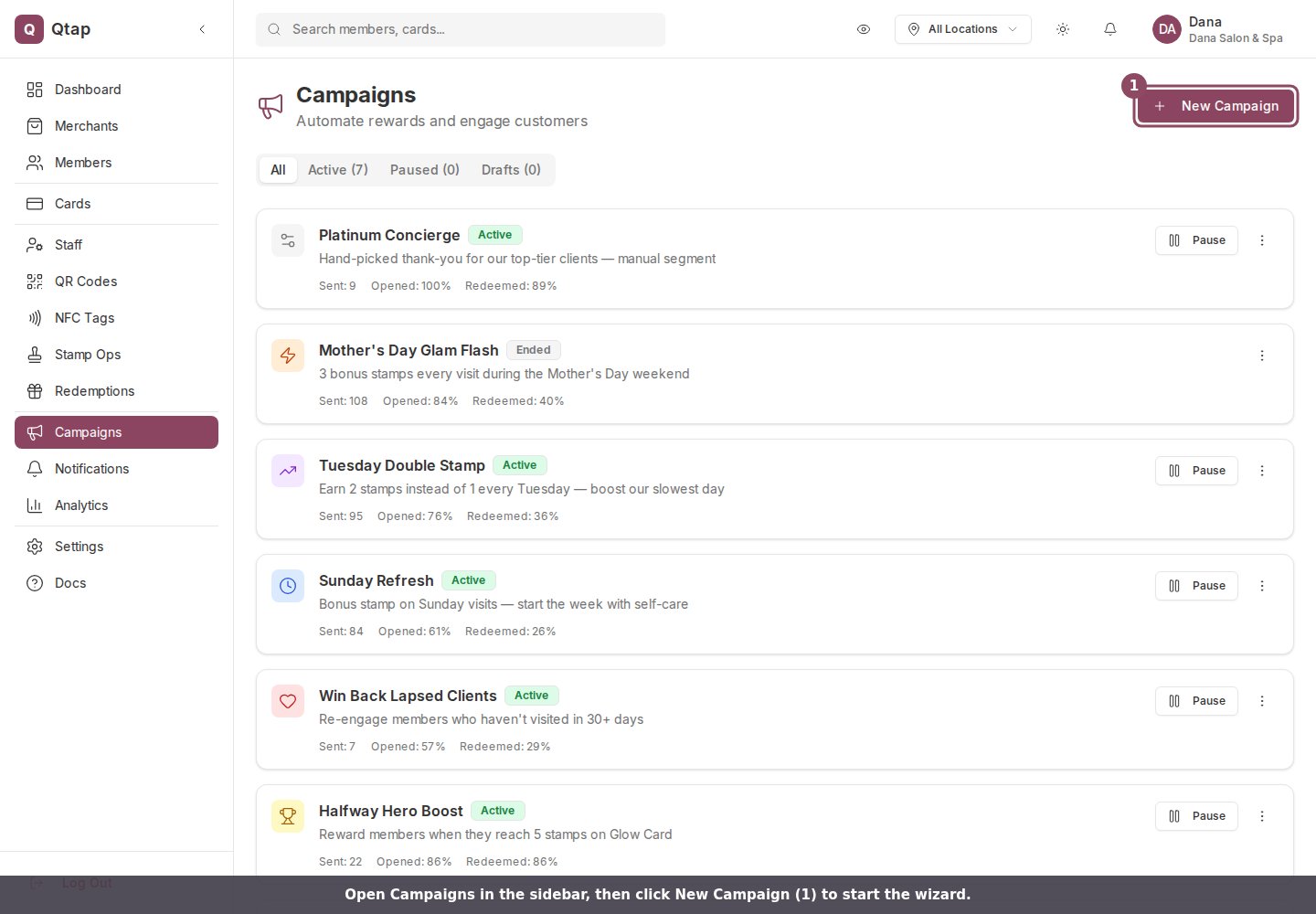
Go to **Campaigns** in the left sidebar and click **New Campaign**. The wizard has seven steps.
 ### Step 1: Type
Select **Welcome Campaign** from the campaign type list. Give it a name (e.g., "Welcome Treat") and an optional internal description. Click **Next**.
### Step 1: Type
Select **Welcome Campaign** from the campaign type list. Give it a name (e.g., "Welcome Treat") and an optional internal description. Click **Next**.
 ### Step 2: Trigger
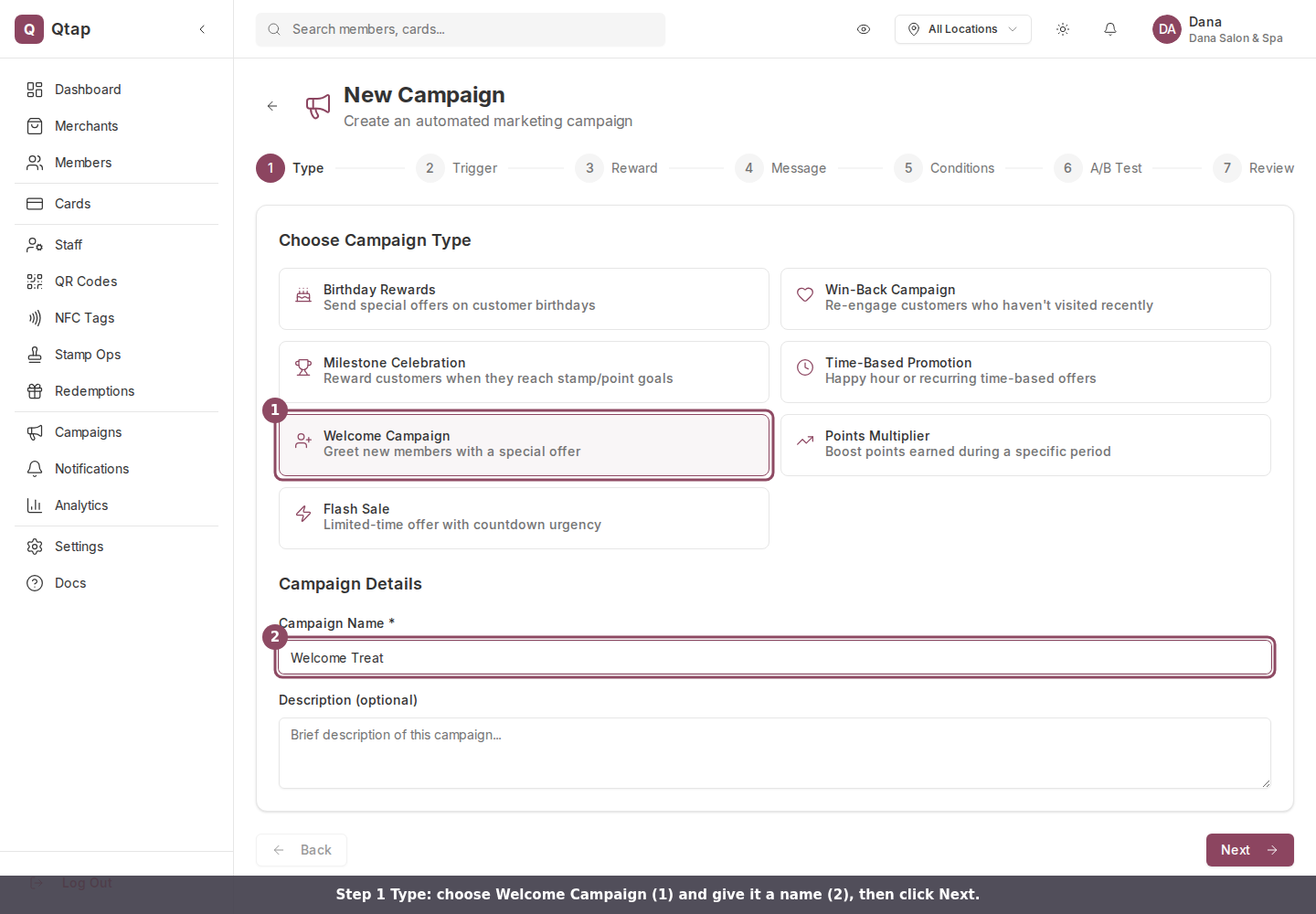
Choose how long after signup the greeting is sent. The options are **Immediately**, **1 hour**, **24 hours**, or **48 hours** after a member joins. A short delay gives a new member time to settle in before they hear from you. Click **Next**.
### Step 2: Trigger
Choose how long after signup the greeting is sent. The options are **Immediately**, **1 hour**, **24 hours**, or **48 hours** after a member joins. A short delay gives a new member time to settle in before they hear from you. Click **Next**.
 ### Step 3: Reward (optional)
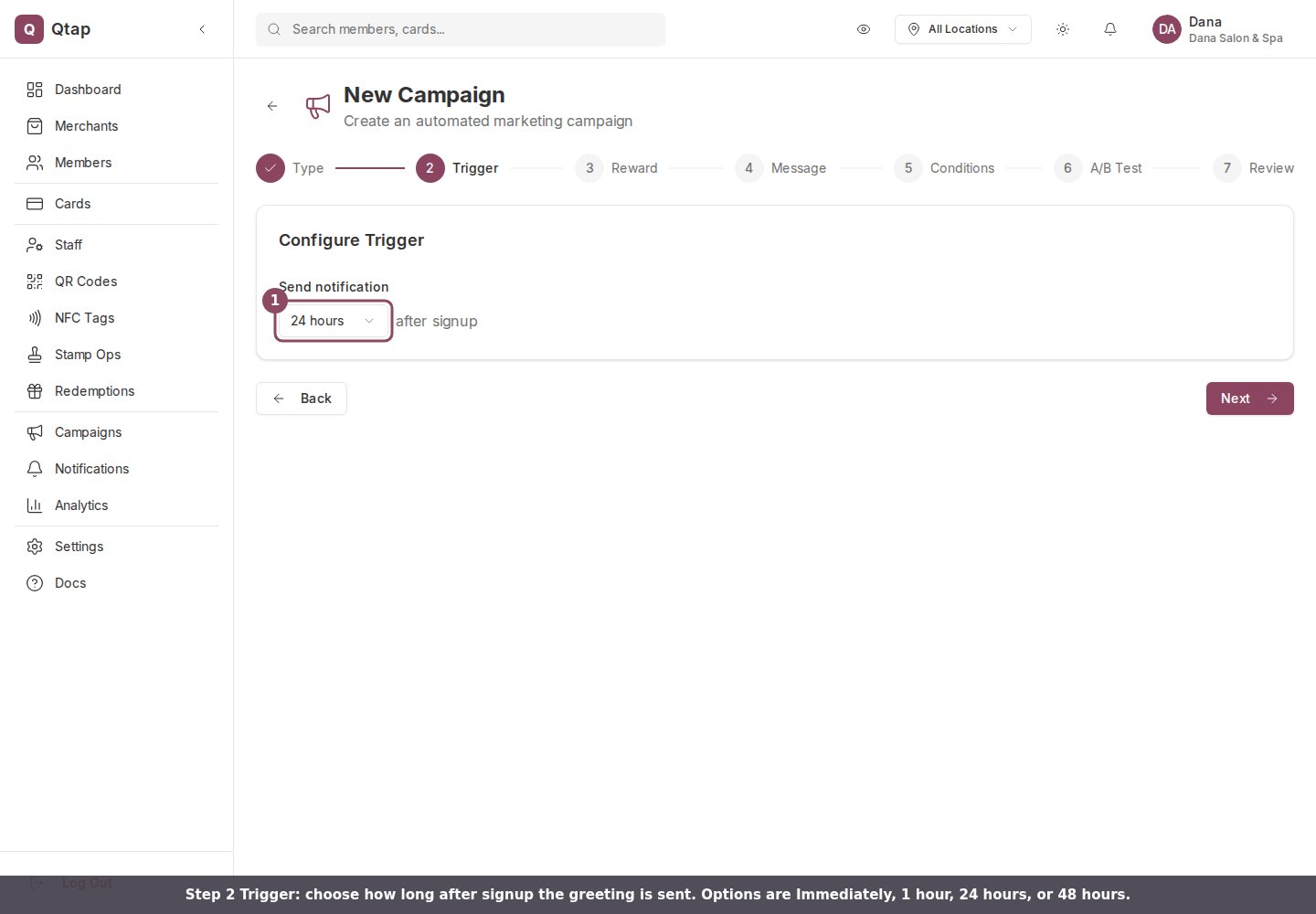
Attach a welcome gift to make the first message land. Choose from Free Item, Bonus Stamps, Bonus Points, Discount, or Special Badge, then fill in the details.
Leave this step empty to send a message without a reward.
Click **Next**.
### Step 3: Reward (optional)
Attach a welcome gift to make the first message land. Choose from Free Item, Bonus Stamps, Bonus Points, Discount, or Special Badge, then fill in the details.
Leave this step empty to send a message without a reward.
Click **Next**.
 ### Step 4: Message
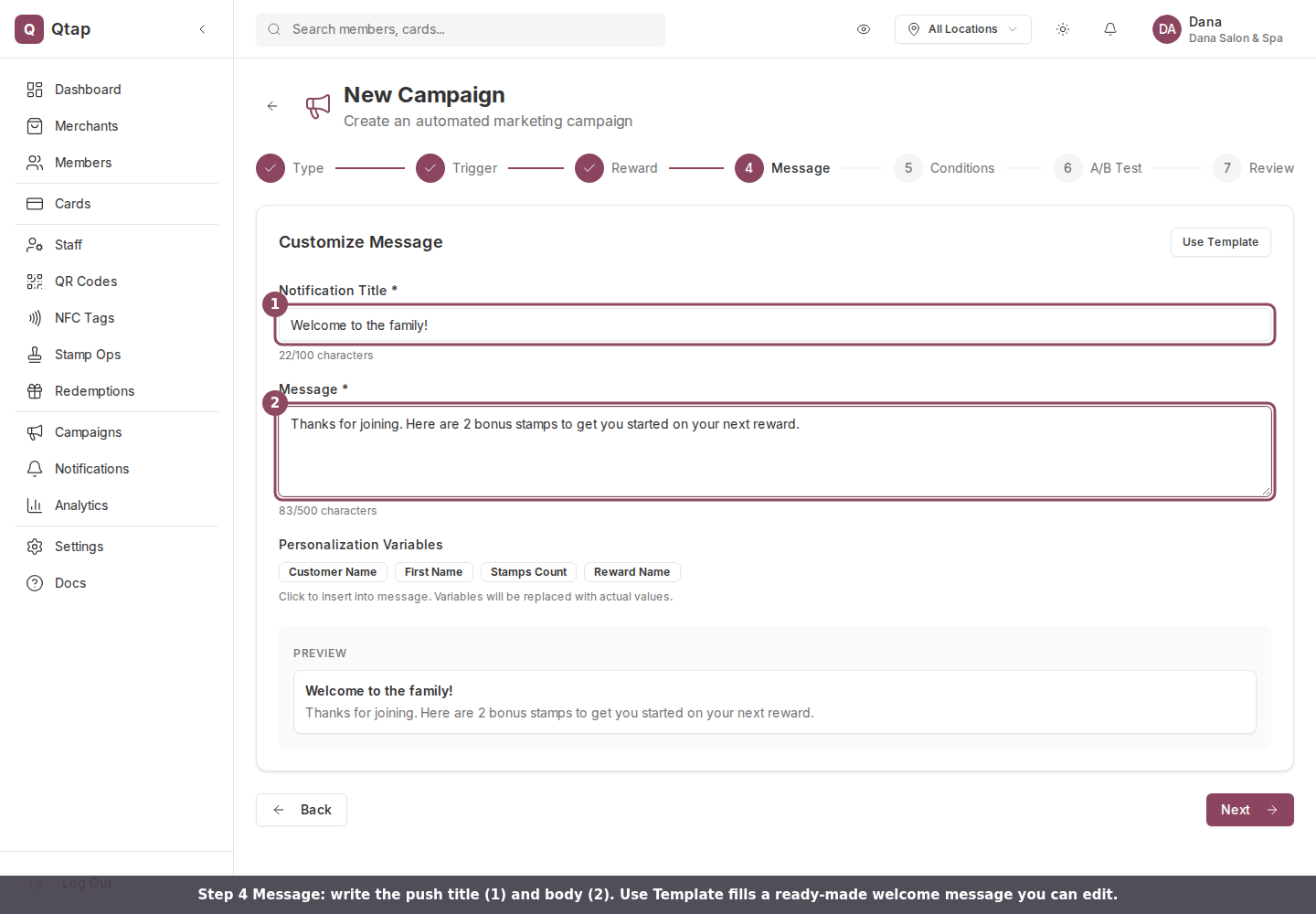
Write the push notification:
* **Title**: the headline (e.g., "Welcome to the family!")
* **Message**: the body text. Tell the new member what they get and why it's worth coming back.
Both fields are required. **Use Template** fills a ready-made welcome message you can edit, and the personalization tags such as `{customer_name}` are replaced with each member's real name when the notification is sent. Click **Next**.
### Step 4: Message
Write the push notification:
* **Title**: the headline (e.g., "Welcome to the family!")
* **Message**: the body text. Tell the new member what they get and why it's worth coming back.
Both fields are required. **Use Template** fills a ready-made welcome message you can edit, and the personalization tags such as `{customer_name}` are replaced with each member's real name when the notification is sent. Click **Next**.
 ### Step 5: Conditions (optional)
Add conditions to narrow the audience further, or leave this empty to greet every new member. Click **Next**.
### Step 6: A/B Test (optional)
Test two different messages to see which one new members respond to better. Leave this off if you don't need it. Click **Next**.
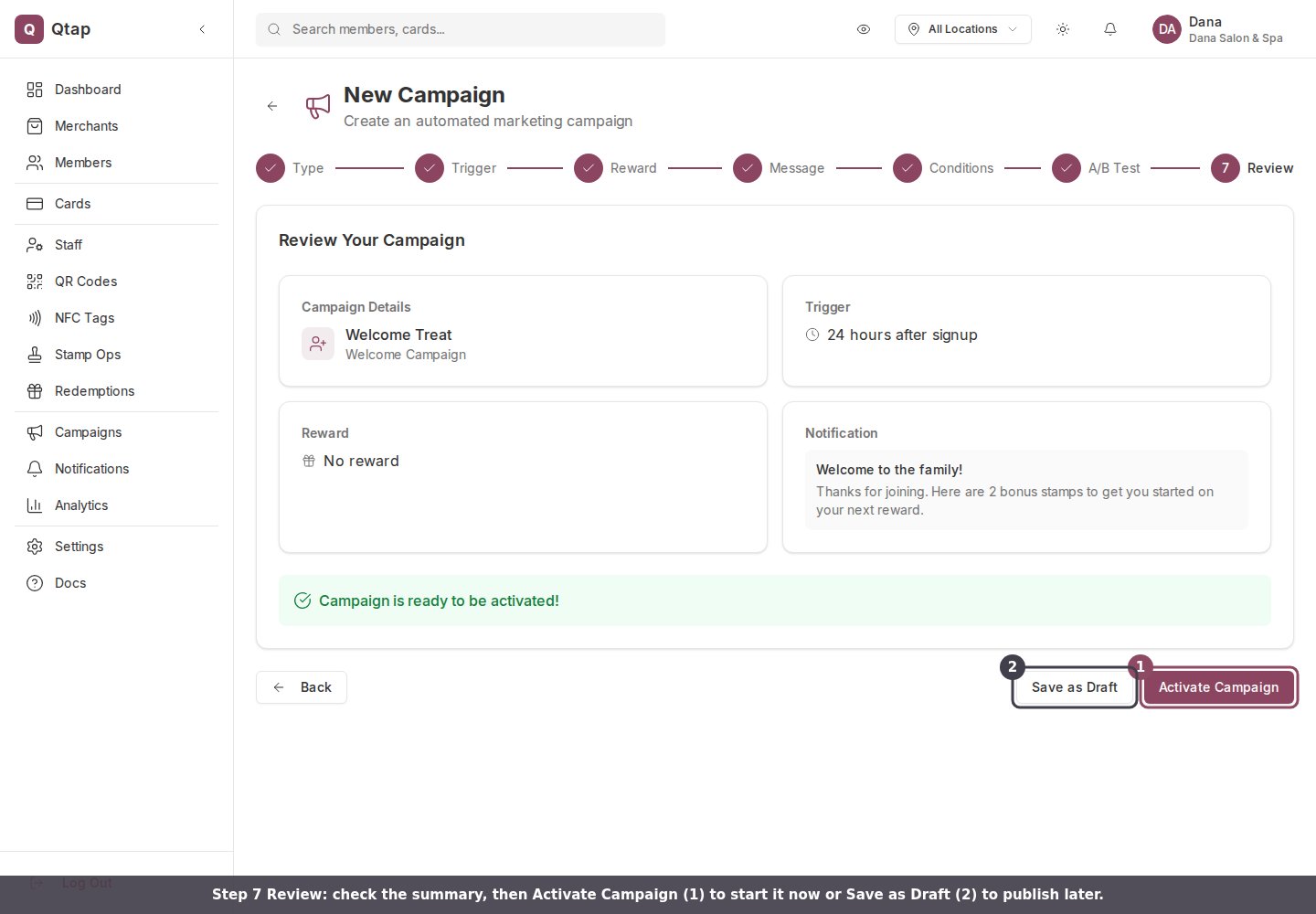
### Step 7: Review
Check your settings, then click **Activate Campaign** to start it now, or **Save as Draft** to publish later.
### Step 5: Conditions (optional)
Add conditions to narrow the audience further, or leave this empty to greet every new member. Click **Next**.
### Step 6: A/B Test (optional)
Test two different messages to see which one new members respond to better. Leave this off if you don't need it. Click **Next**.
### Step 7: Review
Check your settings, then click **Activate Campaign** to start it now, or **Save as Draft** to publish later.
 ## Managing the campaign
Once active, the campaign runs automatically in the background. You can pause it from the Campaigns page by opening the three-dot menu on the campaign card and clicking **Pause**.
A welcome notification reaches a member only if they have the Qtap app installed and have allowed push notifications. A member who joined in person but never installed the app will not receive the push, so the Sent count can be lower than the number of new members.
The welcome greeting is sent on the next 15-minute check after your delay passes, not the exact second a member joins. Pick the delay that fits your business, and expect the message to arrive shortly after that point rather than precisely on the minute.
The reward types you can attach and how reward codes are issued.
Send an automated birthday reward to members each year.
## Managing the campaign
Once active, the campaign runs automatically in the background. You can pause it from the Campaigns page by opening the three-dot menu on the campaign card and clicking **Pause**.
A welcome notification reaches a member only if they have the Qtap app installed and have allowed push notifications. A member who joined in person but never installed the app will not receive the push, so the Sent count can be lower than the number of new members.
The welcome greeting is sent on the next 15-minute check after your delay passes, not the exact second a member joins. Pick the delay that fits your business, and expect the message to arrive shortly after that point rather than precisely on the minute.
The reward types you can attach and how reward codes are issued.
Send an automated birthday reward to members each year.