> ## Documentation Index
> Fetch the complete documentation index at: https://docs.qtap.qa/llms.txt
> Use this file to discover all available pages before exploring further.
# Dashboard Overview
> What the Qtap main dashboard shows and how to use it.
The main dashboard shows your loyalty program's activity at a glance. It loads automatically when you log in.
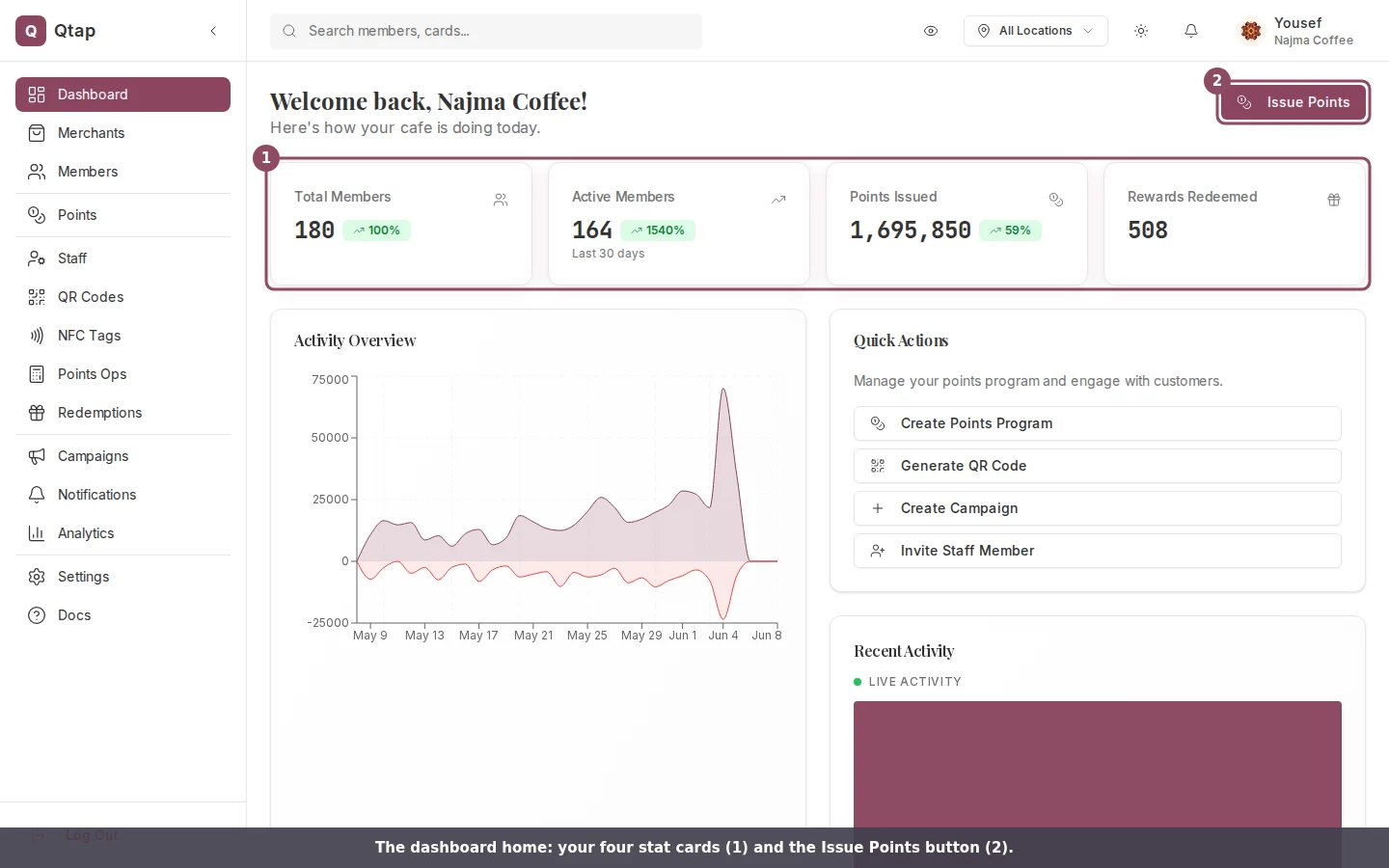 ## Stats cards
Four cards appear at the top of the page:
* **Total Members** — every customer who has joined your loyalty program, with a percentage change from the previous period
* **Active Members** — members who earned stamps or points or redeemed a reward in the last 30 days
* **Stamps Issued** or **Points Issued** — the total issued this period, depending on your loyalty type
* **Rewards Redeemed** — how many times customers have claimed their reward
The percentage change badge next to each number shows whether the figure is up or down compared to the same period before.
## Activity Overview chart
Below the stat cards, the Activity Overview chart shows stamps or points issued over the last 30 days, alongside redemptions. Hover over any point on the chart to see the exact count for that day.
## Stats cards
Four cards appear at the top of the page:
* **Total Members** — every customer who has joined your loyalty program, with a percentage change from the previous period
* **Active Members** — members who earned stamps or points or redeemed a reward in the last 30 days
* **Stamps Issued** or **Points Issued** — the total issued this period, depending on your loyalty type
* **Rewards Redeemed** — how many times customers have claimed their reward
The percentage change badge next to each number shows whether the figure is up or down compared to the same period before.
## Activity Overview chart
Below the stat cards, the Activity Overview chart shows stamps or points issued over the last 30 days, alongside redemptions. Hover over any point on the chart to see the exact count for that day.
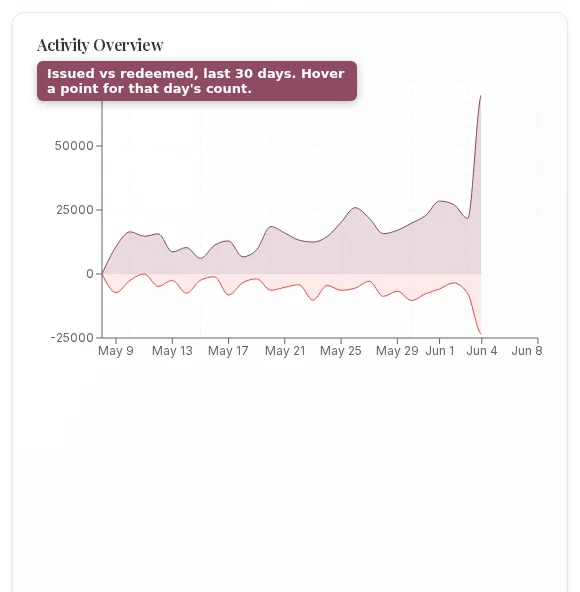 If no activity has been recorded yet, the chart shows a message and a link to Analytics.
## Quick Actions
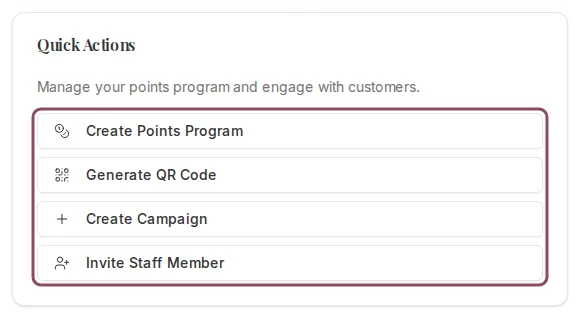
The Quick Actions card lists the most common things you'll do:
* **Create Stamp Card** (or **Create Points Program** on a points program) — goes to the card or program creation form
* **Generate QR Code** — goes to the QR Codes page
* **Create Campaign** — opens a new campaign form
* **Invite Staff Member** — opens the staff invitation dialog
If no activity has been recorded yet, the chart shows a message and a link to Analytics.
## Quick Actions
The Quick Actions card lists the most common things you'll do:
* **Create Stamp Card** (or **Create Points Program** on a points program) — goes to the card or program creation form
* **Generate QR Code** — goes to the QR Codes page
* **Create Campaign** — opens a new campaign form
* **Invite Staff Member** — opens the staff invitation dialog
 ## Recent Activity
The Recent Activity feed shows the last few transactions as they happen: stamps issued, points earned, and rewards redeemed. It updates without you needing to refresh the page.
## Issue Stamp / Issue Points button
The **Issue Stamp** or **Issue Points** button in the top right lets you manually look up a member and add a stamp or points from the dashboard. Click it, then enter the member's phone number, email, or member code in the search box that appears and press Enter or click the search icon. Qtap takes you to the Members page with that member's record pulled up so you can issue from there.
## Recent Activity
The Recent Activity feed shows the last few transactions as they happen: stamps issued, points earned, and rewards redeemed. It updates without you needing to refresh the page.
## Issue Stamp / Issue Points button
The **Issue Stamp** or **Issue Points** button in the top right lets you manually look up a member and add a stamp or points from the dashboard. Click it, then enter the member's phone number, email, or member code in the search box that appears and press Enter or click the search icon. Qtap takes you to the Members page with that member's record pulled up so you can issue from there.
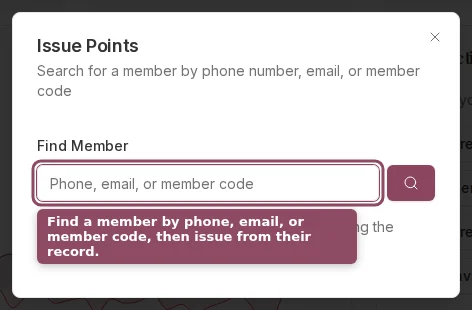 This button is most useful when a customer forgot their QR code. For regular use, staff issue stamps and points by scanning the customer's QR code in the mobile app.
## Trial Impact card
If your account is on a trial, a Trial Impact card appears between the Getting Started checklist and the stat cards. It shows three numbers from your trial period so far: customers enrolled, stamps or points issued, and rewards redeemed.
Once any of those numbers are above zero, the card also shows a note about upgrading to keep your data and features. The card only appears during a trial and disappears once you subscribe.
## Getting Started checklist
If you haven't completed the initial setup, a checklist appears between the welcome header and the Trial Impact card. It shows which setup steps are done and which remain. Completed tasks show a green checkmark. Incomplete tasks show an arrow you can click to go straight to that section.
The checklist disappears once all steps are complete, or you can dismiss it manually with the **Skip** button.
On trial accounts, each checklist task shows a bonus day reward. After completing a task, click **Claim +Xd** next to it to add those days to your trial. The days are not added automatically.
Overview of how Qtap is organized and what each section does.
Create your first stamp card or points program.
This button is most useful when a customer forgot their QR code. For regular use, staff issue stamps and points by scanning the customer's QR code in the mobile app.
## Trial Impact card
If your account is on a trial, a Trial Impact card appears between the Getting Started checklist and the stat cards. It shows three numbers from your trial period so far: customers enrolled, stamps or points issued, and rewards redeemed.
Once any of those numbers are above zero, the card also shows a note about upgrading to keep your data and features. The card only appears during a trial and disappears once you subscribe.
## Getting Started checklist
If you haven't completed the initial setup, a checklist appears between the welcome header and the Trial Impact card. It shows which setup steps are done and which remain. Completed tasks show a green checkmark. Incomplete tasks show an arrow you can click to go straight to that section.
The checklist disappears once all steps are complete, or you can dismiss it manually with the **Skip** button.
On trial accounts, each checklist task shows a bonus day reward. After completing a task, click **Claim +Xd** next to it to add those days to your trial. The days are not added automatically.
Overview of how Qtap is organized and what each section does.
Create your first stamp card or points program.