> ## Documentation Index
> Fetch the complete documentation index at: https://docs.qtap.qa/llms.txt
> Use this file to discover all available pages before exploring further.
# Demo mode
> Explore the dashboard with a full set of sample data before you have members of your own.
A new Qtap account is empty, which makes it hard to tell what a busy Members list or a QR code report will look like once members start joining. Demo mode fills every page with a sample business so you can look around, and it leaves your own records alone while you do.
## Turning it on
The switch is the eye button in the top bar, to the left of the location picker. Hover it and it says **Try demo mode**.
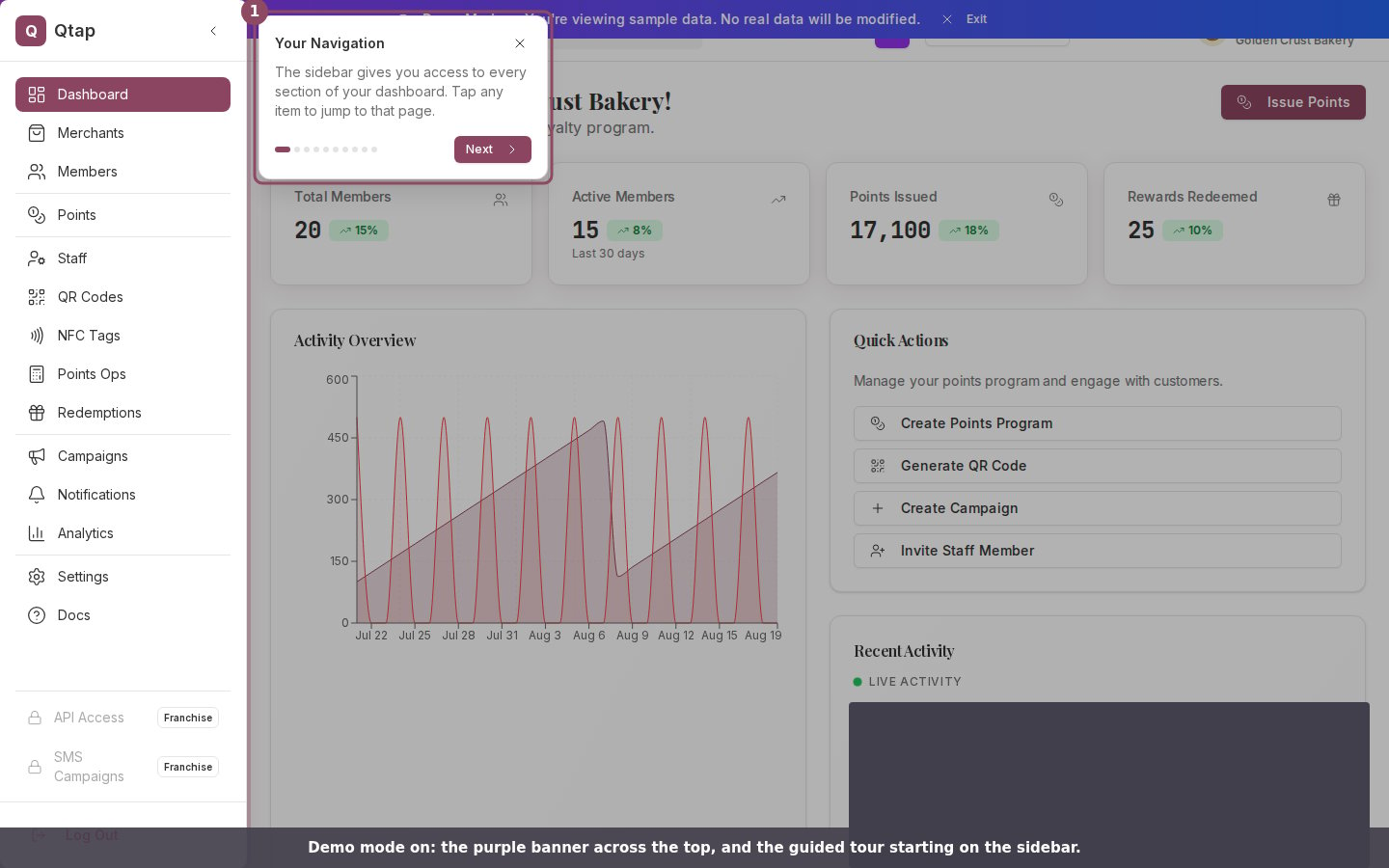
 Click it. A purple banner appears across the top of every page, saying "You're viewing sample data. No real data will be modified.", and a short tour opens on the sidebar.
 On a narrow phone screen the eye button moves into the account menu in the top right corner.
## The tour
The tour walks through ten places in the dashboard, starting with the sidebar and finishing at Settings. Each step highlights the part of the screen it is describing. **Next** moves forward, the back arrow returns to the previous step, and the dots show how far along you are. Close it with the X at any point, or click anywhere on the dimmed background.
On a narrow phone screen the eye button moves into the account menu in the top right corner.
## The tour
The tour walks through ten places in the dashboard, starting with the sidebar and finishing at Settings. Each step highlights the part of the screen it is describing. **Next** moves forward, the back arrow returns to the previous step, and the dots show how far along you are. Close it with the X at any point, or click anywhere on the dimmed background.
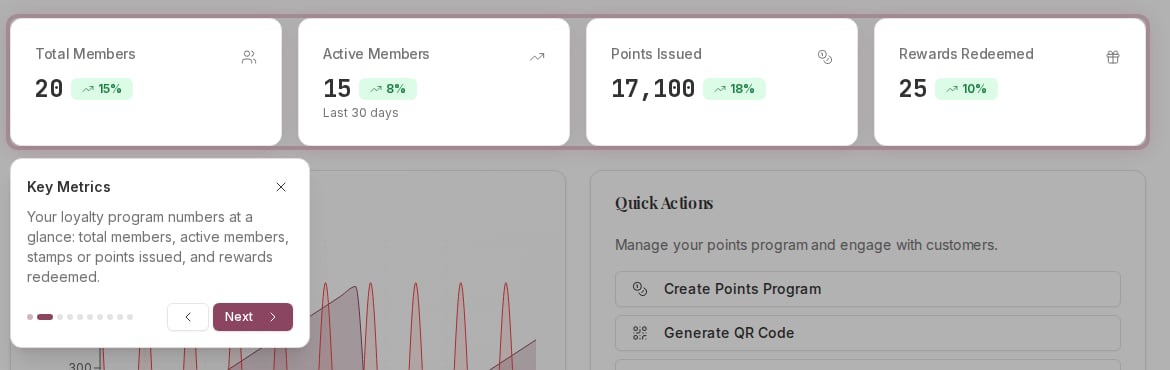 Closing the tour does not turn demo mode off. The banner stays until you exit.
## What the sample data covers
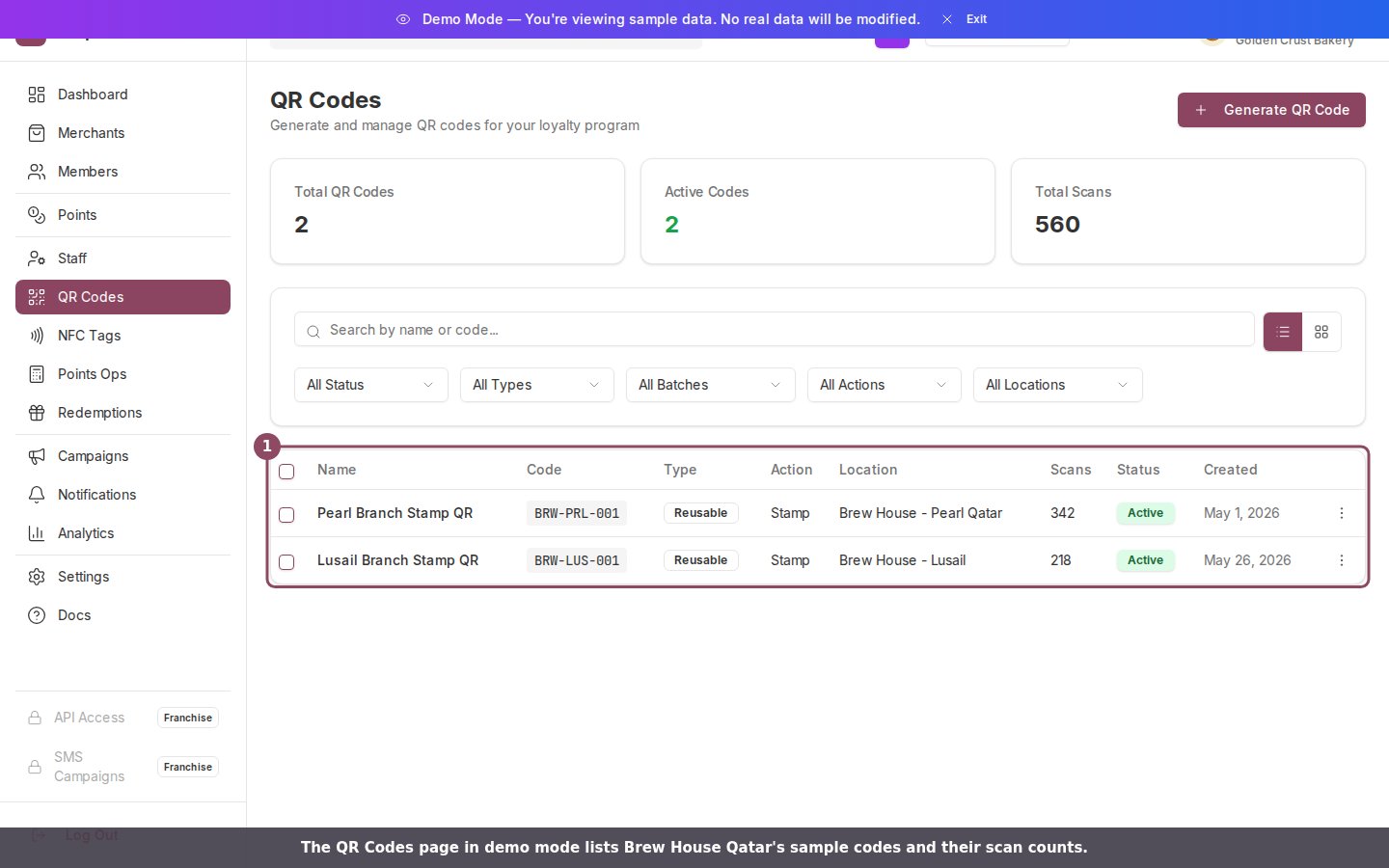
The sample business is a cafe called Brew House Qatar, with two branches and twenty members. Members, QR Codes, NFC Tags, Redemptions and the stamp and points operations pages all read from it, and so do the figures on Analytics, Campaigns, Notifications and the staff activity log.
Closing the tour does not turn demo mode off. The banner stays until you exit.
## What the sample data covers
The sample business is a cafe called Brew House Qatar, with two branches and twenty members. Members, QR Codes, NFC Tags, Redemptions and the stamp and points operations pages all read from it, and so do the figures on Analytics, Campaigns, Notifications and the staff activity log.
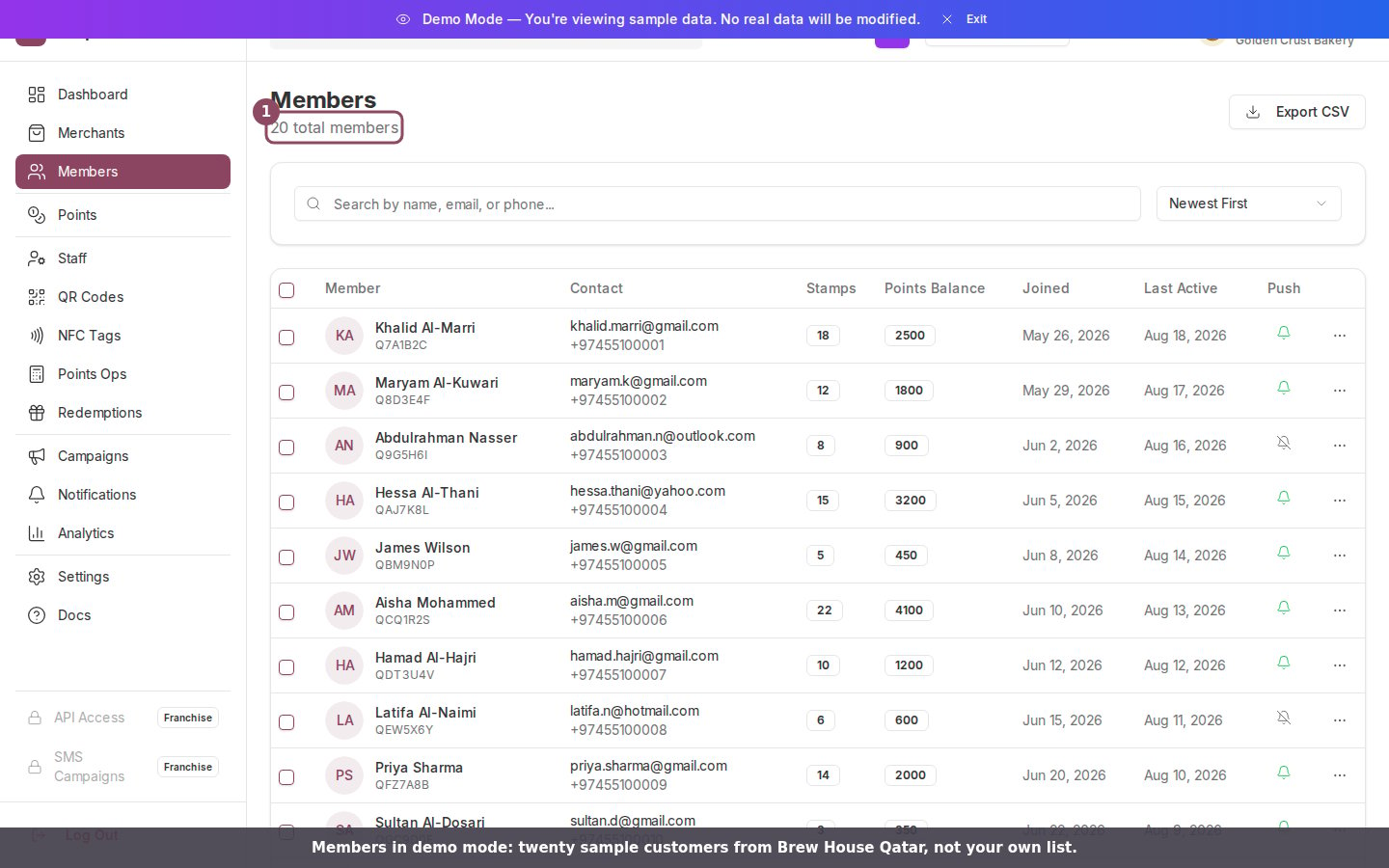 The sample members have realistic histories, so the pages behave the way they will once you have members of your own. You can search the Members list, sort it, open a profile, and see what a member looks like a few months into a loyalty program.
 ## What demo mode does not touch
On the pages the sample data covers, demo mode never reads or writes your own members, cards, codes or campaigns; those pages show a fixed sample set that ships with the dashboard. The one place that keeps reading your real records is the Recent Activity feed on the dashboard home, covered in the Warning below.
Buttons that would change something split two ways. Deleting a QR code, switching one on or off, adding a tag to a member or assigning a location answers with a short "Demo Mode" notice instead of running. Counter actions such as issuing a stamp or awarding points point at a sample member, and that member does not exist in your account, so nothing reaches a real record. If one of those buttons returns an error while demo mode is on, that is why.
Two parts of the dashboard home keep showing your own information in demo mode: the business name in the top bar, and the Recent Activity feed. If you are showing the dashboard to someone else, be aware that the feed still lists real member names.
## Turning it off
Click **Exit** on the purple banner, or click the eye button again.
## What demo mode does not touch
On the pages the sample data covers, demo mode never reads or writes your own members, cards, codes or campaigns; those pages show a fixed sample set that ships with the dashboard. The one place that keeps reading your real records is the Recent Activity feed on the dashboard home, covered in the Warning below.
Buttons that would change something split two ways. Deleting a QR code, switching one on or off, adding a tag to a member or assigning a location answers with a short "Demo Mode" notice instead of running. Counter actions such as issuing a stamp or awarding points point at a sample member, and that member does not exist in your account, so nothing reaches a real record. If one of those buttons returns an error while demo mode is on, that is why.
Two parts of the dashboard home keep showing your own information in demo mode: the business name in the top bar, and the Recent Activity feed. If you are showing the dashboard to someone else, be aware that the feed still lists real member names.
## Turning it off
Click **Exit** on the purple banner, or click the eye button again.
 Demo mode stays on until you turn it off. It survives moving between pages and reloading the browser, so if the banner is still there tomorrow, that is why. Qtap stores the setting in your browser rather than on your account, so turning it on does not change what anyone else on your team sees.
Anyone who can sign in to the dashboard can use demo mode, including staff. Nothing in it depends on your plan.
What each part of the main dashboard shows.
The setup steps that turn an empty account into a running program.
This documentation is built and hosted on [Mintlify](https://mintlify.com), a developer documentation platform.
Demo mode stays on until you turn it off. It survives moving between pages and reloading the browser, so if the banner is still there tomorrow, that is why. Qtap stores the setting in your browser rather than on your account, so turning it on does not change what anyone else on your team sees.
Anyone who can sign in to the dashboard can use demo mode, including staff. Nothing in it depends on your plan.
What each part of the main dashboard shows.
The setup steps that turn an empty account into a running program.
This documentation is built and hosted on [Mintlify](https://mintlify.com), a developer documentation platform.