> ## Documentation Index
> Fetch the complete documentation index at: https://docs.qtap.qa/llms.txt
> Use this file to discover all available pages before exploring further.
# Exporting and deleting members
> Download your member list as a spreadsheet, or remove members from your loyalty program.
The Members page does two housekeeping jobs beyond viewing and searching: it hands you a spreadsheet of your members, and it removes members you no longer want on your program. Both start from **Members** in the left sidebar. For the list, search, and sort controls, see [the Members overview](/merchants/members/overview).
## Export your members to a spreadsheet
Click **Export CSV** at the top right of the Members page. Qtap builds a `.csv` file of every member in your organization, across all pages, and downloads it to your computer as `members-` plus today's date.
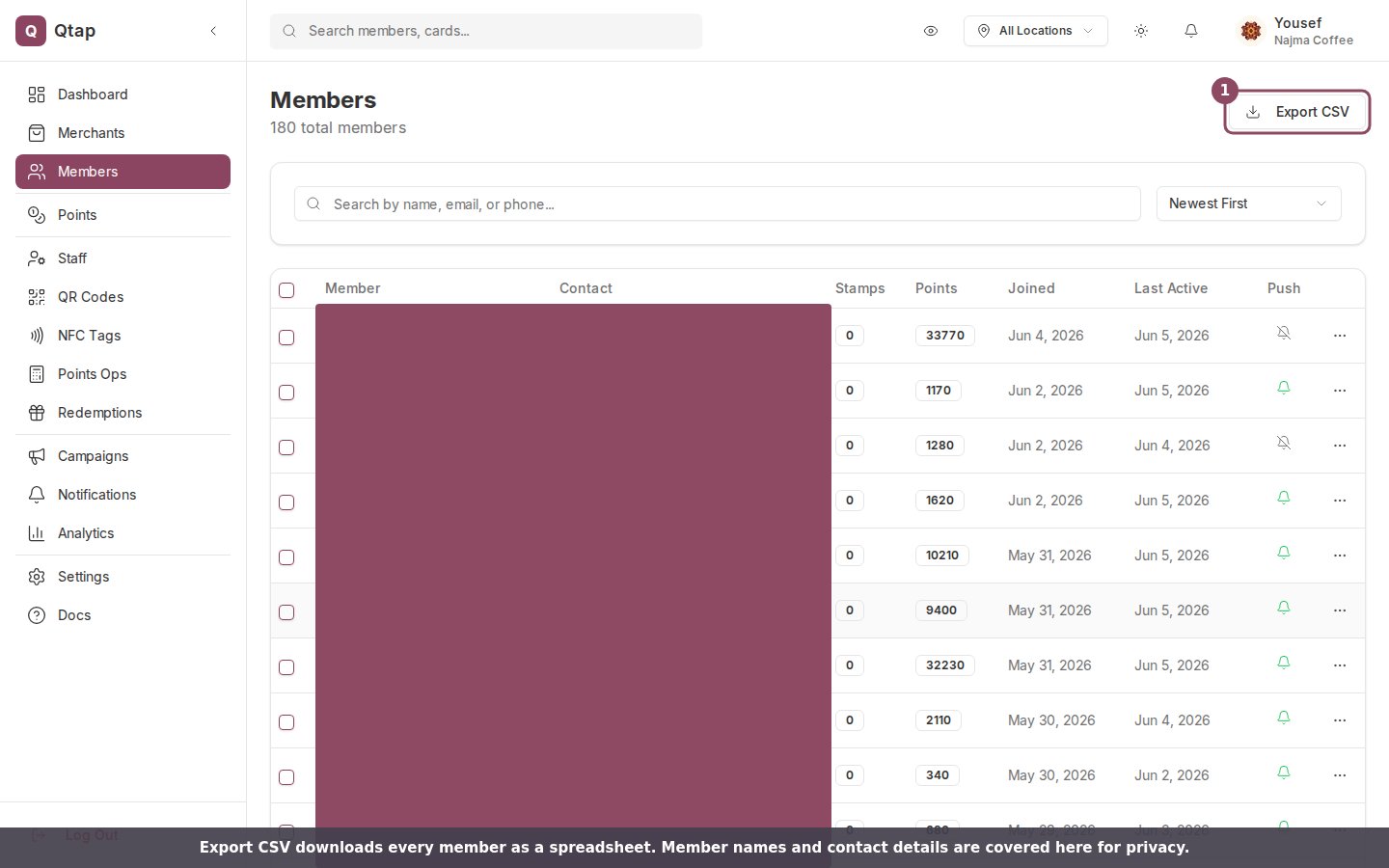 The file opens in Excel, Numbers, or Google Sheets. Each member is one row, with these columns:
| Column | What it holds |
| -------------------------- | ------------------------------------------------- |
| First Name, Last Name | The member's name, if they gave one |
| Email, Phone | Their contact details |
| Birthday | Used for birthday campaigns |
| Join Date | When they first joined your program |
| Total Stamps, Total Points | Lifetime totals earned with you |
| Visit Count, Last Visit | Counted from the member's scan and reward history |
Only owners and managers can export. A team member on the Staff role does not see the Export button.
### Export only some members
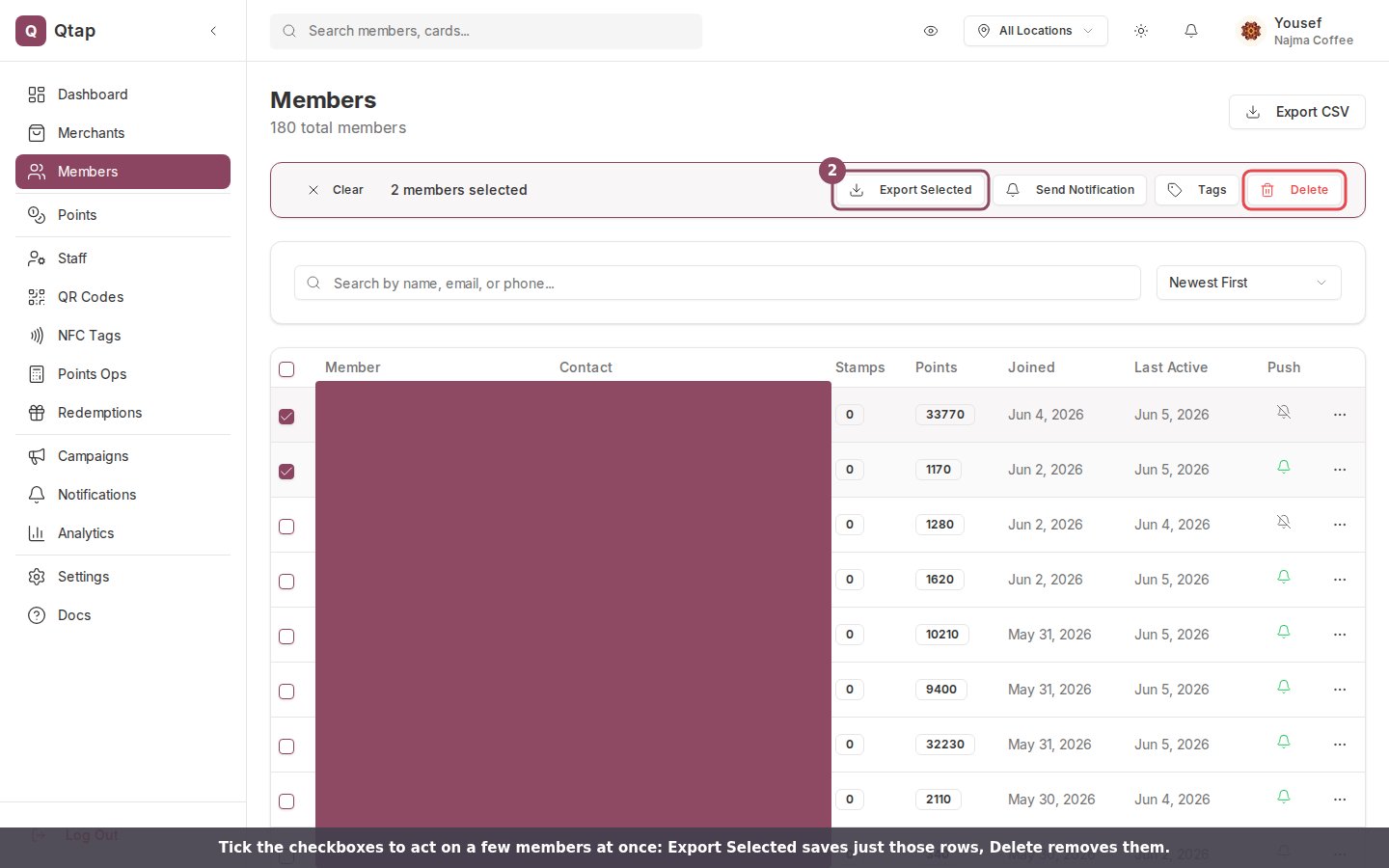
To save a smaller list, tick the checkbox on each member's row. A toolbar appears with **Export Selected**, which downloads only the rows you picked as `selected-members-` plus today's date.
The file opens in Excel, Numbers, or Google Sheets. Each member is one row, with these columns:
| Column | What it holds |
| -------------------------- | ------------------------------------------------- |
| First Name, Last Name | The member's name, if they gave one |
| Email, Phone | Their contact details |
| Birthday | Used for birthday campaigns |
| Join Date | When they first joined your program |
| Total Stamps, Total Points | Lifetime totals earned with you |
| Visit Count, Last Visit | Counted from the member's scan and reward history |
Only owners and managers can export. A team member on the Staff role does not see the Export button.
### Export only some members
To save a smaller list, tick the checkbox on each member's row. A toolbar appears with **Export Selected**, which downloads only the rows you picked as `selected-members-` plus today's date.
 ## Delete members
Deleting takes a member off your program. You can remove one member or several at once:
* **One member:** open the three-dot menu at the end of their row and choose **Delete Member**.
* **Several members:** tick their checkboxes, then click **Delete** in the toolbar that appears.
Either way, Qtap asks you to confirm first.
## Delete members
Deleting takes a member off your program. You can remove one member or several at once:
* **One member:** open the three-dot menu at the end of their row and choose **Delete Member**.
* **Several members:** tick their checkboxes, then click **Delete** in the toolbar that appears.
Either way, Qtap asks you to confirm first.
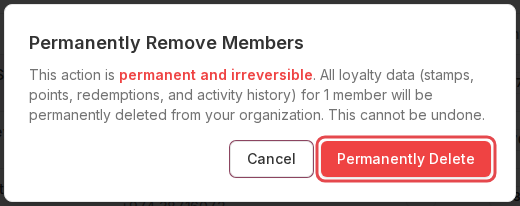 The confirmation spells out what goes: every stamp, point, redemption, and activity record that member built up with your business. Click **Permanently Delete** to finish, or **Cancel** to back out. While the delete runs, the button reads "Deleting...".
What you remove is the member's place on *your* program and their loyalty history with you. Their Qtap account stays intact, so if they scan one of your codes again later, they join again as a fresh member with no stamps or points from before.
Deleting a member cannot be undone. There is no trash or restore. If you might want the record later, export the member first. Owners can always delete; managers can too. A team member on the Staff role cannot delete members unless you give them full member access.
The confirmation spells out what goes: every stamp, point, redemption, and activity record that member built up with your business. Click **Permanently Delete** to finish, or **Cancel** to back out. While the delete runs, the button reads "Deleting...".
What you remove is the member's place on *your* program and their loyalty history with you. Their Qtap account stays intact, so if they scan one of your codes again later, they join again as a fresh member with no stamps or points from before.
Deleting a member cannot be undone. There is no trash or restore. If you might want the record later, export the member first. Owners can always delete; managers can too. A team member on the Staff role cannot delete members unless you give them full member access.