> ## Documentation Index
> Fetch the complete documentation index at: https://docs.qtap.qa/llms.txt
> Use this file to discover all available pages before exploring further.
# How members join your program
> Members are added when a customer scans your QR code or taps your NFC tag with the Qtap app. You never add them by hand.
Open the Members page and you may look for a button to add a customer. There isn't one, and that is on purpose. Customers add themselves. A person becomes a member the first time they scan one of your QR codes or tap one of your NFC tags with the Qtap app. Your list fills itself as people visit.
 ## There is no Add Member button
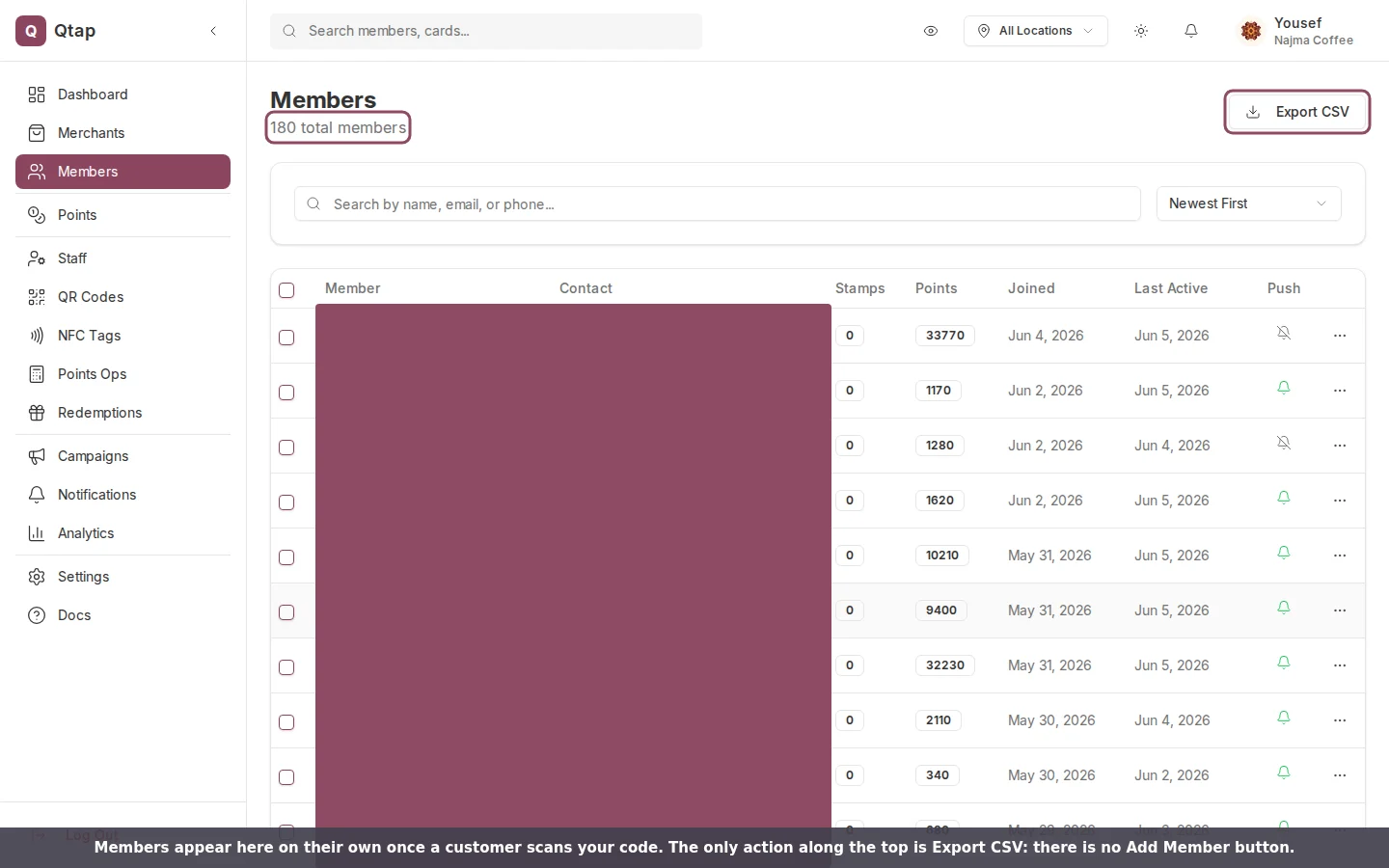
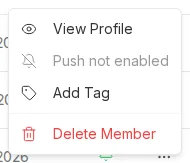
The top of the Members page has one action, Export CSV. Each row has a menu with View Profile, Send Notification, Add Tag, and Delete Member. None of them creates a customer. You manage the people who have already joined; you don't enter them.
## There is no Add Member button
The top of the Members page has one action, Export CSV. Each row has a menu with View Profile, Send Notification, Add Tag, and Delete Member. None of them creates a customer. You manage the people who have already joined; you don't enter them.
 ## A member joins on their first scan
When a customer scans your QR code or taps your tag in the Qtap app, Qtap checks whether they already belong to your program. If they don't, it creates their member record right then, sets their join date, and adds them to your list. The same scan also gives them the stamp or points they earned, so their first visit counts.
## A member joins on their first scan
When a customer scans your QR code or taps your tag in the Qtap app, Qtap checks whether they already belong to your program. If they don't, it creates their member record right then, sets their join date, and adds them to your list. The same scan also gives them the stamp or points they earned, so their first visit counts.
 ## An anonymous scan does not add a member
Someone can point a plain phone camera at your QR code without the Qtap app. That opens a web page and the visit is counted, but no member joins and no stamp or points are given. To earn anything, the customer needs the Qtap app, or a staff member scans the customer's own code at the counter. Tell first-time customers to download the app so their visit sticks.
## What you do instead
Your job is to put the codes where customers can reach them. Print your QR codes and place your NFC tags, then let the list grow.
## An anonymous scan does not add a member
Someone can point a plain phone camera at your QR code without the Qtap app. That opens a web page and the visit is counted, but no member joins and no stamp or points are given. To earn anything, the customer needs the Qtap app, or a staff member scans the customer's own code at the counter. Tell first-time customers to download the app so their visit sticks.
## What you do instead
Your job is to put the codes where customers can reach them. Print your QR codes and place your NFC tags, then let the list grow.
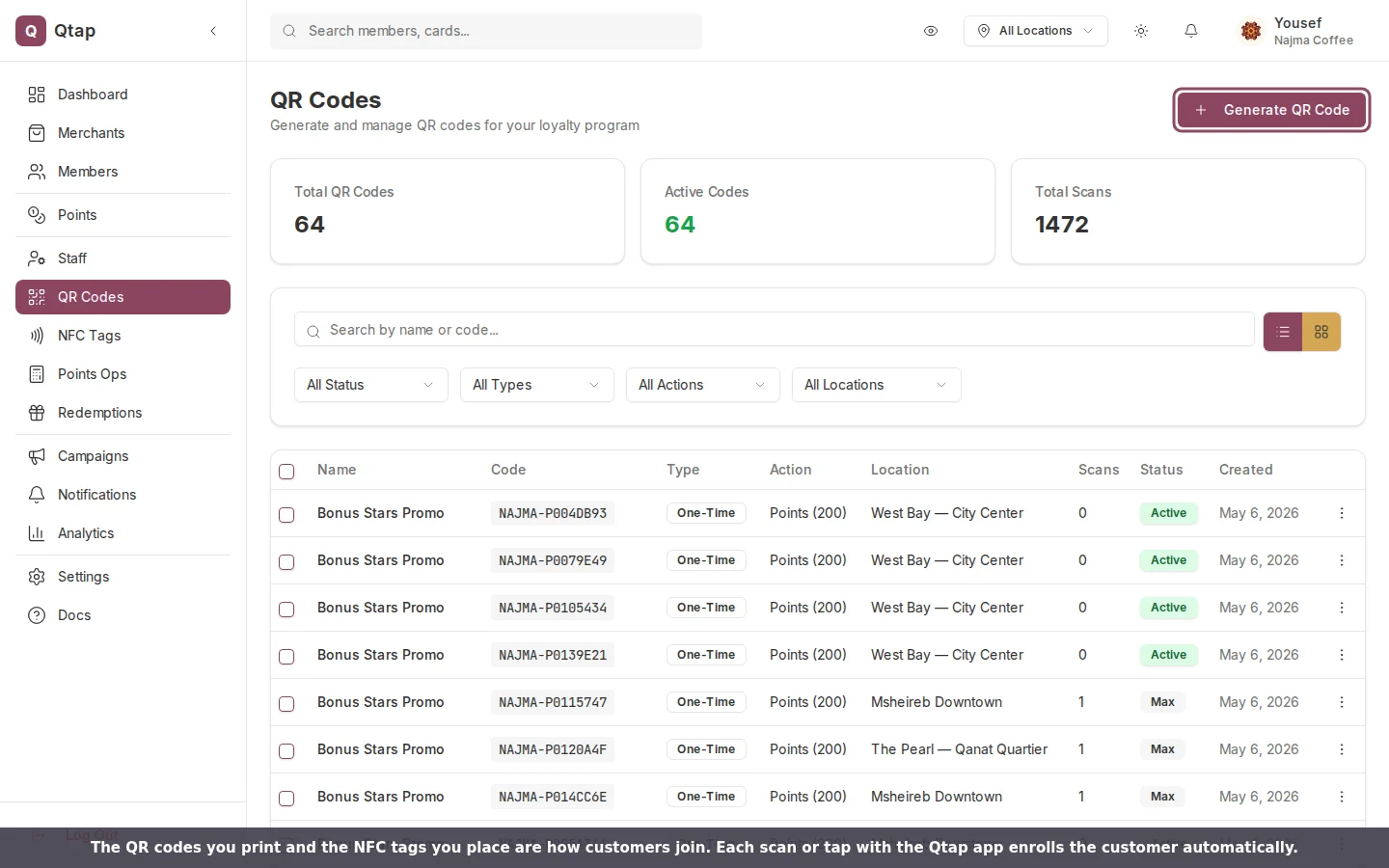 Generate QR codes on the [QR Codes](/merchants/qr-codes/overview) page, or register an [NFC tag](/merchants/nfc-tags). Each one carries an action, like adding a stamp or awarding points.
Print the QR code for the counter or a table, or stick the NFC tag where people can tap it.
Each new customer who scans with the app appears on the [Members](/merchants/members/overview) page, with their join date and balance already filled in.
Owners and managers can open and export the Members list. Staff accounts can serve customers but do not see the export control.
Generate QR codes on the [QR Codes](/merchants/qr-codes/overview) page, or register an [NFC tag](/merchants/nfc-tags). Each one carries an action, like adding a stamp or awarding points.
Print the QR code for the counter or a table, or stick the NFC tag where people can tap it.
Each new customer who scans with the app appears on the [Members](/merchants/members/overview) page, with their join date and balance already filled in.
Owners and managers can open and export the Members list. Staff accounts can serve customers but do not see the export control.