> ## Documentation Index
> Fetch the complete documentation index at: https://docs.qtap.qa/llms.txt
> Use this file to discover all available pages before exploring further.
# Members
> How to view, search, and manage the customers enrolled in your loyalty program.
The Members page shows every customer who has joined at least one of your loyalty programs. Go to **Members** in the left sidebar to see the full list.
 ## The Member List
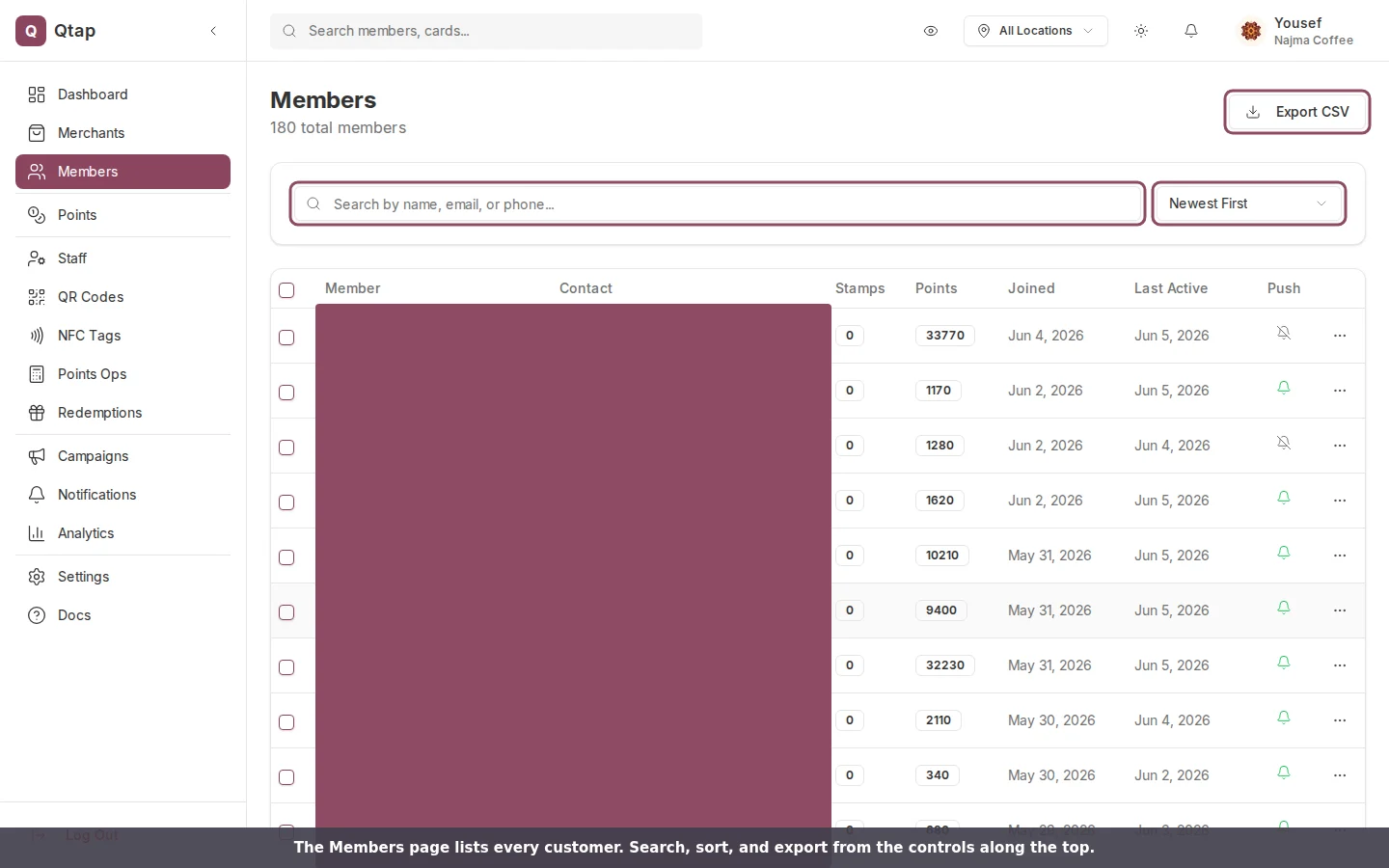
The list shows up to 50 members per page. Each row shows the member's name, email, phone number, and when they joined. Use the arrow buttons at the bottom to move between pages.
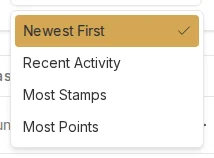
**Sorting** — click the **Sort By** dropdown to order the list by join date, last activity, or name.
**Search** — type a name, email, or phone number into the search box to filter the list. The list updates as you type.
## The Member List
The list shows up to 50 members per page. Each row shows the member's name, email, phone number, and when they joined. Use the arrow buttons at the bottom to move between pages.
**Sorting** — click the **Sort By** dropdown to order the list by join date, last activity, or name.
**Search** — type a name, email, or phone number into the search box to filter the list. The list updates as you type.
 ## Member Actions
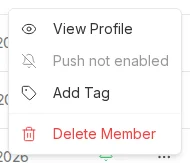
Click the three-dot menu at the end of any member row to see actions:
* **View Profile** — opens the member's profile page with their full history
* **Add Tag** — attach a label to the member for your own reference
* **Mute Notifications** — stops Qtap from sending campaigns and push notifications to this member
* **Delete** — removes the member from your program
## Member Actions
Click the three-dot menu at the end of any member row to see actions:
* **View Profile** — opens the member's profile page with their full history
* **Add Tag** — attach a label to the member for your own reference
* **Mute Notifications** — stops Qtap from sending campaigns and push notifications to this member
* **Delete** — removes the member from your program
 Deleting a member removes their stamps, points, and redemption history. This cannot be undone. Only owners and staff with full member permissions can delete members.
## Bulk Actions
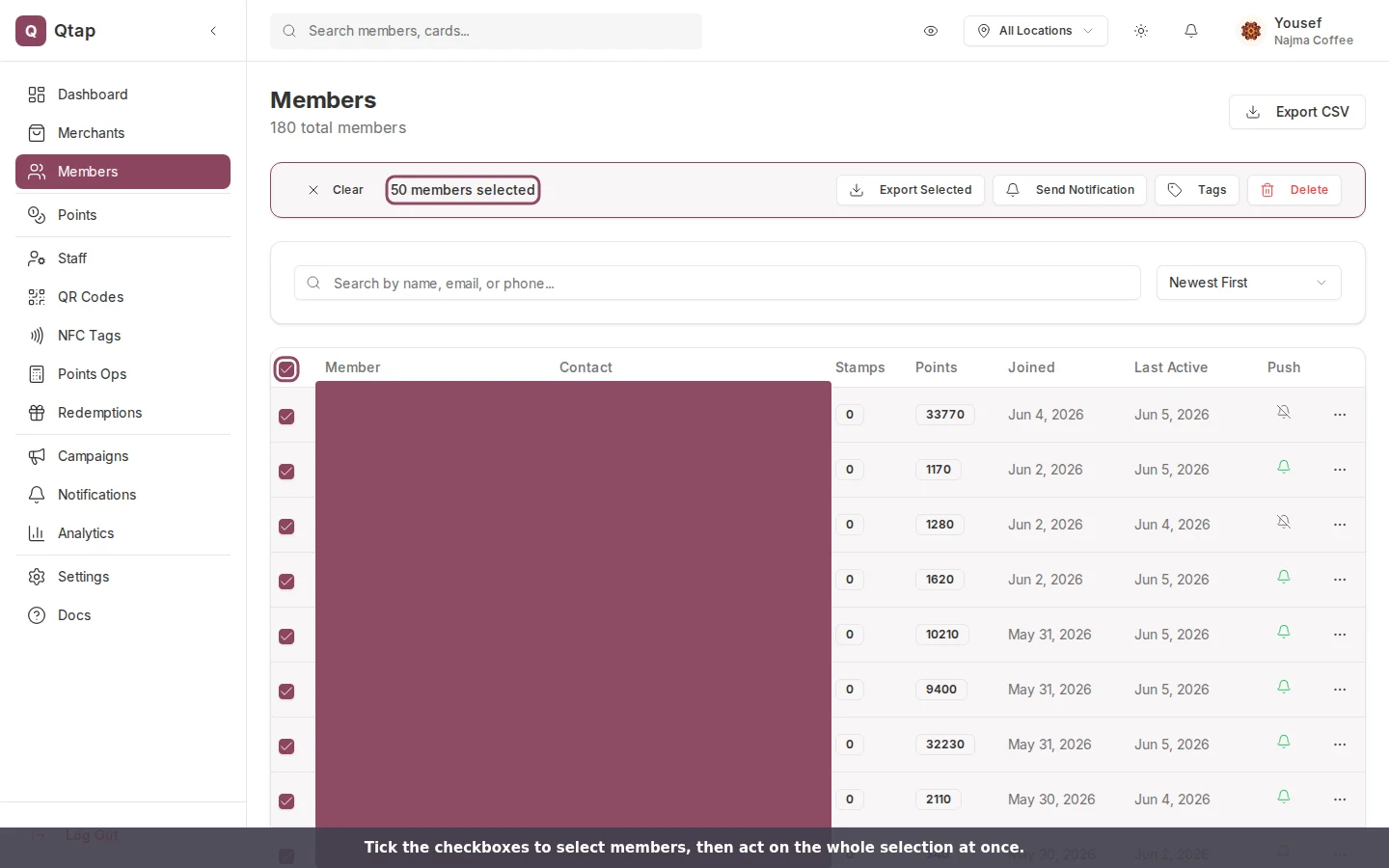
Check the boxes on the left side of the member list to select multiple members. Once you have a selection, you can delete all selected members at once.
To select all members on the current page, check the box in the table header.
Deleting a member removes their stamps, points, and redemption history. This cannot be undone. Only owners and staff with full member permissions can delete members.
## Bulk Actions
Check the boxes on the left side of the member list to select multiple members. Once you have a selection, you can delete all selected members at once.
To select all members on the current page, check the box in the table header.
 ## Member Profiles
Click **View Profile** or the member's name to open their profile. The profile shows:
* Contact details (email, phone, birthday)
* Current stamp and points balances across all your programs
* Transaction history — every stamp, redemption, and points adjustment, with the staff member and location for each
* Notes — a text field only visible to you and your staff
Owners and managers can edit a member's phone number and birthday directly from the profile by clicking **Edit Info**.
Members control their own accounts through the Qtap app. You cannot change a member's email address from the dashboard.
## Downloading Member Data
Click **Download** at the top of the Members page to export the full member list as a CSV file. The export includes name, email, phone, join date, and total visits.
Detailed look at what's on a member profile and how to use it
How to view and confirm reward redemptions
Send automated messages to specific groups of members
## Member Profiles
Click **View Profile** or the member's name to open their profile. The profile shows:
* Contact details (email, phone, birthday)
* Current stamp and points balances across all your programs
* Transaction history — every stamp, redemption, and points adjustment, with the staff member and location for each
* Notes — a text field only visible to you and your staff
Owners and managers can edit a member's phone number and birthday directly from the profile by clicking **Edit Info**.
Members control their own accounts through the Qtap app. You cannot change a member's email address from the dashboard.
## Downloading Member Data
Click **Download** at the top of the Members page to export the full member list as a CSV file. The export includes name, email, phone, join date, and total visits.
Detailed look at what's on a member profile and how to use it
How to view and confirm reward redemptions
Send automated messages to specific groups of members