> ## Documentation Index
> Fetch the complete documentation index at: https://docs.qtap.qa/llms.txt
> Use this file to discover all available pages before exploring further.
# Member Profiles
> How to view and update individual member information, activity history, and internal notes.
Each member in your loyalty program has a profile page that shows their contact details, loyalty balances, recent activity, and any notes your staff has added.
## Opening a Member Profile
Go to **Members** in the sidebar. The table shows all enrolled members with their name, email, phone number, total stamps or points, and join date.
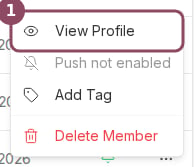
Click any row to open that member's profile.
 You can search by name, email, or phone number using the search bar at the top of the Members table. You can also change the sort order using the sort dropdown — options include most recently joined, most stamps, and most recent activity.
## What the Profile Shows
The profile page has a sidebar with contact details and two tabs: **Activity** and **Notes**.
You can search by name, email, or phone number using the search bar at the top of the Members table. You can also change the sort order using the sort dropdown — options include most recently joined, most stamps, and most recent activity.
## What the Profile Shows
The profile page has a sidebar with contact details and two tabs: **Activity** and **Notes**.
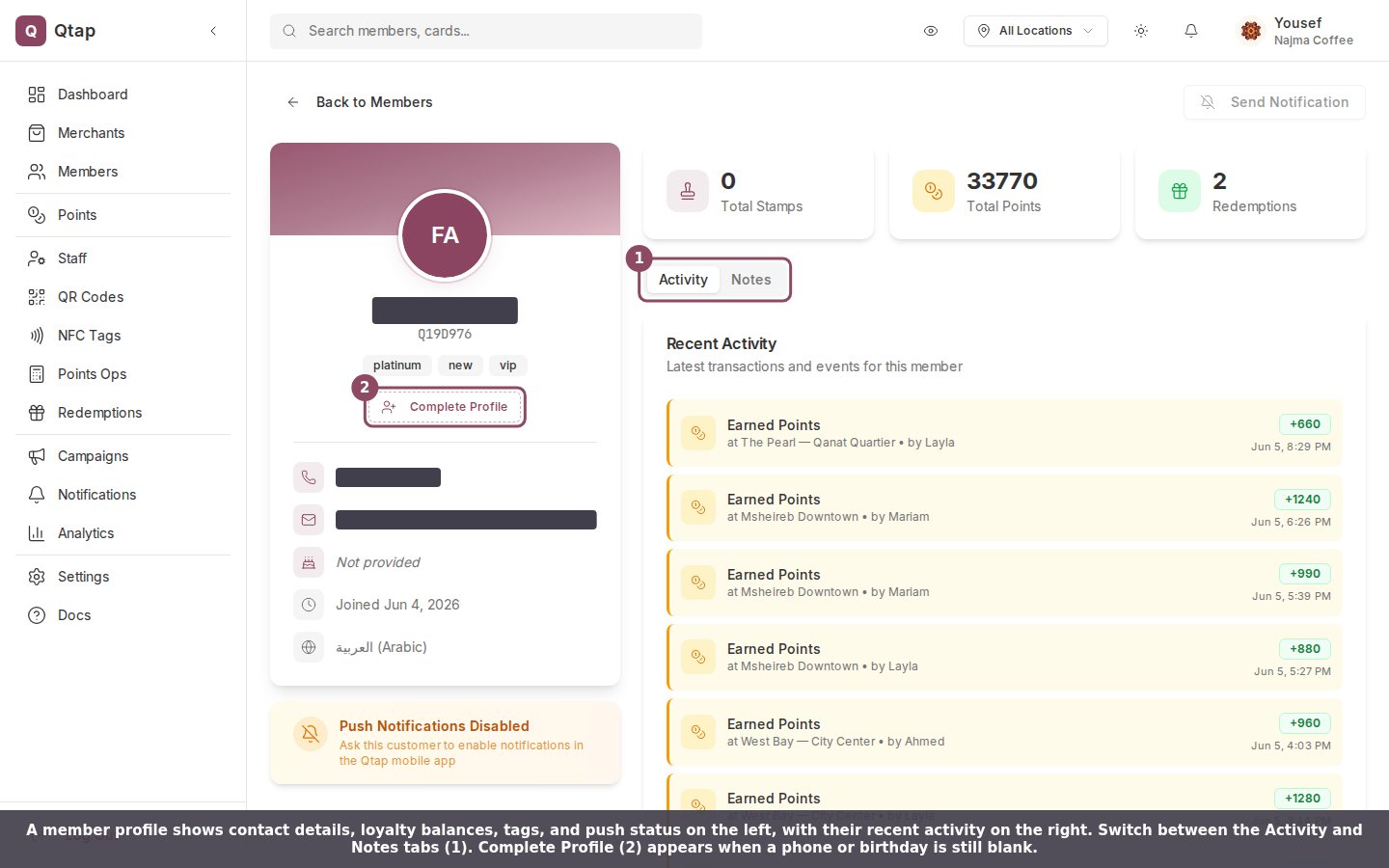 The sidebar shows:
* Name, email, phone, and birthday
* Their Qtap member ID
* The date they joined and their last visit
* Current stamp or points balance across all programs
* Any tags on their account
* Whether they have push notifications enabled
The **Activity** tab lists the last 20 transactions for that member, including stamps issued, rewards redeemed, and points earned or spent. Each entry shows the date, transaction type, the staff member who processed it, and the location.
The **Notes** tab is a free-text field only visible to your staff. Use it to record anything relevant about the member.
## Adding Missing Contact Details
You can add a phone number or birthday to a member's profile if those fields are currently blank. Click the **Edit** button near their contact details to open the info dialog, fill in what is missing, and click **Save**.
The sidebar shows:
* Name, email, phone, and birthday
* Their Qtap member ID
* The date they joined and their last visit
* Current stamp or points balance across all programs
* Any tags on their account
* Whether they have push notifications enabled
The **Activity** tab lists the last 20 transactions for that member, including stamps issued, rewards redeemed, and points earned or spent. Each entry shows the date, transaction type, the staff member who processed it, and the location.
The **Notes** tab is a free-text field only visible to your staff. Use it to record anything relevant about the member.
## Adding Missing Contact Details
You can add a phone number or birthday to a member's profile if those fields are currently blank. Click the **Edit** button near their contact details to open the info dialog, fill in what is missing, and click **Save**.
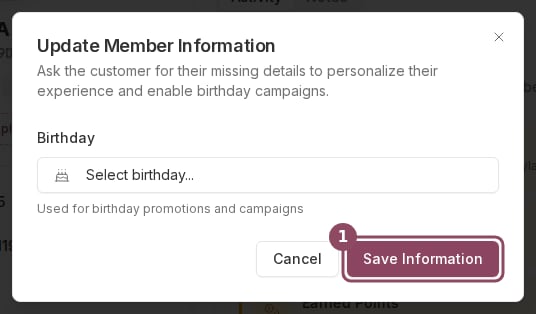 You can only fill in fields that are not yet saved. If a phone number or birthday already exists, it cannot be changed from the dashboard. The member would need to update it through the Qtap app.
## Saving Notes
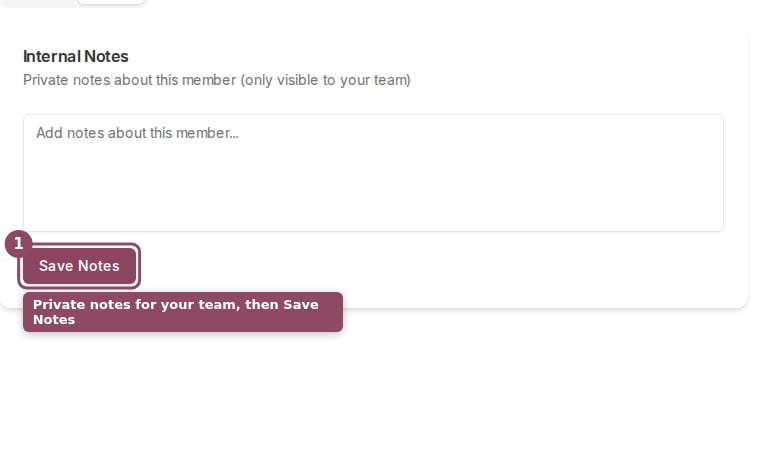
Open the **Notes** tab on a member profile, type in the text area, and click **Save notes**. Notes are visible to all staff who can access the Members section.
You can only fill in fields that are not yet saved. If a phone number or birthday already exists, it cannot be changed from the dashboard. The member would need to update it through the Qtap app.
## Saving Notes
Open the **Notes** tab on a member profile, type in the text area, and click **Save notes**. Notes are visible to all staff who can access the Members section.
 ## Deleting Members
To remove a member, go back to the Members list. Select the checkbox next to their name, then click **Delete selected**. A confirmation dialog appears before anything is removed.
Only owners and staff with full Members permission can delete members.
Search and filter your full member list
How reward redemptions are recorded and tracked
## Deleting Members
To remove a member, go back to the Members list. Select the checkbox next to their name, then click **Delete selected**. A confirmation dialog appears before anything is removed.
Only owners and staff with full Members permission can delete members.
Search and filter your full member list
How reward redemptions are recorded and tracked