> ## Documentation Index
> Fetch the complete documentation index at: https://docs.qtap.qa/llms.txt
> Use this file to discover all available pages before exploring further.
# Member Redemptions
> Process reward redemptions at the counter using a member's code or by looking them up by name.
The Redemptions page is where staff confirm and process rewards when members come in to claim them. You can look up a reward by code or by searching for the member directly.
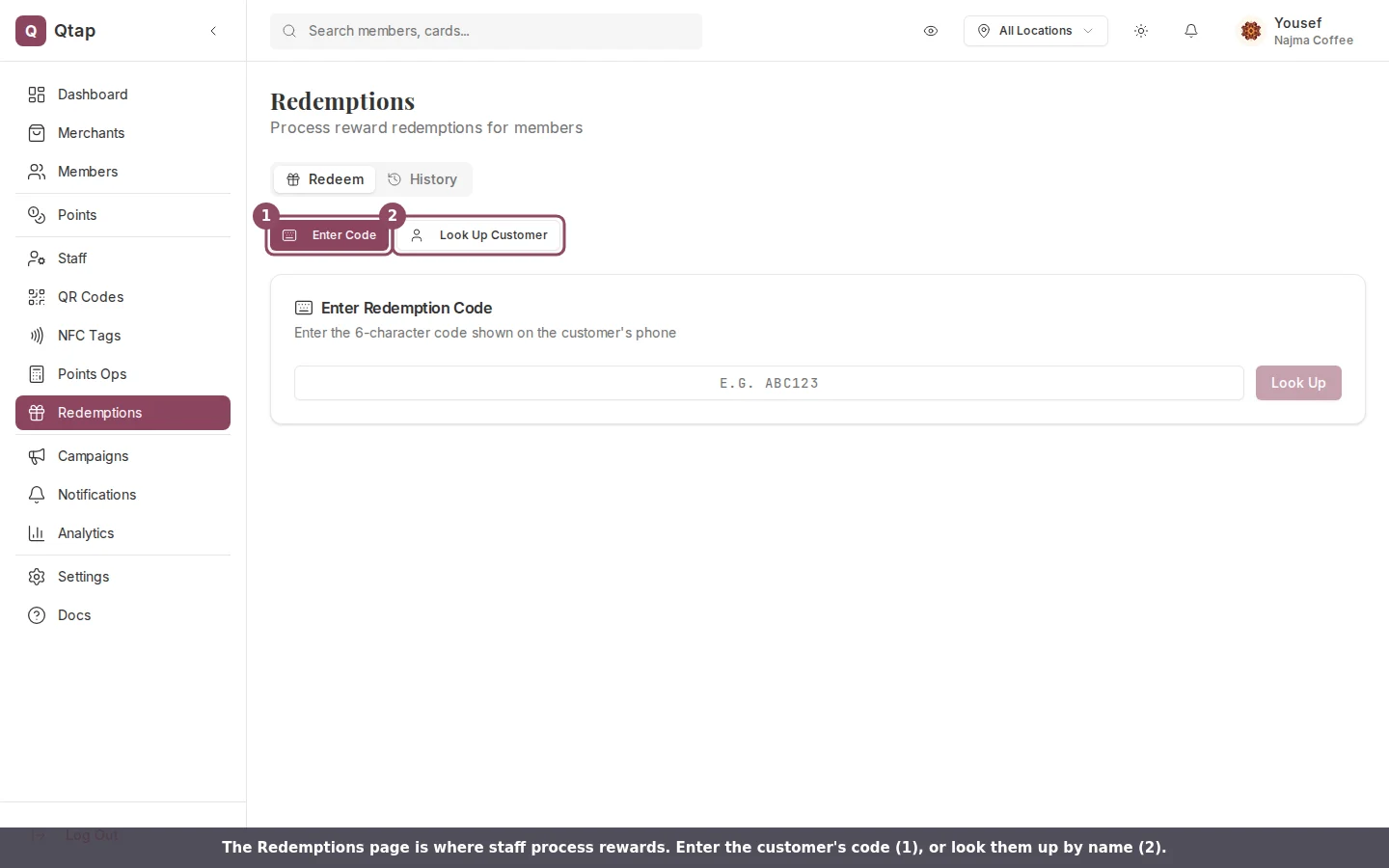 ## Redeem by code
When a member earns a reward, they receive a redemption code. Staff can enter this code to pull up the reward details before confirming.
1. Go to **Members → Redemptions**.
2. Make sure the **Code** tab is selected.
3. Type or paste the member's **redemption code** into the field.
4. Qtap shows the member's name, the reward name, the program it belongs to, and the reward status.
5. If the reward is valid, click **Confirm Redemption**.
6. A success screen confirms the redemption was recorded.
## Redeem by code
When a member earns a reward, they receive a redemption code. Staff can enter this code to pull up the reward details before confirming.
1. Go to **Members → Redemptions**.
2. Make sure the **Code** tab is selected.
3. Type or paste the member's **redemption code** into the field.
4. Qtap shows the member's name, the reward name, the program it belongs to, and the reward status.
5. If the reward is valid, click **Confirm Redemption**.
6. A success screen confirms the redemption was recorded.
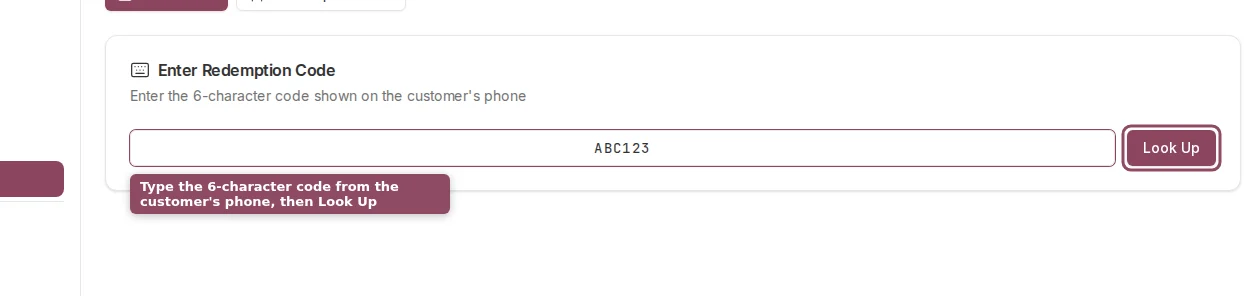 You can only redeem rewards with a status of "pending". If the reward has already been used or expired, the confirmation button won't appear.
## Redeem by member lookup
If the member doesn't have their code, search for them by name, email, or phone number.
1. Go to **Members → Redemptions**.
2. Click the **Lookup** tab.
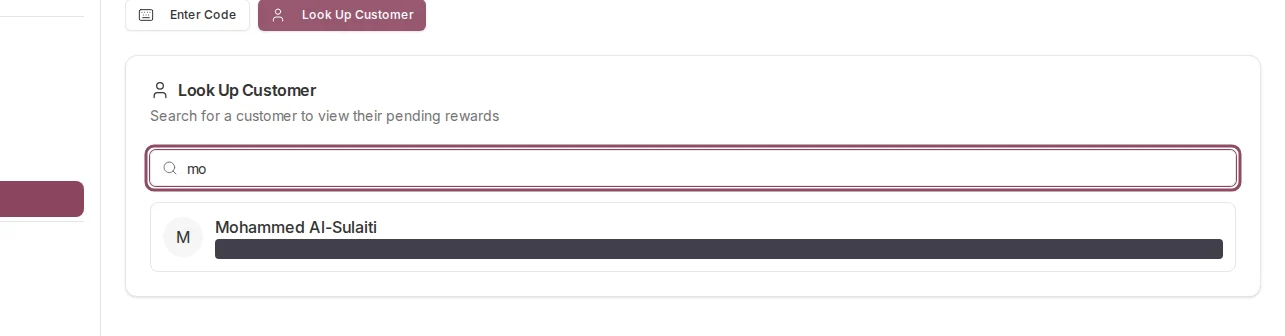
3. Type at least 2 characters into the search field. Results appear as you type.
4. Click the member's name to select them.
5. Qtap lists all pending rewards for that member.
6. Click **Redeem** next to the reward the member wants to use.
7. A confirmation dialog shows the reward name and member name. Click **Confirm** to process it.
You can only redeem rewards with a status of "pending". If the reward has already been used or expired, the confirmation button won't appear.
## Redeem by member lookup
If the member doesn't have their code, search for them by name, email, or phone number.
1. Go to **Members → Redemptions**.
2. Click the **Lookup** tab.
3. Type at least 2 characters into the search field. Results appear as you type.
4. Click the member's name to select them.
5. Qtap lists all pending rewards for that member.
6. Click **Redeem** next to the reward the member wants to use.
7. A confirmation dialog shows the reward name and member name. Click **Confirm** to process it.
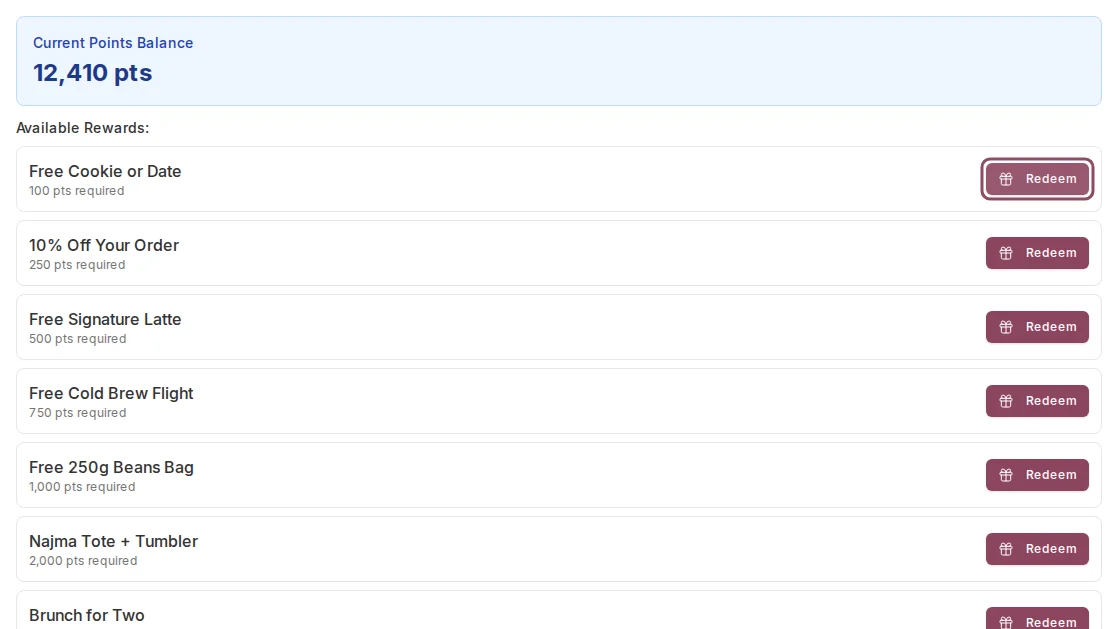
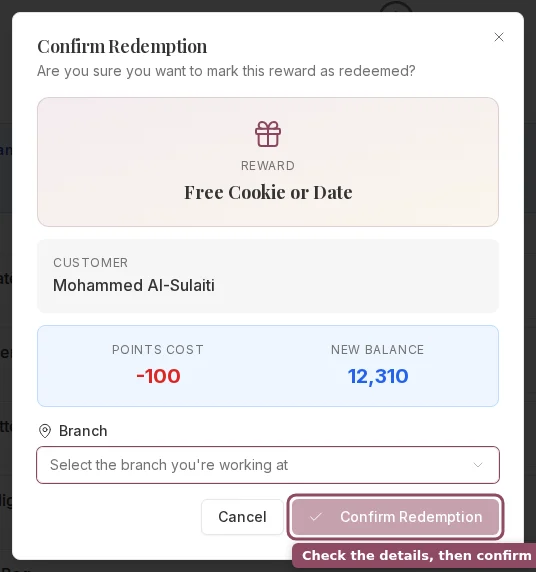 If a member has rewards from a points program that they've accumulated enough points to claim, those eligible rewards also appear in this view so staff can redeem them on the spot.
## Redemption history
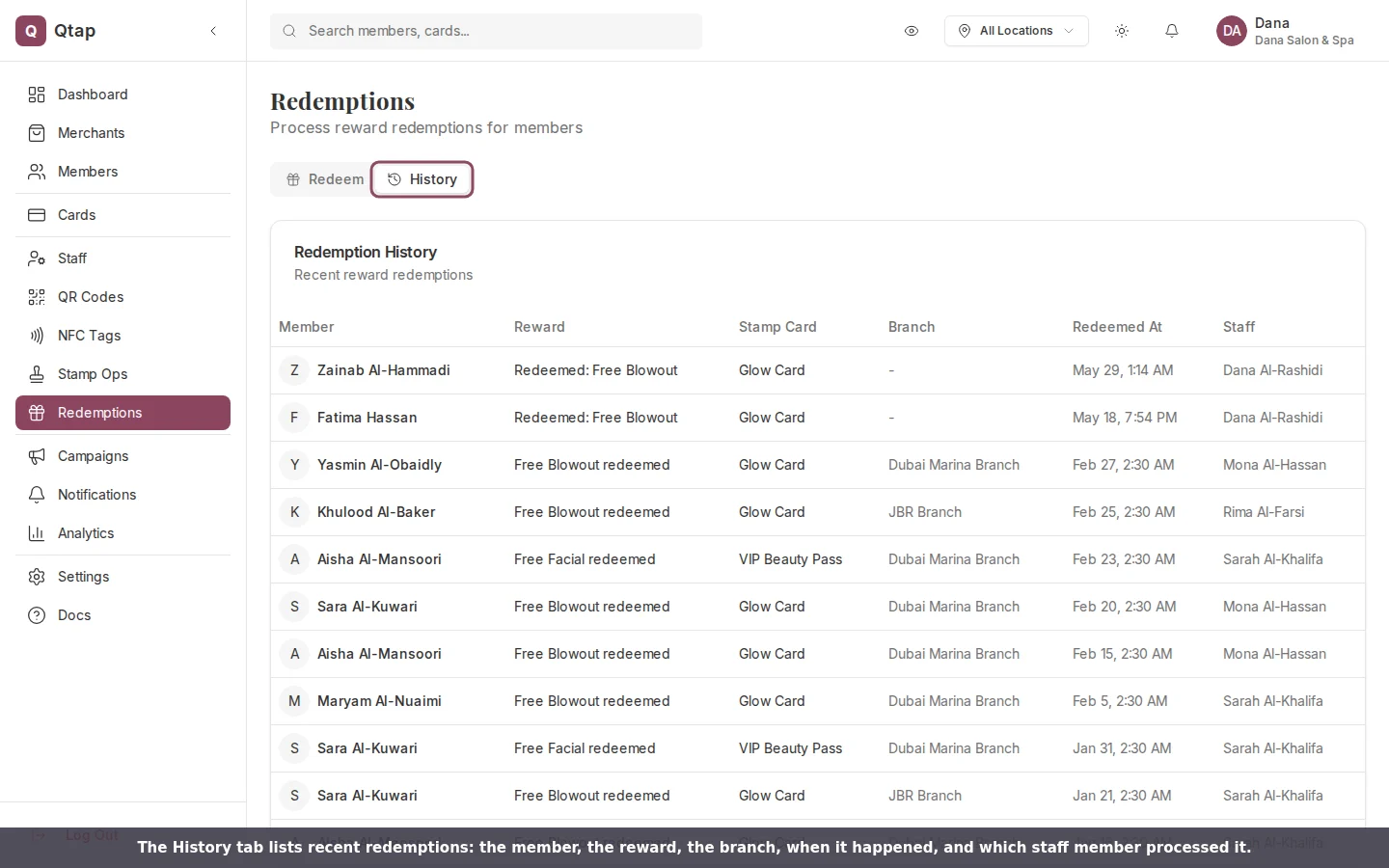
The **History** tab at the bottom of the Redemptions page shows the last 50 redemptions across all members. Each row shows the member name, reward name, program, which staff member processed it, and the date.
If a member has rewards from a points program that they've accumulated enough points to claim, those eligible rewards also appear in this view so staff can redeem them on the spot.
## Redemption history
The **History** tab at the bottom of the Redemptions page shows the last 50 redemptions across all members. Each row shows the member name, reward name, program, which staff member processed it, and the date.
 View a member's full history including past redemptions.
Set up what reward members get when they complete a stamp card.
View a member's full history including past redemptions.
Set up what reward members get when they complete a stamp card.