> ## Documentation Index
> Fetch the complete documentation index at: https://docs.qtap.qa/llms.txt
> Use this file to discover all available pages before exploring further.
# The Merchants page
> Check your business profile and its running totals in one place, and open the editor from there.
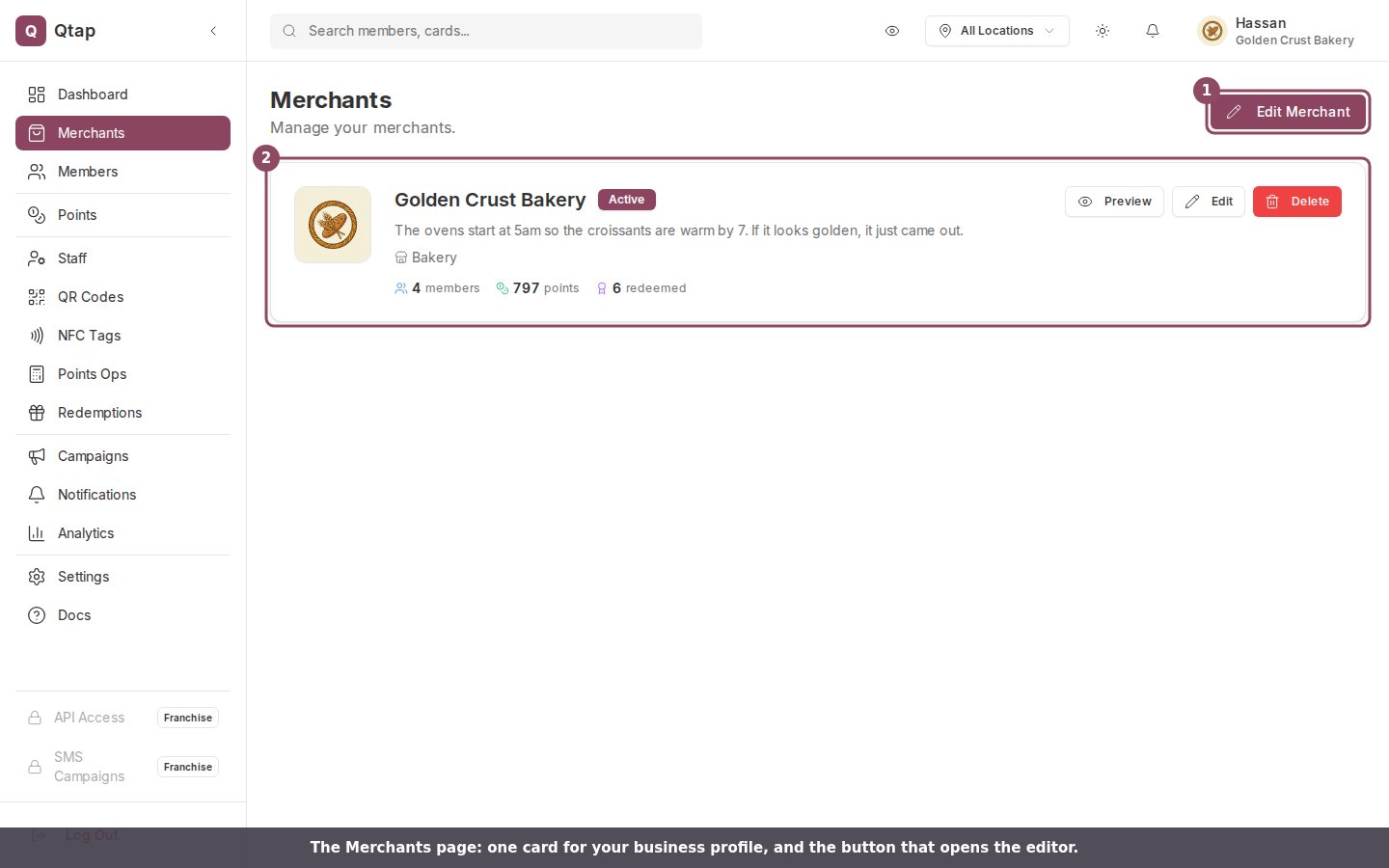
**Merchants** in the sidebar opens a summary of the business profile your customers see. One card holds your logo, your name, your description and your category, along with running totals for members and rewards. Use the buttons on that card to preview the public page, open the editor, or remove the profile.
## Open the page
Click **Merchants** in the left sidebar. The header reads "Merchants" with the line "Manage your merchants." underneath. The button at the top right opens the profile editor: it reads **Edit Merchant** once you have saved a profile, and **Create Merchant** before that.
 ## What the card shows
 1. Your logo. A dashed square shows here instead if you have not uploaded one.
2. Your business name, with an **Active** badge beside it.
3. Your description, trimmed to two lines.
4. Your category, followed by whichever location name, phone number, website address and Google rating you saved.
The **Active** badge is fixed text. It appears whenever a profile exists, and it does not tell you whether your loyalty cards or campaigns are running.
## The running totals
Under the details is a row of totals summed across your current members. They are not limited to a date range, so they will not match a report you filtered to last month. They also drop when you permanently delete a member, because deletion removes that member's stamp, point and redemption history from the sum. Treat them as totals for the members you have now, not for the whole life of the account.
1. Your logo. A dashed square shows here instead if you have not uploaded one.
2. Your business name, with an **Active** badge beside it.
3. Your description, trimmed to two lines.
4. Your category, followed by whichever location name, phone number, website address and Google rating you saved.
The **Active** badge is fixed text. It appears whenever a profile exists, and it does not tell you whether your loyalty cards or campaigns are running.
## The running totals
Under the details is a row of totals summed across your current members. They are not limited to a date range, so they will not match a report you filtered to last month. They also drop when you permanently delete a member, because deletion removes that member's stamp, point and redemption history from the sum. Treat them as totals for the members you have now, not for the whole life of the account.
 A business running stamp cards sees a stamps total in the same place.
 A total stays hidden while it sits at zero, which is why a points program shows no stamps figure. The whole row stays hidden until at least one person has joined or earned something.
## Preview, edit and delete
A total stays hidden while it sits at zero, which is why a points program shows no stamps figure. The whole row stays hidden until at least one person has joined or earned something.
## Preview, edit and delete
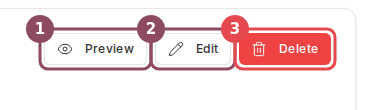 * **Preview** opens your public page in a new tab, showing the profile as it stands now. This button only appears once your page has a web address saved.
* **Edit** opens the profile editor, the same screen the **Edit Merchant** button at the top opens.
* **Delete** asks you to confirm before it removes anything.
## Deleting your profile
**Delete** opens a confirmation box titled "Delete Merchant". Nothing happens until you confirm.
* **Preview** opens your public page in a new tab, showing the profile as it stands now. This button only appears once your page has a web address saved.
* **Edit** opens the profile editor, the same screen the **Edit Merchant** button at the top opens.
* **Delete** asks you to confirm before it removes anything.
## Deleting your profile
**Delete** opens a confirmation box titled "Delete Merchant". Nothing happens until you confirm.
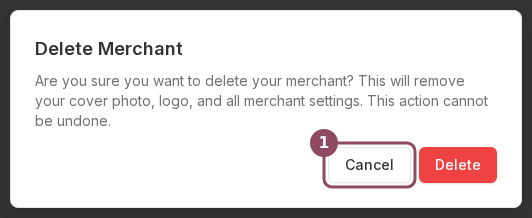 Deleting clears your cover photo, your logo and your saved profile settings. Your loyalty programs, your members, their balances, your business name, your phone number and your website all stay as they are. You cannot undo the deletion, so you would need to fill the profile in again from scratch.
## Before you set up a profile
Until you save one, you see a short empty state in place of the card, reading "No merchant yet" with a **Create Merchant** button that opens the editor. See [Building your merchant page](/merchants/settings/merchant-page-editor) for the fields you fill in there, and [What customers see on your public page](/merchants/merchant-page/public-view) for the result.
## Who can open this page
Only the owner. Managers and staff do not see **Merchants** in the sidebar at all. A manager can still edit the business profile from the editor itself: no link in the dashboard points there for them, so they go to `dashboard.qtap.qa/merchant-page` directly in the browser. That lets you hand the profile work over without giving anyone owner access. See [Roles and permissions](/merchants/staff/roles-permissions) for what each role reaches.
This documentation is built and hosted on [Mintlify](https://mintlify.com), a developer documentation platform.
Deleting clears your cover photo, your logo and your saved profile settings. Your loyalty programs, your members, their balances, your business name, your phone number and your website all stay as they are. You cannot undo the deletion, so you would need to fill the profile in again from scratch.
## Before you set up a profile
Until you save one, you see a short empty state in place of the card, reading "No merchant yet" with a **Create Merchant** button that opens the editor. See [Building your merchant page](/merchants/settings/merchant-page-editor) for the fields you fill in there, and [What customers see on your public page](/merchants/merchant-page/public-view) for the result.
## Who can open this page
Only the owner. Managers and staff do not see **Merchants** in the sidebar at all. A manager can still edit the business profile from the editor itself: no link in the dashboard points there for them, so they go to `dashboard.qtap.qa/merchant-page` directly in the browser. That lets you hand the profile work over without giving anyone owner access. See [Roles and permissions](/merchants/staff/roles-permissions) for what each role reaches.
This documentation is built and hosted on [Mintlify](https://mintlify.com), a developer documentation platform.