> ## Documentation Index
> Fetch the complete documentation index at: https://docs.qtap.qa/llms.txt
> Use this file to discover all available pages before exploring further.
# Your public link
> Find the web address that opens your Qtap page, copy it for a poster or a bio, and change the name if it reads wrong.
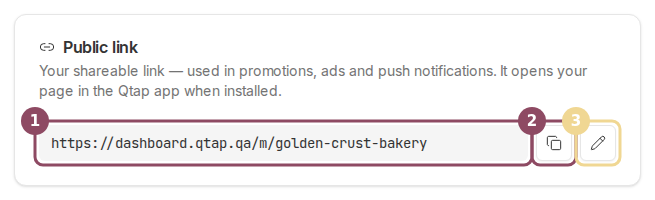
Your Qtap page has one web address: `dashboard.qtap.qa/m/` followed by a short name for your business. Put it in your Instagram bio, or send it to a customer on WhatsApp. It opens your page in the Qtap app for anyone who has the app, and in a browser for everyone else.
The address lives in the **Public link** card, the first card on the Merchant Page screen. Open **Merchants** in the sidebar, then click **Edit Merchant**.
 ## Where the name comes from
Qtap built the name from your business name the day you signed up, in lowercase with hyphens between the words. "Golden Crust Bakery" becomes `golden-crust-bakery`. If another business had already taken that exact name, Qtap adds a number to the end, so the second Golden Crust Bakery gets `golden-crust-bakery-2`.
## Copy the link
Click the copy button and the icon turns into a green tick for a couple of seconds. Some browsers block a page from writing to the clipboard. When yours does, Qtap puts the address in a message instead so you can select it by hand.
## Change the name
Click the pencil to edit the part after `/m/`. Type the name you want, wait for the check under the field, then click **Save**.
## Where the name comes from
Qtap built the name from your business name the day you signed up, in lowercase with hyphens between the words. "Golden Crust Bakery" becomes `golden-crust-bakery`. If another business had already taken that exact name, Qtap adds a number to the end, so the second Golden Crust Bakery gets `golden-crust-bakery-2`.
## Copy the link
Click the copy button and the icon turns into a green tick for a couple of seconds. Some browsers block a page from writing to the clipboard. When yours does, Qtap puts the address in a message instead so you can select it by hand.
## Change the name
Click the pencil to edit the part after `/m/`. Type the name you want, wait for the check under the field, then click **Save**.
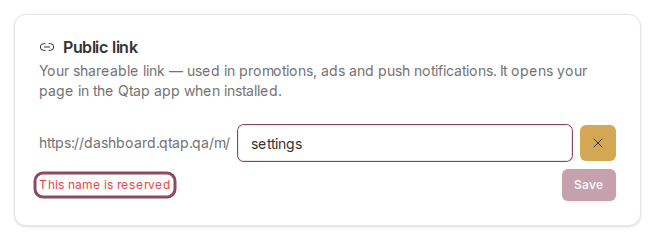
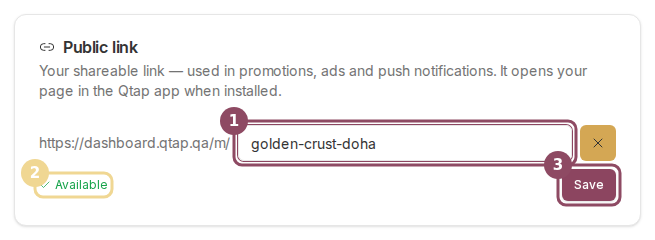 The rules are 3 to 48 characters, lowercase letters, numbers, and single hyphens between words. The field cleans up what you type as you go: capitals drop to lowercase and anything else is left out. If a name will not work, the reason appears where **Available** would be:
| What you see | What to do |
| - | - |
| Already taken | Another business has this one. Pick a different name. |
| This name is reserved | Qtap keeps some names for its own pages, such as `settings` or `support`. Pick a different name. |
| Must be 3-48 characters | Lengthen or shorten the name. |
| Only lowercase letters, numbers and single hyphens | Usually a double hyphen, or a hyphen at the start or end. |
The rules are 3 to 48 characters, lowercase letters, numbers, and single hyphens between words. The field cleans up what you type as you go: capitals drop to lowercase and anything else is left out. If a name will not work, the reason appears where **Available** would be:
| What you see | What to do |
| - | - |
| Already taken | Another business has this one. Pick a different name. |
| This name is reserved | Qtap keeps some names for its own pages, such as `settings` or `support`. Pick a different name. |
| Must be 3-48 characters | Lengthen or shorten the name. |
| Only lowercase letters, numbers and single hyphens | Usually a double hyphen, or a hyphen at the start or end. |
 ## What a change breaks
Save opens a confirmation first, with the address you are about to move to.
## What a change breaks
Save opens a confirmation first, with the address you are about to move to.
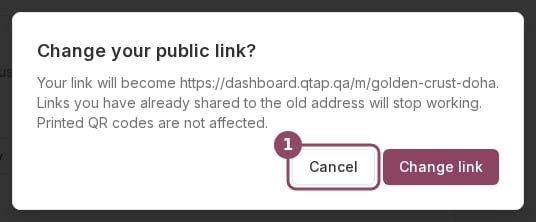 The old address stops working the moment you confirm. Anything already printed or posted with it lands on a dead page: flyers, your social bio, messages you sent last week, paid ads. Settle on the name before the artwork goes to the printer.
Two things survive a change, so you do not need to redo them:
* **Printed QR codes and NFC tags.** They carry their own scan address, which does not include your page name.
* **Push notifications.** Qtap fills in the current name each time it sends one, so a message that opens your page keeps working.
Only owners and managers can open the Merchant Page screen, so only they can change the link. The screen has no sidebar entry of its own, and the **Merchants** page that leads to it is owner-only. A manager who needs to edit the page has to be sent the `/merchant-page` address directly.
The cover, the card carousel, and the join button behind this link.
The rest of the screen: profile, location details, and loyalty cards.
This documentation is built and hosted on [Mintlify](https://mintlify.com), a developer documentation platform.
The old address stops working the moment you confirm. Anything already printed or posted with it lands on a dead page: flyers, your social bio, messages you sent last week, paid ads. Settle on the name before the artwork goes to the printer.
Two things survive a change, so you do not need to redo them:
* **Printed QR codes and NFC tags.** They carry their own scan address, which does not include your page name.
* **Push notifications.** Qtap fills in the current name each time it sends one, so a message that opens your page keeps working.
Only owners and managers can open the Merchant Page screen, so only they can change the link. The screen has no sidebar entry of its own, and the **Merchants** page that leads to it is owner-only. A manager who needs to edit the page has to be sent the `/merchant-page` address directly.
The cover, the card carousel, and the join button behind this link.
The rest of the screen: profile, location details, and loyalty cards.
This documentation is built and hosted on [Mintlify](https://mintlify.com), a developer documentation platform.