> ## Documentation Index
> Fetch the complete documentation index at: https://docs.qtap.qa/llms.txt
> Use this file to discover all available pages before exploring further.
# NFC Tags
> How to register, configure, and manage NFC tags for contactless loyalty interactions in your locations.
NFC tags let customers stamp their card or earn points by tapping their phone against a physical tag, instead of scanning a QR code. You register each tag in the dashboard, configure what it does when tapped, and place it somewhere in your location.
 ## How NFC tags work
When a member taps their phone on an NFC tag, Qtap reads the tag's serial number and performs the action you've configured — adding a stamp to a specific stamp card, awarding points, or recording a check-in. The tap is logged with a timestamp and linked to the member's account.
Each tag belongs to your organization and can optionally be assigned to a specific location.
NFC tags are physical items you purchase through the dashboard. Go to **Settings → Billing** and look for the NFC Tags add-on (\$19 per tag) to order them. Once they arrive, you register each one by entering its serial number.
## Adding a tag
### Open the NFC Tags page
Go to **NFC Tags** in the main navigation. Click **Add Tag**.
### Enter the serial number
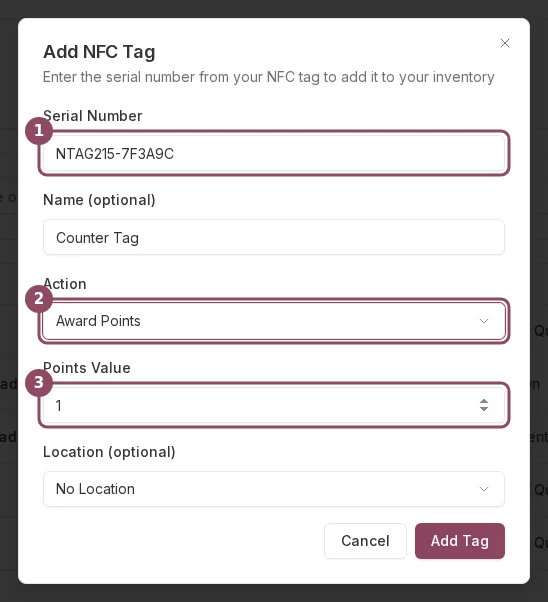
Type the serial number printed on the tag. It looks something like `NTAG215-ABC123`. This must match exactly — if it doesn't, taps won't register.
### Give it a name (optional)
Add a name so you can identify it later, such as `Counter Tag` or `Table 5`. This only appears in your dashboard, not to customers.
### Choose an action
Select what happens when a customer taps the tag:
* **Add Stamp** — adds one stamp to the stamp card you select. You'll need to pick which active stamp card this tag links to.
* **Award Points** — adds a set number of points to the member's points balance. Enter the points value in the **Points Value** field.
* **Check-In** — records a visit without issuing a stamp or points.
### Assign a location (optional)
If you have multiple locations, select which one this tag belongs to. This helps you track taps by location later.
### Click Add Tag
The tag appears in your inventory immediately.
## How NFC tags work
When a member taps their phone on an NFC tag, Qtap reads the tag's serial number and performs the action you've configured — adding a stamp to a specific stamp card, awarding points, or recording a check-in. The tap is logged with a timestamp and linked to the member's account.
Each tag belongs to your organization and can optionally be assigned to a specific location.
NFC tags are physical items you purchase through the dashboard. Go to **Settings → Billing** and look for the NFC Tags add-on (\$19 per tag) to order them. Once they arrive, you register each one by entering its serial number.
## Adding a tag
### Open the NFC Tags page
Go to **NFC Tags** in the main navigation. Click **Add Tag**.
### Enter the serial number
Type the serial number printed on the tag. It looks something like `NTAG215-ABC123`. This must match exactly — if it doesn't, taps won't register.
### Give it a name (optional)
Add a name so you can identify it later, such as `Counter Tag` or `Table 5`. This only appears in your dashboard, not to customers.
### Choose an action
Select what happens when a customer taps the tag:
* **Add Stamp** — adds one stamp to the stamp card you select. You'll need to pick which active stamp card this tag links to.
* **Award Points** — adds a set number of points to the member's points balance. Enter the points value in the **Points Value** field.
* **Check-In** — records a visit without issuing a stamp or points.
### Assign a location (optional)
If you have multiple locations, select which one this tag belongs to. This helps you track taps by location later.
### Click Add Tag
The tag appears in your inventory immediately.
 If you select **Add Stamp** as the action, you must have at least one active stamp card. If no stamp cards appear in the dropdown, create one first under **Cards** before adding the tag.
## Managing your tags
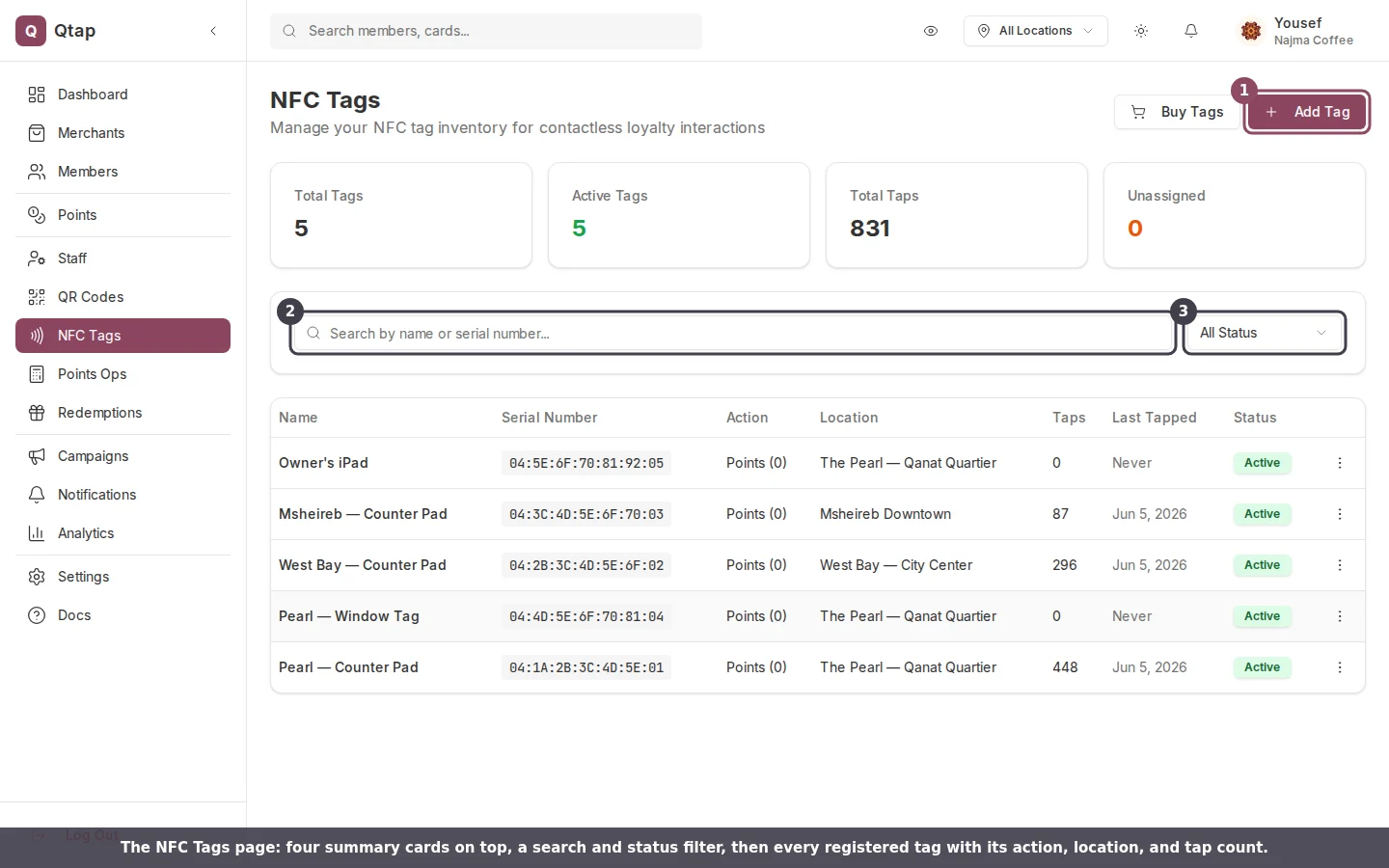
The NFC Tags page shows all registered tags in a table. You can filter by name or serial number using the search field, or narrow by status using the **Status** dropdown (Active / Inactive / All).
Each row shows:
* **Name** and serial number
* **Action** configured for that tag
* **Location** assignment (or "Unassigned" if none)
* **Taps** — total number of times the tag has been tapped
* **Last Tapped** — the date of the most recent tap
* **Status** — Active or Inactive
If you select **Add Stamp** as the action, you must have at least one active stamp card. If no stamp cards appear in the dropdown, create one first under **Cards** before adding the tag.
## Managing your tags
The NFC Tags page shows all registered tags in a table. You can filter by name or serial number using the search field, or narrow by status using the **Status** dropdown (Active / Inactive / All).
Each row shows:
* **Name** and serial number
* **Action** configured for that tag
* **Location** assignment (or "Unassigned" if none)
* **Taps** — total number of times the tag has been tapped
* **Last Tapped** — the date of the most recent tap
* **Status** — Active or Inactive
 ### Changing a tag's location
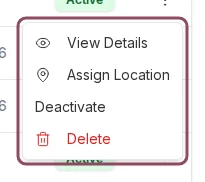
Click the three-dot menu on any tag row and select **Assign Location**. Pick a location from the dropdown and confirm. You can also change this on the tag's detail page.
### Deactivating a tag
Click the three-dot menu and select **Deactivate**. Inactive tags remain in your inventory but won't process taps. Use this if a tag is damaged or misplaced temporarily.
### Viewing tap activity
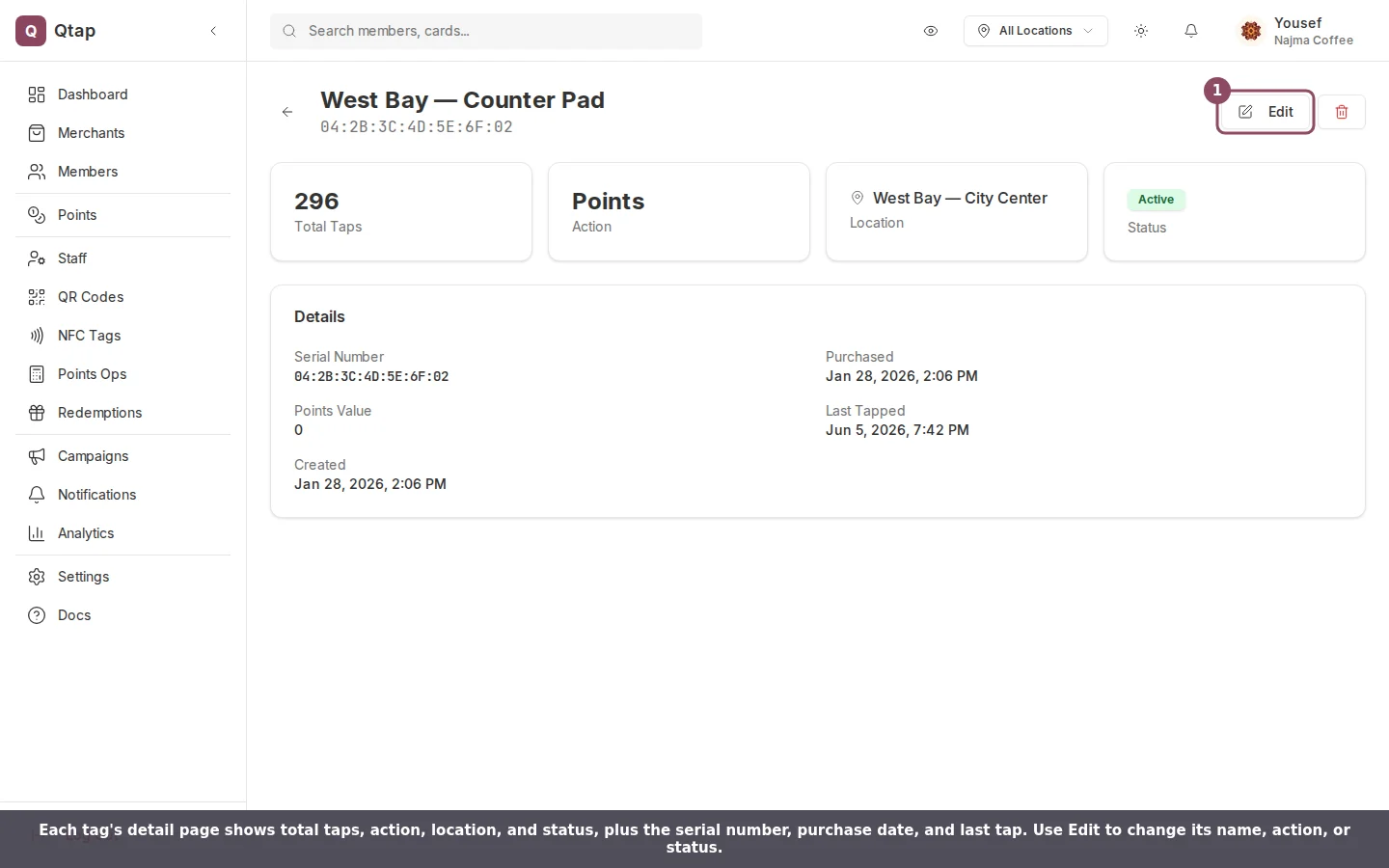
Click **View Details** on any tag to open its detail page. You'll see:
* Total tap count, action type, location assignment, and current status
* A line chart showing taps over the last 7 days
* A list of recent taps with timestamps
### Changing a tag's location
Click the three-dot menu on any tag row and select **Assign Location**. Pick a location from the dropdown and confirm. You can also change this on the tag's detail page.
### Deactivating a tag
Click the three-dot menu and select **Deactivate**. Inactive tags remain in your inventory but won't process taps. Use this if a tag is damaged or misplaced temporarily.
### Viewing tap activity
Click **View Details** on any tag to open its detail page. You'll see:
* Total tap count, action type, location assignment, and current status
* A line chart showing taps over the last 7 days
* A list of recent taps with timestamps
 ### Deleting a tag
Click **Delete** from the three-dot menu. This removes the tag from your dashboard permanently. All tap history for that tag is also deleted and cannot be recovered.
Deleting a tag cannot be undone. If you want to stop using a tag temporarily, deactivate it instead.
## Stats at a glance
At the top of the NFC Tags page, four summary cards show:
* **Total Tags** — how many tags you've registered
* **Active Tags** — how many are currently active
* **Total Taps** — combined tap count across all tags
* **Unassigned** — tags not linked to any location
Generate and manage QR codes as an alternative to NFC tags
Set up stamp cards that your NFC tags can link to
Purchase NFC tags as an add-on through your billing settings
### Deleting a tag
Click **Delete** from the three-dot menu. This removes the tag from your dashboard permanently. All tap history for that tag is also deleted and cannot be recovered.
Deleting a tag cannot be undone. If you want to stop using a tag temporarily, deactivate it instead.
## Stats at a glance
At the top of the NFC Tags page, four summary cards show:
* **Total Tags** — how many tags you've registered
* **Active Tags** — how many are currently active
* **Total Taps** — combined tap count across all tags
* **Unassigned** — tags not linked to any location
Generate and manage QR codes as an alternative to NFC tags
Set up stamp cards that your NFC tags can link to
Purchase NFC tags as an add-on through your billing settings