> ## Documentation Index
> Fetch the complete documentation index at: https://docs.qtap.qa/llms.txt
> Use this file to discover all available pages before exploring further.
# NFC tag details and settings
> Open a single NFC tag to see its tap count, location, and recent taps, and to rename it, change its action, deactivate it, or delete it.
Every NFC tag you register has its own detail page. It shows how many times the tag has been tapped, where it sits, and its most recent taps. From the same page you can rename the tag, change what a tap does, pause it, or delete it.
## Open a tag's detail page
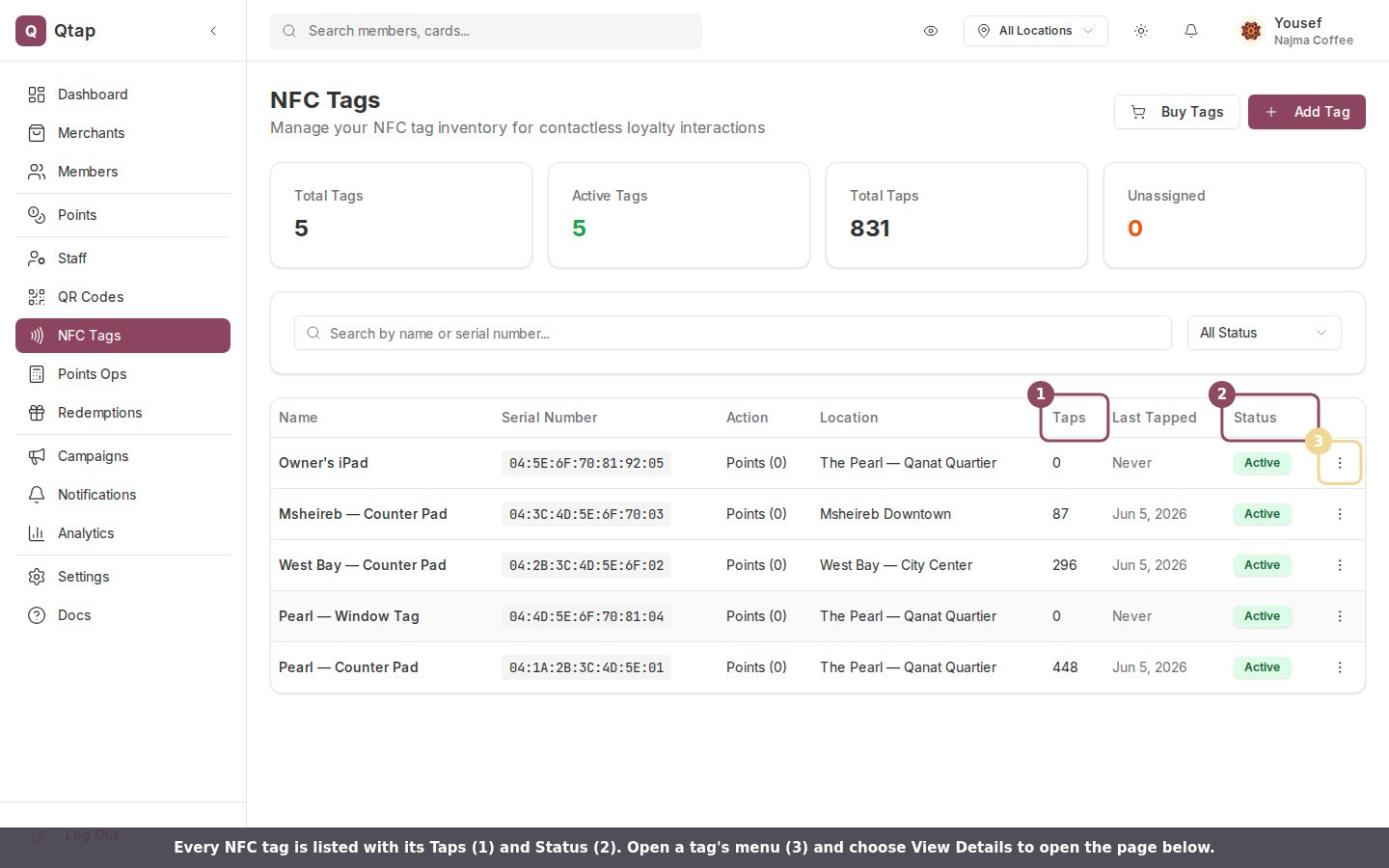
Go to **NFC Tags** in the left sidebar. Find the tag in the table, open its three-dot menu on the right, and choose **View Details**.
 ## What the detail page shows
The top of the page has four quick stats: **Total Taps**, **Action** (what a tap does, such as points or stamp), **Location**, and **Status** (active or inactive).
## What the detail page shows
The top of the page has four quick stats: **Total Taps**, **Action** (what a tap does, such as points or stamp), **Location**, and **Status** (active or inactive).
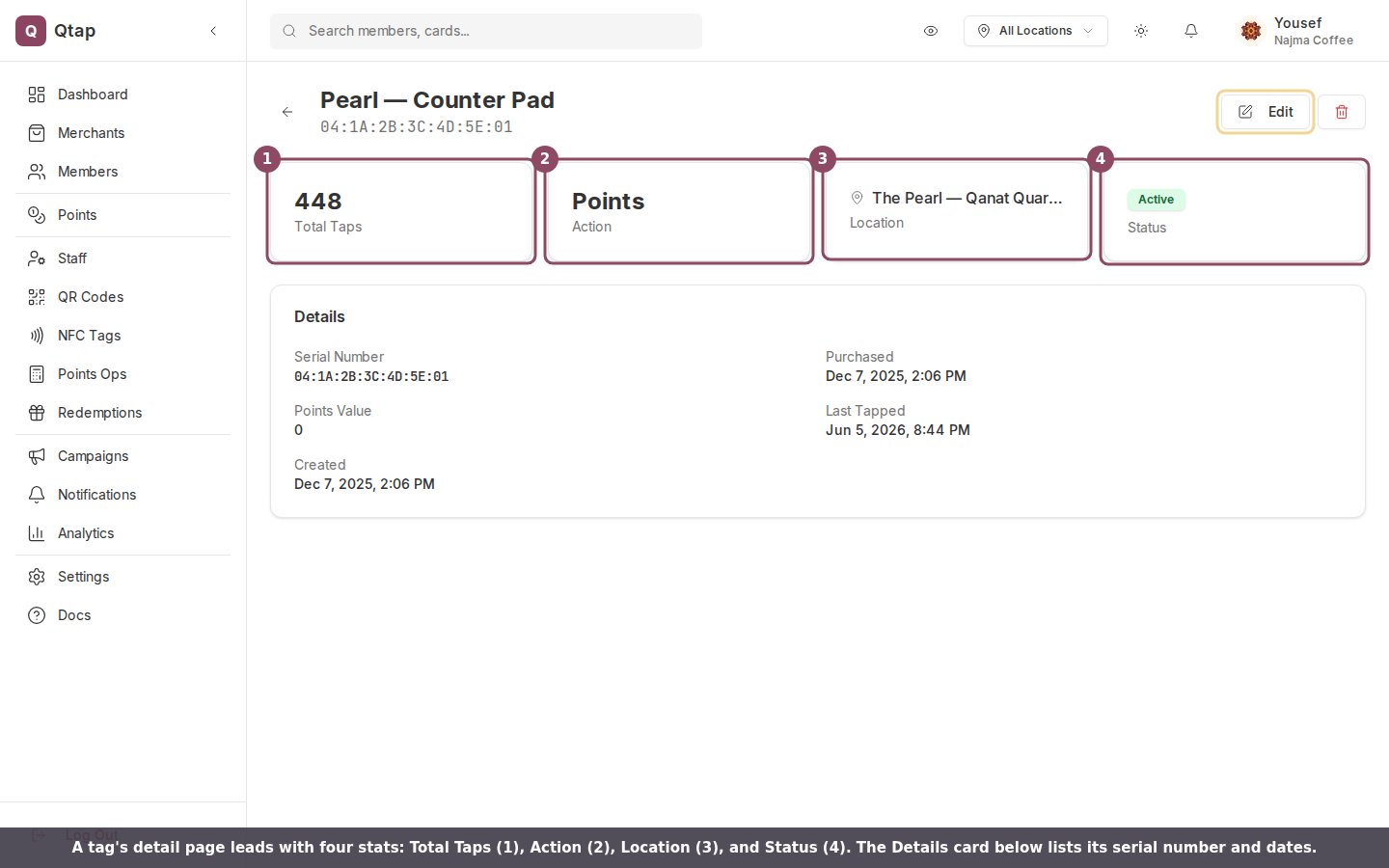 The **Details** card lists the tag's **Serial Number**, when it was **Purchased**, when it was **Created**, and the time it was **Last Tapped**. A points tag also shows its **Points Value** here.
Once a tag has been tapped, a **Tap Activity (Last 7 Days)** chart plots the daily tap count, and a **Recent Taps** card lists the latest taps with the date and time of each. A tap carries a **Member** badge when Qtap matched it to a customer who was signed in to the app.
## Change a tag's settings
Click **Edit** to open the tag's settings. You can update its **Name**, move it to a different **Location**, change the **Action** a tap runs (Add Stamp, Award Points, or Check-In), set the **Points Value** for a points tag, and turn the tag **Active** or off with the toggle. Click **Save Changes** when you are done.
The **Details** card lists the tag's **Serial Number**, when it was **Purchased**, when it was **Created**, and the time it was **Last Tapped**. A points tag also shows its **Points Value** here.
Once a tag has been tapped, a **Tap Activity (Last 7 Days)** chart plots the daily tap count, and a **Recent Taps** card lists the latest taps with the date and time of each. A tap carries a **Member** badge when Qtap matched it to a customer who was signed in to the app.
## Change a tag's settings
Click **Edit** to open the tag's settings. You can update its **Name**, move it to a different **Location**, change the **Action** a tap runs (Add Stamp, Award Points, or Check-In), set the **Points Value** for a points tag, and turn the tag **Active** or off with the toggle. Click **Save Changes** when you are done.
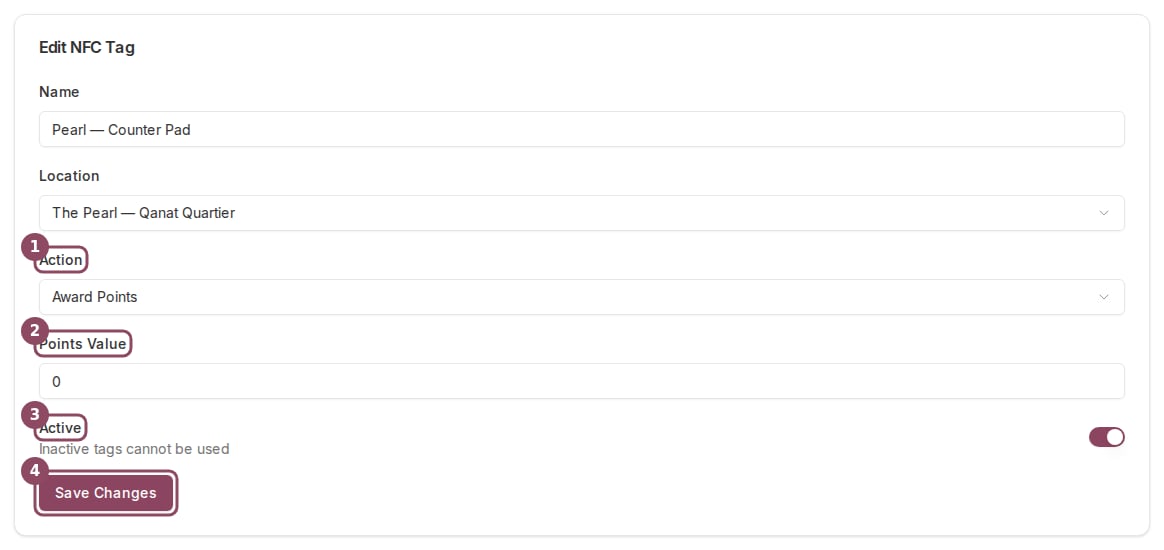 The **Serial Number** is printed on the tag itself and cannot be changed. The edit form also does not choose a stamp card: a tag fills the stamp card it was matched to when you first registered it. Switching the action to **Add Stamp** here is only useful for a tag that was set up against a stamp card to begin with.
## Pause or delete a tag
To pause a tag without removing it, open **Edit** and turn off **Active**. An inactive tag stops working when tapped, and you can turn it back on later.
To remove a tag for good, click the red trash button in the top right, then confirm in the dialog. Deleting a tag also deletes its tap history, and the action cannot be undone.
If a tag is stuck to a counter or table, deleting it stops every tap from that spot. To take a tag out of service for a while, turn off **Active** instead so you can bring it back later.
Owners and managers can open NFC tag detail pages. Staff members do not have access to the NFC Tags section.
Register and manage the NFC tags across your locations.
What happens behind the scenes when a customer taps a tag.
The **Serial Number** is printed on the tag itself and cannot be changed. The edit form also does not choose a stamp card: a tag fills the stamp card it was matched to when you first registered it. Switching the action to **Add Stamp** here is only useful for a tag that was set up against a stamp card to begin with.
## Pause or delete a tag
To pause a tag without removing it, open **Edit** and turn off **Active**. An inactive tag stops working when tapped, and you can turn it back on later.
To remove a tag for good, click the red trash button in the top right, then confirm in the dialog. Deleting a tag also deletes its tap history, and the action cannot be undone.
If a tag is stuck to a counter or table, deleting it stops every tap from that spot. To take a tag out of service for a while, turn off **Active** instead so you can bring it back later.
Owners and managers can open NFC tag detail pages. Staff members do not have access to the NFC Tags section.
Register and manage the NFC tags across your locations.
What happens behind the scenes when a customer taps a tag.