> ## Documentation Index
> Fetch the complete documentation index at: https://docs.qtap.qa/llms.txt
> Use this file to discover all available pages before exploring further.
# Send a notification to specific members
> Pick the exact members you want to reach and send them a push notification, without choosing a segment.
Most push notifications go to a segment, like all customers or members at risk. Sometimes you want to reach a short list of people you choose by hand: the five regulars who came to last week's event, or one customer whose reward is about to expire. Qtap lets you tick those members and send straight to them.
## Pick the members
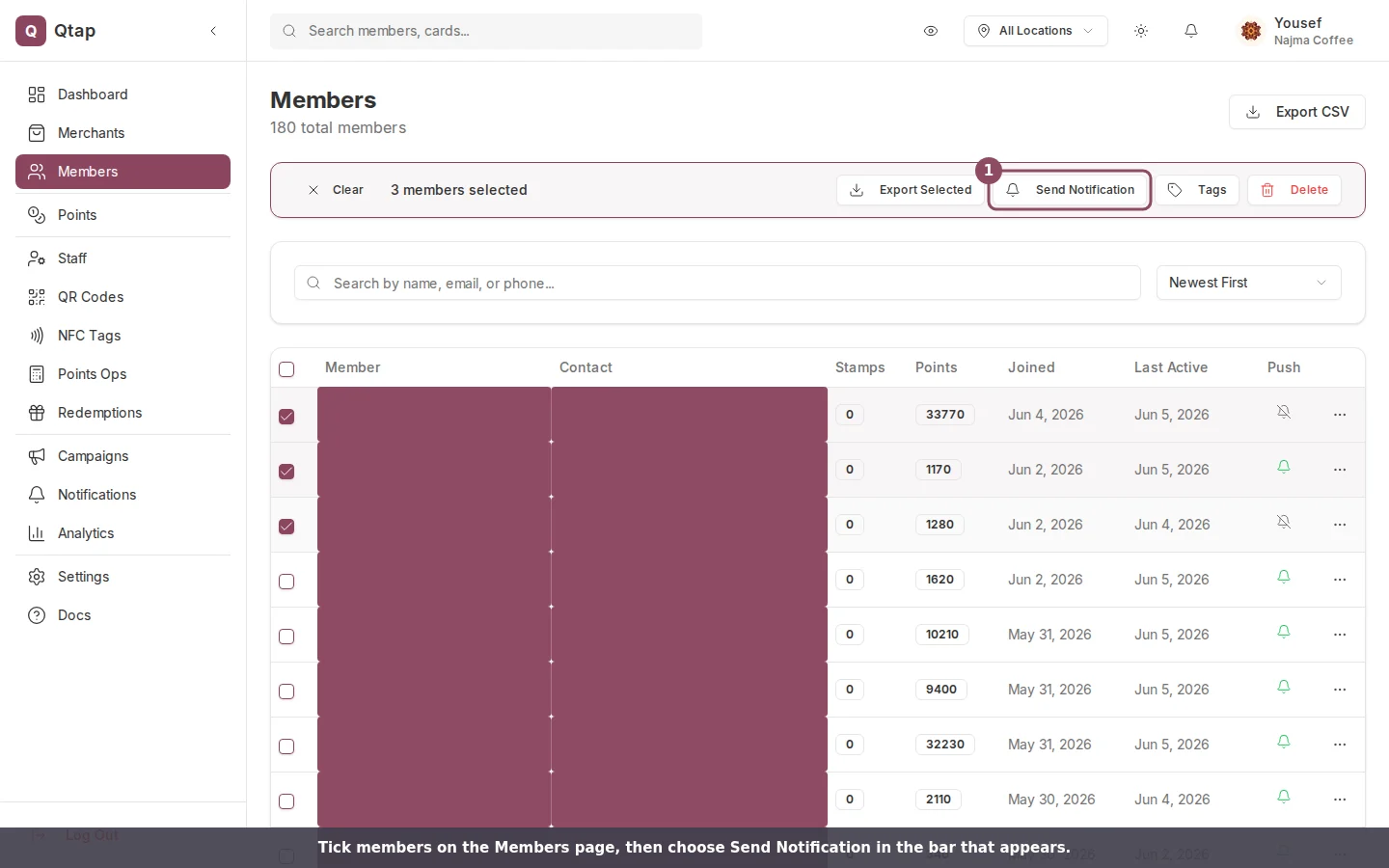
Go to **Members** in the left sidebar. Tick the checkbox on each member's row. A bar appears across the top showing how many you have selected, with a **Send Notification** button.
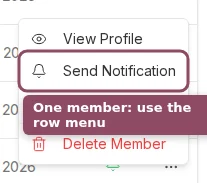
 To message just one person, open that member's row menu (the three-dot button at the end of the row) and choose **Send Notification**. You can also open the member's profile and use the **Send Notification** button at the top. Either way works only for members who have push turned on; for anyone who hasn't, the option reads **Push not enabled** and stays greyed out.
 ## Write and send
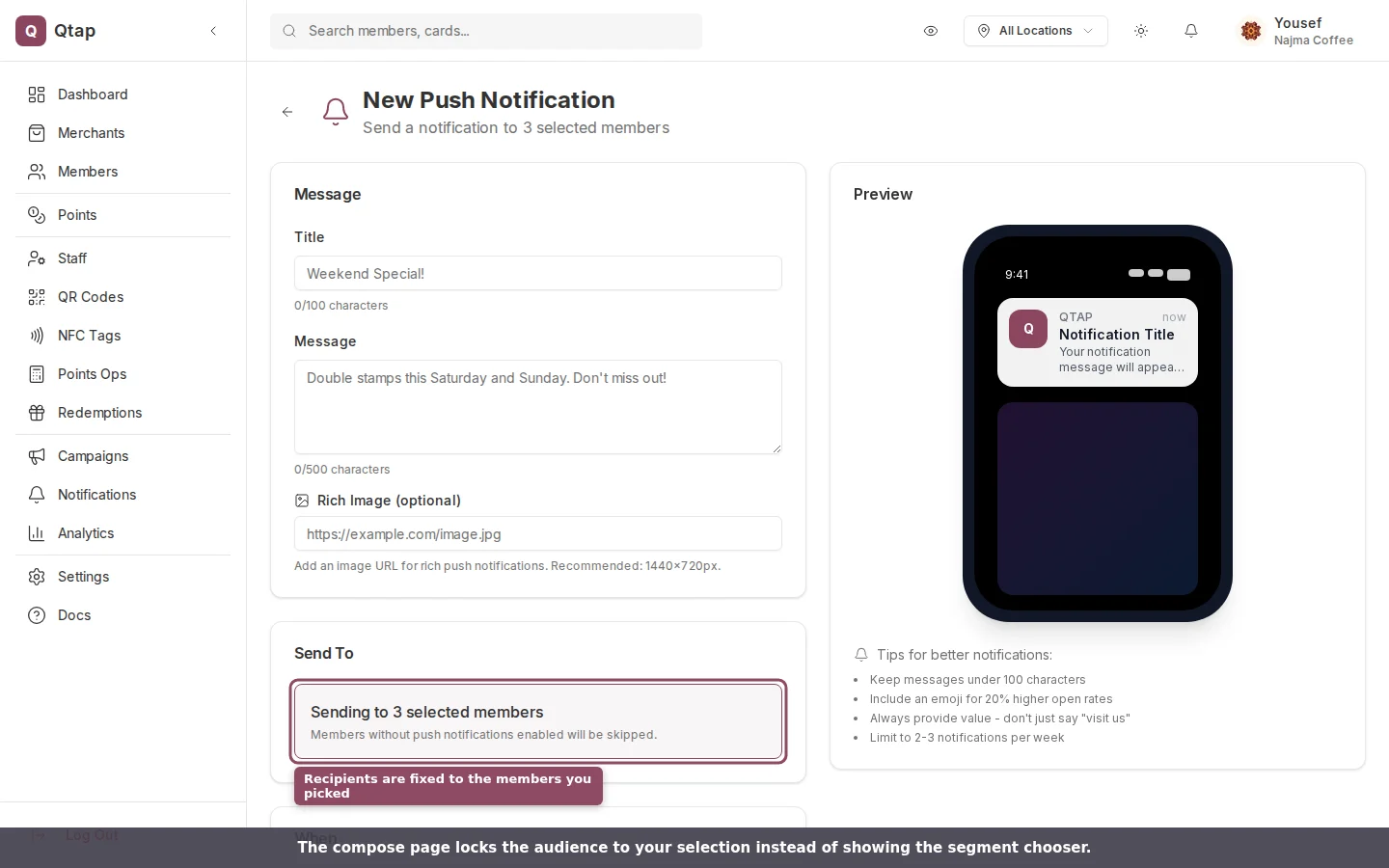
The compose page opens with the audience already set. Instead of the segment chooser, the **Send To** card reads **Sending to N selected members**, so you can see your message goes only to the people you picked.
## Write and send
The compose page opens with the audience already set. Instead of the segment chooser, the **Send To** card reads **Sending to N selected members**, so you can see your message goes only to the people you picked.
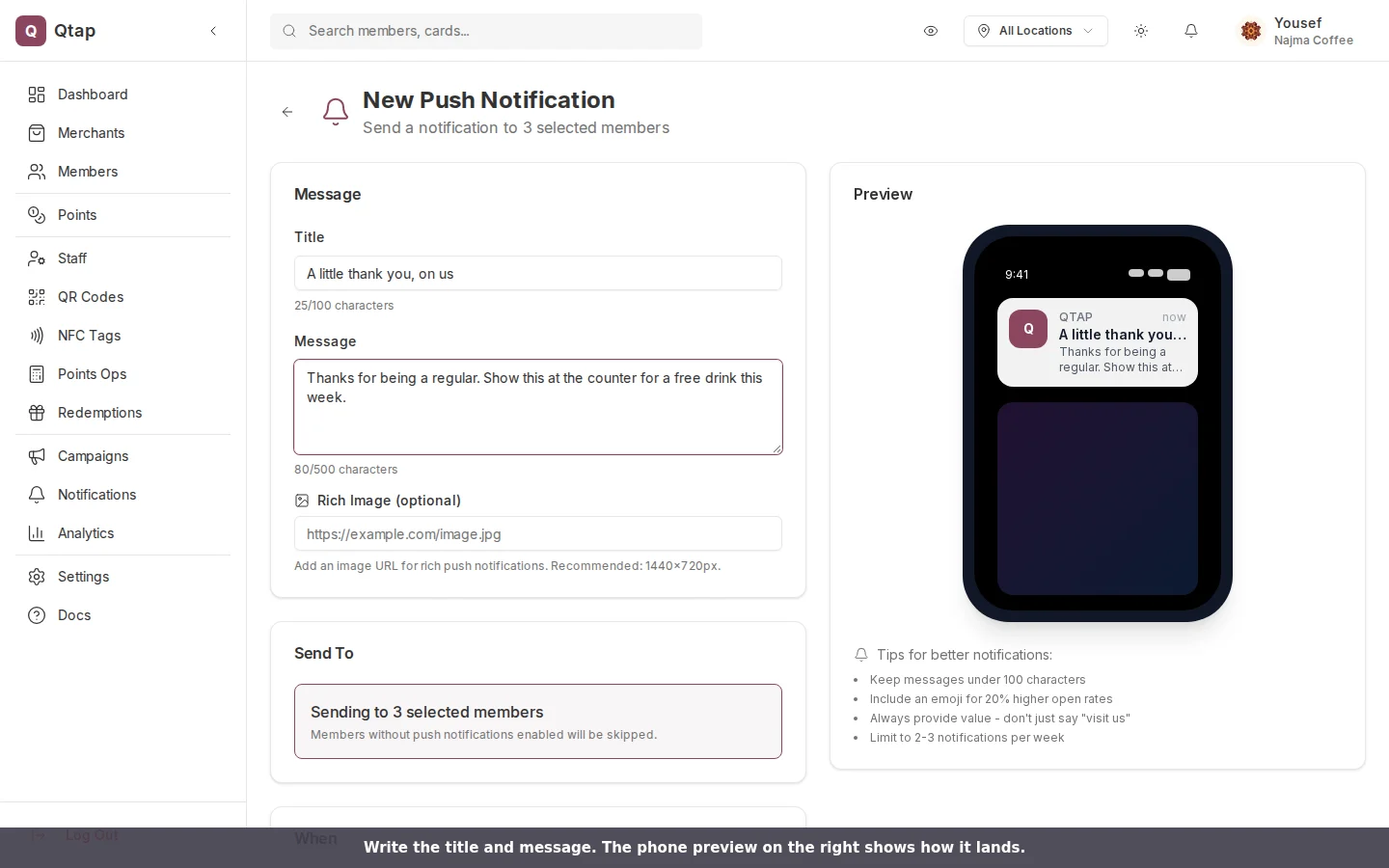
 Add a **Title** (up to 100 characters) and a **Message** (up to 500). The phone preview on the right updates as you type. To start from a saved message, click **Use Template**.
Click **Send Now** to deliver right away, or turn on **Schedule for later** to pick a date and time. **Save as Draft** keeps it for later without sending.
Add a **Title** (up to 100 characters) and a **Message** (up to 500). The phone preview on the right updates as you type. To start from a saved message, click **Use Template**.
Click **Send Now** to deliver right away, or turn on **Schedule for later** to pick a date and time. **Save as Draft** keeps it for later without sending.
 Members without the Qtap app, or who have turned push off, are skipped. If none of the members you picked have push on, nothing is sent and the notification shows zero recipients.
Owners and managers can send notifications. Staff don't see the Send Notification buttons.
Send to a whole segment, add personalized variables, save templates, and read delivery stats.
Search and sort your members, then open any member's profile.
Members without the Qtap app, or who have turned push off, are skipped. If none of the members you picked have push on, nothing is sent and the notification shows zero recipients.
Owners and managers can send notifications. Staff don't see the Send Notification buttons.
Send to a whole segment, add personalized variables, save templates, and read delivery stats.
Search and sort your members, then open any member's profile.