> ## Documentation Index
> Fetch the complete documentation index at: https://docs.qtap.qa/llms.txt
> Use this file to discover all available pages before exploring further.
# Adjusting and deducting points
> Add or remove points from a member by hand when something needs fixing, and understand who is allowed to do it.
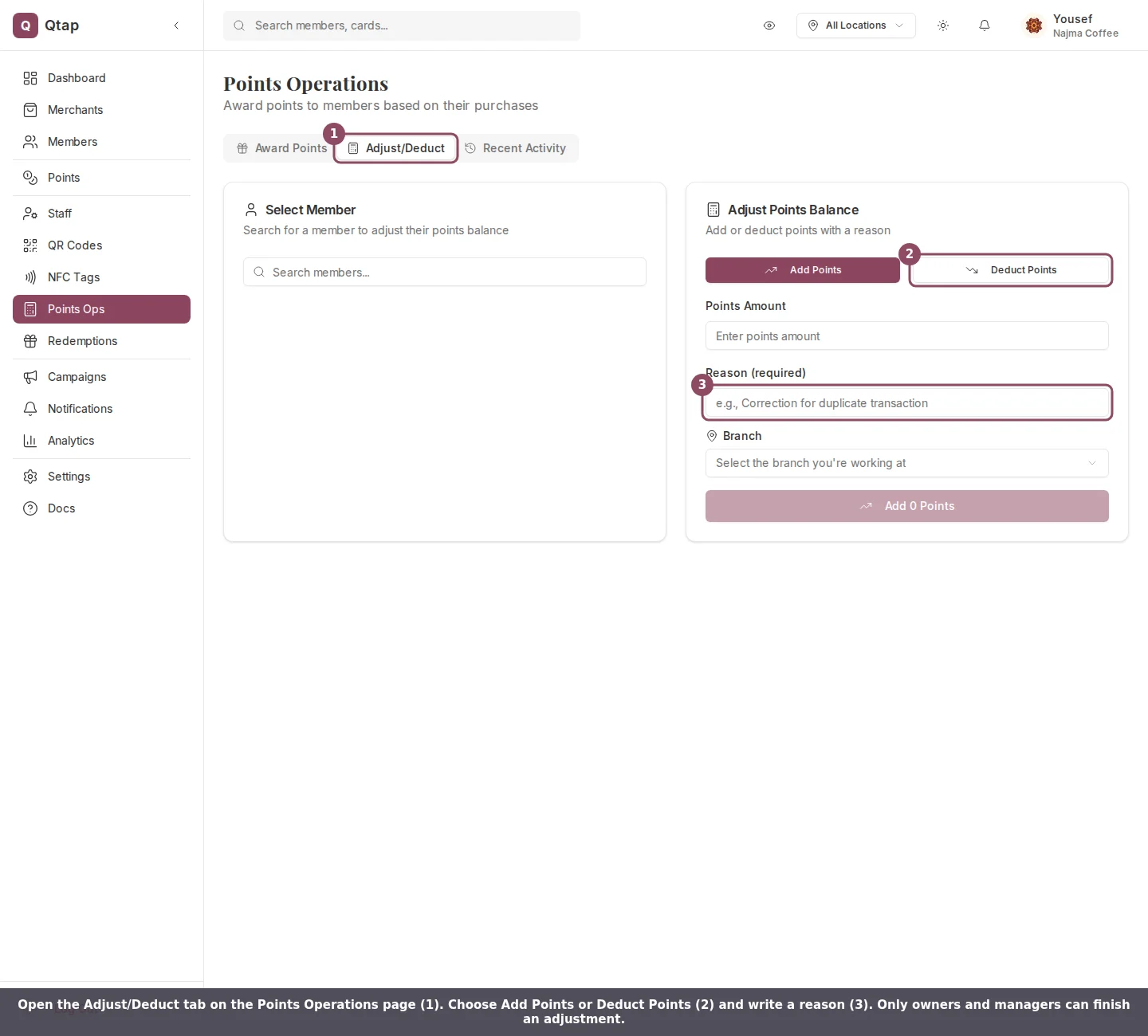
Sometimes a balance is wrong. A purchase was rung up twice, a member was promised a goodwill bonus, or points were awarded to the wrong person. The **Adjust/Deduct** tab on the Points Operations page lets you correct a balance by hand, outside of a normal purchase. For the everyday award flow, see [Points Operations](/merchants/points/operations).
 ## Who can adjust a balance
Only owners and managers can finish an adjustment. A staff member can open the Points Operations page and see the Adjust/Deduct tab, but when they try to confirm, Qtap blocks the change and tells them the action needs an owner or manager. Hand a balance correction to an owner or manager if you are signed in as staff.
## Add or deduct points
1. Open **Points Operations** in the left sidebar, then the **Adjust/Deduct** tab.
2. Search for the member by name, email, or phone, and pick them from the results.
3. Choose **Add Points** to raise the balance or **Deduct Points** to lower it.
4. Enter the **Points Amount**.
5. Type a **Reason**. This field is required, and it is saved with the change.
6. Pick the **Branch** you are working at.
7. Click the button and confirm on the next screen.
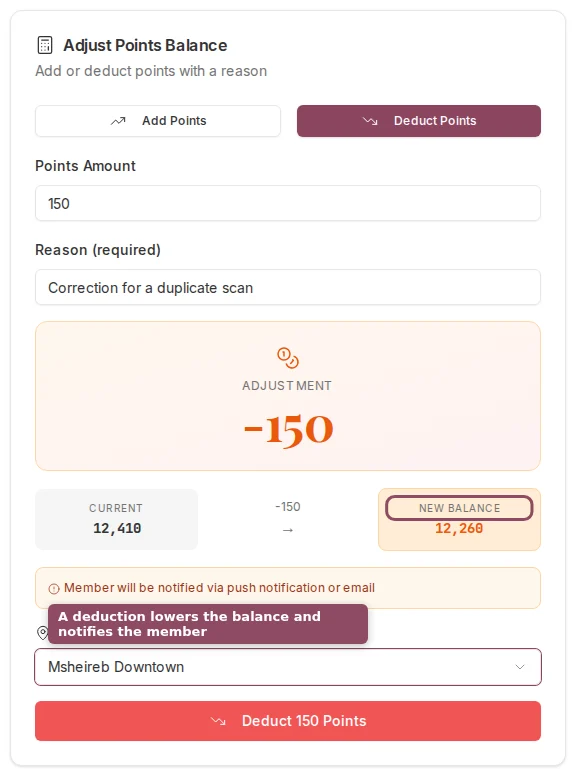
As you fill the form, Qtap shows the member's current balance and what it becomes after the change, so you can check the math before you confirm.
## Who can adjust a balance
Only owners and managers can finish an adjustment. A staff member can open the Points Operations page and see the Adjust/Deduct tab, but when they try to confirm, Qtap blocks the change and tells them the action needs an owner or manager. Hand a balance correction to an owner or manager if you are signed in as staff.
## Add or deduct points
1. Open **Points Operations** in the left sidebar, then the **Adjust/Deduct** tab.
2. Search for the member by name, email, or phone, and pick them from the results.
3. Choose **Add Points** to raise the balance or **Deduct Points** to lower it.
4. Enter the **Points Amount**.
5. Type a **Reason**. This field is required, and it is saved with the change.
6. Pick the **Branch** you are working at.
7. Click the button and confirm on the next screen.
As you fill the form, Qtap shows the member's current balance and what it becomes after the change, so you can check the math before you confirm.
 ## A deduction cannot go below zero
You cannot deduct more points than a member has. If the amount would push the balance under zero, Qtap rejects the change and leaves the balance untouched. Lower the amount and try again.
## Deductions notify the member
When you deduct points, the member gets a notice with the reason you typed and their new balance. Qtap sends it as a push notification, and falls back to email if push is off. Adding points does not send a notice. The confirmation screen reminds you of this before a deduction goes through.
## A deduction cannot go below zero
You cannot deduct more points than a member has. If the amount would push the balance under zero, Qtap rejects the change and leaves the balance untouched. Lower the amount and try again.
## Deductions notify the member
When you deduct points, the member gets a notice with the reason you typed and their new balance. Qtap sends it as a push notification, and falls back to email if push is off. Adding points does not send a notice. The confirmation screen reminds you of this before a deduction goes through.
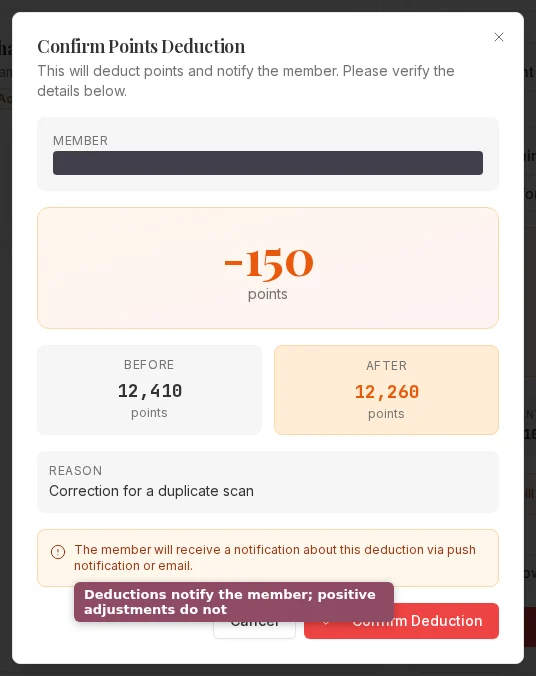 Every adjustment is recorded with your staff account, the amount, and the reason. A balance change is hard to walk back, so check the member and the amount before you confirm.
Each change also lands in the **Recent Activity** tab, where you can confirm it went through and see who made it.
Award points for a purchase and read the recent activity log.
Set your earn rate, minimum transaction, and expiry rules.
Every adjustment is recorded with your staff account, the amount, and the reason. A balance change is hard to walk back, so check the member and the amount before you confirm.
Each change also lands in the **Recent Activity** tab, where you can confirm it went through and see who made it.
Award points for a purchase and read the recent activity log.
Set your earn rate, minimum transaction, and expiry rules.