> ## Documentation Index
> Fetch the complete documentation index at: https://docs.qtap.qa/llms.txt
> Use this file to discover all available pages before exploring further.
# Awarding points: By Amount or Manual Points
> Give a member points worked out from a purchase total, or type an exact number, and know when to use each.
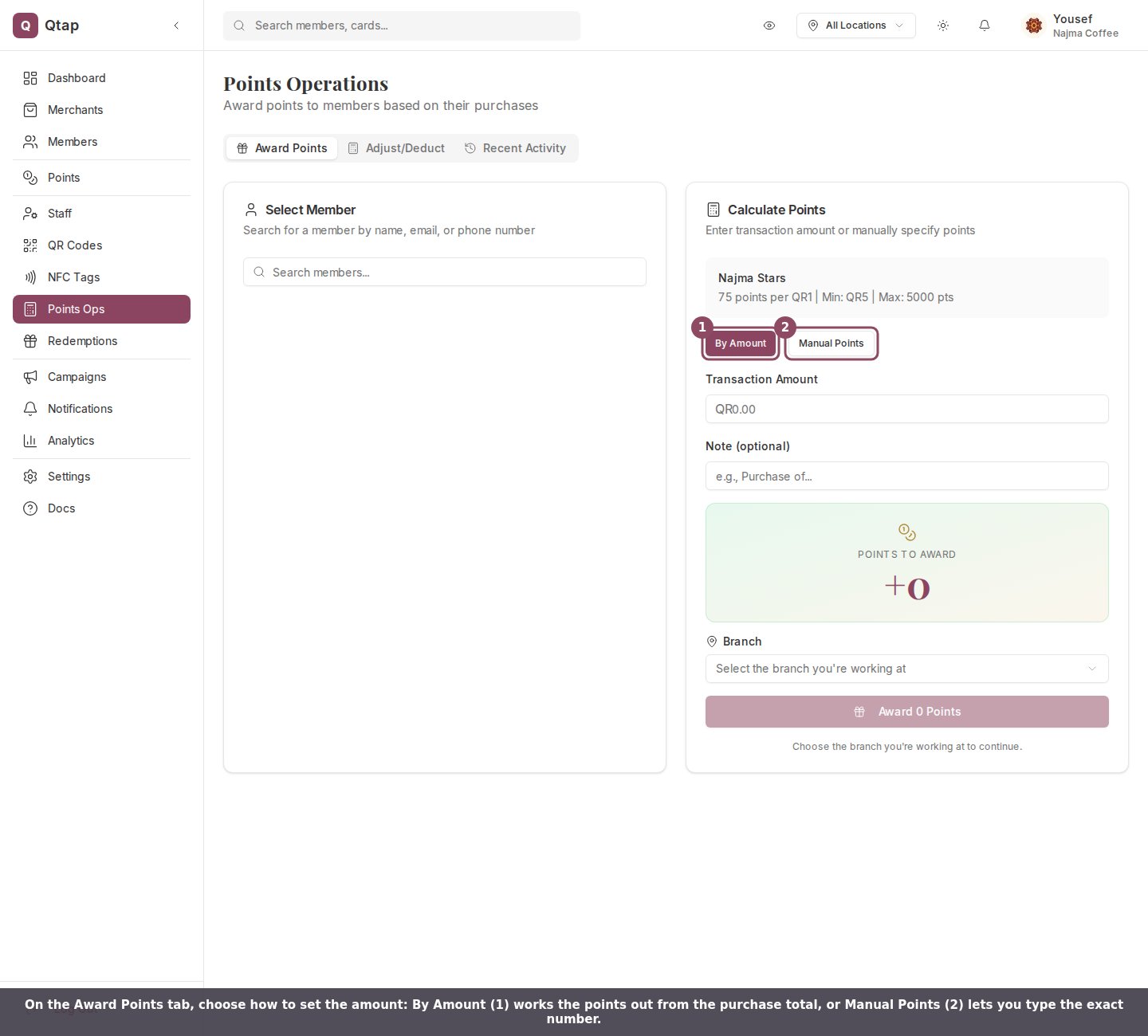
The **Award Points** tab on Points Operations is where you give a member points. You find the member on the left, then set how many points to give on the right. There are two ways to set the amount: **By Amount** works the points out from a purchase total, and **Manual Points** lets you type the exact number.
 ## By Amount
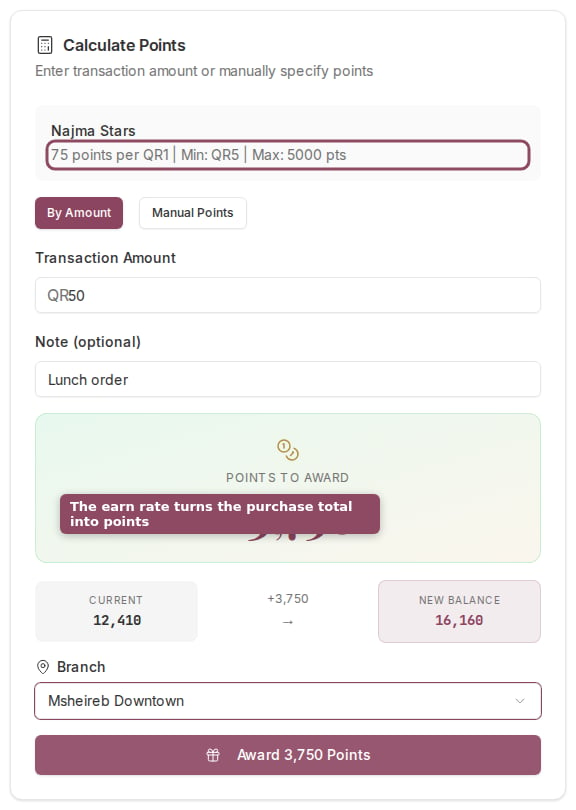
Use this for a normal sale. Type the purchase total into **Transaction Amount**, and Qtap multiplies it by your program's earn rate to fill in the **Points to Award** preview as you type. The card header shows the rate and any limits, for example "75 points per QR1 | Min: QR5 | Max: 5000 pts".
## By Amount
Use this for a normal sale. Type the purchase total into **Transaction Amount**, and Qtap multiplies it by your program's earn rate to fill in the **Points to Award** preview as you type. The card header shows the rate and any limits, for example "75 points per QR1 | Min: QR5 | Max: 5000 pts".
 1. In **Select Member**, search by name, email, or phone, then choose the member.
2. Keep **By Amount** selected.
3. Type the purchase total into **Transaction Amount**. Watch **Points to Award** update.
4. Add a **Note** if you want to record what the purchase was for. This is optional.
5. Choose the **Branch** you are working at. The award button stays disabled until you pick one if your account has more than one branch.
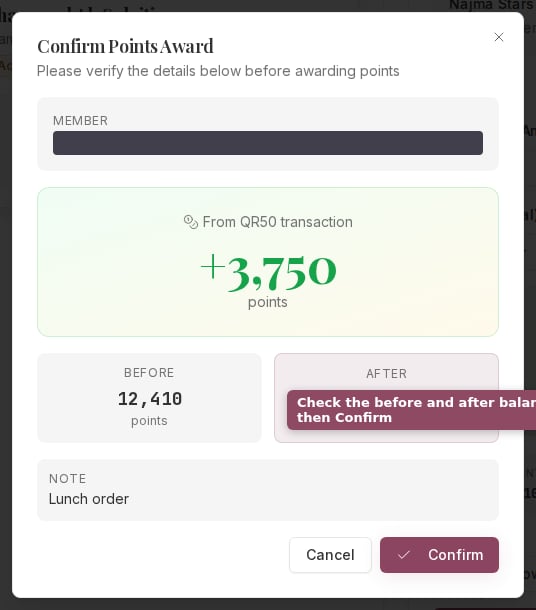
6. Click **Award Points**, check the details, then **Confirm**.
A purchase below the minimum earns 0 points and shows an orange note. A single award never goes above the cap. Because you entered a purchase amount, that figure is saved with the award, so By Amount awards count toward your [Revenue Impact report](/merchants/analytics/revenue-impact).
1. In **Select Member**, search by name, email, or phone, then choose the member.
2. Keep **By Amount** selected.
3. Type the purchase total into **Transaction Amount**. Watch **Points to Award** update.
4. Add a **Note** if you want to record what the purchase was for. This is optional.
5. Choose the **Branch** you are working at. The award button stays disabled until you pick one if your account has more than one branch.
6. Click **Award Points**, check the details, then **Confirm**.
A purchase below the minimum earns 0 points and shows an orange note. A single award never goes above the cap. Because you entered a purchase amount, that figure is saved with the award, so By Amount awards count toward your [Revenue Impact report](/merchants/analytics/revenue-impact).
 ## Manual Points
Switch to **Manual Points** to give an exact number instead, such as a goodwill gesture or a figure agreed outside the normal rate. Type the points straight into **Points to Award**.
## Manual Points
Switch to **Manual Points** to give an exact number instead, such as a goodwill gesture or a figure agreed outside the normal rate. Type the points straight into **Points to Award**.
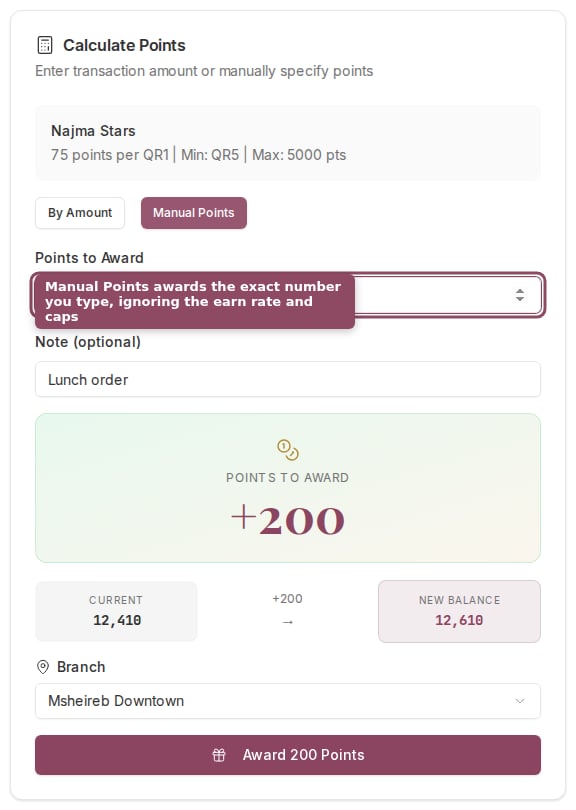 The earn rate, minimum, and cap do not apply here: the number you type is the number awarded. No purchase amount is recorded, so manual awards do not show up in your revenue figures.
Reach for **By Amount** whenever there is a real sale behind the points, so your revenue stays accurate. Use **Manual Points** for a fixed number that is not tied to a purchase.
## Who can award points
Owners, managers, and staff can all award points, so any team member working the till can use this tab. Adding or removing points outside a sale is different: that lives on the **Adjust/Deduct** tab and is limited to owners and managers. See [Adjusting and deducting points](/merchants/points/adjusting).
The full tour of the page, including Adjust/Deduct and Recent Activity.
Set the points per currency, minimum transaction, and per-visit cap that By Amount uses.
The earn rate, minimum, and cap do not apply here: the number you type is the number awarded. No purchase amount is recorded, so manual awards do not show up in your revenue figures.
Reach for **By Amount** whenever there is a real sale behind the points, so your revenue stays accurate. Use **Manual Points** for a fixed number that is not tied to a purchase.
## Who can award points
Owners, managers, and staff can all award points, so any team member working the till can use this tab. Adding or removing points outside a sale is different: that lives on the **Adjust/Deduct** tab and is limited to owners and managers. See [Adjusting and deducting points](/merchants/points/adjusting).
The full tour of the page, including Adjust/Deduct and Recent Activity.
Set the points per currency, minimum transaction, and per-visit cap that By Amount uses.