> ## Documentation Index
> Fetch the complete documentation index at: https://docs.qtap.qa/llms.txt
> Use this file to discover all available pages before exploring further.
# Creating a Points Program
> How to set up a new points program in the Qtap dashboard.
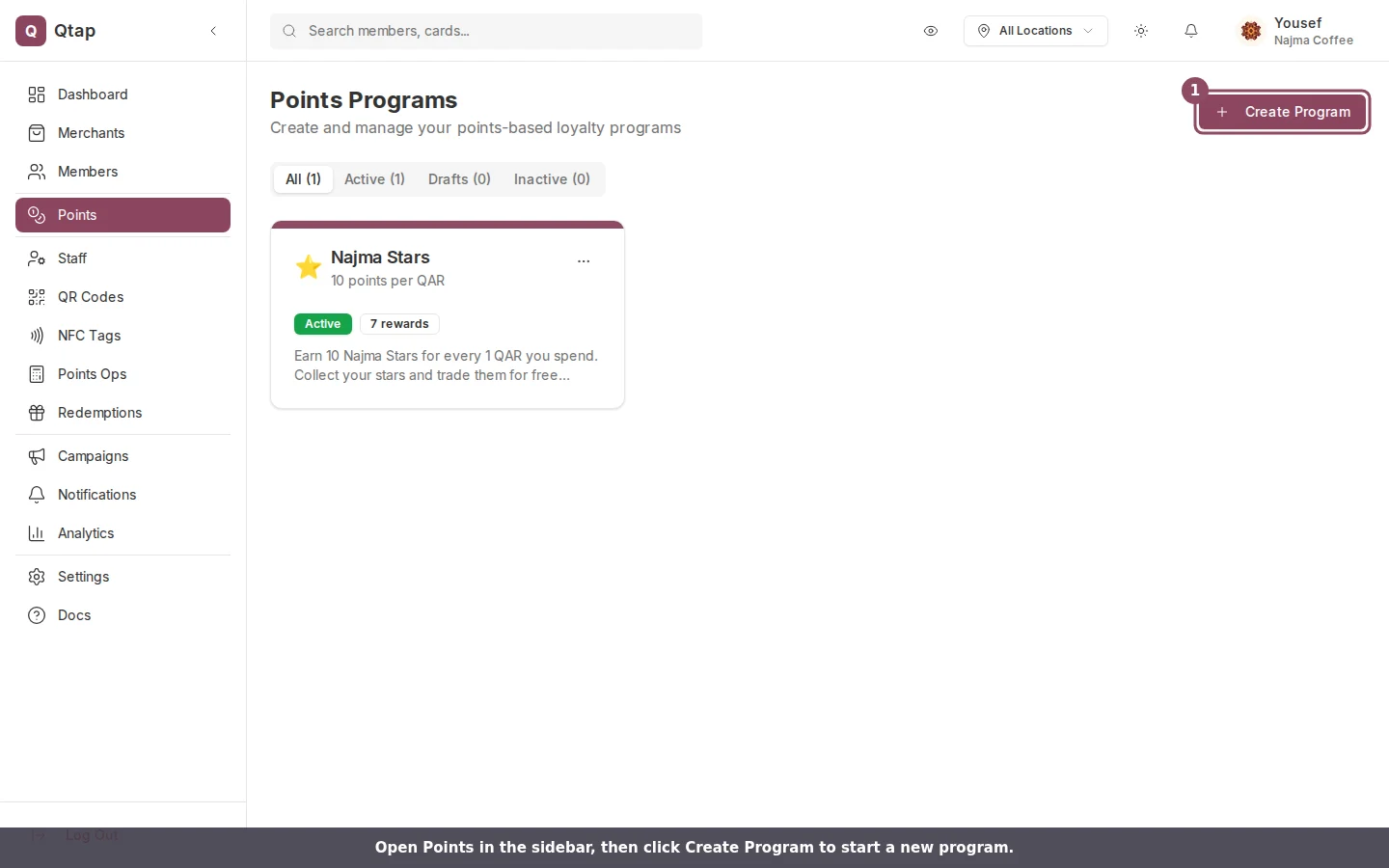
To create a points program, go to **Points** in the left sidebar and click **New Points Program**. The form and a live card preview load side by side.
 Points programs and stamp cards share a plan limit. If you've reached your loyalty card limit, you'll see a message here with a link to upgrade under **Settings > Billing**.
## Program details
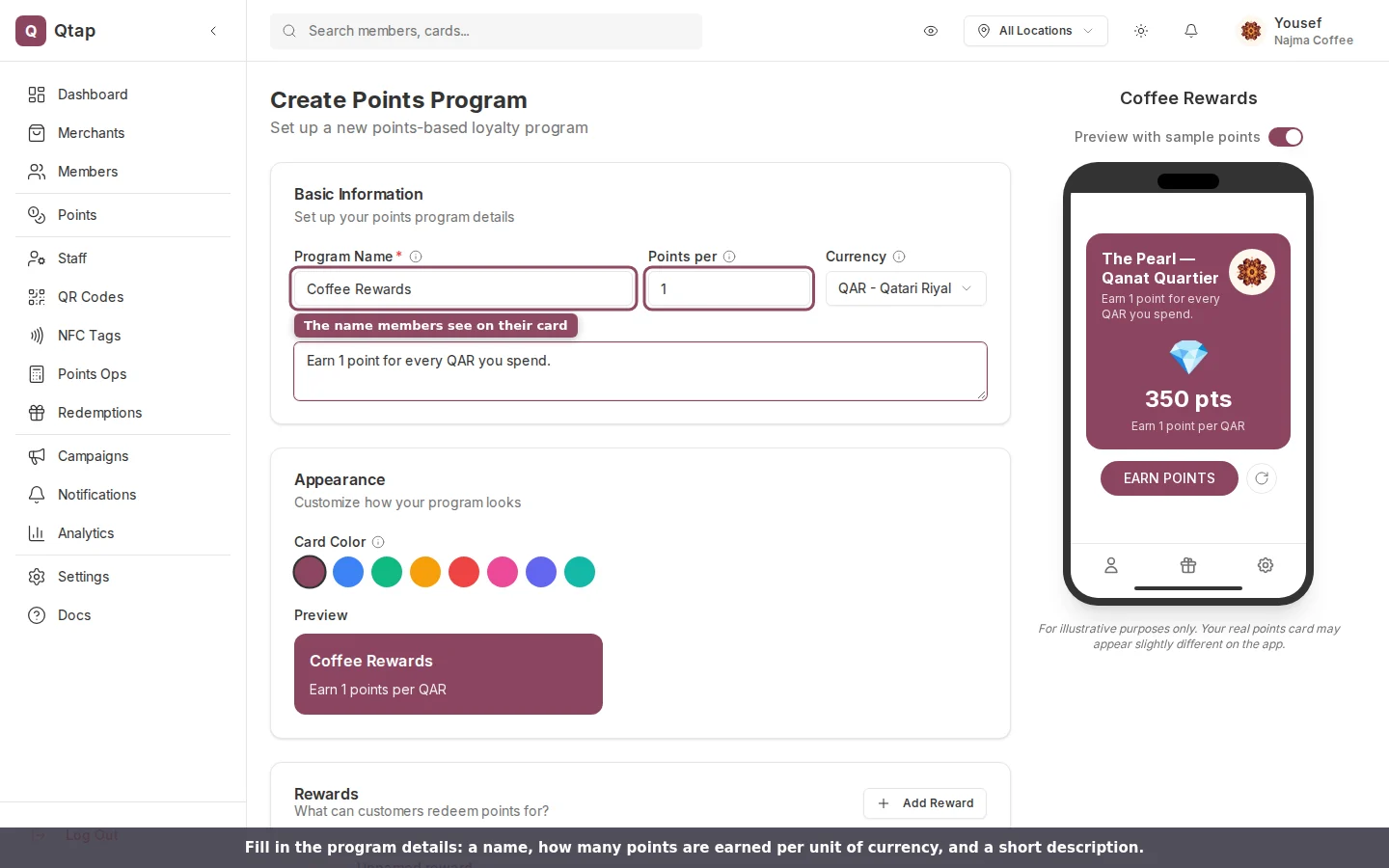
Fill in the program details at the top of the form:
1. **Program Name** — what members see on the card in the app. Required.
2. **Description** — a short line that appears on the card, like "Earn 1 point per QAR spent."
3. **Points per currency** — how many points a customer earns per one unit of currency. If you set this to 2, a customer spending 10 QAR earns 20 points. Defaults to 1.
4. **Currency** — the currency your program uses. Defaults to QAR.
5. **Card Icon** — choose an emoji to display on the card (diamond, star, trophy, gift, and others).
6. **Card Color** — the background color of the card. Click the color swatch to open the picker.
7. **Terms and conditions** — optional text displayed on the back of the card.
Points programs and stamp cards share a plan limit. If you've reached your loyalty card limit, you'll see a message here with a link to upgrade under **Settings > Billing**.
## Program details
Fill in the program details at the top of the form:
1. **Program Name** — what members see on the card in the app. Required.
2. **Description** — a short line that appears on the card, like "Earn 1 point per QAR spent."
3. **Points per currency** — how many points a customer earns per one unit of currency. If you set this to 2, a customer spending 10 QAR earns 20 points. Defaults to 1.
4. **Currency** — the currency your program uses. Defaults to QAR.
5. **Card Icon** — choose an emoji to display on the card (diamond, star, trophy, gift, and others).
6. **Card Color** — the background color of the card. Click the color swatch to open the picker.
7. **Terms and conditions** — optional text displayed on the back of the card.
 ## Rewards
Rewards define what members get and how many points they need to earn it.
### Click Add Reward
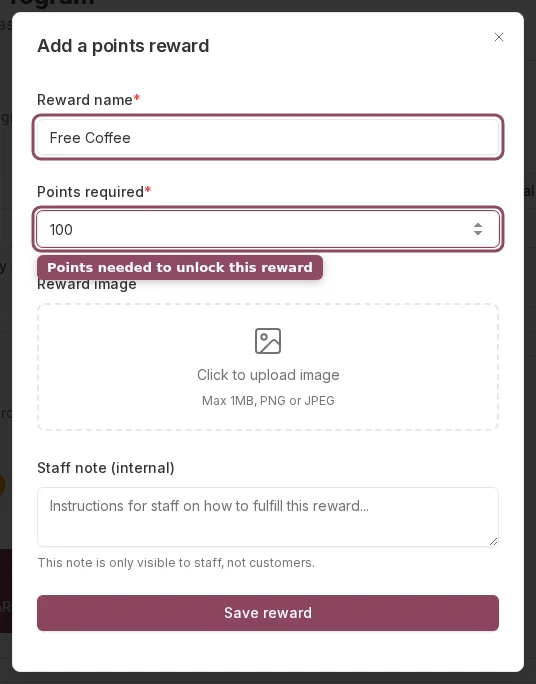
Click **Add Reward** to open the reward editor.
### Fill in the reward details
* **Reward Name** — what the customer receives (e.g., "Free Coffee", "10% Off")
* **Points required** — the number of points that triggers this reward (e.g., 100)
* **Reward Image** — optional PNG or JPEG up to 1MB, shown with the reward in the app
* **Staff note** — an internal note visible only to staff at the point of redemption
### Save the reward
Click **Save reward**. You can add as many rewards as you like, each at a different points threshold.
## Rewards
Rewards define what members get and how many points they need to earn it.
### Click Add Reward
Click **Add Reward** to open the reward editor.
### Fill in the reward details
* **Reward Name** — what the customer receives (e.g., "Free Coffee", "10% Off")
* **Points required** — the number of points that triggers this reward (e.g., 100)
* **Reward Image** — optional PNG or JPEG up to 1MB, shown with the reward in the app
* **Staff note** — an internal note visible only to staff at the point of redemption
### Save the reward
Click **Save reward**. You can add as many rewards as you like, each at a different points threshold.
 ## Expiry rules
By default, points never expire. To enable expiry, turn on the **Points expire** toggle and configure:
* **Days** — how many days before points expire
* **Expiry type** — choose from "From earn date," "From last activity," or "Calendar year"
## Availability period
If you want the program to run only during a specific window, turn on the availability period toggle and set a start date and end date. Members can only earn points between those dates.
## Valid Locations
Select which locations this program applies to. If you leave all locations unchecked, the program works at all locations.
## Saving and publishing
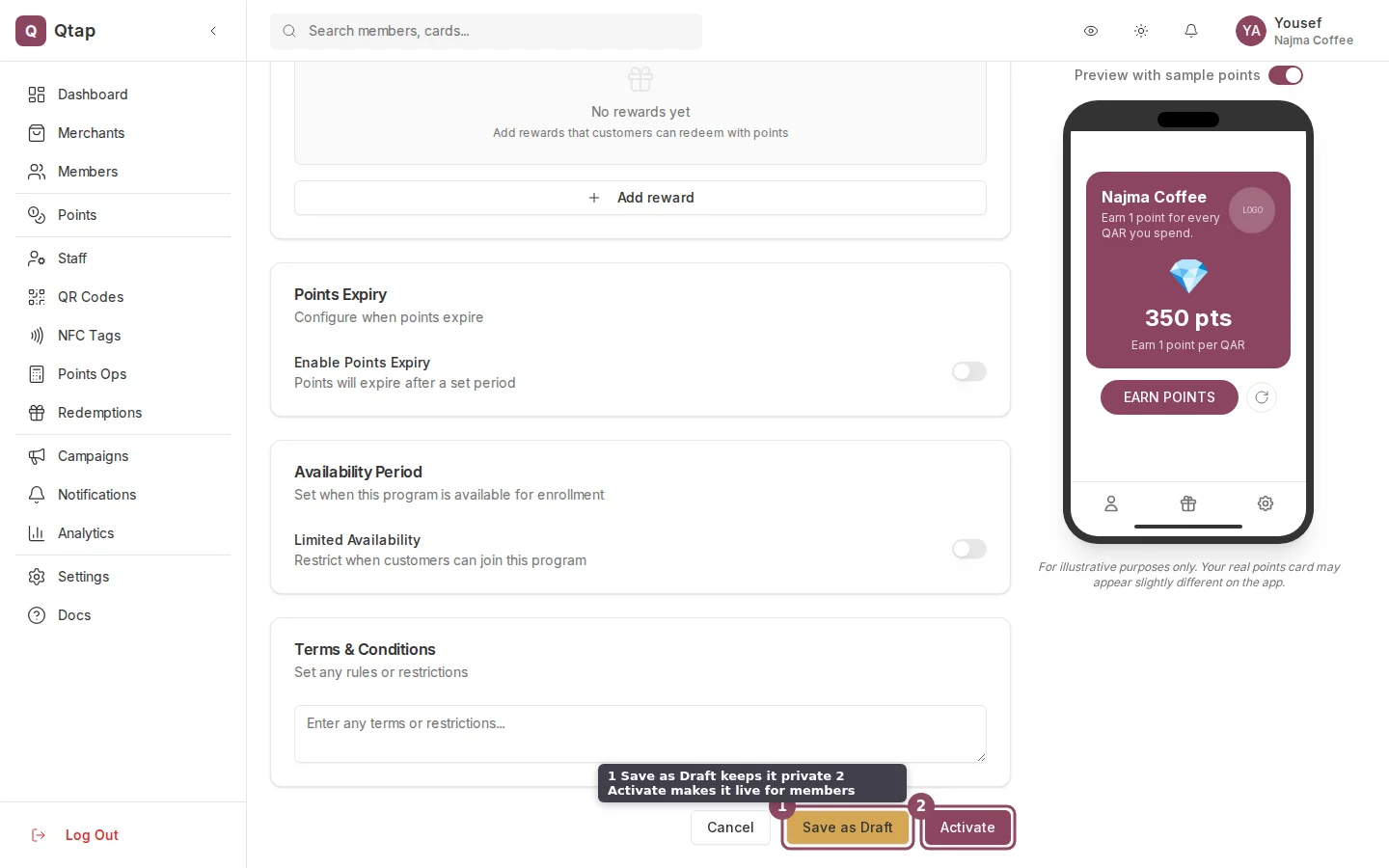
At the bottom of the form, click **Publish** to make the program live immediately. Members can find and join it in the Qtap app right away.
Click **Save Draft** to save without making it public. Draft programs are not visible to members.
## Expiry rules
By default, points never expire. To enable expiry, turn on the **Points expire** toggle and configure:
* **Days** — how many days before points expire
* **Expiry type** — choose from "From earn date," "From last activity," or "Calendar year"
## Availability period
If you want the program to run only during a specific window, turn on the availability period toggle and set a start date and end date. Members can only earn points between those dates.
## Valid Locations
Select which locations this program applies to. If you leave all locations unchecked, the program works at all locations.
## Saving and publishing
At the bottom of the form, click **Publish** to make the program live immediately. Members can find and join it in the Qtap app right away.
Click **Save Draft** to save without making it public. Draft programs are not visible to members.
 Once a points program is active and members have joined, you can edit the program name, description, and rewards. Changing the points per currency setting will not retroactively adjust points members have already earned.
How points programs work and what can be configured.
How staff issue points to customers.
Once a points program is active and members have joined, you can edit the program name, description, and rewards. Changing the points per currency setting will not retroactively adjust points members have already earned.
How points programs work and what can be configured.
How staff issue points to customers.