> ## Documentation Index
> Fetch the complete documentation index at: https://docs.qtap.qa/llms.txt
> Use this file to discover all available pages before exploring further.
# Points Operations
> Award points to members for purchases, adjust a balance when something needs fixing, and check the recent activity log.
Points Operations is where staff give members points for purchases, correct a balance when needed, and review recent points activity. You need an active points program on your account before this page does anything.
The page has three tabs across the top: **Award Points**, **Adjust/Deduct**, and **Recent Activity**.
 ## Award points for a purchase
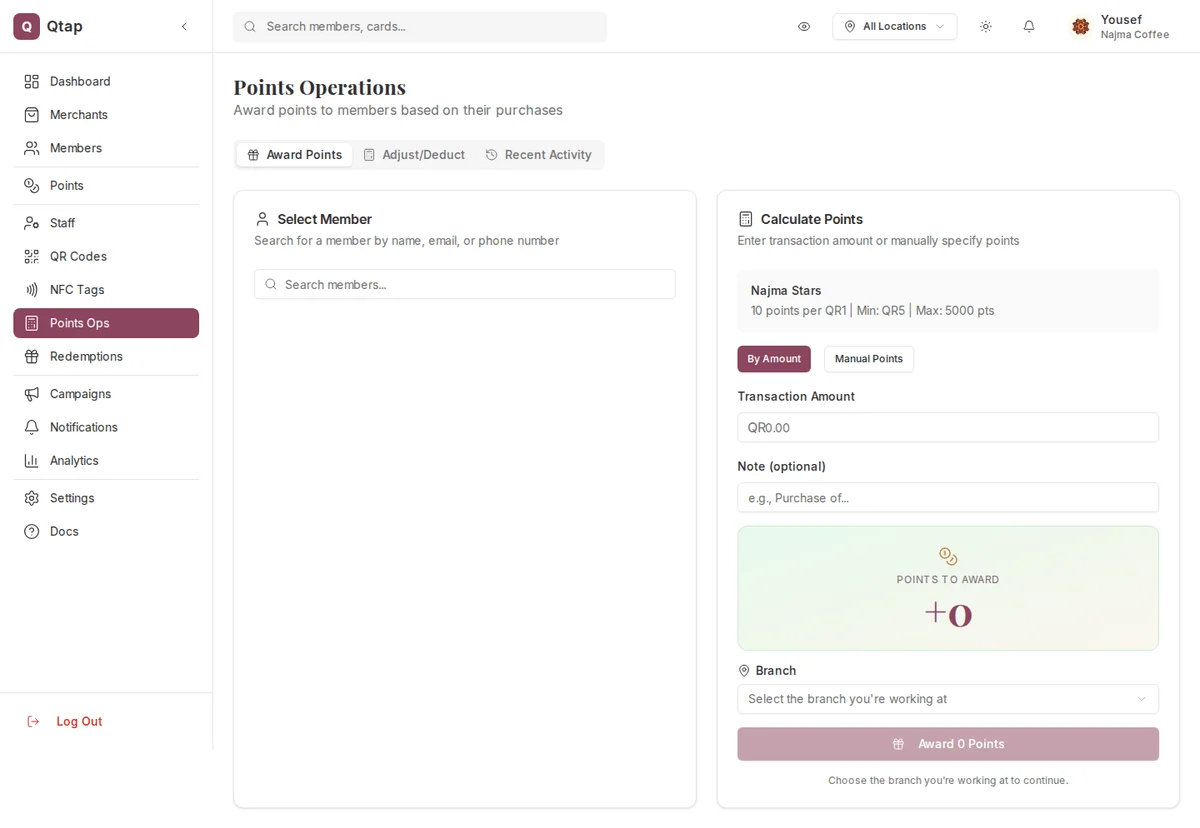
On the **Award Points** tab, the left card is where you find the member and the right card works out how many points to give.
1. In **Select Member**, search by name, email, or phone number, then choose the member from the results.
2. In **Calculate Points**, keep the **By Amount** option selected.
3. Type the purchase total into **Transaction Amount**. The card shows your program's earn rate (for example, 10 points per QR1) and updates the **Points to Award** preview as you type.
4. Add a **Note** if you want to record what the purchase was for. This is optional.
5. Choose the **Branch** you are working at. The award button stays disabled until you pick one.
6. Click **Award Points** and confirm.
Points land on the member's balance right away, and a confirmation shows the amount awarded.
Your program can set a minimum transaction and a cap per award. The program card shows these, for example "Min: QR5 | Max: 5000 pts". A purchase below the minimum earns 0 points, and a single award will not go above the cap. The preview reflects both before you confirm.
### Give an exact number of points
If you want to hand out a set number of points rather than calculate from a purchase amount, switch from **By Amount** to **Manual Points** and type the points directly.
## Adjust or deduct a balance
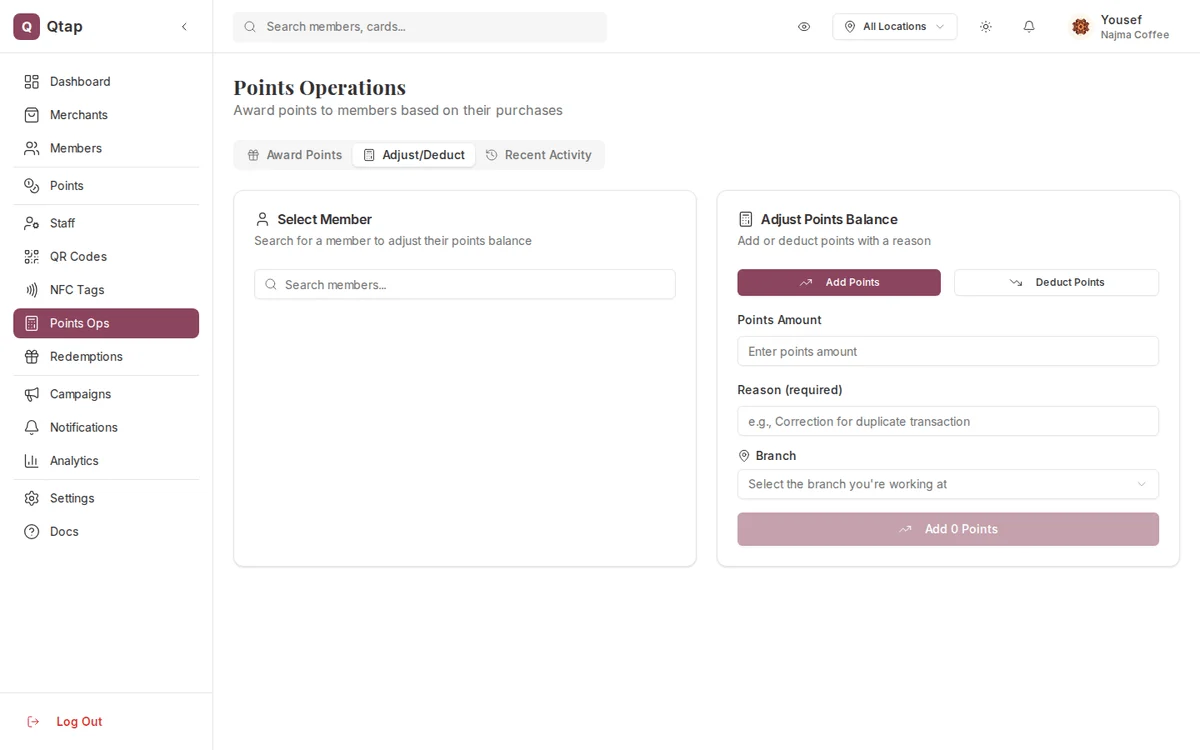
Use the **Adjust/Deduct** tab to add or remove points outside a normal purchase, such as fixing a mistake or honoring a one-off exception.
## Award points for a purchase
On the **Award Points** tab, the left card is where you find the member and the right card works out how many points to give.
1. In **Select Member**, search by name, email, or phone number, then choose the member from the results.
2. In **Calculate Points**, keep the **By Amount** option selected.
3. Type the purchase total into **Transaction Amount**. The card shows your program's earn rate (for example, 10 points per QR1) and updates the **Points to Award** preview as you type.
4. Add a **Note** if you want to record what the purchase was for. This is optional.
5. Choose the **Branch** you are working at. The award button stays disabled until you pick one.
6. Click **Award Points** and confirm.
Points land on the member's balance right away, and a confirmation shows the amount awarded.
Your program can set a minimum transaction and a cap per award. The program card shows these, for example "Min: QR5 | Max: 5000 pts". A purchase below the minimum earns 0 points, and a single award will not go above the cap. The preview reflects both before you confirm.
### Give an exact number of points
If you want to hand out a set number of points rather than calculate from a purchase amount, switch from **By Amount** to **Manual Points** and type the points directly.
## Adjust or deduct a balance
Use the **Adjust/Deduct** tab to add or remove points outside a normal purchase, such as fixing a mistake or honoring a one-off exception.
 1. Search for and select the member.
2. Choose **Add Points** or **Deduct Points**.
3. Enter the **Points Amount**.
4. Enter a **Reason**. This field is required and is saved with the change.
5. Choose the **Branch** you are working at.
6. Click the button to confirm.
Every adjustment is recorded with the staff account that made it and the reason you typed. Check the amount before you confirm, since a balance change is hard to walk back.
## Recent activity
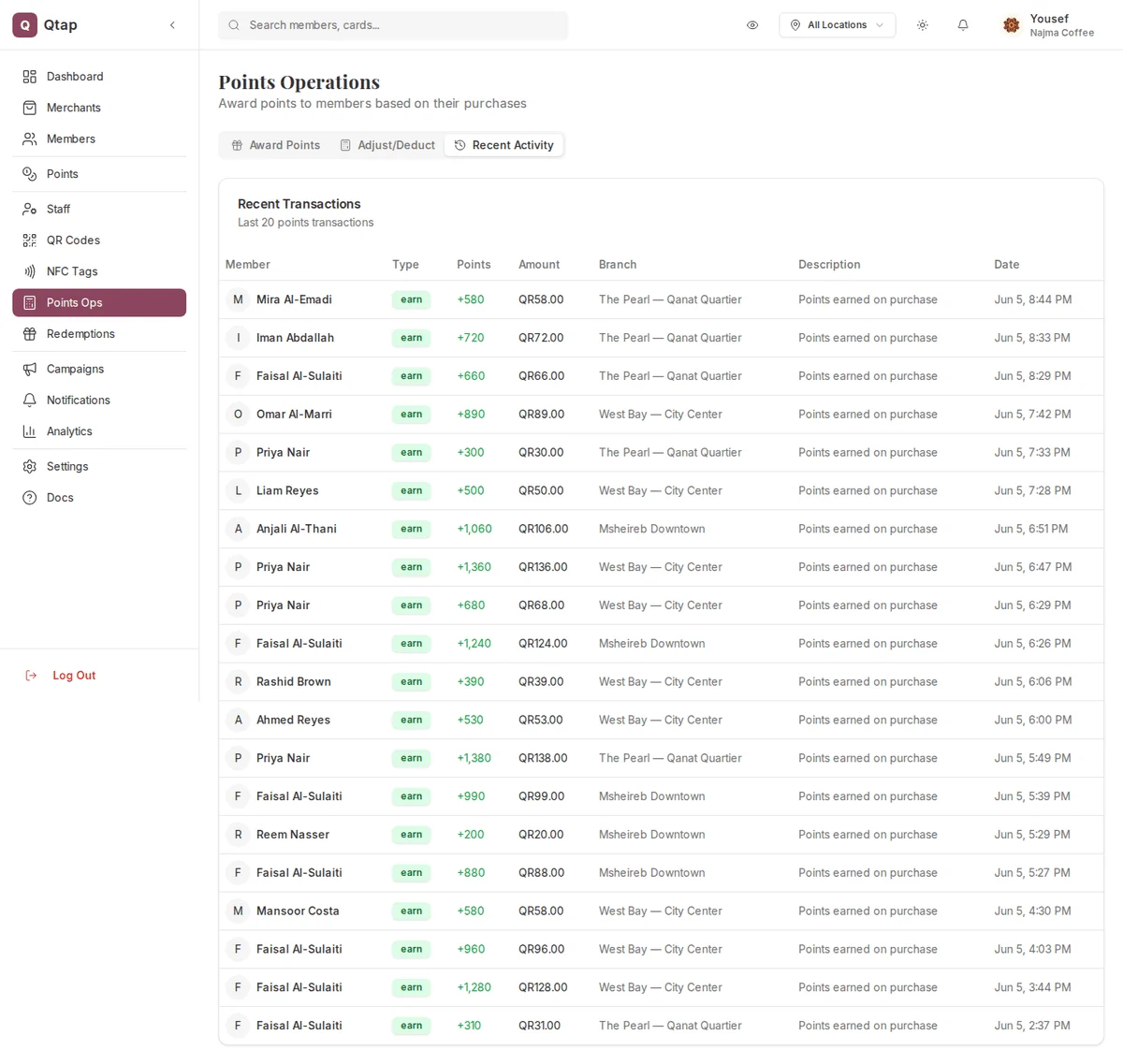
The **Recent Activity** tab lists recent points transactions across all your members. Each row shows the member, the type of transaction, the points and amount, the branch, a description, and the date. It is a quick way to confirm an award or adjustment went through.
1. Search for and select the member.
2. Choose **Add Points** or **Deduct Points**.
3. Enter the **Points Amount**.
4. Enter a **Reason**. This field is required and is saved with the change.
5. Choose the **Branch** you are working at.
6. Click the button to confirm.
Every adjustment is recorded with the staff account that made it and the reason you typed. Check the amount before you confirm, since a balance change is hard to walk back.
## Recent activity
The **Recent Activity** tab lists recent points transactions across all your members. Each row shows the member, the type of transaction, the points and amount, the branch, a description, and the date. It is a quick way to confirm an award or adjustment went through.
 Set up your earn rate, minimum transactions, and expiry rules.
See a member's full points history and current balance.
Set up your earn rate, minimum transactions, and expiry rules.
See a member's full points history and current balance.