> ## Documentation Index
> Fetch the complete documentation index at: https://docs.qtap.qa/llms.txt
> Use this file to discover all available pages before exploring further.
# Points Programs Overview
> How points programs work in Qtap and what settings are available.
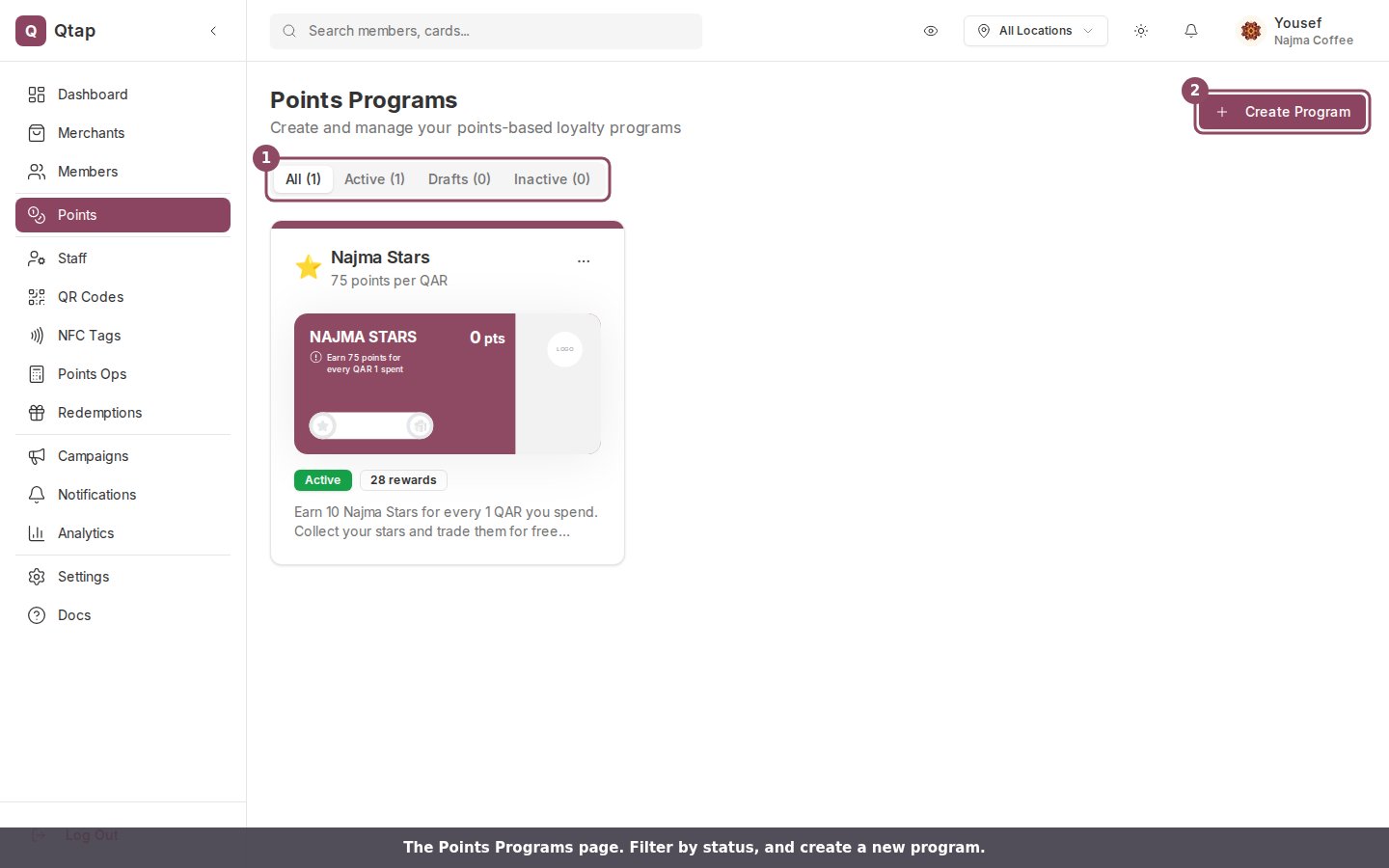
A points program assigns points to customers based on how much they spend. You set how many points they earn per currency unit, and they spend those points on rewards you define. Qtap tracks balances and issues rewards automatically when a customer reaches a threshold.
 ## How points programs work
When a customer makes a purchase, staff record the transaction amount in the Qtap app. The customer earns points based on your **Points per currency** setting. For example, if you set 1 point per 1 QAR and a customer spends 50 QAR, they earn 50 points.
When a customer's balance reaches a reward threshold you've set, they receive the reward automatically and can redeem it on their next visit.
## What you can configure
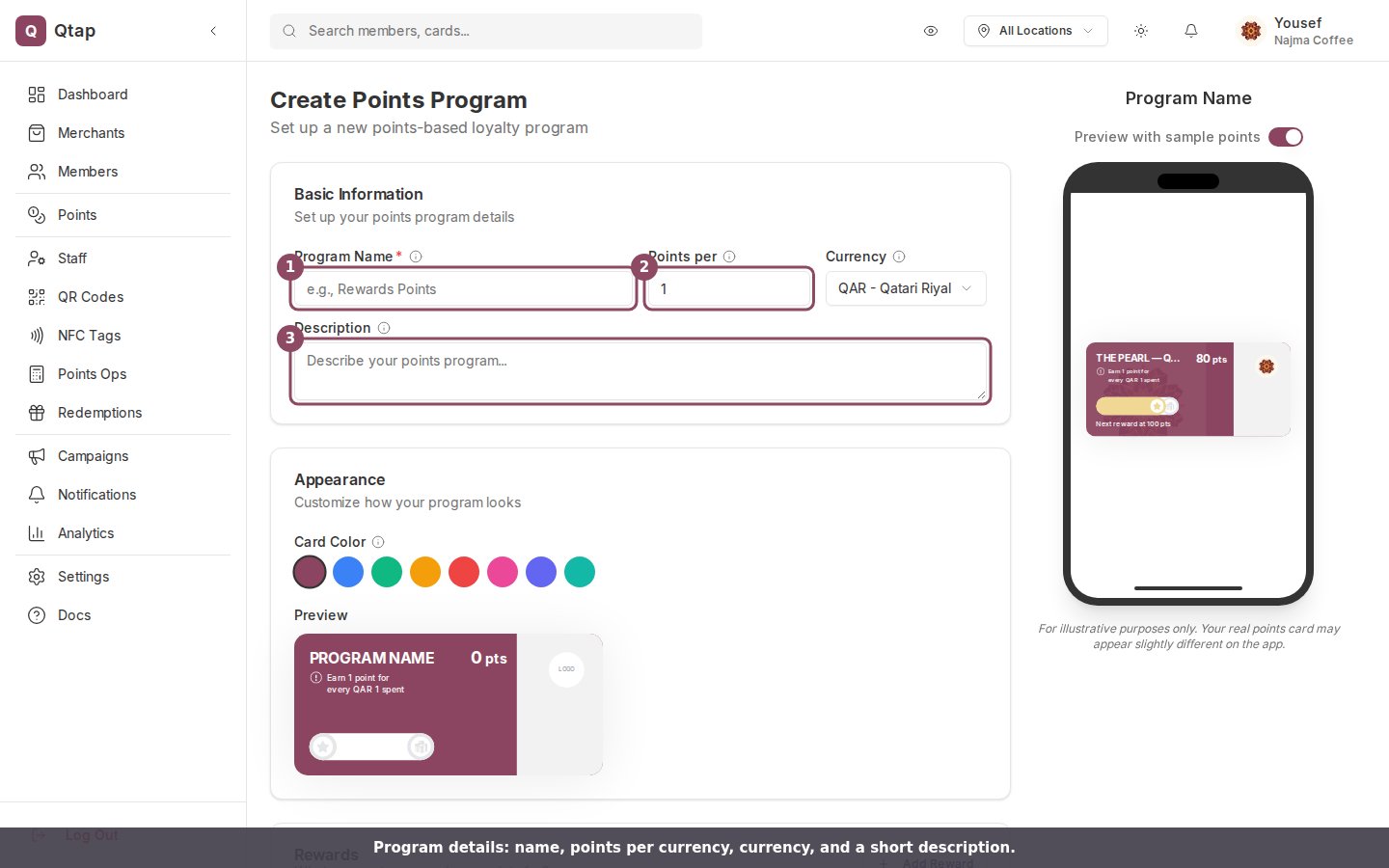
**Program details**
* **Program Name** — shown to members in the app
* **Description** — a short line displayed on the card
* **Points per currency** — how many points a member earns per one unit of your currency. Defaults to 1.
* **Currency** — the currency your program is denominated in. Defaults to QAR.
* **Card Icon** — an emoji shown on the points card
* **Card Color** — the background color of the card
## How points programs work
When a customer makes a purchase, staff record the transaction amount in the Qtap app. The customer earns points based on your **Points per currency** setting. For example, if you set 1 point per 1 QAR and a customer spends 50 QAR, they earn 50 points.
When a customer's balance reaches a reward threshold you've set, they receive the reward automatically and can redeem it on their next visit.
## What you can configure
**Program details**
* **Program Name** — shown to members in the app
* **Description** — a short line displayed on the card
* **Points per currency** — how many points a member earns per one unit of your currency. Defaults to 1.
* **Currency** — the currency your program is denominated in. Defaults to QAR.
* **Card Icon** — an emoji shown on the points card
* **Card Color** — the background color of the card
 **Rewards**
You add one or more rewards and set a points threshold for each. When a member's balance hits that number, the reward is issued. For example, a free coffee at 100 points, or 20% off at 500 points.
**Expiry rules**
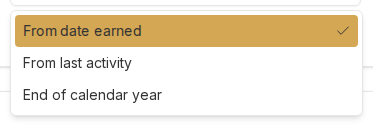
You can set points to expire, which encourages customers to visit more often. Options for expiry type are:
* **From earn date** — points expire a set number of days after they are earned
* **From last activity** — the clock resets every time the customer earns new points
* **Calendar year** — points expire at the end of each calendar year
If you leave expiry off, points never expire.
**Rewards**
You add one or more rewards and set a points threshold for each. When a member's balance hits that number, the reward is issued. For example, a free coffee at 100 points, or 20% off at 500 points.
**Expiry rules**
You can set points to expire, which encourages customers to visit more often. Options for expiry type are:
* **From earn date** — points expire a set number of days after they are earned
* **From last activity** — the clock resets every time the customer earns new points
* **Calendar year** — points expire at the end of each calendar year
If you leave expiry off, points never expire.
 **Availability period**
You can restrict the program to a specific date range. If set, members can only earn points between the start and end dates you define.
**Valid Locations**
You can limit the program to specific locations. If no locations are selected, the program is valid at all your locations.
**Terms and conditions**
Optional text shown on the back of the card in the member app.
## Program statuses
* **Draft** — saved but not visible to members yet
* **Active** — live and available for members to join
* **Inactive** — no longer accepting new members or points transactions
You cannot switch between a stamp cards program and a points program after onboarding is complete. If you need to change your loyalty type, contact Qtap support.
Points programs and stamp cards share the same plan limit for loyalty cards. Your total number of active programs (stamps and points combined) cannot exceed your plan's loyalty card limit.
Step-by-step guide to setting up your first points program.
How staff issue points and process redemptions.
**Availability period**
You can restrict the program to a specific date range. If set, members can only earn points between the start and end dates you define.
**Valid Locations**
You can limit the program to specific locations. If no locations are selected, the program is valid at all your locations.
**Terms and conditions**
Optional text shown on the back of the card in the member app.
## Program statuses
* **Draft** — saved but not visible to members yet
* **Active** — live and available for members to join
* **Inactive** — no longer accepting new members or points transactions
You cannot switch between a stamp cards program and a points program after onboarding is complete. If you need to change your loyalty type, contact Qtap support.
Points programs and stamp cards share the same plan limit for loyalty cards. Your total number of active programs (stamps and points combined) cannot exceed your plan's loyalty card limit.
Step-by-step guide to setting up your first points program.
How staff issue points and process redemptions.