> ## Documentation Index
> Fetch the complete documentation index at: https://docs.qtap.qa/llms.txt
> Use this file to discover all available pages before exploring further.
# Adding Redeemable Rewards to a Points Program
> Set the rewards customers can spend their points on, and the points each one costs.
A points reward is something a customer spends points on: a free latte, 10% off, a branded tote. You give each reward a points cost, and your staff hand it over once a member has enough points. Rewards belong to a points program, so you add and edit them inside that program.
This article covers the reward list and the reward editor. To set up the program itself, including the points rate, expiry, and locations, see [Creating a Points Program](/merchants/points/creating).
## Where rewards live
Open **Points** in the sidebar. To add rewards to a new program, click **Create Program**. To change the rewards on a program you already run, open its menu and click **Edit**.
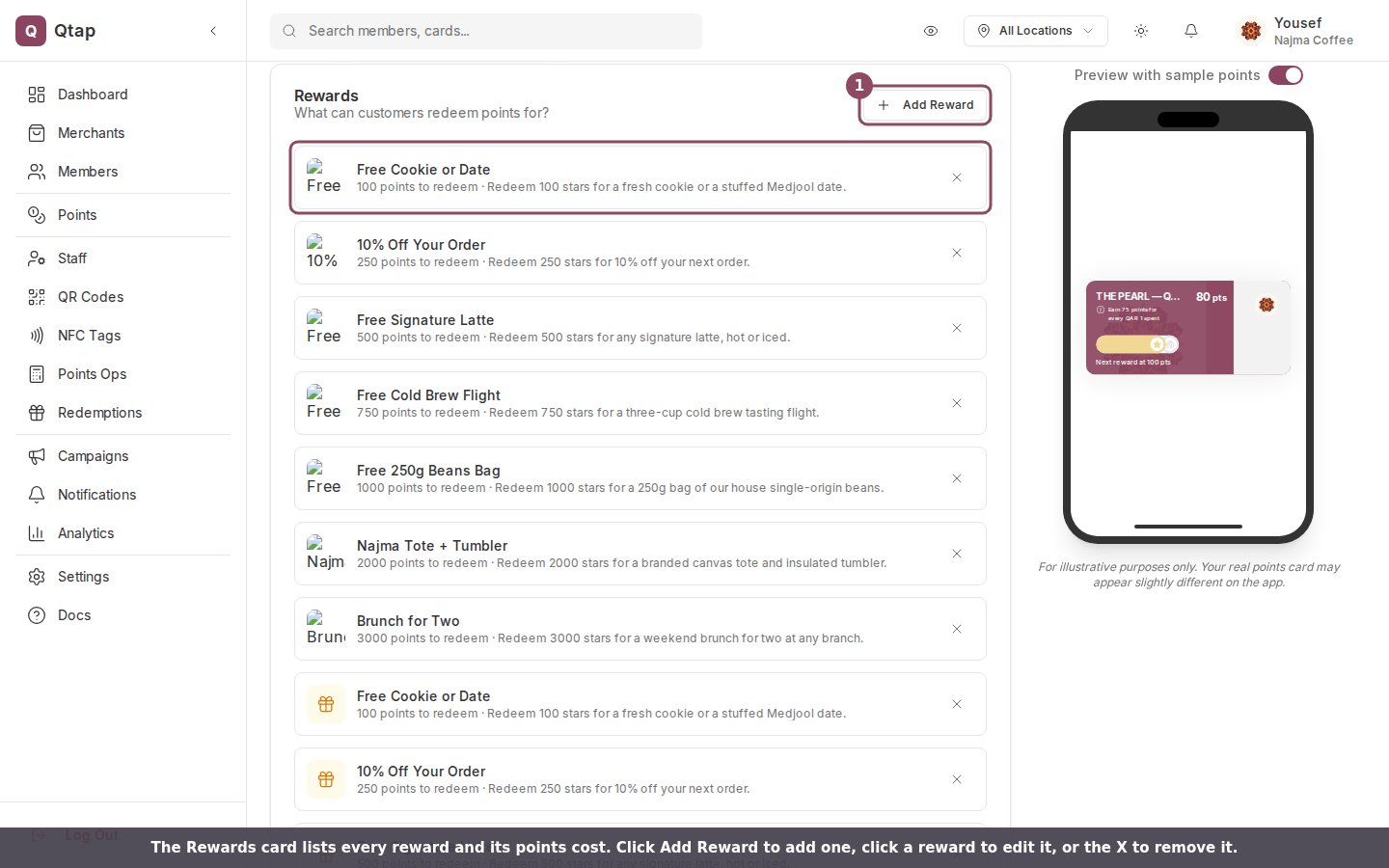
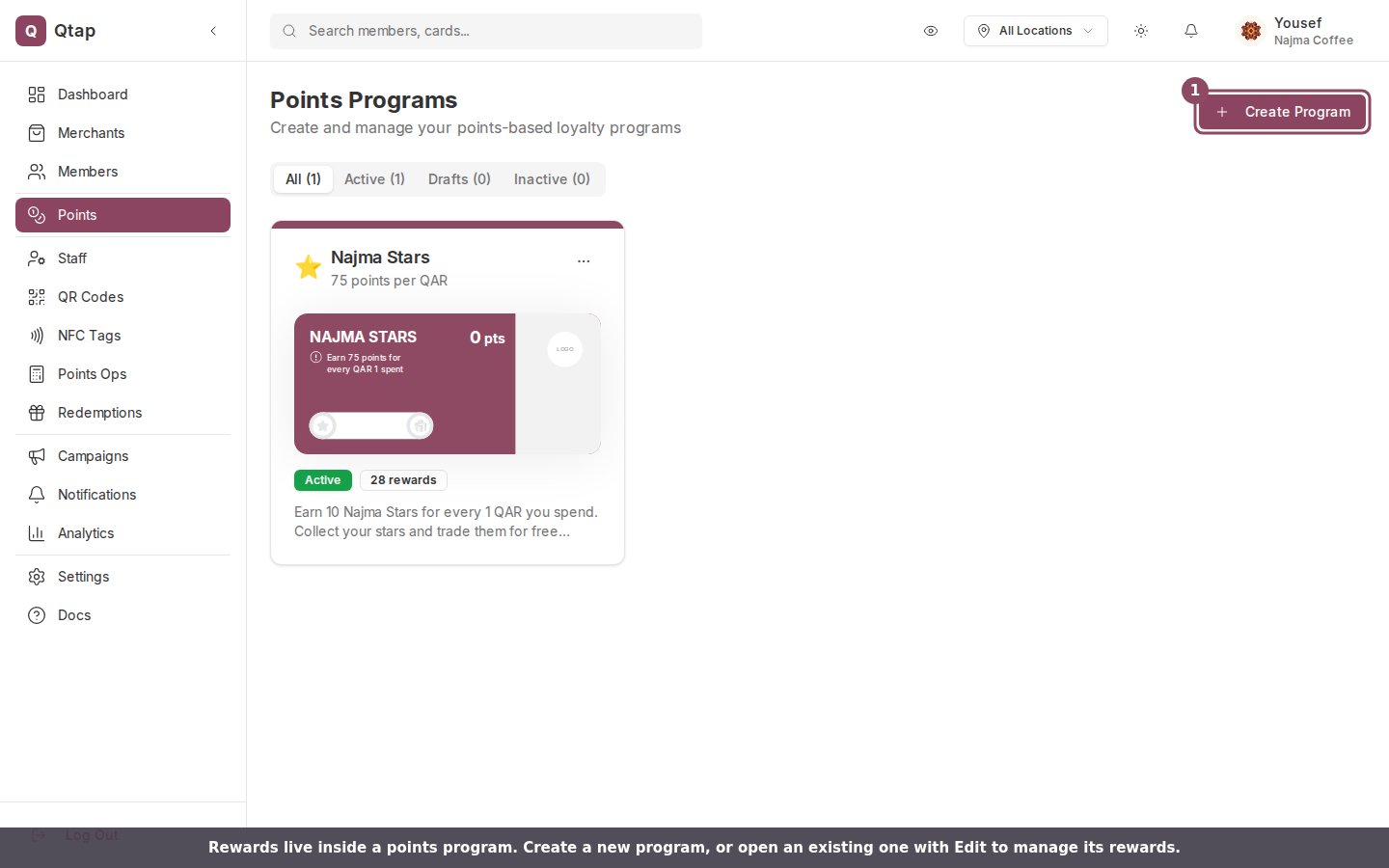 Either way, scroll down to the **Rewards** card. It lists every reward on the program with the points it costs to redeem.
 ## Add a reward
### Click Add Reward
This opens the reward editor.
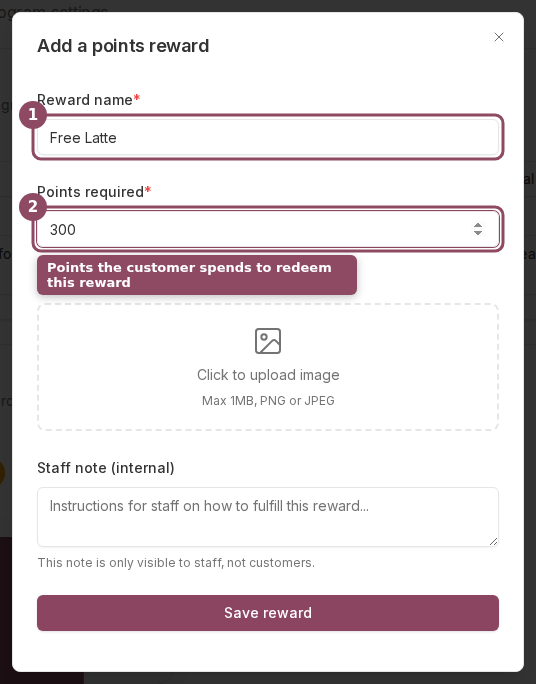
### Fill in the reward
* **Reward name**: what the customer receives, like "Free Latte" or "10% Off". Required.
* **Points required**: the number of points a member spends to redeem it. Required.
* **Reward image**: an optional PNG or JPEG up to 1MB, shown with the reward in the app.
* **Staff note**: a note your team reads at the counter. Customers never see it.
### Click Save reward
The reward joins the list. Repeat for each reward you want to offer.
## Add a reward
### Click Add Reward
This opens the reward editor.
### Fill in the reward
* **Reward name**: what the customer receives, like "Free Latte" or "10% Off". Required.
* **Points required**: the number of points a member spends to redeem it. Required.
* **Reward image**: an optional PNG or JPEG up to 1MB, shown with the reward in the app.
* **Staff note**: a note your team reads at the counter. Customers never see it.
### Click Save reward
The reward joins the list. Repeat for each reward you want to offer.
 ## Offer rewards at different point costs
You can add as many rewards as you like, each at its own points cost. A mix of small and large rewards gives members a reason to keep saving: a cookie at 100 points, a free drink at 500, a brunch for two at 3,000. Members pick what to spend their points on.
## Edit or remove a reward
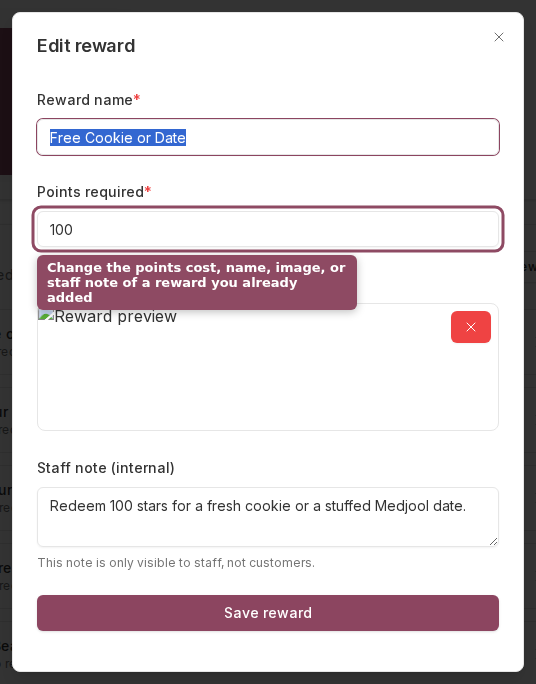
Click any reward in the list to reopen the editor and change its name, points cost, image, or staff note. To take a reward off the program, click the **X** at the end of its row.
## Offer rewards at different point costs
You can add as many rewards as you like, each at its own points cost. A mix of small and large rewards gives members a reason to keep saving: a cookie at 100 points, a free drink at 500, a brunch for two at 3,000. Members pick what to spend their points on.
## Edit or remove a reward
Click any reward in the list to reopen the editor and change its name, points cost, image, or staff note. To take a reward off the program, click the **X** at the end of its row.
 Your reward changes save with the program. Click **Save & Activate** (or **Save as Draft**) at the bottom of the form to keep them. On a program that is already running, saving replaces the whole reward list with what you see in the Rewards card, so a reward you removed from the list is gone once you save.
## How customers redeem a reward
Members do not receive a points reward on their own when their balance reaches its cost. A member tells your staff which reward they want, and staff redeem it from the **Redemptions** screen. Qtap checks that the member has enough points, subtracts the points cost, and records the redemption. The reward and its program both need to be active for it to show up. See [Points Operations](/merchants/points/operations) for the staff side.
Set up the program, points rate, and expiry rules.
How staff award points and redeem rewards.
Your reward changes save with the program. Click **Save & Activate** (or **Save as Draft**) at the bottom of the form to keep them. On a program that is already running, saving replaces the whole reward list with what you see in the Rewards card, so a reward you removed from the list is gone once you save.
## How customers redeem a reward
Members do not receive a points reward on their own when their balance reaches its cost. A member tells your staff which reward they want, and staff redeem it from the **Redemptions** screen. Qtap checks that the member has enough points, subtracts the points cost, and records the redemption. The reward and its program both need to be active for it to show up. See [Points Operations](/merchants/points/operations) for the staff side.
Set up the program, points rate, and expiry rules.
How staff award points and redeem rewards.