> ## Documentation Index
> Fetch the complete documentation index at: https://docs.qtap.qa/llms.txt
> Use this file to discover all available pages before exploring further.
# QR Code Actions
> Choose what a scan does: add a stamp, award points, or record a check-in.
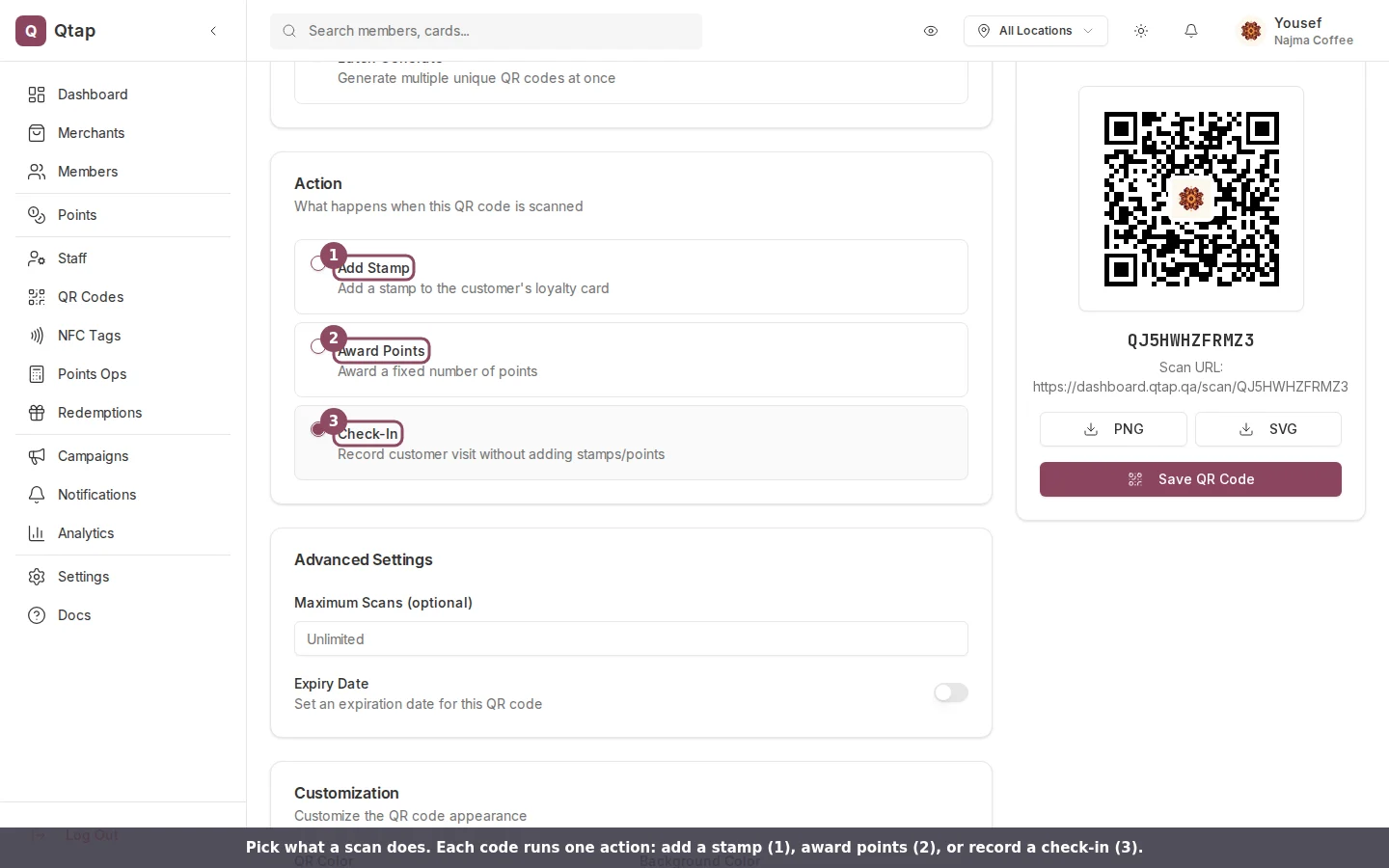
When you generate a QR code, you pick one action. That action runs every time a customer scans the code. You have three to choose from, and you set the choice on the **Action** field before you save. To change it later, generate a new code: the action is fixed once a code exists.
 ## Add a stamp
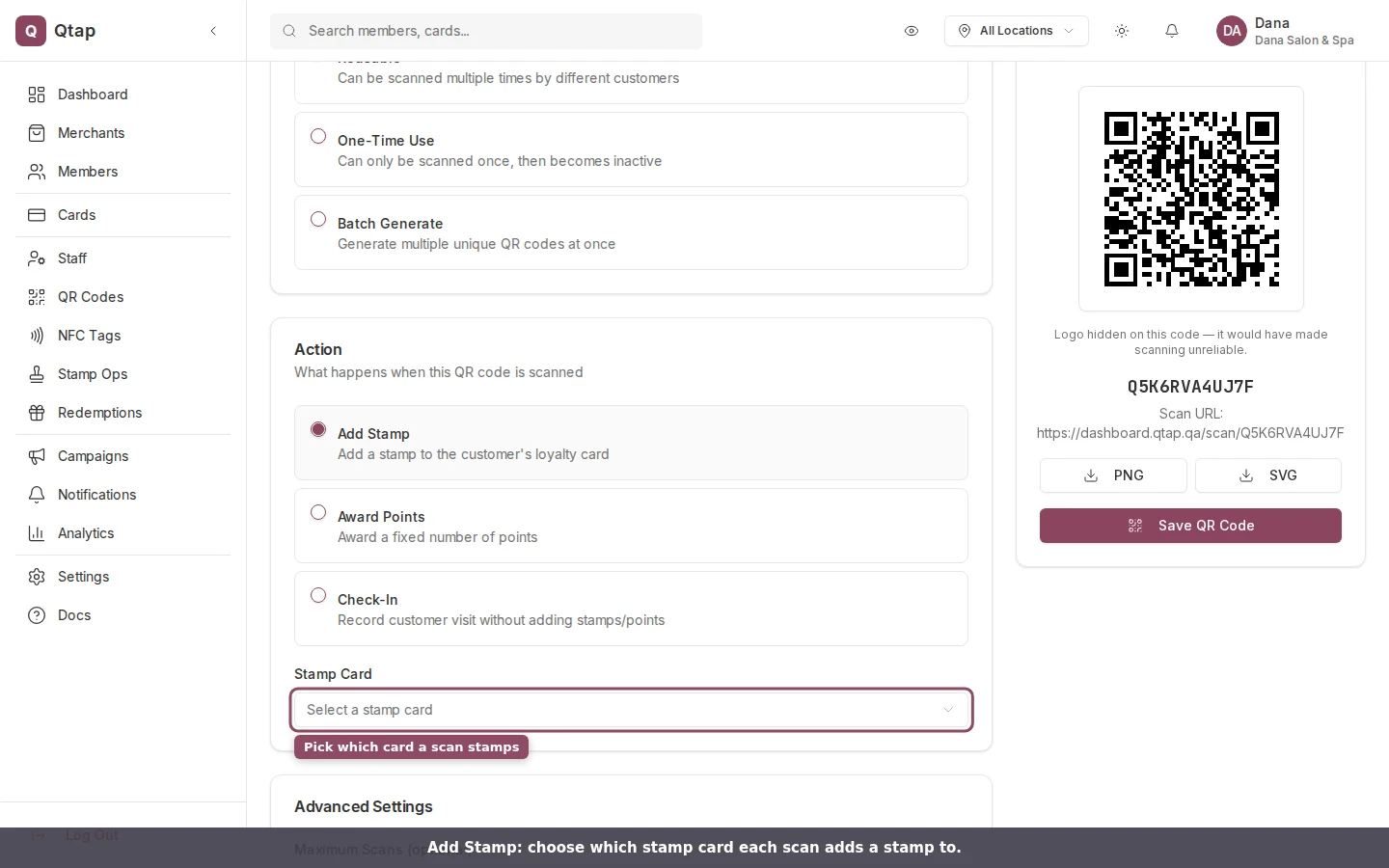
Choose **Add Stamp**, then pick which card from the **Stamp Card** list. Each scan adds one stamp to that card for the customer. When a scan fills the card, Qtap issues the reward and sends the customer a push notification at that moment. The customer sees their new count, like "Stamp added! (3 of 10)", or a completion message when the card is full.
## Add a stamp
Choose **Add Stamp**, then pick which card from the **Stamp Card** list. Each scan adds one stamp to that card for the customer. When a scan fills the card, Qtap issues the reward and sends the customer a push notification at that moment. The customer sees their new count, like "Stamp added! (3 of 10)", or a completion message when the card is full.
 ## Award points
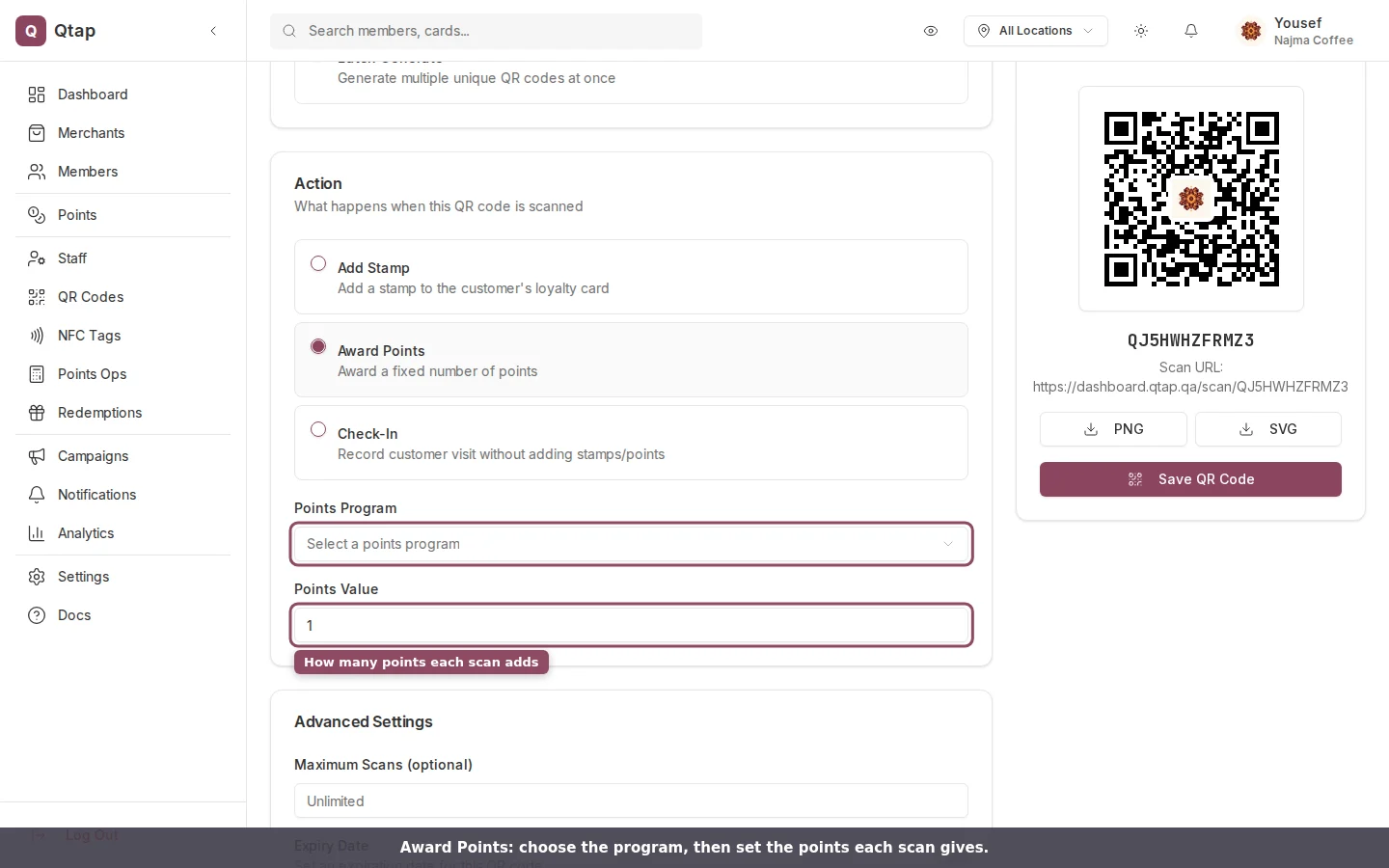
Choose **Award Points**, pick the **Points Program**, and set the **Points Value**. Each scan adds that many points to the customer's balance in the program you picked. If a points multiplier campaign is live when they scan, Qtap multiplies the points for them: a 2x campaign turns a 10-point code into 20, and the customer sees the bonus in their confirmation. With no campaign running, they get the flat value you set.
## Award points
Choose **Award Points**, pick the **Points Program**, and set the **Points Value**. Each scan adds that many points to the customer's balance in the program you picked. If a points multiplier campaign is live when they scan, Qtap multiplies the points for them: a 2x campaign turns a 10-point code into 20, and the customer sees the bonus in their confirmation. With no campaign running, they get the flat value you set.
 ## Record a check-in
Choose **Check-In** for a code that logs the visit without giving stamps or points. The scan updates the customer's last-active date, which feeds your visit-based campaigns and activity reports. The customer sees "Check-in recorded. Thanks for visiting." Use this for a code by the door, or at an event where you want attendance rather than rewards.
## The customer has to be identified
A scan adds stamps or points only when Qtap knows who scanned. That happens when the customer scans from the Qtap app, or when a staff member scans the customer's member code. A scan with nobody attached still counts toward the code's scan total and any limits you set, but it awards nothing.
Redeeming a reward is not a QR code action. When a customer is ready to claim a reward they earned, handle it on the Redemptions screen, where you confirm the reward and the balance is settled.
Create a code, set its limits, and download it for print.
Confirm and record a reward a customer has earned.
## Record a check-in
Choose **Check-In** for a code that logs the visit without giving stamps or points. The scan updates the customer's last-active date, which feeds your visit-based campaigns and activity reports. The customer sees "Check-in recorded. Thanks for visiting." Use this for a code by the door, or at an event where you want attendance rather than rewards.
## The customer has to be identified
A scan adds stamps or points only when Qtap knows who scanned. That happens when the customer scans from the Qtap app, or when a staff member scans the customer's member code. A scan with nobody attached still counts toward the code's scan total and any limits you set, but it awards nothing.
Redeeming a reward is not a QR code action. When a customer is ready to claim a reward they earned, handle it on the Redemptions screen, where you confirm the reward and the balance is settled.
Create a code, set its limits, and download it for print.
Confirm and record a reward a customer has earned.