> ## Documentation Index
> Fetch the complete documentation index at: https://docs.qtap.qa/llms.txt
> Use this file to discover all available pages before exploring further.
# Batch QR Code Generation
> Generate up to 1,000 unique QR codes at once for events, print materials, or multi-location deployments.
Batch generation creates many QR codes in a single step, all sharing the same action and type settings. This is useful for printing stamp cards, distributing at events, or pre-printing QR codes for tables or packaging.
## Access requirements
Batch generation is not included in all plans.
**Elite and Franchise plans** have unlimited batch access included.
**All other plans** need to purchase a batch credit pack before they can generate. Packs are a one-time purchase, not a recurring charge.
| Pack | Price |
| -------------- | ----- |
| 100 QR Codes | \$10 |
| 500 QR Codes | \$15 |
| 1,000 QR Codes | \$70 |
| 5,000 QR Codes | \$300 |
Click **Purchase** on any tier to go through checkout. Once the payment is confirmed, the form unlocks.
## Generate a batch
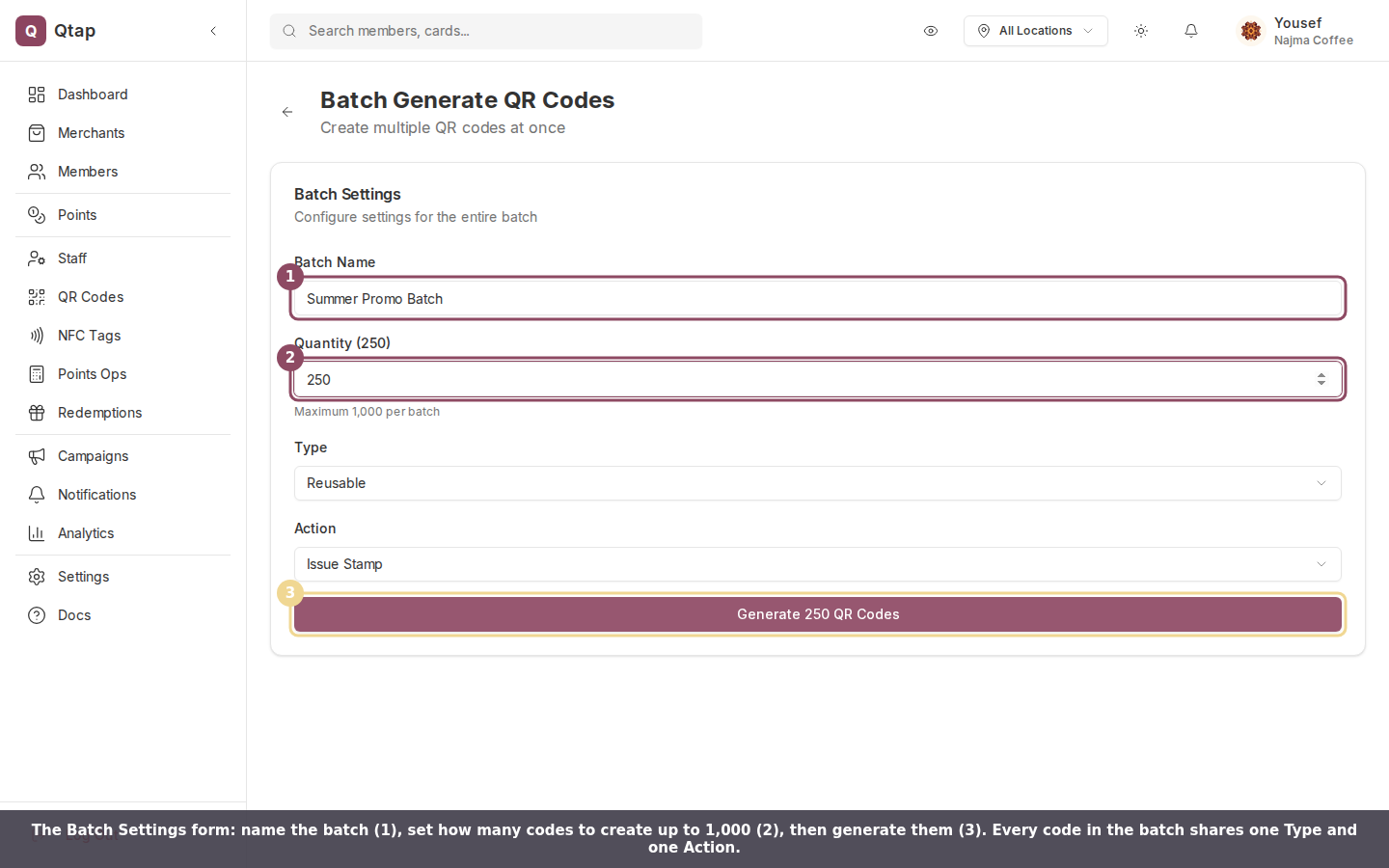
1. Go to **QR Codes → Batch Generate**.
2. Enter a **Batch Name** to identify this group (e.g., "Summer Promo Batch").
3. Set the **Quantity** — maximum is 1,000 per batch.
4. Choose the **Type**: **Reusable** (can be scanned multiple times) or **One-time Use** (locks after first scan).
5. Choose the **Action** each QR code performs when scanned:
* **Issue Stamp** — adds a stamp to the member's stamp card
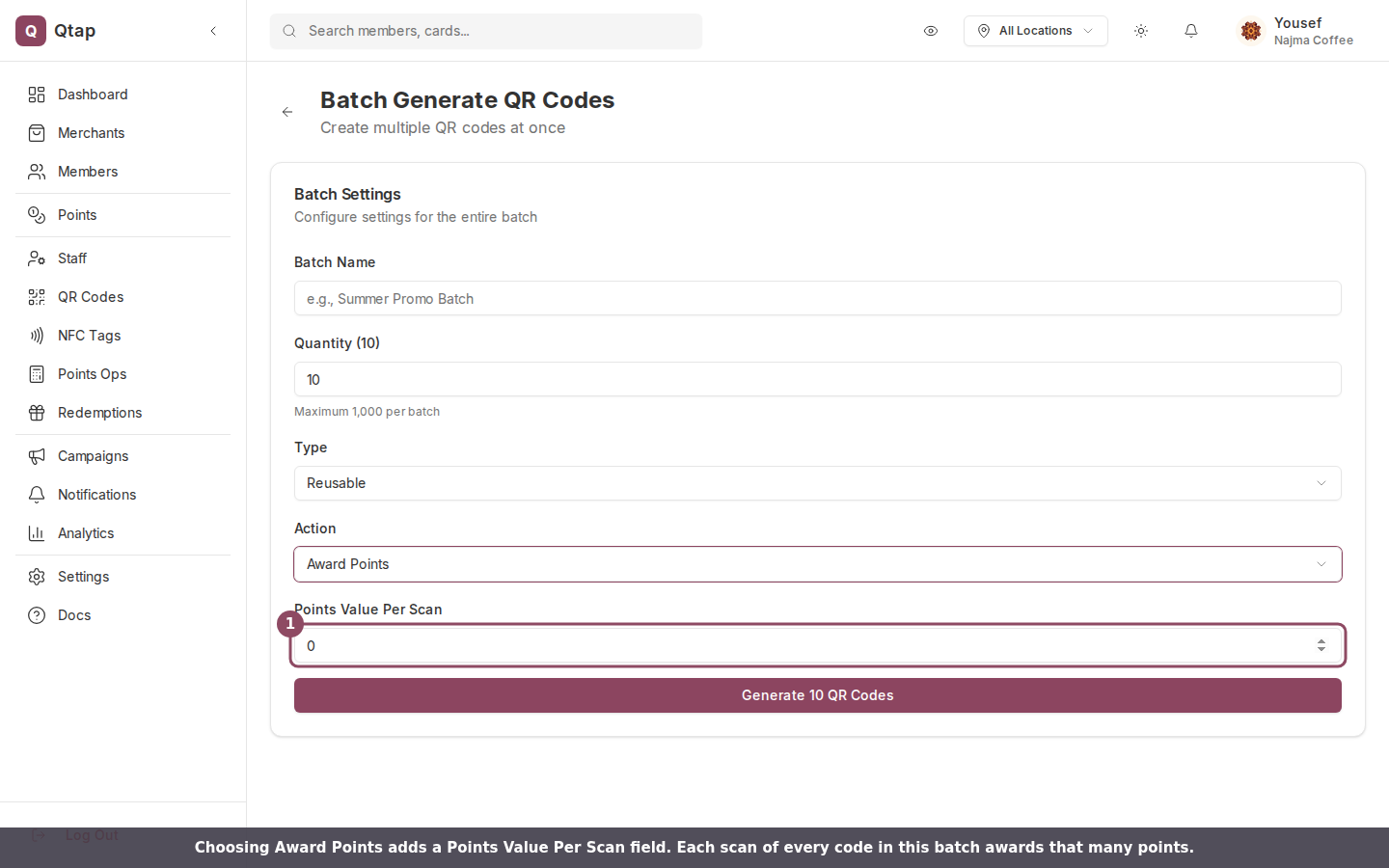
* **Award Points** — adds points to the member's points balance
* **Check-in** — records a visit without stamping or awarding points
* **Redeem Reward** — allows a member to claim a reward
6. If you chose **Award Points**, enter the **Points Value Per Scan**.
7. Click **Generate \[n] QR Codes**.

 A progress bar tracks the generation. When it finishes, you'll see a confirmation screen with a link to view all the QR codes.
All QR codes in a batch share the same action settings. If you need codes with different actions, run separate batches.
## Finding your generated codes
After generation, go to **QR Codes** to see the full list. Batch-generated codes appear alongside individually created ones. You can filter and download them from there.
Each QR code in a batch has a unique code value, but they all perform the same action. If you're printing one-time use codes, make sure each physical copy is only given to one customer.
Create one QR code with full customization options including color and expiry.
Understand how QR codes work in Qtap and what actions they can trigger.
A progress bar tracks the generation. When it finishes, you'll see a confirmation screen with a link to view all the QR codes.
All QR codes in a batch share the same action settings. If you need codes with different actions, run separate batches.
## Finding your generated codes
After generation, go to **QR Codes** to see the full list. Batch-generated codes appear alongside individually created ones. You can filter and download them from there.
Each QR code in a batch has a unique code value, but they all perform the same action. If you're printing one-time use codes, make sure each physical copy is only given to one customer.
Create one QR code with full customization options including color and expiry.
Understand how QR codes work in Qtap and what actions they can trigger.