> ## Documentation Index
> Fetch the complete documentation index at: https://docs.qtap.qa/llms.txt
> Use this file to discover all available pages before exploring further.
# Showing a QR code and how customers scan it
> Display a QR code for customers, and understand what a scan gives them with the Qtap app versus a phone camera.
A QR code is what you put in front of customers so they can take part in your loyalty program. You print it, stand it on a table, or stick it by the till. A scan gives the customer different results depending on how they do it, so it helps to know both sides before you put a code out.
## Show the code
Open **QR Codes** in the sidebar and click the code you want to display. Its detail page has a preview of the code and two download buttons.
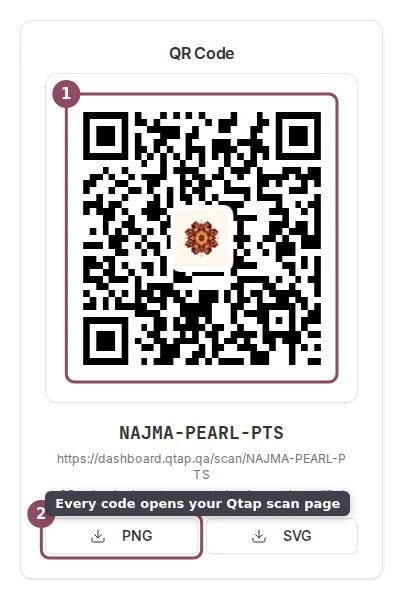 * **PNG** suits a screen or a quick print on standard paper.
* **SVG** stays sharp at any size, so use it for a window decal or a large poster.
The text under the image is the code's scan address: `dashboard.qtap.qa/scan/` followed by the code value. That is the page a scan opens, which is why any phone can read it. Put the printed code where customers already pause, like the counter, the table, or the receipt.
## What the customer sees
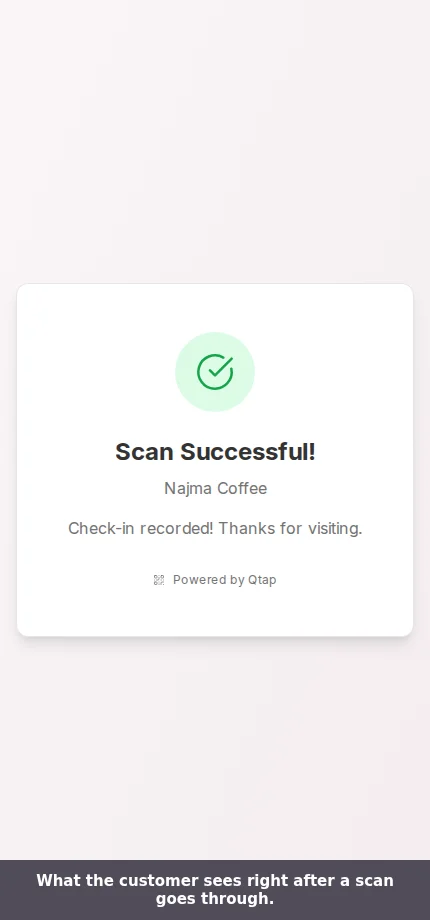
A scan shows the customer a short confirmation with your business name and the result.
* **PNG** suits a screen or a quick print on standard paper.
* **SVG** stays sharp at any size, so use it for a window decal or a large poster.
The text under the image is the code's scan address: `dashboard.qtap.qa/scan/` followed by the code value. That is the page a scan opens, which is why any phone can read it. Put the printed code where customers already pause, like the counter, the table, or the receipt.
## What the customer sees
A scan shows the customer a short confirmation with your business name and the result.
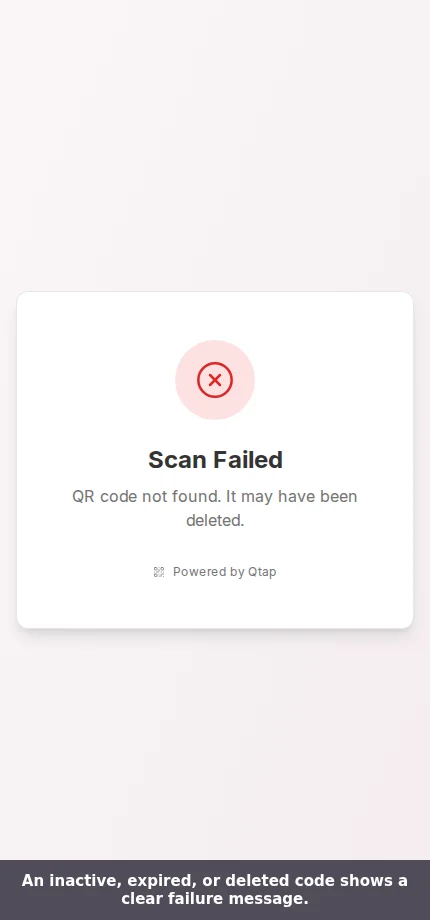
 If the code is switched off, past its expiry date, or used up, the same screen says so in plain words. For the exact message behind each case, see [Troubleshooting](/merchants/qr-codes/troubleshooting).
 ## A scan credits only the customer Qtap can identify
This is the part worth getting right before you print anything.
## A scan credits only the customer Qtap can identify
This is the part worth getting right before you print anything.
 * **In the Qtap app**, the customer opens the app and scans from there. The app sends their account along with the scan, so the stamp or the points land on their card and they see the new total straight away.
* **With a phone camera**, the camera opens your scan page in a browser with no account attached. The visit is recorded and it counts toward the code's scan total and any limit you set, but no stamps or points are added to anyone. A staff member scanning the customer's own member code at the counter also credits them.
So a friendly "Scan Successful" after a camera scan does not always mean the customer earned anything. When you want a visit to count toward rewards, ask customers to scan from the Qtap app.
A check-in code records the visit and never adds stamps or points, by design. Use it for a code by the door or at an event where you want attendance rather than rewards.
## Redeeming a reward
Scanning a code adds stamps or points. Claiming a reward is a separate step. When a customer is ready to use a reward they earned, a staff member handles it on the Redemptions screen, where you confirm the reward and the balance is settled.
What a scan does: add a stamp, award points, or record a check-in.
Confirm and record a reward a customer has earned.
* **In the Qtap app**, the customer opens the app and scans from there. The app sends their account along with the scan, so the stamp or the points land on their card and they see the new total straight away.
* **With a phone camera**, the camera opens your scan page in a browser with no account attached. The visit is recorded and it counts toward the code's scan total and any limit you set, but no stamps or points are added to anyone. A staff member scanning the customer's own member code at the counter also credits them.
So a friendly "Scan Successful" after a camera scan does not always mean the customer earned anything. When you want a visit to count toward rewards, ask customers to scan from the Qtap app.
A check-in code records the visit and never adds stamps or points, by design. Use it for a code by the door or at an event where you want attendance rather than rewards.
## Redeeming a reward
Scanning a code adds stamps or points. Claiming a reward is a separate step. When a customer is ready to use a reward they earned, a staff member handles it on the Redemptions screen, where you confirm the reward and the balance is settled.
What a scan does: add a stamp, award points, or record a check-in.
Confirm and record a reward a customer has earned.