> ## Documentation Index
> Fetch the complete documentation index at: https://docs.qtap.qa/llms.txt
> Use this file to discover all available pages before exploring further.
# Generating QR Codes
> How to create a new QR code that stamps a card, awards points, or redeems a reward.
Each QR code you generate encodes a unique link. When a customer scans it, Qtap runs the action you configured — issuing a stamp, adding points, or processing a redemption.
## Creating a QR Code
Go to **QR Codes** in the sidebar and click **Generate QR Code**.
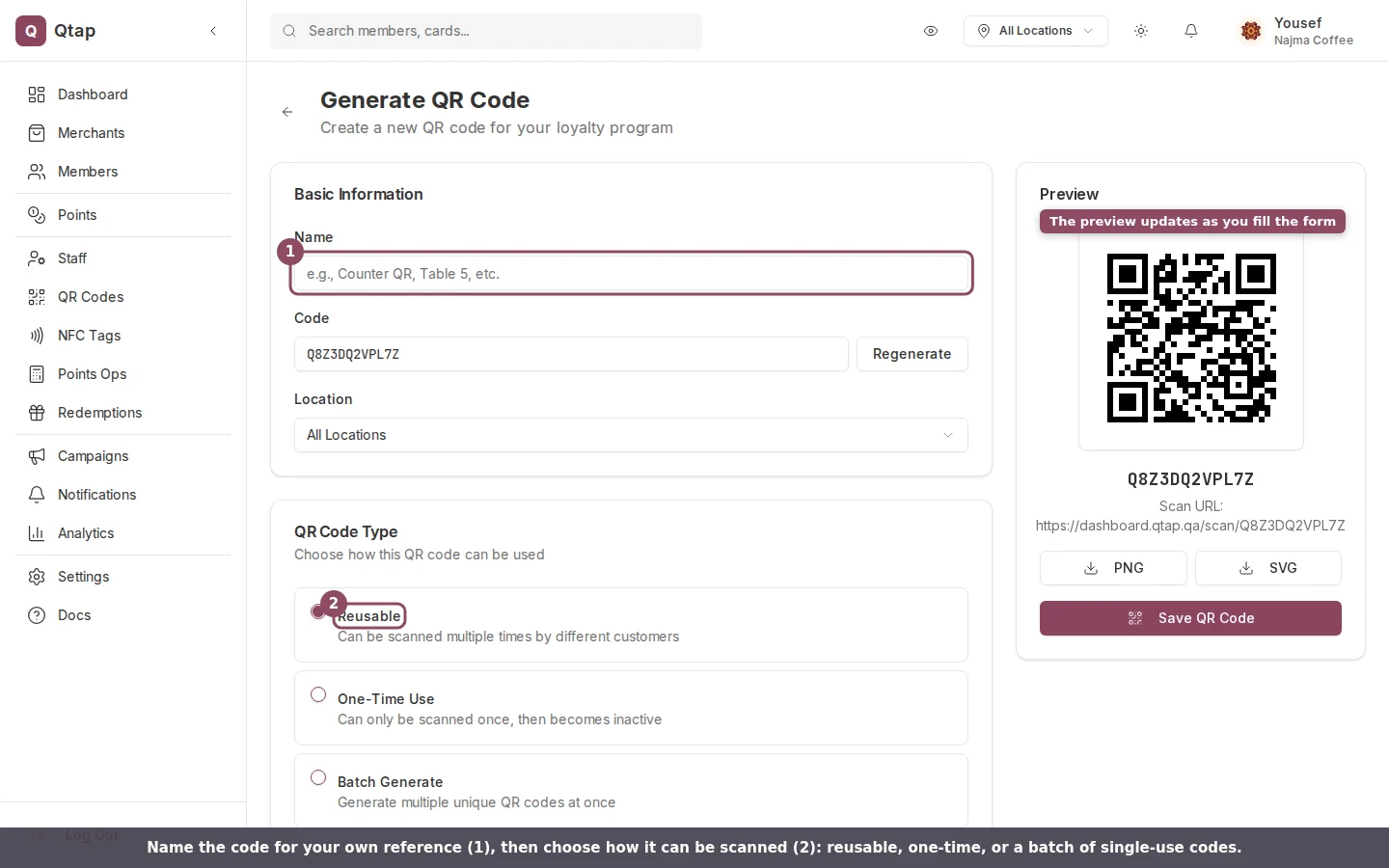
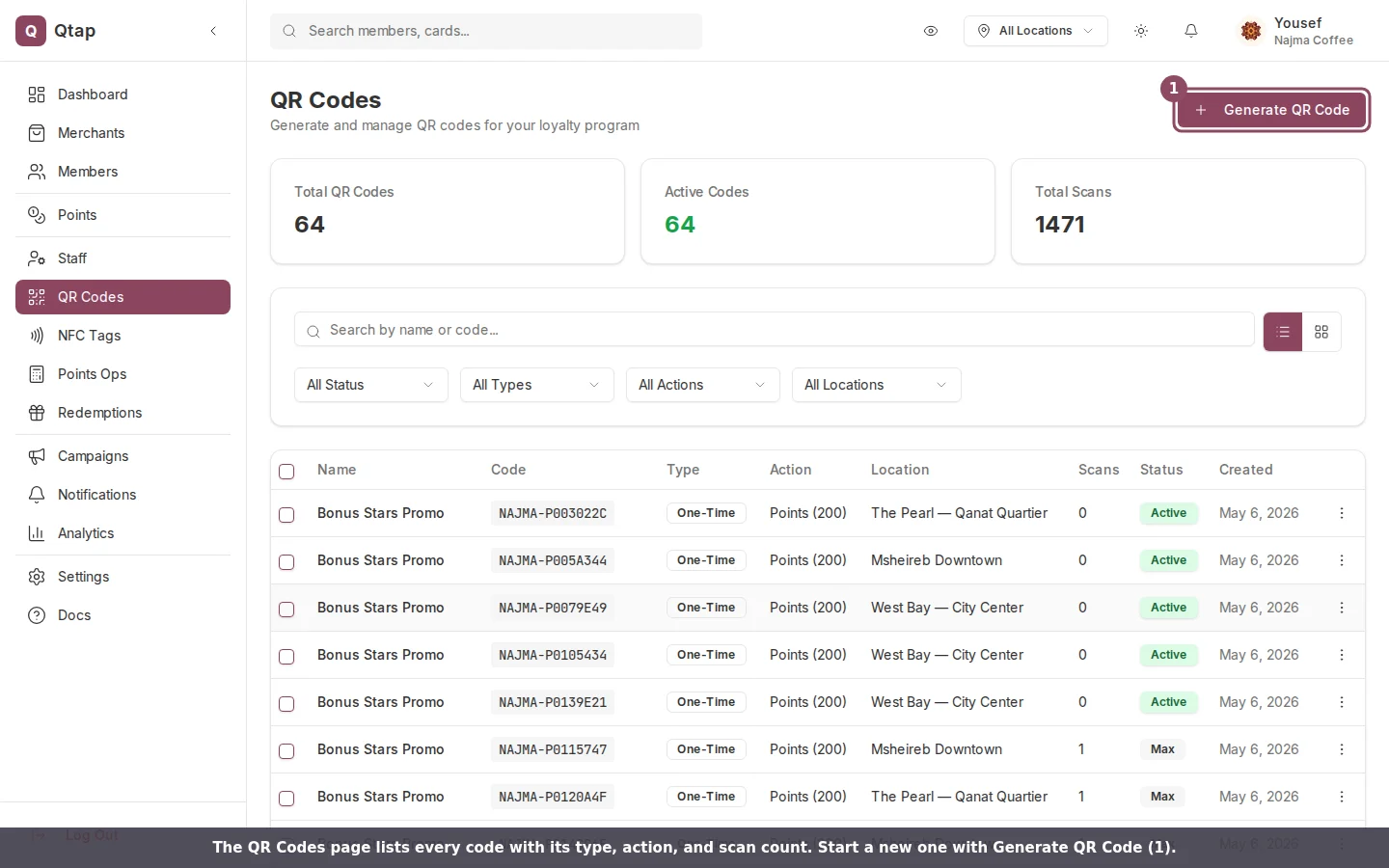 Enter a name in the **Name** field. This is for your reference only — customers do not see it. Use something like "Counter — Stamp Card A" so you can tell codes apart.
Select the **Type**:
* **Reusable** — the same QR code can be scanned any number of times (or up to a limit you set)
* **Batch** — generates multiple single-use QR codes at once, each with a unique code
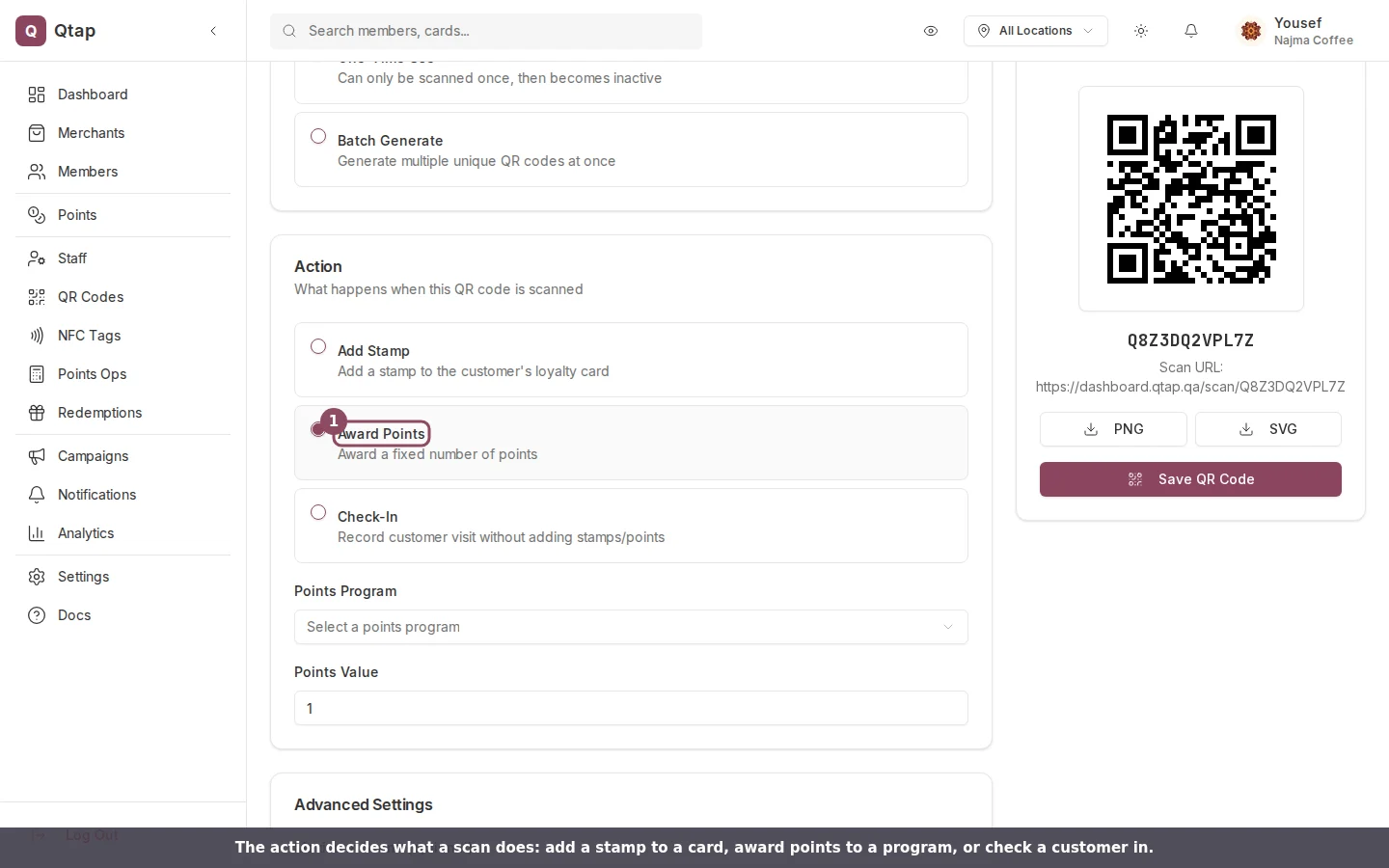
Select what scanning this QR code should do:
* **Stamp** — issues a stamp on a specific stamp card. You must also select which stamp card from the dropdown that appears.
* **Points** — awards a set number of points to a points program. You must select the program and enter the points value.
* **Redeem** — lets a customer redeem a reward they have already earned.
If you want this QR code to work only at a specific location, select it from the **Location** dropdown. Leave it set to **All locations** if the code should work anywhere.
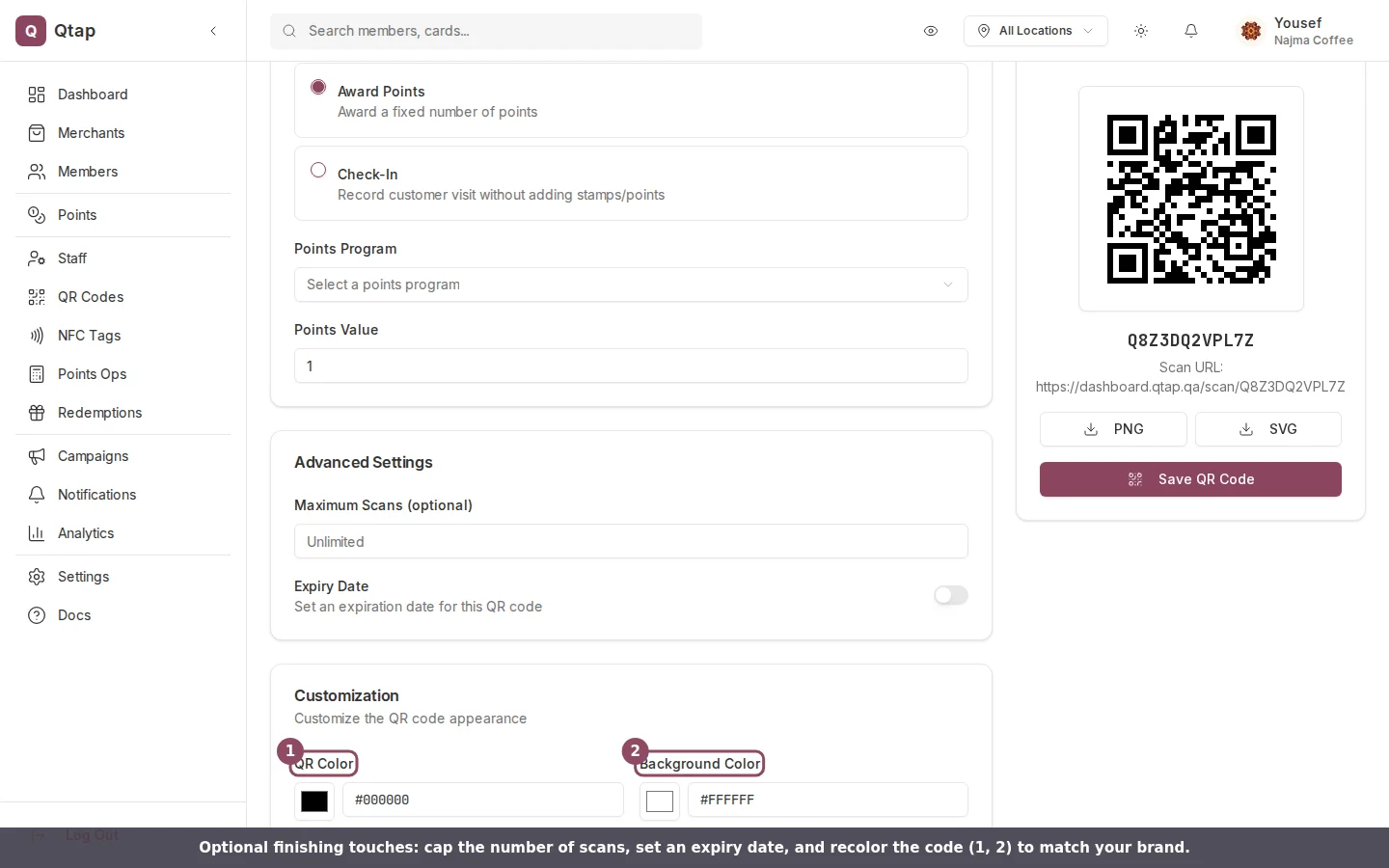
Toggle on **Max scans** if you want to cap how many times a reusable code can be scanned. Enter a number in the field that appears.
Toggle on **Expiry date** and enter a date if the code should stop working after a certain point.
Change the **QR color** and **Background color** fields to match your branding. A preview updates immediately on screen.
Click **Save QR Code**. The code is added to your QR Codes list and is ready to use.
Enter a name in the **Name** field. This is for your reference only — customers do not see it. Use something like "Counter — Stamp Card A" so you can tell codes apart.
Select the **Type**:
* **Reusable** — the same QR code can be scanned any number of times (or up to a limit you set)
* **Batch** — generates multiple single-use QR codes at once, each with a unique code
Select what scanning this QR code should do:
* **Stamp** — issues a stamp on a specific stamp card. You must also select which stamp card from the dropdown that appears.
* **Points** — awards a set number of points to a points program. You must select the program and enter the points value.
* **Redeem** — lets a customer redeem a reward they have already earned.
If you want this QR code to work only at a specific location, select it from the **Location** dropdown. Leave it set to **All locations** if the code should work anywhere.
Toggle on **Max scans** if you want to cap how many times a reusable code can be scanned. Enter a number in the field that appears.
Toggle on **Expiry date** and enter a date if the code should stop working after a certain point.
Change the **QR color** and **Background color** fields to match your branding. A preview updates immediately on screen.
Click **Save QR Code**. The code is added to your QR Codes list and is ready to use.
 ## Downloading Your QR Code
After saving, find the code in your QR Codes list. Click the menu icon on the row and select **Download** to get a PNG file you can print or display on a screen.
## Downloading Your QR Code
After saving, find the code in your QR Codes list. Click the menu icon on the row and select **Download** to get a PNG file you can print or display on a screen.
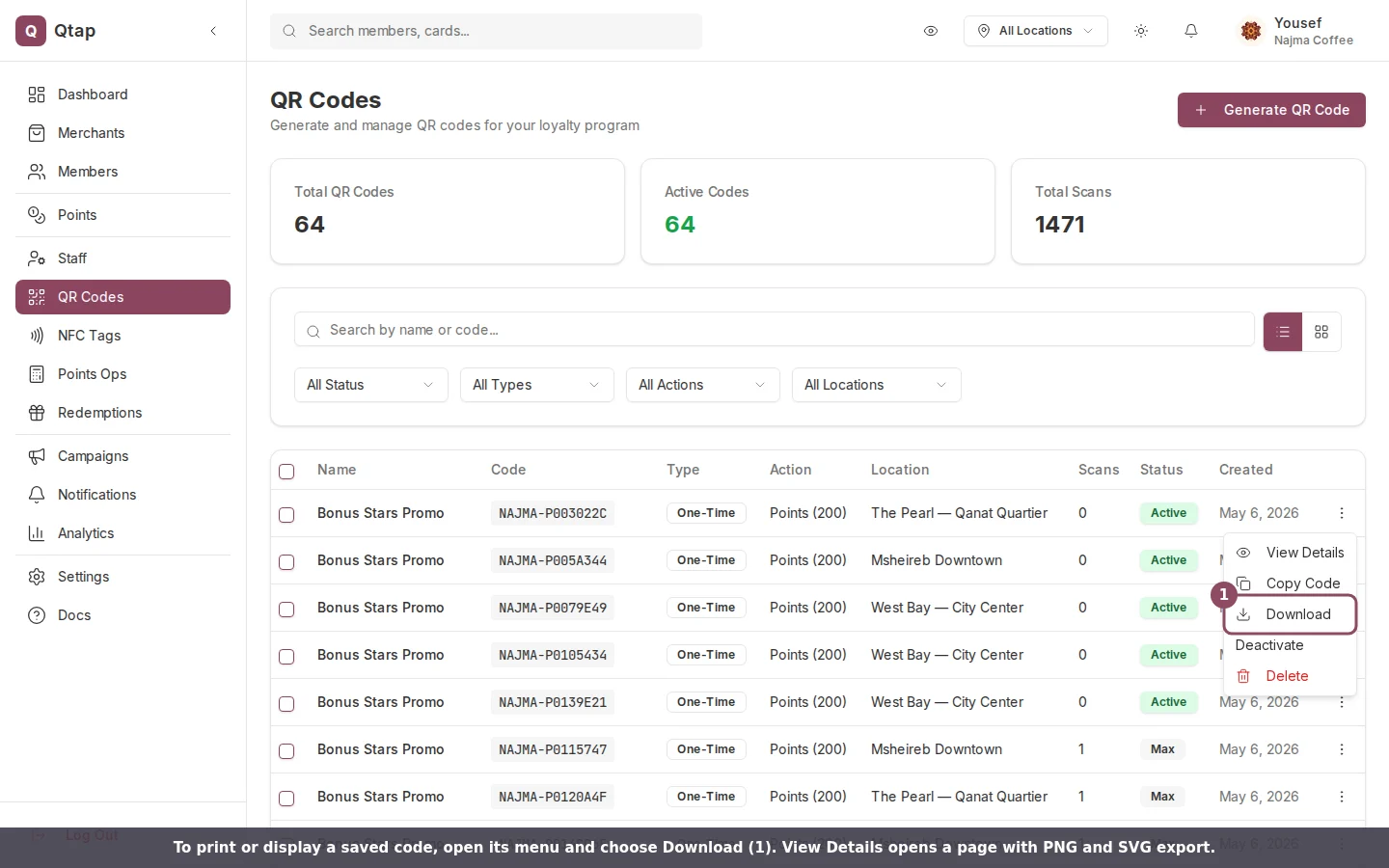 You can also view your QR codes in gallery mode by clicking the grid icon near the top right of the QR Codes page. This makes it easier to visually distinguish codes at a glance.
## Batch QR Codes
If you selected **Batch** as the type, enter the number of codes to generate in the **Quantity** field before saving. Qtap creates that many unique codes with the same action and settings. Download them all at once as a ZIP file or PDF from the QR Codes list.
Batch codes are single-use — each code can only be scanned once. If you need codes that work multiple times, use the Reusable type with a max scans limit instead.
How QR codes work in the Qtap system
Generating and managing large sets of single-use codes
You can also view your QR codes in gallery mode by clicking the grid icon near the top right of the QR Codes page. This makes it easier to visually distinguish codes at a glance.
## Batch QR Codes
If you selected **Batch** as the type, enter the number of codes to generate in the **Quantity** field before saving. Qtap creates that many unique codes with the same action and settings. Download them all at once as a ZIP file or PDF from the QR Codes list.
Batch codes are single-use — each code can only be scanned once. If you need codes that work multiple times, use the Reusable type with a max scans limit instead.
How QR codes work in the Qtap system
Generating and managing large sets of single-use codes