> ## Documentation Index
> Fetch the complete documentation index at: https://docs.qtap.qa/llms.txt
> Use this file to discover all available pages before exploring further.
# QR Codes Overview
> How QR codes work in Qtap, what types exist, and how to manage them.
QR codes connect the physical world to your loyalty program. Each QR code is tied to one of your locations. Customers scan a code to earn stamps or points, and staff use QR codes to confirm redemptions.
## How QR codes are used
There are two main uses for QR codes in Qtap:
**Stamping** — a customer shows their unique member QR code to staff, and staff scan it using the Qtap staff app. This adds a stamp to the customer's card or records a points transaction. Alternatively, you can display a location QR code for customers to scan themselves from the member app.
**Redemptions** — when a customer wants to use a reward, staff scan the customer's QR code on the Stamp Operations or Points Operations screen to confirm the redemption.
## The QR Codes page
Go to **QR Codes** in the left sidebar to see all your generated QR codes. The page shows a table of all codes with columns for name, location, type, status, and creation date.
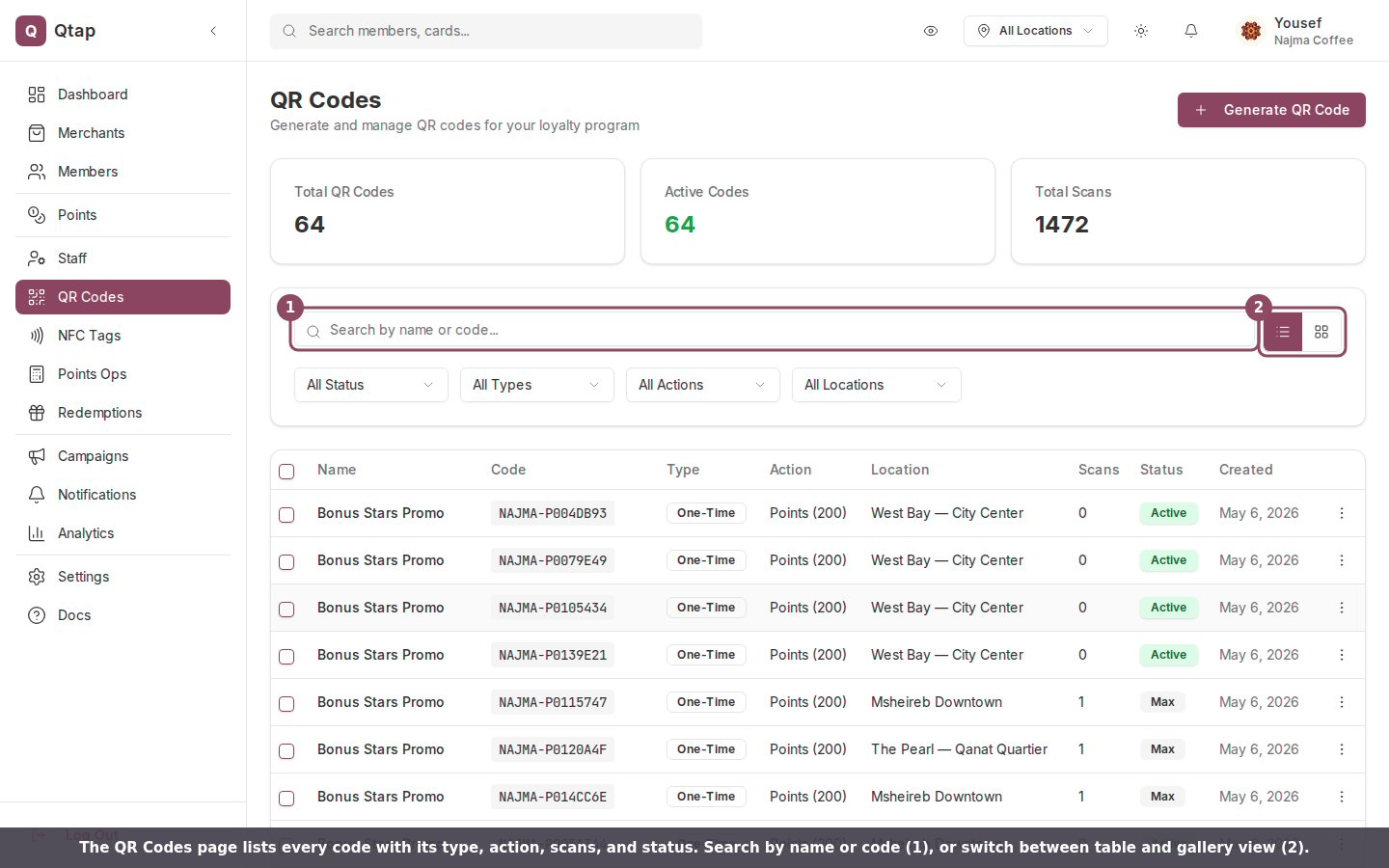 You can switch between **Table** view and **Gallery** view using the buttons at the top right. Gallery view shows the codes as images you can visually scan.
**Filtering** — use the dropdowns at the top to filter by status (active or inactive), type, batch, or location.
**Searching** — type in the search box to find a specific code by name.
You can switch between **Table** view and **Gallery** view using the buttons at the top right. Gallery view shows the codes as images you can visually scan.
**Filtering** — use the dropdowns at the top to filter by status (active or inactive), type, batch, or location.
**Searching** — type in the search box to find a specific code by name.
 ## QR code actions
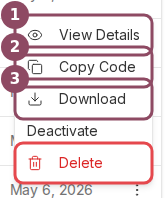
Click the three-dot menu on any code row to see available actions:
* **View** — opens the QR code image full-screen with a download option
* **Download** — exports the QR code as a PDF file ready to print
* **Copy** — copies the code's unique string to your clipboard
* **Delete** — permanently removes the code
You can also toggle a code between active and inactive directly from the table.
## QR code actions
Click the three-dot menu on any code row to see available actions:
* **View** — opens the QR code image full-screen with a download option
* **Download** — exports the QR code as a PDF file ready to print
* **Copy** — copies the code's unique string to your clipboard
* **Delete** — permanently removes the code
You can also toggle a code between active and inactive directly from the table.
 ## Bulk export
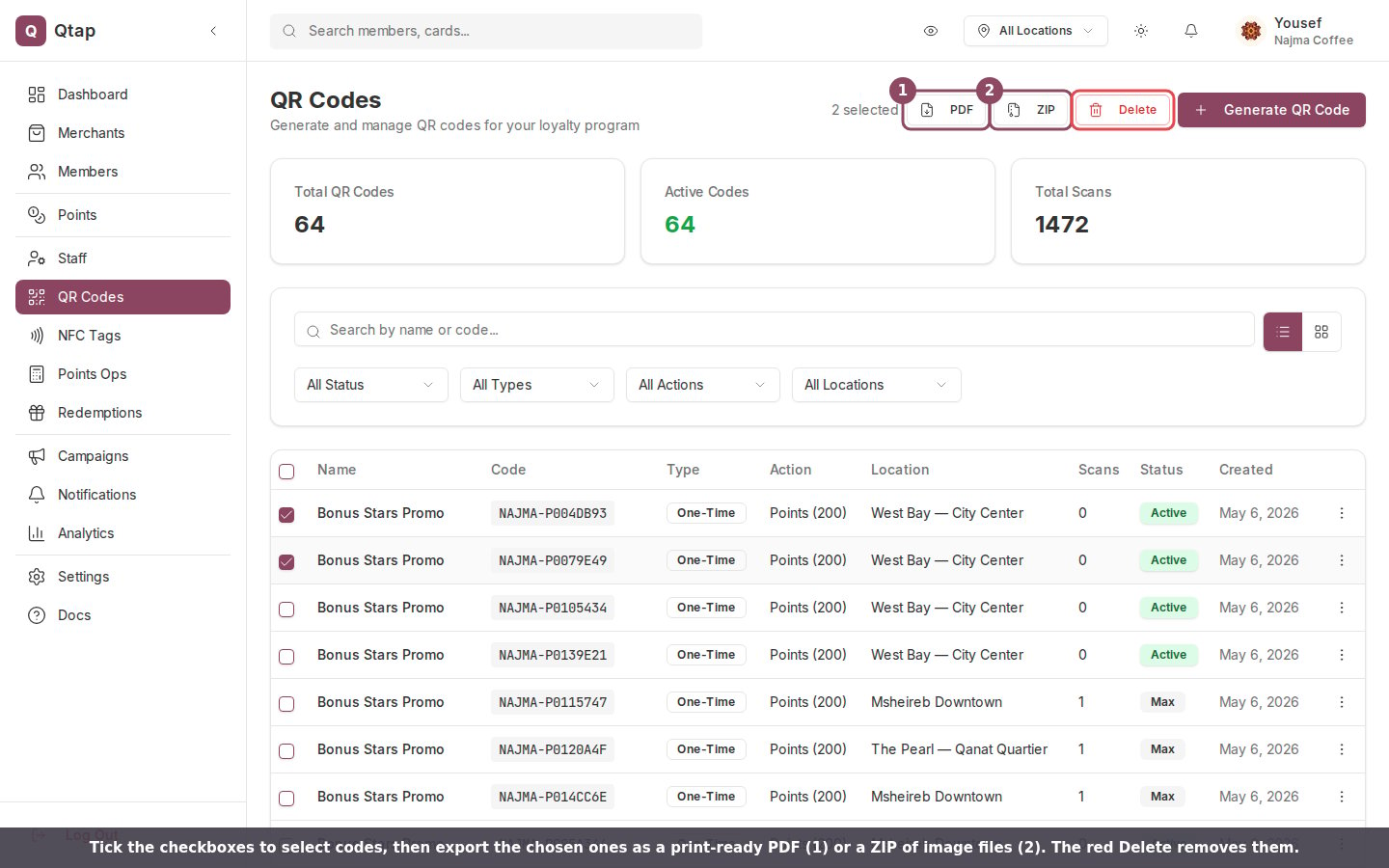
To export multiple QR codes at once, check the boxes next to the codes you want to select, then use the export options that appear. You can export selected codes as a PDF or as a ZIP file containing individual image files.
## Bulk export
To export multiple QR codes at once, check the boxes next to the codes you want to select, then use the export options that appear. You can export selected codes as a PDF or as a ZIP file containing individual image files.
 ## QR code statuses
* **Active** — the code works and can be scanned
* **Inactive** — the code is disabled. Scans will not process stamps or redemptions.
Deleting a QR code is permanent. If customers have printed or saved that code, scans of the deleted code will no longer work. Use Inactive instead if you want to disable a code temporarily.
Each QR code is linked to a specific location. If you need a code that works at multiple locations, generate a separate code per location or contact Qtap support.
How to create a new QR code for a location.
Generate multiple QR codes at once for print campaigns.
## QR code statuses
* **Active** — the code works and can be scanned
* **Inactive** — the code is disabled. Scans will not process stamps or redemptions.
Deleting a QR code is permanent. If customers have printed or saved that code, scans of the deleted code will no longer work. Use Inactive instead if you want to disable a code temporarily.
Each QR code is linked to a specific location. If you need a code that works at multiple locations, generate a separate code per location or contact Qtap support.
How to create a new QR code for a location.
Generate multiple QR codes at once for print campaigns.