> ## Documentation Index
> Fetch the complete documentation index at: https://docs.qtap.qa/llms.txt
> Use this file to discover all available pages before exploring further.
# QR code placement and use-case ideas
> Where to put your Qtap QR codes, and which settings fit each spot.
Every Qtap QR code is a printed link to a scan page. Where you put a code decides which settings fit it. Pick the spot first, then match three things on the **Generate QR Code** page: the type, the action, and any limit.
## Start with the type
The type sets how often a code can be scanned, so it follows the placement.
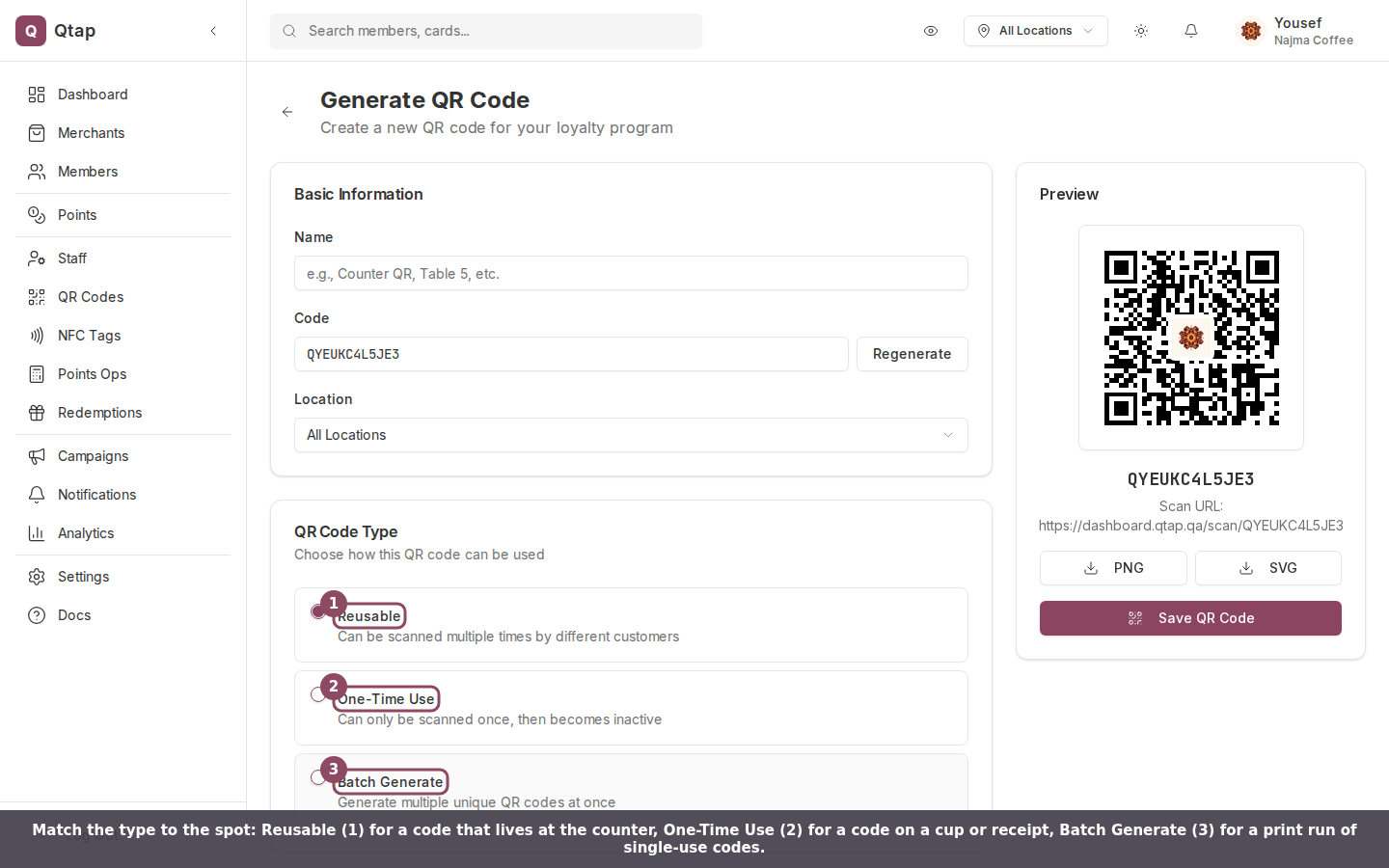 * **At the counter or on a table tent**, use **Reusable**. The same code works for every customer, every day.
* **On cups, receipts, or packaging** a customer takes home, use **One-Time Use**. The code scans once, then goes inactive, so it can't be reused or shared.
* **For a print run**, use **Batch Generate**. It creates up to 100 unique single-use codes in one go, each one good for a single scan.
## Pick the action
The action decides what a scan does. It works the same wherever the code is placed.
* **At the counter or on a table tent**, use **Reusable**. The same code works for every customer, every day.
* **On cups, receipts, or packaging** a customer takes home, use **One-Time Use**. The code scans once, then goes inactive, so it can't be reused or shared.
* **For a print run**, use **Batch Generate**. It creates up to 100 unique single-use codes in one go, each one good for a single scan.
## Pick the action
The action decides what a scan does. It works the same wherever the code is placed.
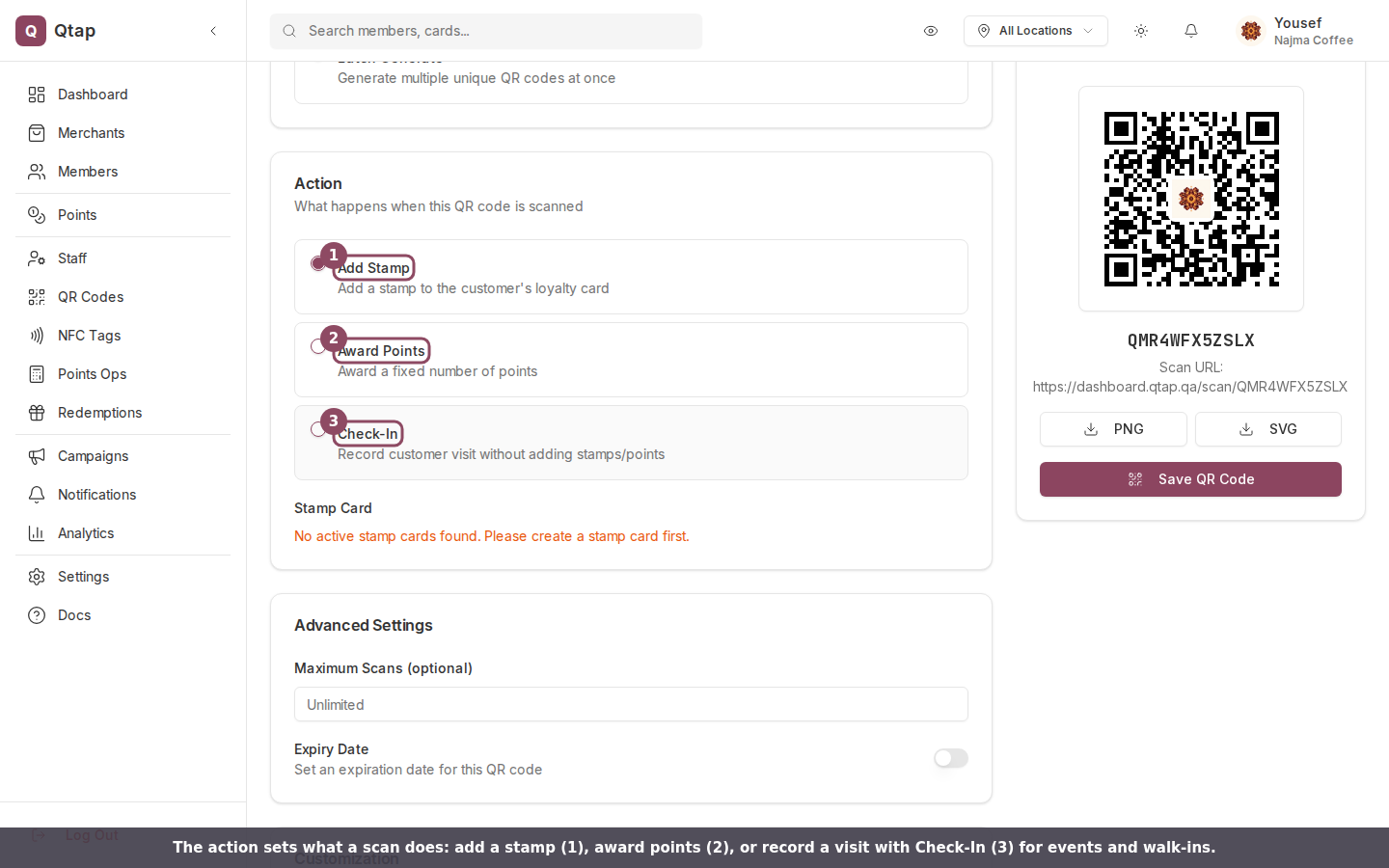 Use **Check-In** for an event door or a walk-in counter where you want to count visits without giving stamps or points. Use **Add Stamp** or **Award Points** for everyday earning codes.
Set the **Location** in Basic Information when a code belongs to one branch. The scan is then recorded against that branch, which keeps your per-location reports honest.
## Limits for promotions
Two settings under **Advanced Settings** turn a normal code into a time-bound or quantity-bound promo.
Use **Check-In** for an event door or a walk-in counter where you want to count visits without giving stamps or points. Use **Add Stamp** or **Award Points** for everyday earning codes.
Set the **Location** in Basic Information when a code belongs to one branch. The scan is then recorded against that branch, which keeps your per-location reports honest.
## Limits for promotions
Two settings under **Advanced Settings** turn a normal code into a time-bound or quantity-bound promo.
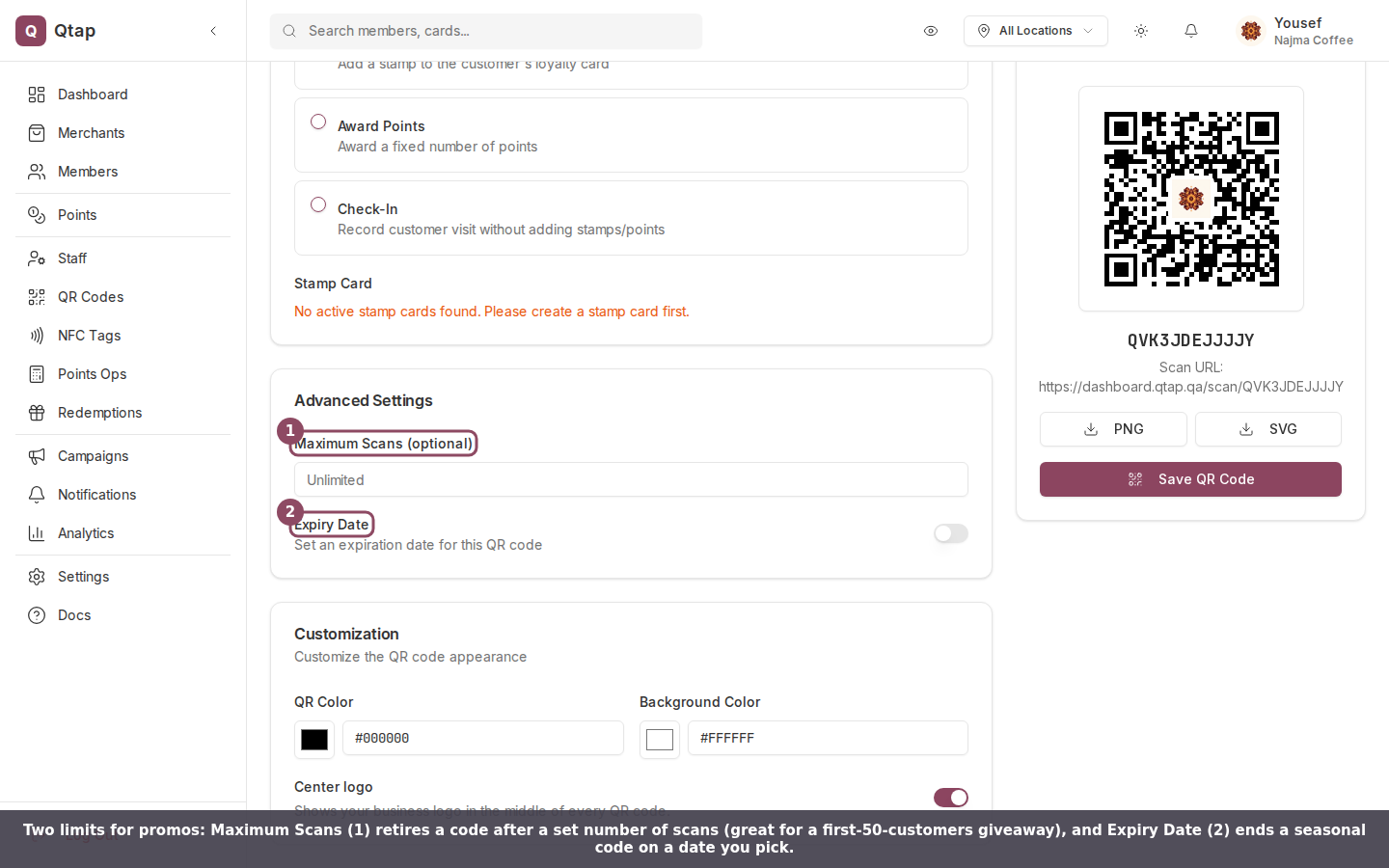 * **First-50-customers giveaway**: set **Maximum Scans** to 50. After the 50th scan the code stops working.
* **Seasonal offer**: turn on **Expiry Date** and pick the end date. After it passes, a scan shows "This QR code has expired."
A code that has hit its scan cap or expiry date can't be revived. Generate a fresh one for the next run.
## Window decals and posters
For anything printed large, download the **SVG** from the preview, not the PNG. An SVG stays sharp at any size, so a window decal or A2 poster won't look blocky. Use the PNG for small prints like table tents and receipts.
## Print a batch for handing out
When you need many codes on paper, create them, then select and download them together from the QR Codes list.
* **First-50-customers giveaway**: set **Maximum Scans** to 50. After the 50th scan the code stops working.
* **Seasonal offer**: turn on **Expiry Date** and pick the end date. After it passes, a scan shows "This QR code has expired."
A code that has hit its scan cap or expiry date can't be revived. Generate a fresh one for the next run.
## Window decals and posters
For anything printed large, download the **SVG** from the preview, not the PNG. An SVG stays sharp at any size, so a window decal or A2 poster won't look blocky. Use the PNG for small prints like table tents and receipts.
## Print a batch for handing out
When you need many codes on paper, create them, then select and download them together from the QR Codes list.
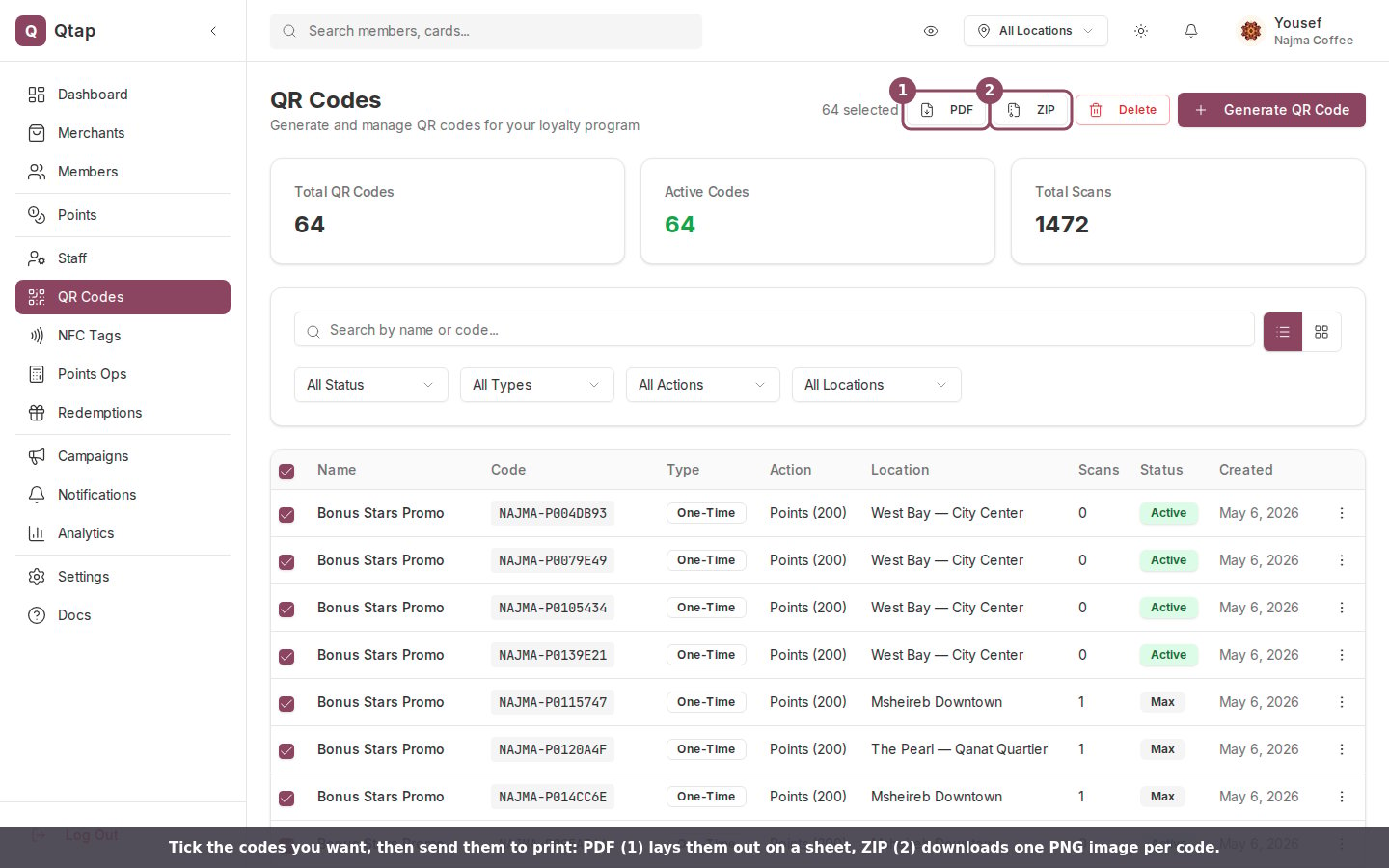 **PDF** lays the codes out on a sheet for printing. **ZIP** gives you one PNG image per code to drop into your own design.
A code only credits a customer when they scan it inside the Qtap app, which tells Qtap who they are. A scan from a plain phone camera opens the scan page and records the visit, but adds nothing to anyone. See [How customers scan and earn](/merchants/qr-codes/customer-scan-flow) for what the customer sees.
**PDF** lays the codes out on a sheet for printing. **ZIP** gives you one PNG image per code to drop into your own design.
A code only credits a customer when they scan it inside the Qtap app, which tells Qtap who they are. A scan from a plain phone camera opens the scan page and records the visit, but adds nothing to anyone. See [How customers scan and earn](/merchants/qr-codes/customer-scan-flow) for what the customer sees.
 Your plan sets how many QR codes you can create each month: 50 on Starter, 300 on Growth, 1,500 on Elite, and unlimited on Franchise. The count resets on the 1st. A batch counts each code it creates against that month. Only owners and managers can create and manage QR codes.
Ready to make one? See [Generating a QR code](/merchants/qr-codes/generating) for the full walkthrough, or [Batch generation](/merchants/qr-codes/batch) for large print runs.
Your plan sets how many QR codes you can create each month: 50 on Starter, 300 on Growth, 1,500 on Elite, and unlimited on Franchise. The count resets on the 1st. A batch counts each code it creates against that month. Only owners and managers can create and manage QR codes.
Ready to make one? See [Generating a QR code](/merchants/qr-codes/generating) for the full walkthrough, or [Batch generation](/merchants/qr-codes/batch) for large print runs.