> ## Documentation Index
> Fetch the complete documentation index at: https://docs.qtap.qa/llms.txt
> Use this file to discover all available pages before exploring further.
# QR code details and scans
> Open a single QR code to see its scan count, a 7-day activity chart, recent scans, and to rename, download, or delete it.
Every QR code you generate has its own detail page. It shows how many times the code has been scanned, a chart of recent activity, and the most recent scans. From the same page you can rename the code, change its location, download it again, or delete it.
## Open a code's detail page
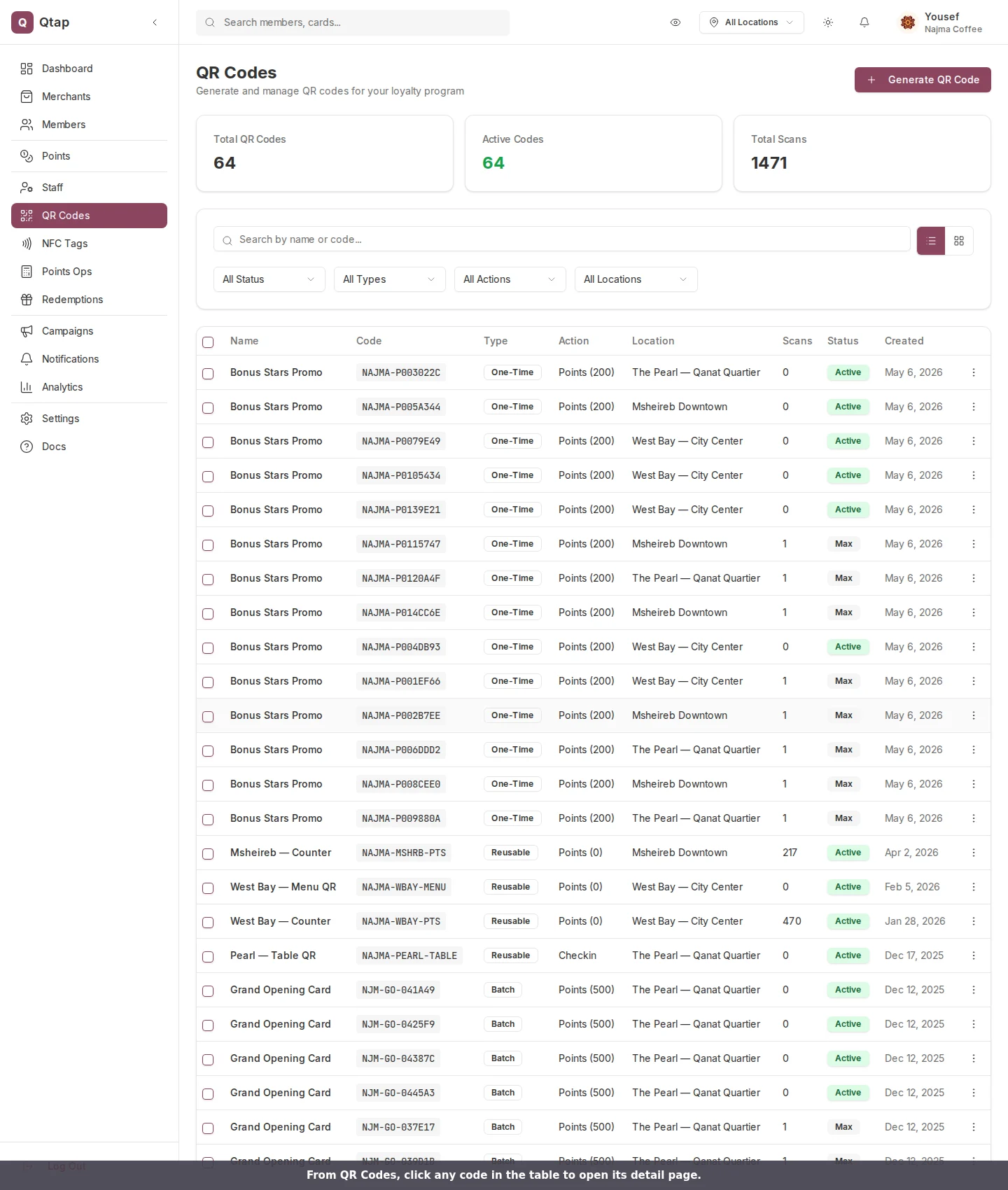
Go to **QR Codes** in the left sidebar, then click any code in the table. You can also open the three-dot menu on a row and choose **View Details**.
 ## What the detail page shows
The top of the page has four quick stats: **Total Scans**, **Type** (reusable, one-time, or batch), **Action** (what a scan does, such as points or stamp), and **Status** (active or inactive).
If the code has been scanned at least once, a **Scan Activity** chart plots the daily scan count for the last 7 days. The **QR Code** panel on the right shows the code image, the link a scan opens, and buttons to download it again as a **PNG** or **SVG**.
## What the detail page shows
The top of the page has four quick stats: **Total Scans**, **Type** (reusable, one-time, or batch), **Action** (what a scan does, such as points or stamp), and **Status** (active or inactive).
If the code has been scanned at least once, a **Scan Activity** chart plots the daily scan count for the last 7 days. The **QR Code** panel on the right shows the code image, the link a scan opens, and buttons to download it again as a **PNG** or **SVG**.
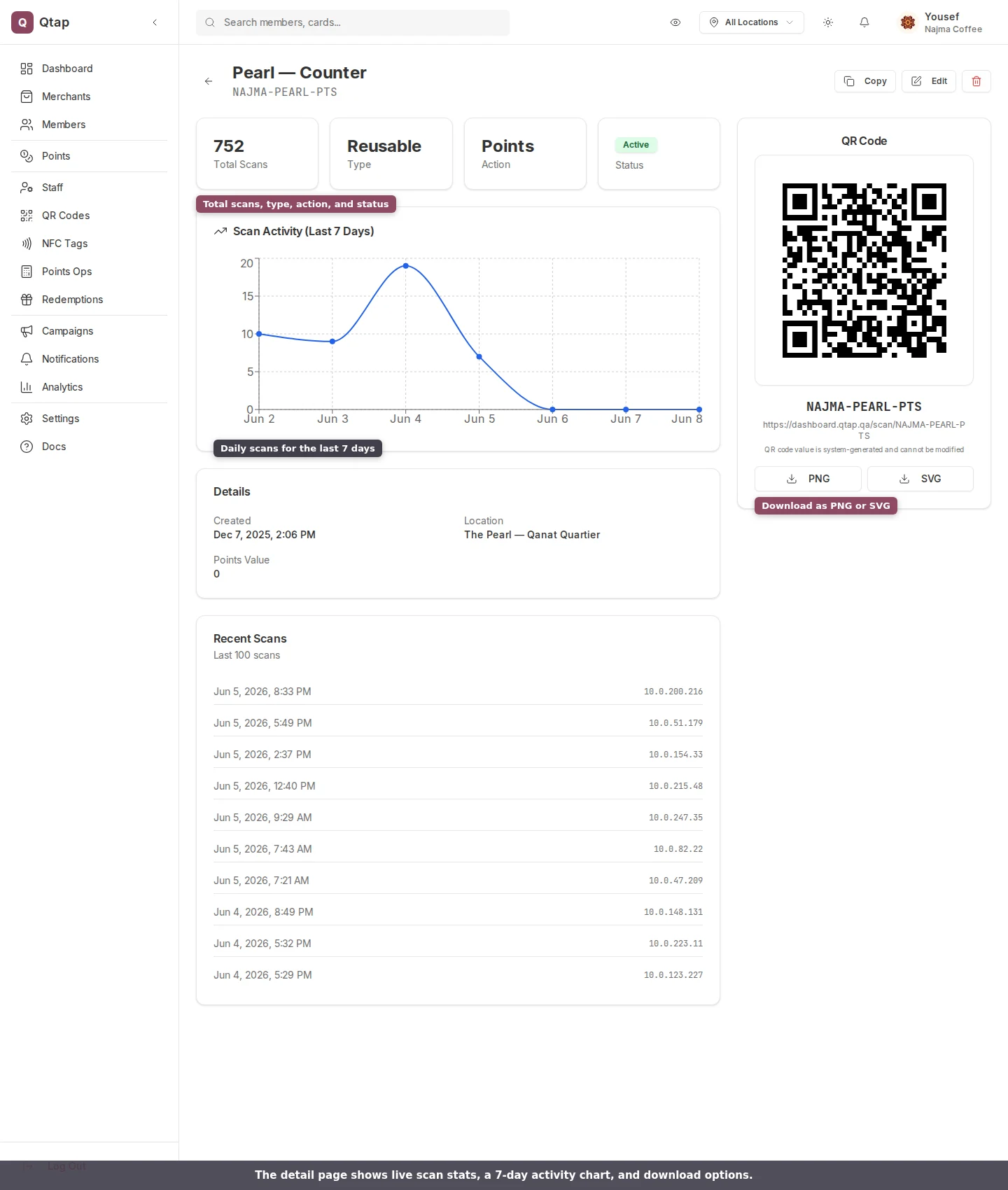 Below the chart, the **Details** card lists when the code was created and which location it belongs to. For points codes it also shows the points value. If you set a scan limit or an expiry date when you generated the code, those appear here too.
The **Recent Scans** card lists the latest scans with the date and time of each. This is the fastest way to confirm a printed code is working after you put it on a table or a flyer.
## Rename or move a code
Click **Edit** to change the code's details. You can update its **Name**, move it to a different **Location**, and turn it **Active** or inactive with the toggle. An inactive code stops working when scanned, which is the safe way to pause a code without deleting it. Click **Save Changes** when you are done.
Below the chart, the **Details** card lists when the code was created and which location it belongs to. For points codes it also shows the points value. If you set a scan limit or an expiry date when you generated the code, those appear here too.
The **Recent Scans** card lists the latest scans with the date and time of each. This is the fastest way to confirm a printed code is working after you put it on a table or a flyer.
## Rename or move a code
Click **Edit** to change the code's details. You can update its **Name**, move it to a different **Location**, and turn it **Active** or inactive with the toggle. An inactive code stops working when scanned, which is the safe way to pause a code without deleting it. Click **Save Changes** when you are done.
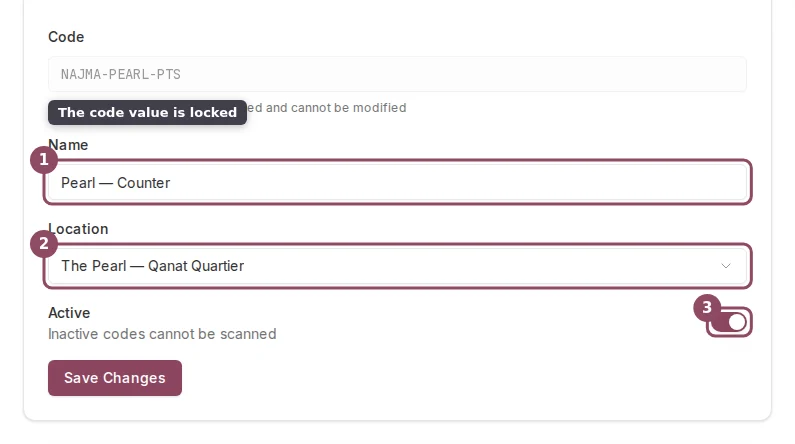 The code value (the text under the name, like `NAJMA-PEARL-PTS`) is set by Qtap when the code is created and cannot be changed. This keeps any printed copies working. To get a different code value, generate a new code.
## Delete a code
Click the red trash button in the top right, then confirm in the dialog. Deleting a code also deletes its scan history, and the action cannot be undone.
The code value (the text under the name, like `NAJMA-PEARL-PTS`) is set by Qtap when the code is created and cannot be changed. This keeps any printed copies working. To get a different code value, generate a new code.
## Delete a code
Click the red trash button in the top right, then confirm in the dialog. Deleting a code also deletes its scan history, and the action cannot be undone.
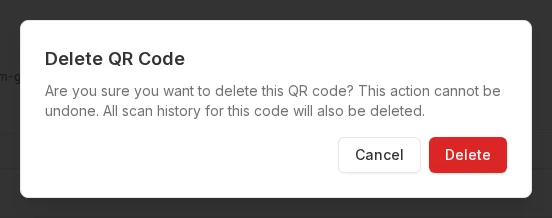 If customers have already printed or saved this code, scans will stop working the moment you delete it. To pause a code instead, open **Edit** and turn off **Active**. You can turn it back on later.
Owners and managers can open code detail pages. Staff members do not have access to the QR Codes section by default.
How QR codes work and how to manage them from the list.
Create a new code for one of your locations.
If customers have already printed or saved this code, scans will stop working the moment you delete it. To pause a code instead, open **Edit** and turn off **Active**. You can turn it back on later.
Owners and managers can open code detail pages. Staff members do not have access to the QR Codes section by default.
How QR codes work and how to manage them from the list.
Create a new code for one of your locations.