> ## Documentation Index
> Fetch the complete documentation index at: https://docs.qtap.qa/llms.txt
> Use this file to discover all available pages before exploring further.
# Reusable vs one-time QR codes
> Pick the right QR code type so a code can be scanned again and again, or used up after a single scan.
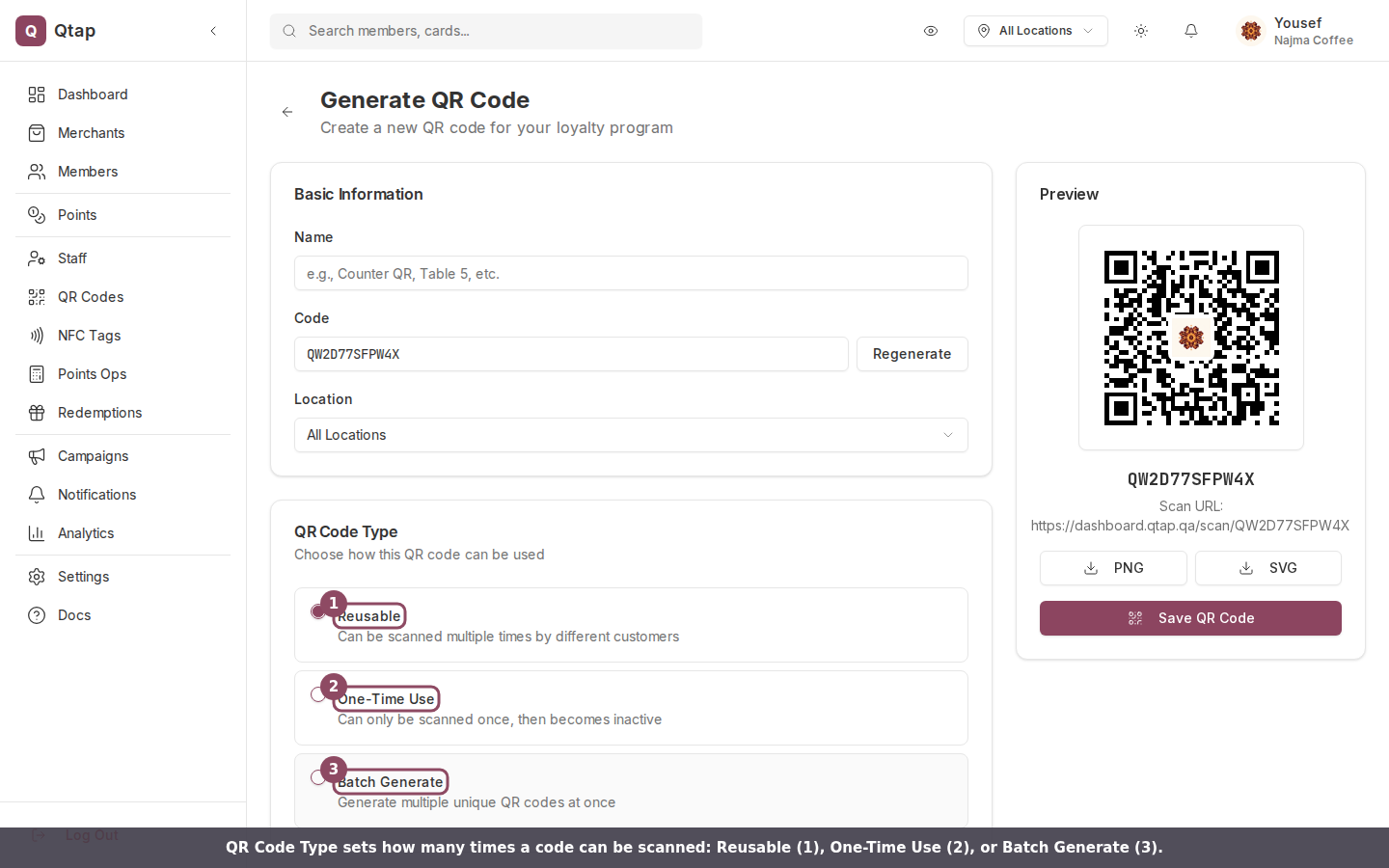
Every QR code you generate has a **type** that decides how many times the same code can be scanned. You set it on the **QR Code Type** card when you create a code, and you cannot change it afterward. There are three choices: Reusable, One-Time Use, and Batch Generate.
 ## Reusable
A reusable code can be scanned again and again by different customers. This is the right pick for any code that stays in place: a sticker on the counter, a table tent, a poster in the window, or a code printed on every receipt. One code does all the work.
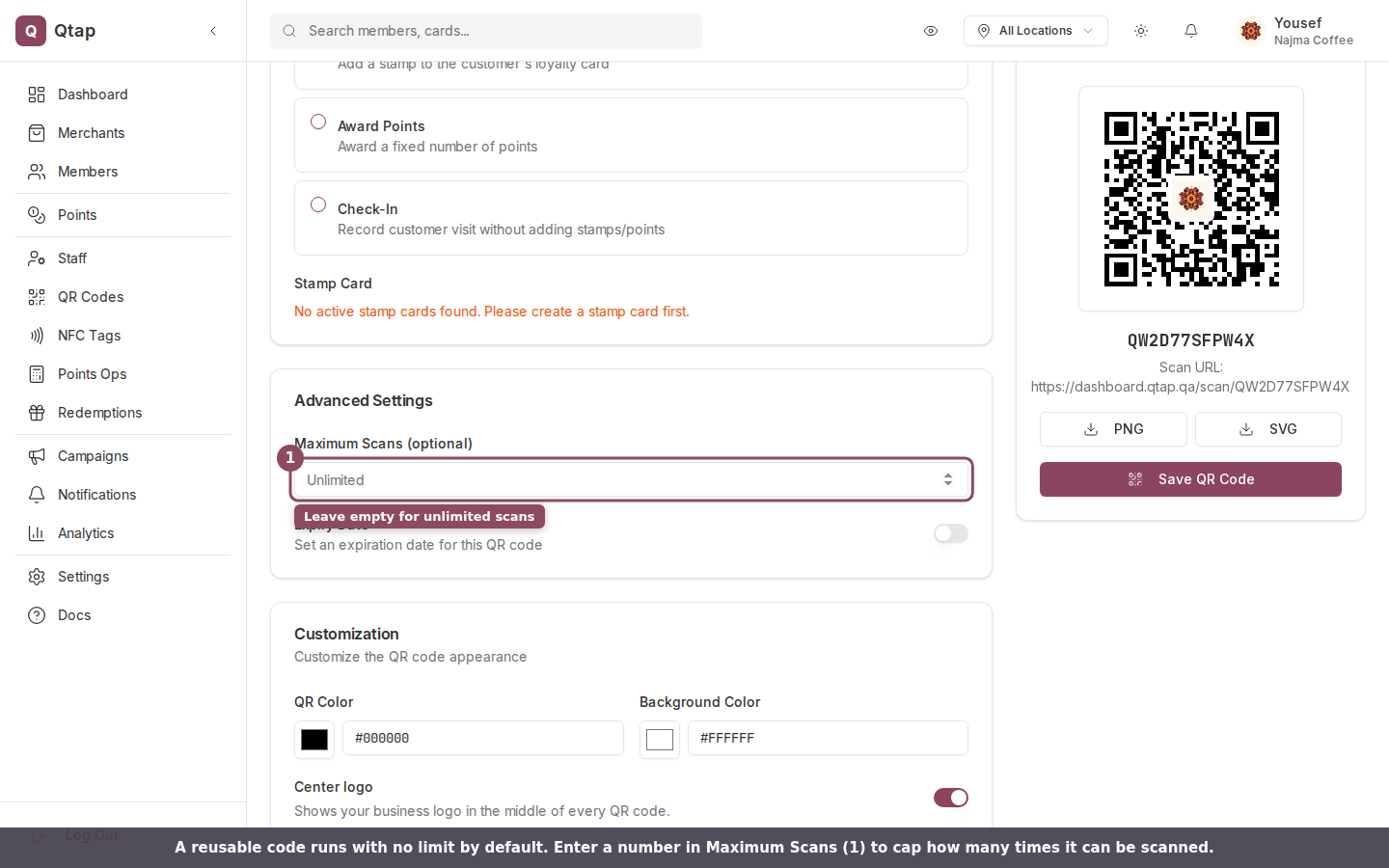
By default a reusable code has no scan limit. To cap it, enter a number in the **Maximum Scans** field. Once the code reaches that many scans it stops working, and a customer who scans it sees "This QR code has reached its maximum number of scans." Leave the field empty for unlimited scans.
## Reusable
A reusable code can be scanned again and again by different customers. This is the right pick for any code that stays in place: a sticker on the counter, a table tent, a poster in the window, or a code printed on every receipt. One code does all the work.
By default a reusable code has no scan limit. To cap it, enter a number in the **Maximum Scans** field. Once the code reaches that many scans it stops working, and a customer who scans it sees "This QR code has reached its maximum number of scans." Leave the field empty for unlimited scans.
 ## One-Time Use
A one-time code works for a single scan, then turns itself off. After that first scan the code becomes inactive, and anyone who scans it again sees "This QR code is no longer active." Use it for a single-use voucher, a one-off reward handed to one customer, or any code that should never be claimed twice.
A one-time code is used up by the **first** scan, even if that scan did not credit anyone. If a customer opens the code with their phone camera instead of the Qtap app, the scan still counts and the code goes inactive, with no stamp or points awarded. For a reward you want a specific member to claim, hand it to them in person or have a staff member scan their member code.
## Batch Generate
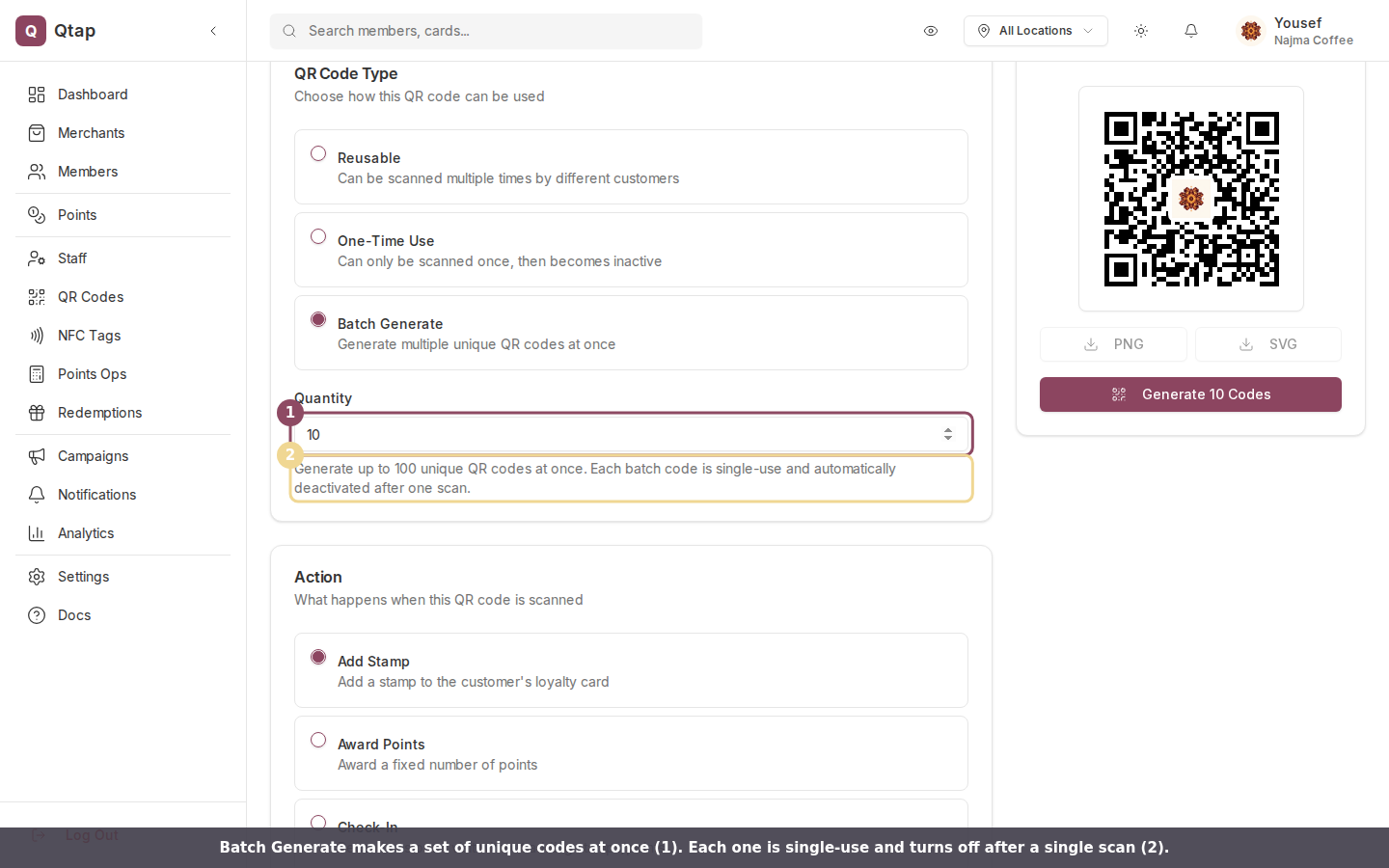
Batch Generate makes a set of unique codes in one step, between 2 and 100 at a time. Every code in the batch is single-use: each one deactivates after its first scan, exactly like a One-Time Use code. Reach for this when you need a run of one-per-customer codes, such as printed coupons, event giveaways, or numbered cards in a mailout.
## One-Time Use
A one-time code works for a single scan, then turns itself off. After that first scan the code becomes inactive, and anyone who scans it again sees "This QR code is no longer active." Use it for a single-use voucher, a one-off reward handed to one customer, or any code that should never be claimed twice.
A one-time code is used up by the **first** scan, even if that scan did not credit anyone. If a customer opens the code with their phone camera instead of the Qtap app, the scan still counts and the code goes inactive, with no stamp or points awarded. For a reward you want a specific member to claim, hand it to them in person or have a staff member scan their member code.
## Batch Generate
Batch Generate makes a set of unique codes in one step, between 2 and 100 at a time. Every code in the batch is single-use: each one deactivates after its first scan, exactly like a One-Time Use code. Reach for this when you need a run of one-per-customer codes, such as printed coupons, event giveaways, or numbered cards in a mailout.
 For larger runs and managing a whole set at once, see [Batch QR Codes](/merchants/qr-codes/batch).
## Which type to pick
| You want to... | Type |
| ------------------------------------------ | ----------------------------- |
| Keep one code in place for everyone | Reusable |
| Allow a fixed number of scans, then stop | Reusable with a Max Scans cap |
| Let a code be claimed once and then expire | One-Time Use |
| Hand out many single-use codes at once | Batch Generate |
Generating QR codes needs the QR access permission. Owners and managers have it by default, so they can create any type. Staff have no QR access by default. See [Roles and permissions](/merchants/staff/roles-permissions).
The full walkthrough for creating and downloading a code.
What each scan error means and how to fix it.
For larger runs and managing a whole set at once, see [Batch QR Codes](/merchants/qr-codes/batch).
## Which type to pick
| You want to... | Type |
| ------------------------------------------ | ----------------------------- |
| Keep one code in place for everyone | Reusable |
| Allow a fixed number of scans, then stop | Reusable with a Max Scans cap |
| Let a code be claimed once and then expire | One-Time Use |
| Hand out many single-use codes at once | Batch Generate |
Generating QR codes needs the QR access permission. Owners and managers have it by default, so they can create any type. Staff have no QR access by default. See [Roles and permissions](/merchants/staff/roles-permissions).
The full walkthrough for creating and downloading a code.
What each scan error means and how to fix it.