> ## Documentation Index
> Fetch the complete documentation index at: https://docs.qtap.qa/llms.txt
> Use this file to discover all available pages before exploring further.
# Showing a QR code on screen
> Put any QR code full-screen on a laptop or tablet so a customer can scan it without a printed sign.
Any QR code you have already made can go full-screen on the device in front of you, so a customer can scan it straight off the screen. That covers a pop-up stall with nothing printed yet, or the morning the counter sign goes missing.
## Switch to Gallery view
Go to **QR Codes** in the left sidebar. The page opens as a table. Click the grid button to the right of the search box to switch to **Gallery** view.
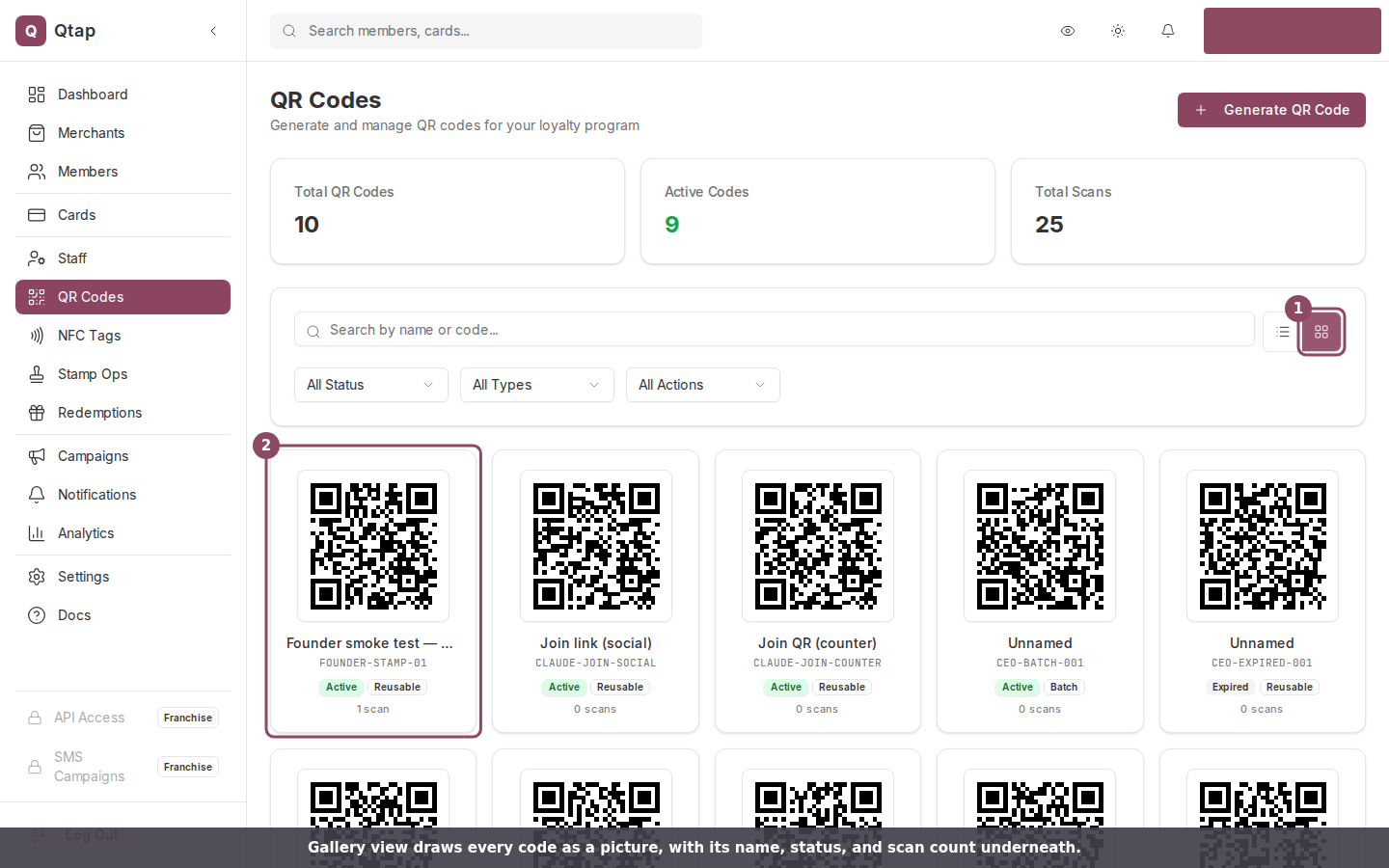 Each card draws the code in that code's own colours, with its name underneath, the code itself, a status badge, the type, and how many times it has been scanned. Click a card to open the code's full detail page.
Gallery is not remembered between visits. The page goes back to the table each time you open it, so click the grid button again.
## Show a code to a customer
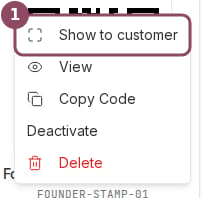
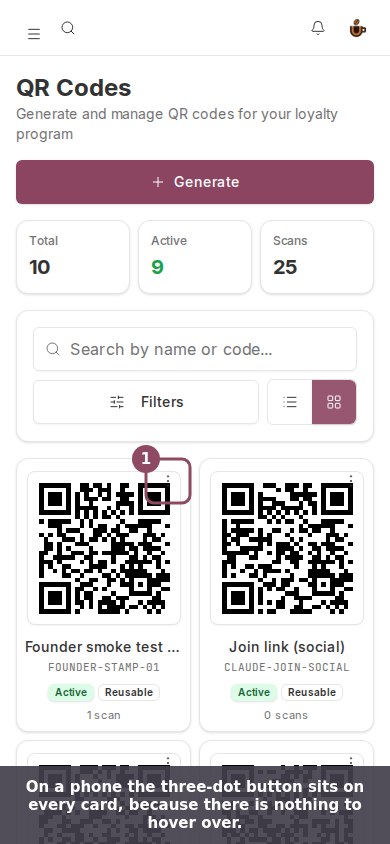
Hover a card and click the three-dot button in its corner, then choose **Show to customer**. On a screen narrower than about 640 pixels, phone width, the three-dot button is always visible, since there is nothing to hover with. On a wider touch screen such as a tablet the button stays hidden until a pointer hovers over the card, so tap the card to open the code's own page and use the **Show to customer** button there instead.
Each card draws the code in that code's own colours, with its name underneath, the code itself, a status badge, the type, and how many times it has been scanned. Click a card to open the code's full detail page.
Gallery is not remembered between visits. The page goes back to the table each time you open it, so click the grid button again.
## Show a code to a customer
Hover a card and click the three-dot button in its corner, then choose **Show to customer**. On a screen narrower than about 640 pixels, phone width, the three-dot button is always visible, since there is nothing to hover with. On a wider touch screen such as a tablet the button stays hidden until a pointer hovers over the card, so tap the card to open the code's own page and use the **Show to customer** button there instead.
 The code fills the screen on a plain white background, with your business name and the code's name above it and the code written out below. Your customer points their camera at it, same as they would at a printed sign.
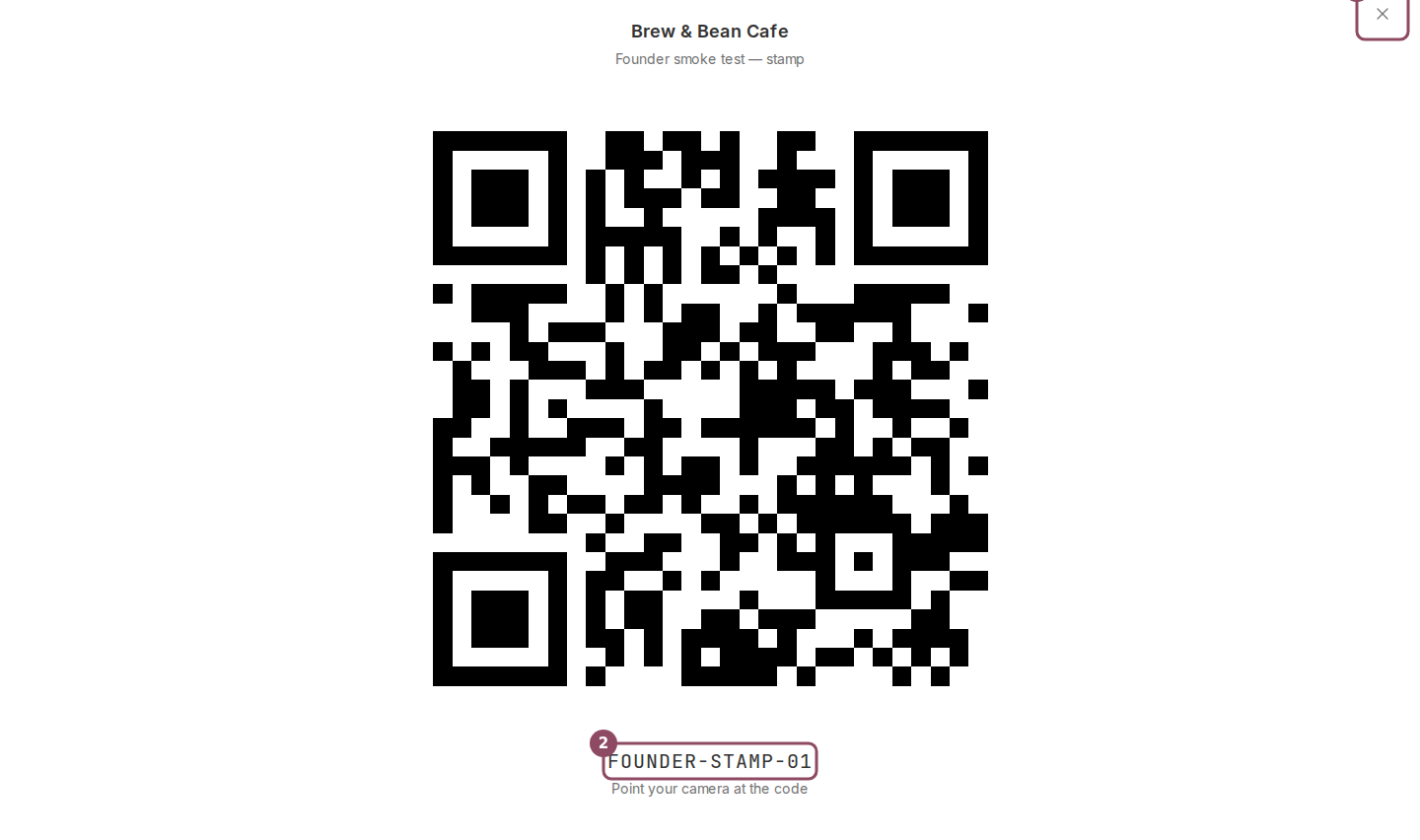 Press Escape or click the X in the corner to come back. Clicking anywhere on the white background closes it too.
While the code is up, Qtap asks the browser to keep the screen awake so it does not dim halfway through a scan. Switching to another tab or app and coming back can drop that, so the screen may start sleeping again on a long queue.
## The same button on a code's page
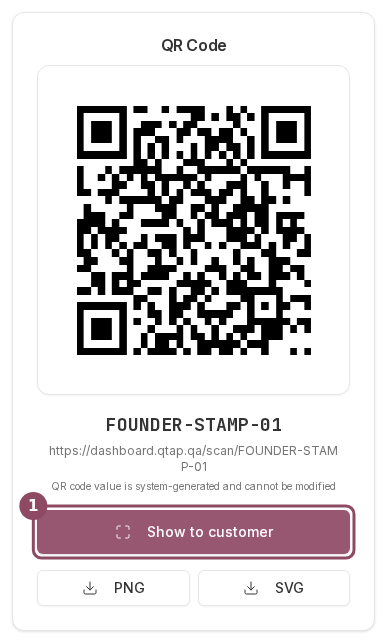
Open any code from the table or the gallery and you get **Show to customer** under the code image, above the PNG and SVG download buttons. It opens the same full-screen view.
Press Escape or click the X in the corner to come back. Clicking anywhere on the white background closes it too.
While the code is up, Qtap asks the browser to keep the screen awake so it does not dim halfway through a scan. Switching to another tab or app and coming back can drop that, so the screen may start sleeping again on a long queue.
## The same button on a code's page
Open any code from the table or the gallery and you get **Show to customer** under the code image, above the PNG and SVG download buttons. It opens the same full-screen view.
 ## Use a screen wide enough
The code is drawn at a fixed size of 640 pixels. Any laptop, tablet, or counter display is comfortably wider than that. A phone held in portrait is not, and the code gets cut off at both edges, which stops it scanning.
## Use a screen wide enough
The code is drawn at a fixed size of 640 pixels. Any laptop, tablet, or counter display is comfortably wider than that. A phone held in portrait is not, and the code gets cut off at both edges, which stops it scanning.
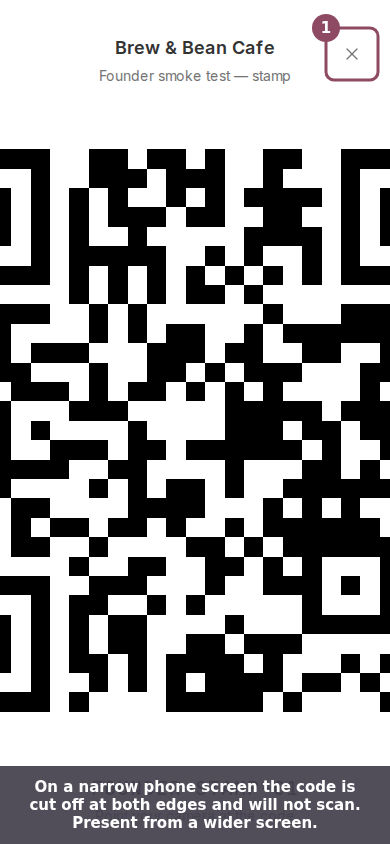 Until this is fixed, show codes from a screen around 640 pixels wide or more. Browsing the gallery on a phone works fine, so you can still check a code's status from your pocket.
 ## Check the badge before you show it
The full-screen view will happily display a code that no longer works. A code marked **Inactive**, **Expired**, or **Max Reached** on its card still opens, and the customer's phone will reach a Qtap page telling them the code is no longer valid. Glance at the badge on the card first.
Owners and managers can reach the QR Codes page. Staff members have no access to it by default, so a staff member showing codes at the counter needs QR access added to their permissions first.
Rename a code, pause it, or check what it has been doing.
What happens on their phone after the scan, and when it credits them.
Types, filters, and how codes fit into your program.
Give a staff member access to the QR Codes page.
This documentation is built and hosted on [Mintlify](https://mintlify.com), a developer documentation platform.
## Check the badge before you show it
The full-screen view will happily display a code that no longer works. A code marked **Inactive**, **Expired**, or **Max Reached** on its card still opens, and the customer's phone will reach a Qtap page telling them the code is no longer valid. Glance at the badge on the card first.
Owners and managers can reach the QR Codes page. Staff members have no access to it by default, so a staff member showing codes at the counter needs QR access added to their permissions first.
Rename a code, pause it, or check what it has been doing.
What happens on their phone after the scan, and when it credits them.
Types, filters, and how codes fit into your program.
Give a staff member access to the QR Codes page.
This documentation is built and hosted on [Mintlify](https://mintlify.com), a developer documentation platform.