> ## Documentation Index
> Fetch the complete documentation index at: https://docs.qtap.qa/llms.txt
> Use this file to discover all available pages before exploring further.
# Troubleshooting QR codes that won't scan
> What to check when a customer says a QR code didn't work, and how to get it scanning again.
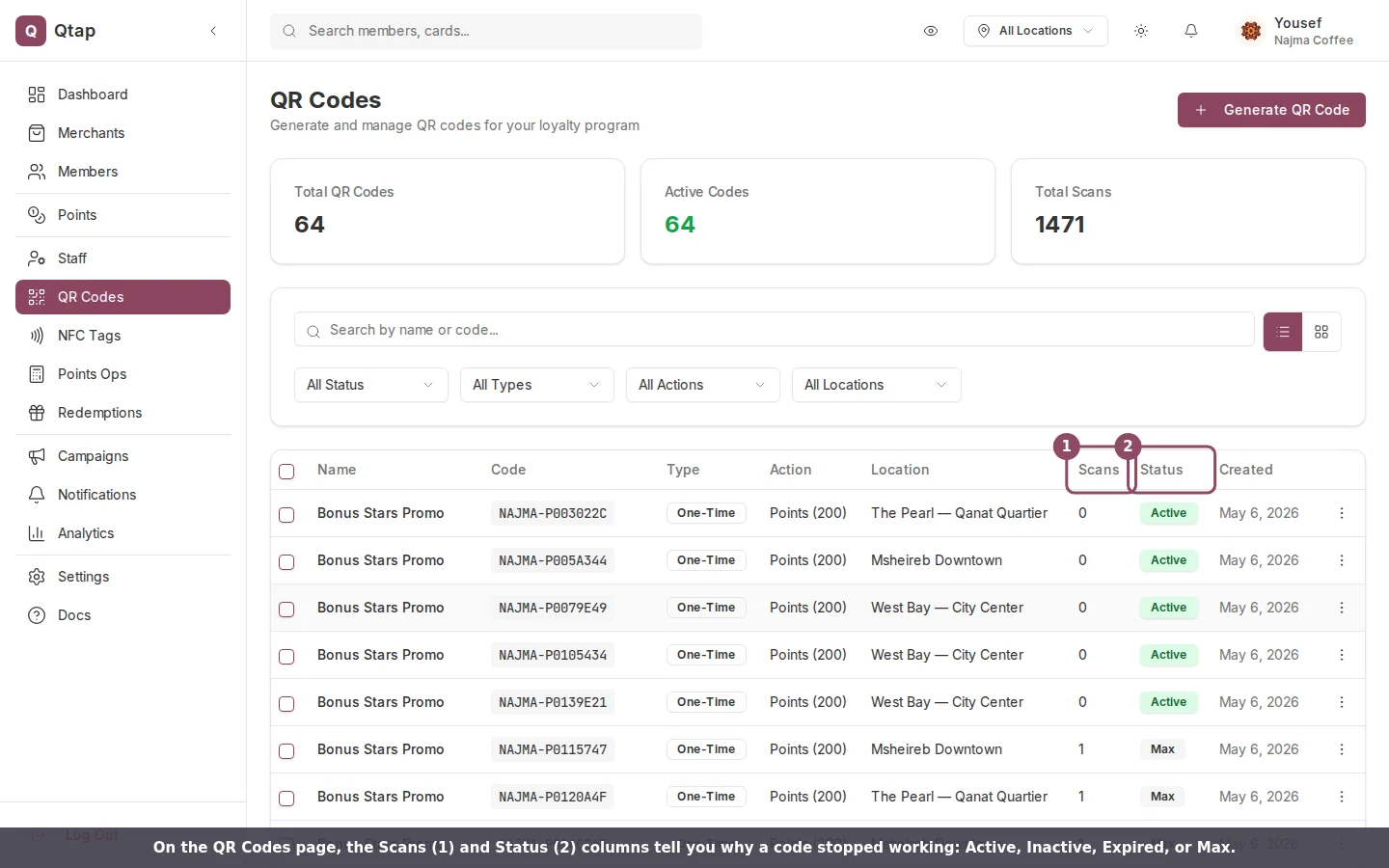
A customer scans your printed code and gets a red "Scan Failed" screen instead of their stamp or points. Almost every time, the reason is sitting in the **Status** column on your QR Codes page. Go to **QR Codes** in the left sidebar and find the code by its name or code string.
 ## What each status means
A code only works while its status is **Active**. Three other statuses stop a scan, and each one shows the customer a specific message on their phone.
| Status | What happened | What the customer sees |
| -------- | ------------------------------------------------------------------------------ | ------------------------------------------------------- |
| Inactive | Someone switched the code off. | "This QR code is no longer active." |
| Expired | The code passed its expiry date. | "This QR code has expired." |
| Max | The code hit its scan limit. A one-time code reaches this after a single scan. | "This QR code has reached its maximum number of scans." |
For an **Inactive** code, open the three-dot menu on its row and choose **Activate**. The scan works again right away.
## What each status means
A code only works while its status is **Active**. Three other statuses stop a scan, and each one shows the customer a specific message on their phone.
| Status | What happened | What the customer sees |
| -------- | ------------------------------------------------------------------------------ | ------------------------------------------------------- |
| Inactive | Someone switched the code off. | "This QR code is no longer active." |
| Expired | The code passed its expiry date. | "This QR code has expired." |
| Max | The code hit its scan limit. A one-time code reaches this after a single scan. | "This QR code has reached its maximum number of scans." |
For an **Inactive** code, open the three-dot menu on its row and choose **Activate**. The scan works again right away.
 An **Expired** or **Max** code can't be revived. Generate a new code for the same location and reprint it. When you create the replacement, leave the expiry date and scan limit empty if you want a code that keeps working, or set a higher limit.
## A deleted code is gone for good
If a customer sees "QR code not found. It may have been deleted," the code was removed from your account. Deleting is permanent, and any printed copies of that code stop working. There's no undo, so generate a fresh code and replace the printed one.
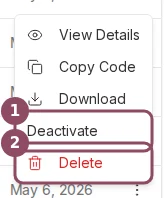
When you only want to pause a code for a while, use **Deactivate** instead of **Delete**. An inactive code keeps its history and can be switched back on later.
## Where to find a code's limit and expiry date
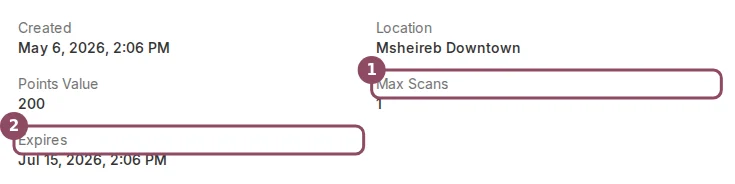
Click a code's name to open its detail page. The **Details** panel lists its scan limit and expiry date, so you can confirm whether a code is close to either one.
An **Expired** or **Max** code can't be revived. Generate a new code for the same location and reprint it. When you create the replacement, leave the expiry date and scan limit empty if you want a code that keeps working, or set a higher limit.
## A deleted code is gone for good
If a customer sees "QR code not found. It may have been deleted," the code was removed from your account. Deleting is permanent, and any printed copies of that code stop working. There's no undo, so generate a fresh code and replace the printed one.
When you only want to pause a code for a while, use **Deactivate** instead of **Delete**. An inactive code keeps its history and can be switched back on later.
## Where to find a code's limit and expiry date
Click a code's name to open its detail page. The **Details** panel lists its scan limit and expiry date, so you can confirm whether a code is close to either one.
 ## Scans go up but customers get nothing
Sometimes the Total Scans count rises while customers tell you they never got their stamp or points. This happens when a customer opens the code with their phone's plain camera or a browser instead of the Qtap app. Qtap records the scan, but it has no member account to credit, so nobody earns anything. Ask the customer to scan from inside the Qtap app, where they're signed in.
If a stamp code shows "This QR code is not linked to a stamp card," the stamp card it pointed to was deleted. Generate a new code tied to one of your current stamp cards.
How QR codes work, the statuses they can have, and how to manage them.
Create a replacement code for a location.
## Scans go up but customers get nothing
Sometimes the Total Scans count rises while customers tell you they never got their stamp or points. This happens when a customer opens the code with their phone's plain camera or a browser instead of the Qtap app. Qtap records the scan, but it has no member account to credit, so nobody earns anything. Ask the customer to scan from inside the Qtap app, where they're signed in.
If a stamp code shows "This QR code is not linked to a stamp card," the stamp card it pointed to was deleted. Generate a new code tied to one of your current stamp cards.
How QR codes work, the statuses they can have, and how to manage them.
Create a replacement code for a location.