> ## Documentation Index
> Fetch the complete documentation index at: https://docs.qtap.qa/llms.txt
> Use this file to discover all available pages before exploring further.
# Redemptions dashboard
> Process reward redemptions at the counter. Enter a 6-character code or look up the customer directly.
The Redemptions page is where your staff go when a customer wants to claim a reward. Open it from the sidebar at any time. It has two tabs: **Redeem** for processing rewards right now, and **History** for reviewing what's been processed.
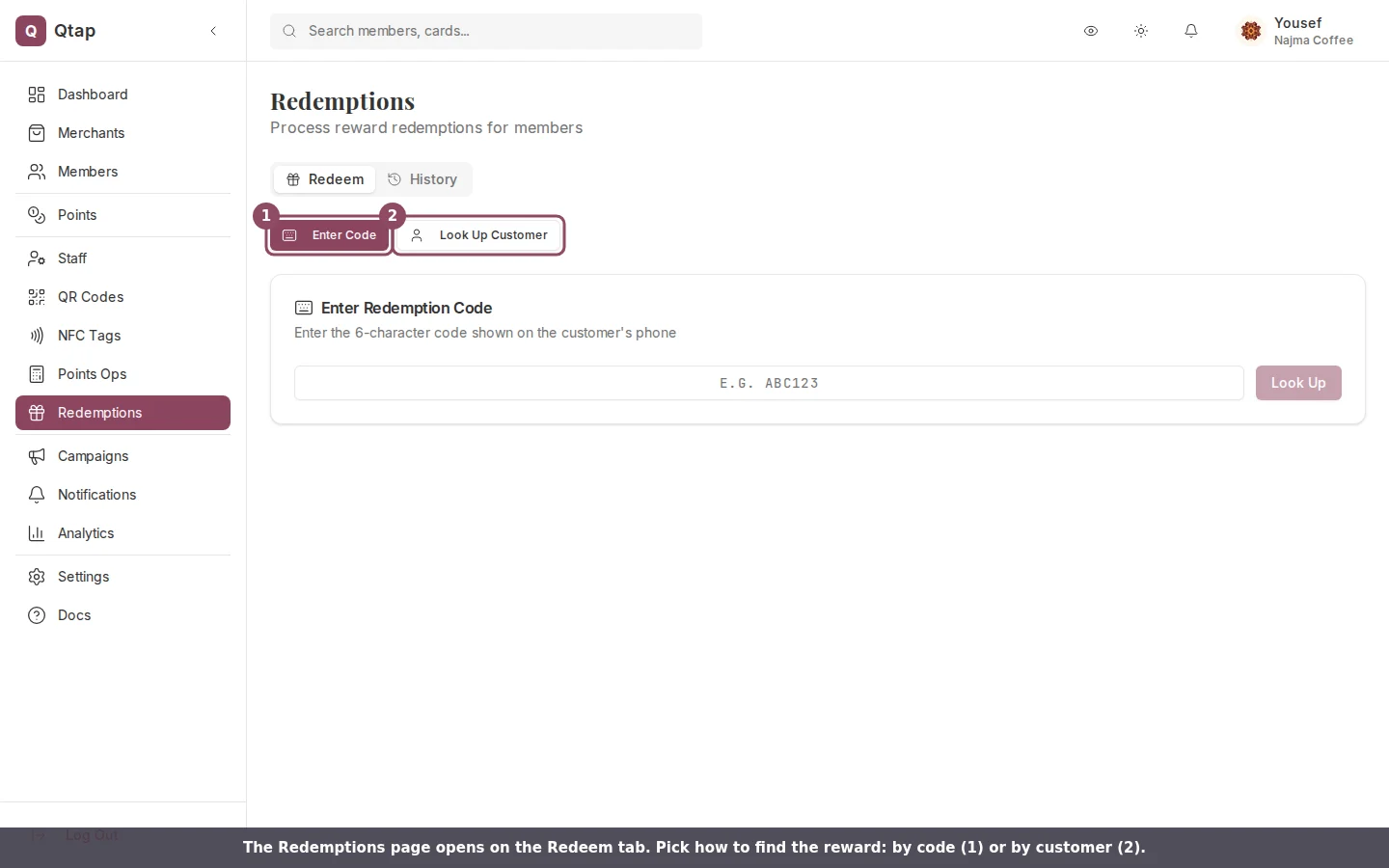 The Members section also has a Redemptions page, but that one shows the redemption history for a single customer. This page handles the actual processing workflow. It's the tool staff use at the counter.
## Two ways to redeem
The Members section also has a Redemptions page, but that one shows the redemption history for a single customer. This page handles the actual processing workflow. It's the tool staff use at the counter.
## Two ways to redeem
 ### Enter a code
When a customer earns a reward, Qtap gives them a 6-character code in the app. Entering the code takes about 10 seconds at the counter.
### Enter a code
When a customer earns a reward, Qtap gives them a 6-character code in the app. Entering the code takes about 10 seconds at the counter.
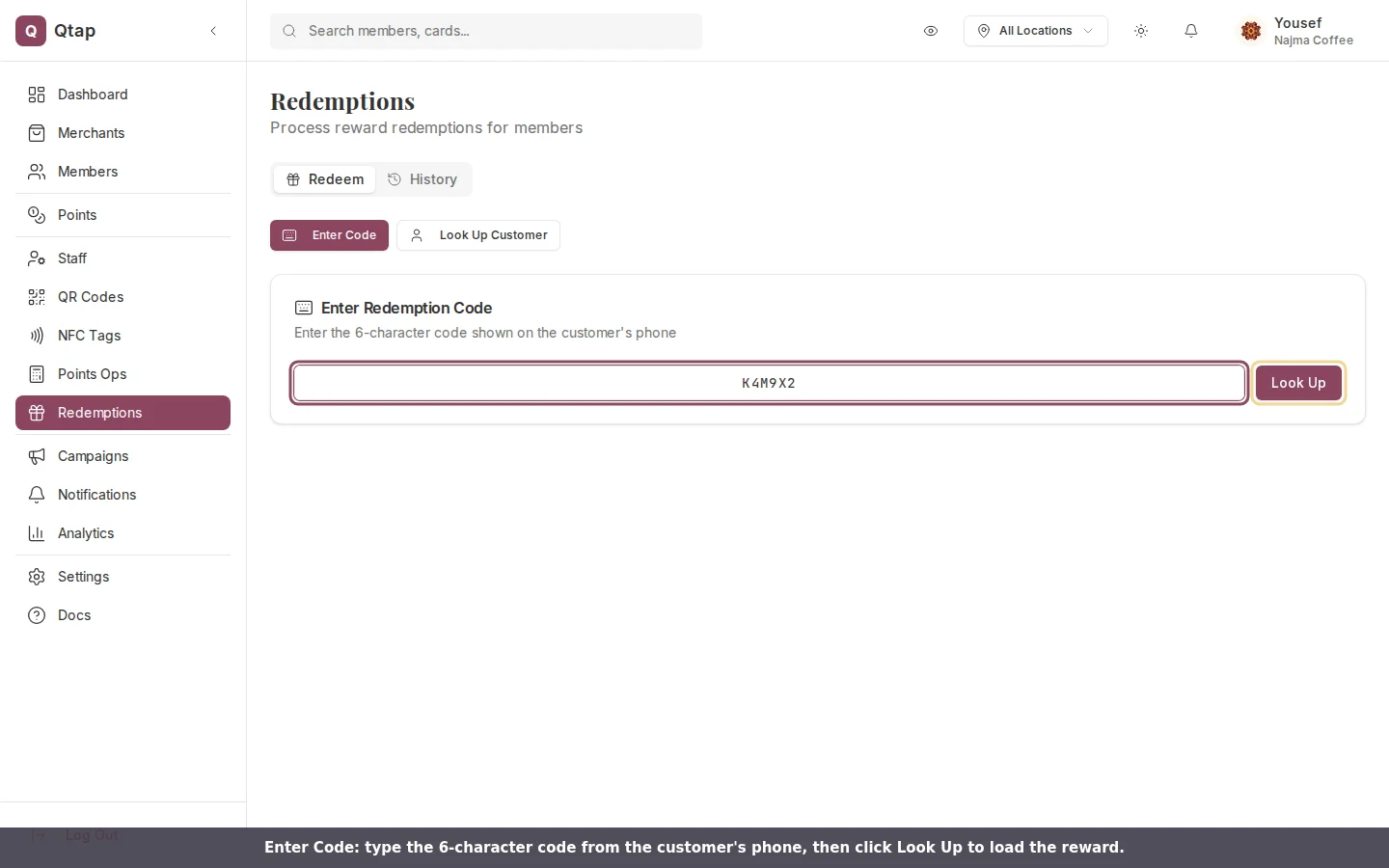 Click Redemptions in the sidebar. The Redeem tab opens by default.
Click the **Enter Code** button if it is not already active.
Enter the 6-character code from the customer's phone. The field auto-capitalizes, so lowercase works fine. Press Enter or click **Look Up**.
The card shows the customer's name, the reward, which program it comes from, when it was earned, and the expiry date if one is set.
The button appears only when the reward status is available. If the reward is already used or expired, the button won't show.
### Look up the customer
Use this method when the customer doesn't have their code ready or you want to check what rewards they have before they ask.
Click Redemptions in the sidebar. The Redeem tab opens by default.
Click the **Enter Code** button if it is not already active.
Enter the 6-character code from the customer's phone. The field auto-capitalizes, so lowercase works fine. Press Enter or click **Look Up**.
The card shows the customer's name, the reward, which program it comes from, when it was earned, and the expiry date if one is set.
The button appears only when the reward status is available. If the reward is already used or expired, the button won't show.
### Look up the customer
Use this method when the customer doesn't have their code ready or you want to check what rewards they have before they ask.
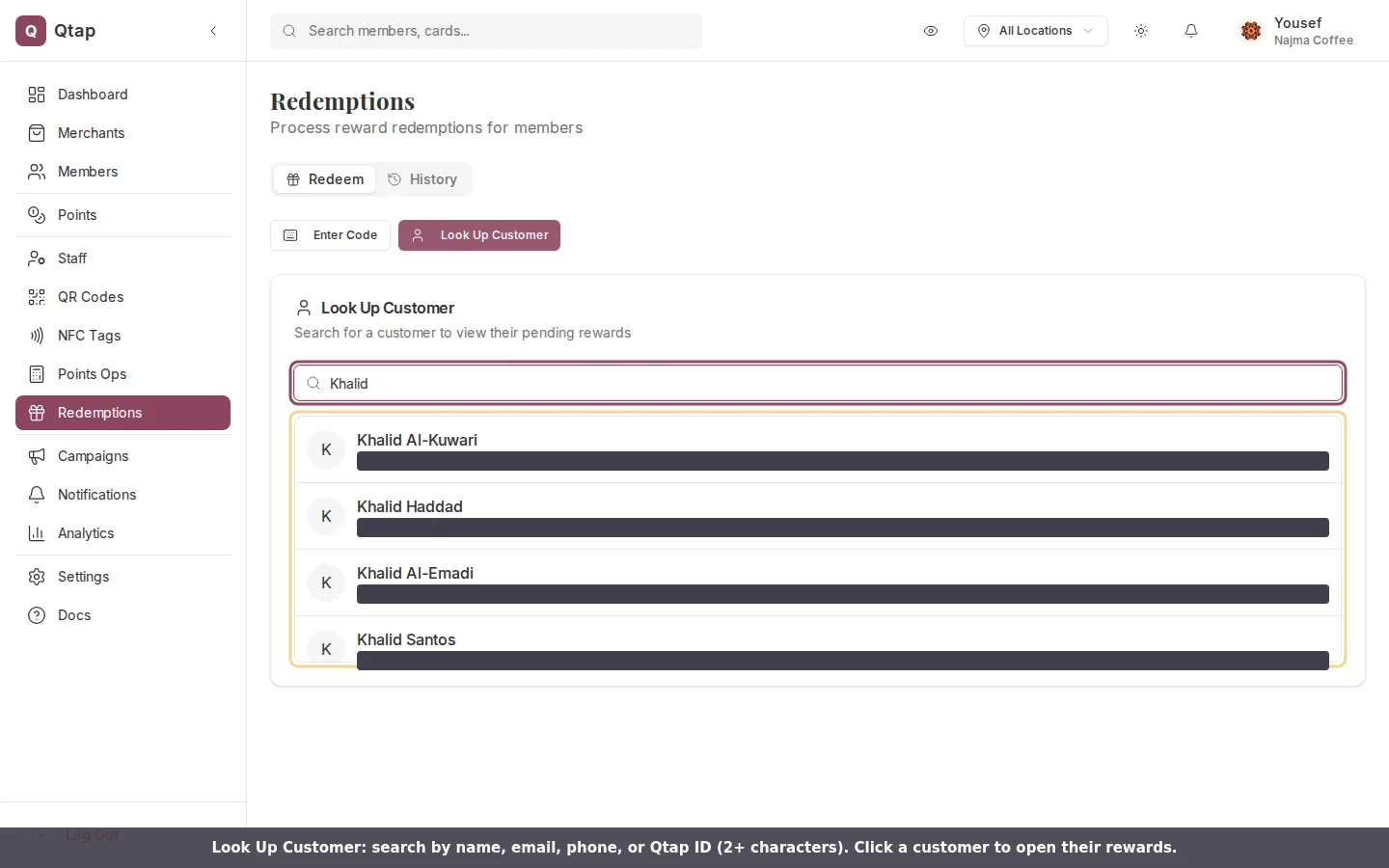 On the Redeem tab, click **Look Up Customer**.
Type at least 2 characters. You can search by first name, last name, email, phone number, or Qtap ID. Results appear as you type.
Click their row. Their pending rewards load automatically below their profile card.
Find the reward and click **Redeem**. A dialog shows the reward name and the customer's name. Click **Confirm** to process it.
Qtap ID (the short alphanumeric code on every customer profile, like Q7K4M9) is the most precise search. Ask returning customers to save it to their phone; it's on their profile card in the app.
## Points-based programs
If your organization runs on a points program rather than stamp cards, the Look Up Customer method shows an additional section after you select a customer.
When the customer has enough points to claim a reward, you'll see their current balance and a list of rewards they're eligible for. Each reward shows the points it costs. Click **Redeem**, then confirm. Qtap deducts the points and records the redemption.
On the Redeem tab, click **Look Up Customer**.
Type at least 2 characters. You can search by first name, last name, email, phone number, or Qtap ID. Results appear as you type.
Click their row. Their pending rewards load automatically below their profile card.
Find the reward and click **Redeem**. A dialog shows the reward name and the customer's name. Click **Confirm** to process it.
Qtap ID (the short alphanumeric code on every customer profile, like Q7K4M9) is the most precise search. Ask returning customers to save it to their phone; it's on their profile card in the app.
## Points-based programs
If your organization runs on a points program rather than stamp cards, the Look Up Customer method shows an additional section after you select a customer.
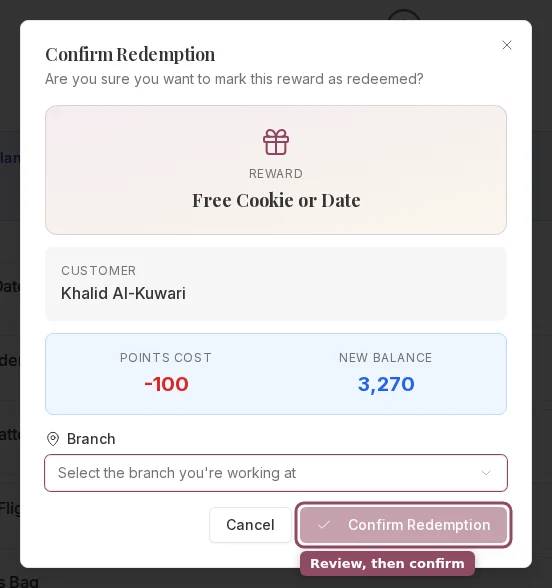
When the customer has enough points to claim a reward, you'll see their current balance and a list of rewards they're eligible for. Each reward shows the points it costs. Click **Redeem**, then confirm. Qtap deducts the points and records the redemption.
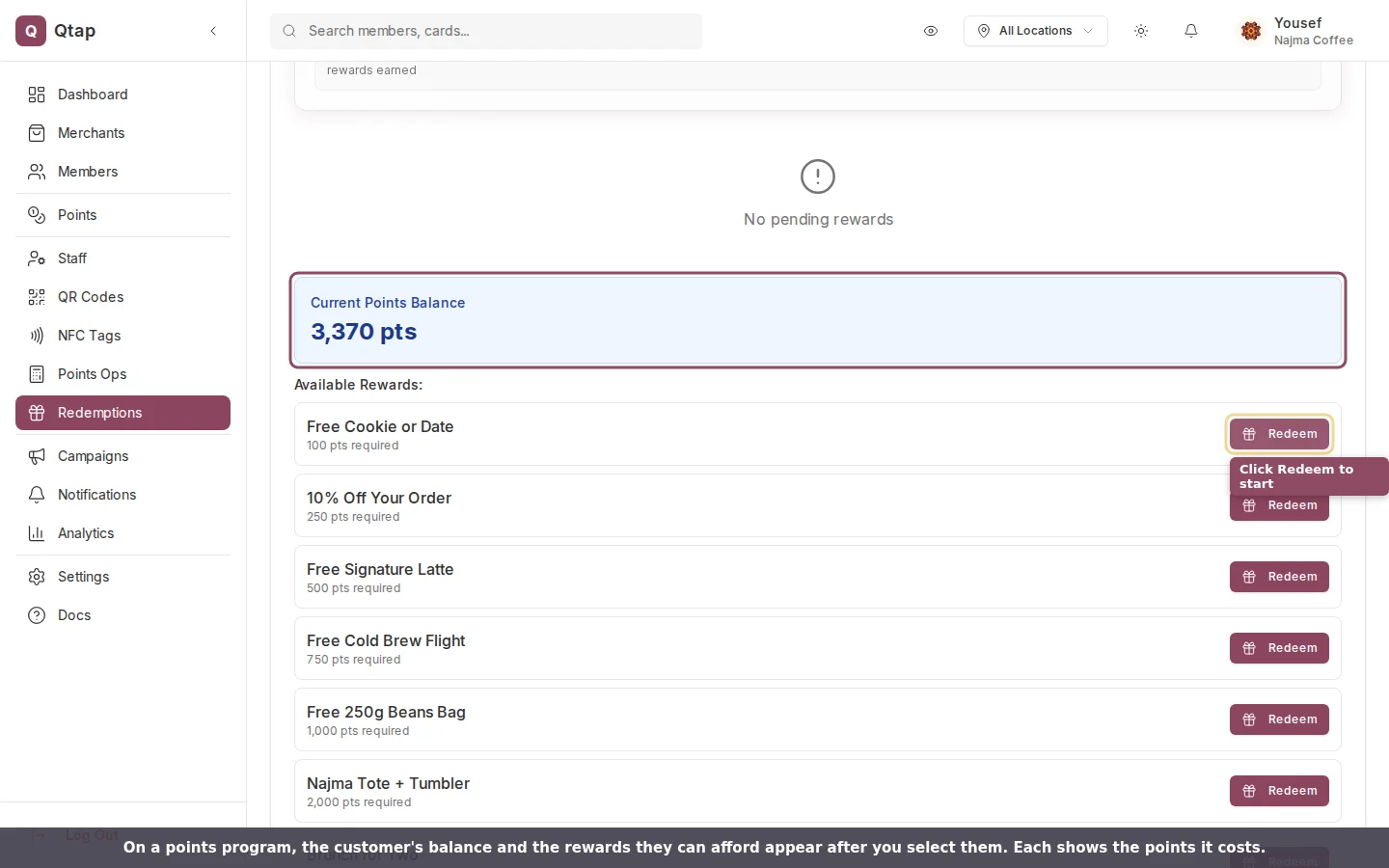 The confirmation dialog shows the cost and the customer's new balance before you commit, so you can read it back to the customer if they ask.
 ## Reward status
A reward processes only when its status is **available** or **pending redemption**. The status appears on the reward card.
| Status | What it means |
| ------------------ | --------------------------------------------------------------------- |
| Available | Ready to redeem |
| Pending redemption | Customer tapped Redeem in the app and is waiting for staff to confirm |
| Redeemed | Already processed, can't be used again |
| Expired | Past the expiry date set when the reward was created |
Redemptions can't be reversed from the dashboard. If you confirm a redemption by mistake, contact [support@qtap.qa](mailto:support@qtap.qa) and the team can help correct it.
## Redemption history
The **History** tab shows the last 50 redemptions across your organization. Each row shows:
* Customer name
* Reward description
* Stamp card or program the reward came from
* Date and time it was processed
* Which staff member confirmed it
Use this when a customer questions whether their reward was already redeemed, or to track which staff member processed a specific transaction.
## Related
* [Member Redemptions](/merchants/members/redemptions): view a specific customer's full redemption record from their profile
* [Stamp Card Rewards](/merchants/stamp-cards/rewards): configure what reward members get when they complete a stamp card
* [Points Programs: Operations](/merchants/points/operations): how points are issued and how redemption thresholds work
## Reward status
A reward processes only when its status is **available** or **pending redemption**. The status appears on the reward card.
| Status | What it means |
| ------------------ | --------------------------------------------------------------------- |
| Available | Ready to redeem |
| Pending redemption | Customer tapped Redeem in the app and is waiting for staff to confirm |
| Redeemed | Already processed, can't be used again |
| Expired | Past the expiry date set when the reward was created |
Redemptions can't be reversed from the dashboard. If you confirm a redemption by mistake, contact [support@qtap.qa](mailto:support@qtap.qa) and the team can help correct it.
## Redemption history
The **History** tab shows the last 50 redemptions across your organization. Each row shows:
* Customer name
* Reward description
* Stamp card or program the reward came from
* Date and time it was processed
* Which staff member confirmed it
Use this when a customer questions whether their reward was already redeemed, or to track which staff member processed a specific transaction.
## Related
* [Member Redemptions](/merchants/members/redemptions): view a specific customer's full redemption record from their profile
* [Stamp Card Rewards](/merchants/stamp-cards/rewards): configure what reward members get when they complete a stamp card
* [Points Programs: Operations](/merchants/points/operations): how points are issued and how redemption thresholds work