> ## Documentation Index
> Fetch the complete documentation index at: https://docs.qtap.qa/llms.txt
> Use this file to discover all available pages before exploring further.
# Redeeming points rewards
> Look up a customer, see the rewards their points cover, and redeem one at the counter. No code needed.
On a points program, a customer spends points to claim a reward. You don't need a code for this. Look the customer up on the Redemptions page, and Qtap shows you the rewards their balance covers. Pick one, confirm, and the points come off.
 This is the points side of redemption. If a customer instead hands you the 6-character code from their phone, use the Enter Code method on the same page.
## Redeem a points reward
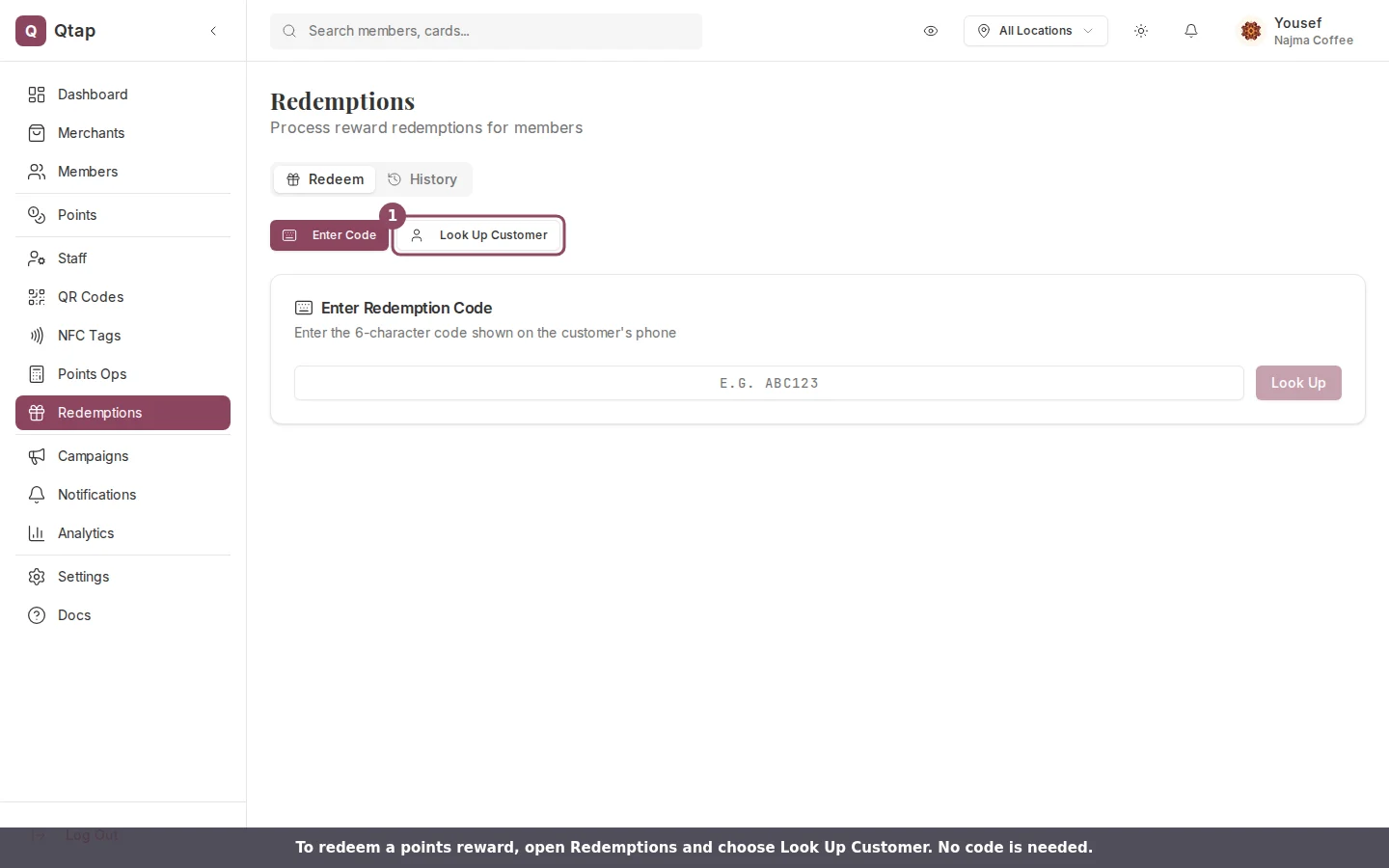
Open **Redemptions** from the sidebar. The page opens on the Redeem tab. Click **Look Up Customer**.
Type at least two characters of their name, email, phone number, or Qtap ID. Matches appear as you type.
This is the points side of redemption. If a customer instead hands you the 6-character code from their phone, use the Enter Code method on the same page.
## Redeem a points reward
Open **Redemptions** from the sidebar. The page opens on the Redeem tab. Click **Look Up Customer**.
Type at least two characters of their name, email, phone number, or Qtap ID. Matches appear as you type.
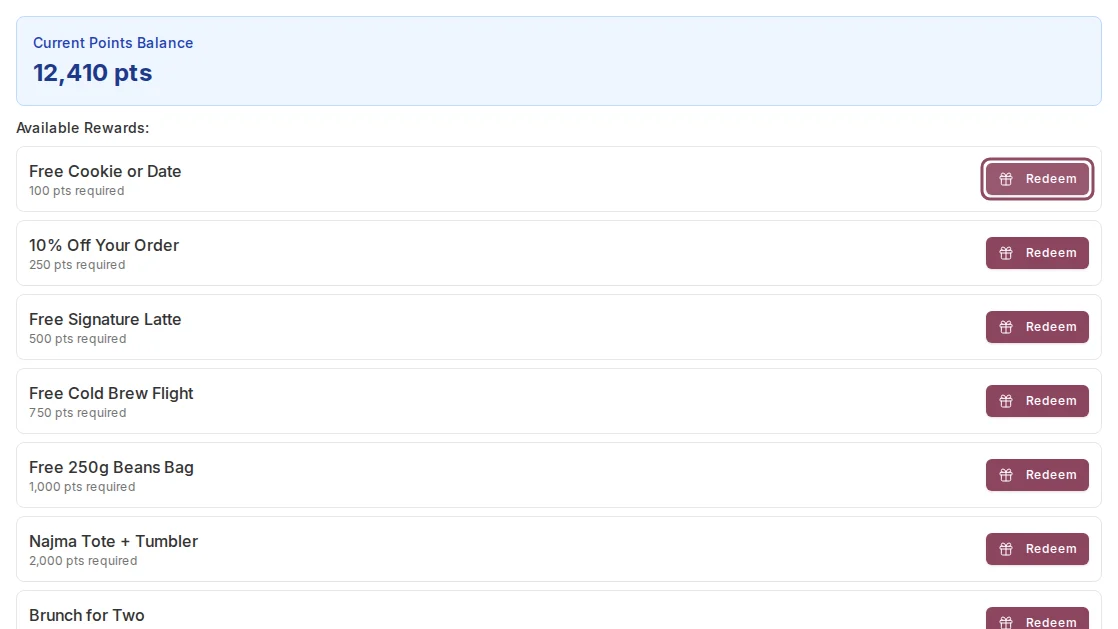
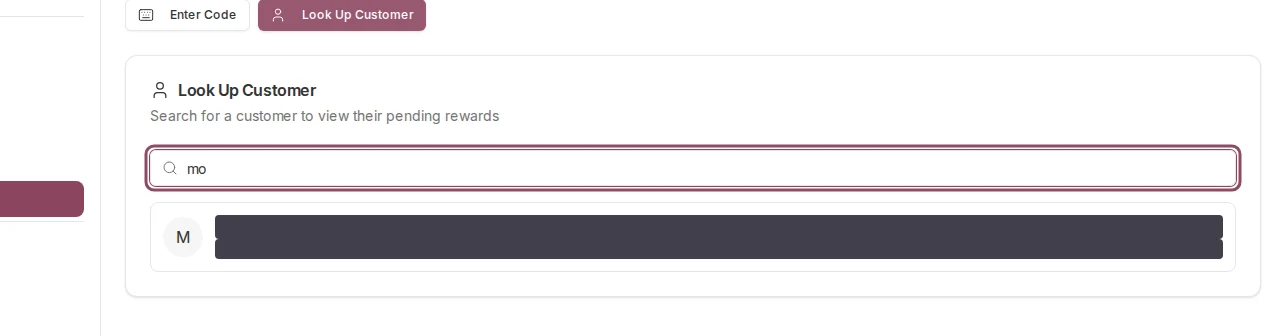 Click their row. Their points balance loads, followed by an **Available Rewards** list. Only rewards their balance covers appear here, and each line shows the points it costs.
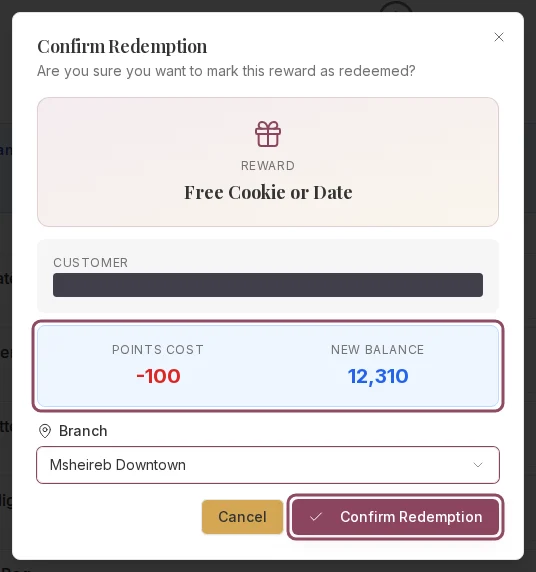
 Click **Redeem** next to the reward. If your account has more than one branch, choose the branch you're working at. The dialog shows the points cost and the new balance before you commit. Click **Confirm Redemption**.
 ## What confirming does
When you confirm, Qtap:
* Takes the points off the customer's balance right away.
* Records the redemption, so it shows on the **History** tab and on the customer's profile.
* Sends the customer a notification that the reward was redeemed.
## Notes worth knowing
The list only shows rewards the customer can afford. If a reward they want isn't there, they don't have enough points yet. The list filters by their current balance, so it changes as they earn more.
The balance check is exact. If the customer's points change between opening the screen and confirming, say another staff member redeems for them at the same counter, Qtap blocks the second redemption instead of letting the balance go below zero. You'll see an error. Reopen the customer and check their balance.
The reward and its points program both have to be active. A reward you've switched off won't show up to redeem.
The branch you choose is what the redemption is attributed to, so per-branch and per-staff numbers stay accurate.
Redemptions can't be undone from the dashboard. Check the reward and the customer before you confirm. If you confirm one by mistake, email [support@qtap.qa](mailto:support@qtap.qa) and the team can help correct it.
Redeeming is available to the owner at all times, and is on by default for managers and staff.
## Related
* [Points programs: operations](/merchants/points/operations): how customers earn points and how reward thresholds are set
* [Member redemptions](/merchants/members/redemptions): a single customer's full redemption record
* [Points overview](/merchants/points/overview): how a points program is set up
## What confirming does
When you confirm, Qtap:
* Takes the points off the customer's balance right away.
* Records the redemption, so it shows on the **History** tab and on the customer's profile.
* Sends the customer a notification that the reward was redeemed.
## Notes worth knowing
The list only shows rewards the customer can afford. If a reward they want isn't there, they don't have enough points yet. The list filters by their current balance, so it changes as they earn more.
The balance check is exact. If the customer's points change between opening the screen and confirming, say another staff member redeems for them at the same counter, Qtap blocks the second redemption instead of letting the balance go below zero. You'll see an error. Reopen the customer and check their balance.
The reward and its points program both have to be active. A reward you've switched off won't show up to redeem.
The branch you choose is what the redemption is attributed to, so per-branch and per-staff numbers stay accurate.
Redemptions can't be undone from the dashboard. Check the reward and the customer before you confirm. If you confirm one by mistake, email [support@qtap.qa](mailto:support@qtap.qa) and the team can help correct it.
Redeeming is available to the owner at all times, and is on by default for managers and staff.
## Related
* [Points programs: operations](/merchants/points/operations): how customers earn points and how reward thresholds are set
* [Member redemptions](/merchants/members/redemptions): a single customer's full redemption record
* [Points overview](/merchants/points/overview): how a points program is set up