> ## Documentation Index
> Fetch the complete documentation index at: https://docs.qtap.qa/llms.txt
> Use this file to discover all available pages before exploring further.
# Billing
> How to view your current plan, track usage, upgrade or downgrade, purchase add-ons, and manage invoices.
The Billing page shows your current subscription plan, how much of your plan limits you're using, and options to change your plan or buy add-ons. Only the account owner can make billing changes.
## Your current plan
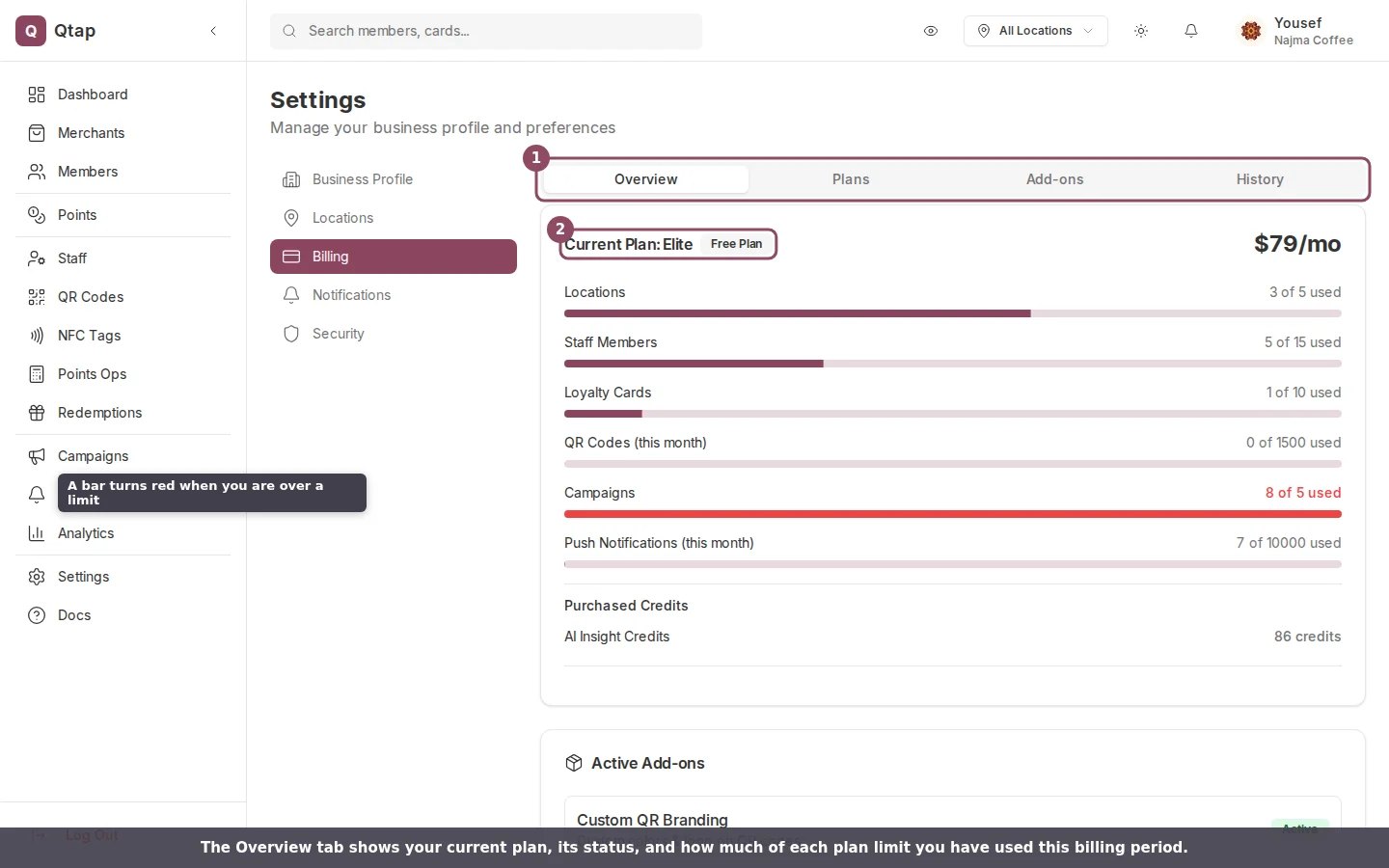
At the top of the Billing page you'll see your plan name, subscription status, and when your current billing period ends. If you're on a free trial, you'll also see how many days remain.
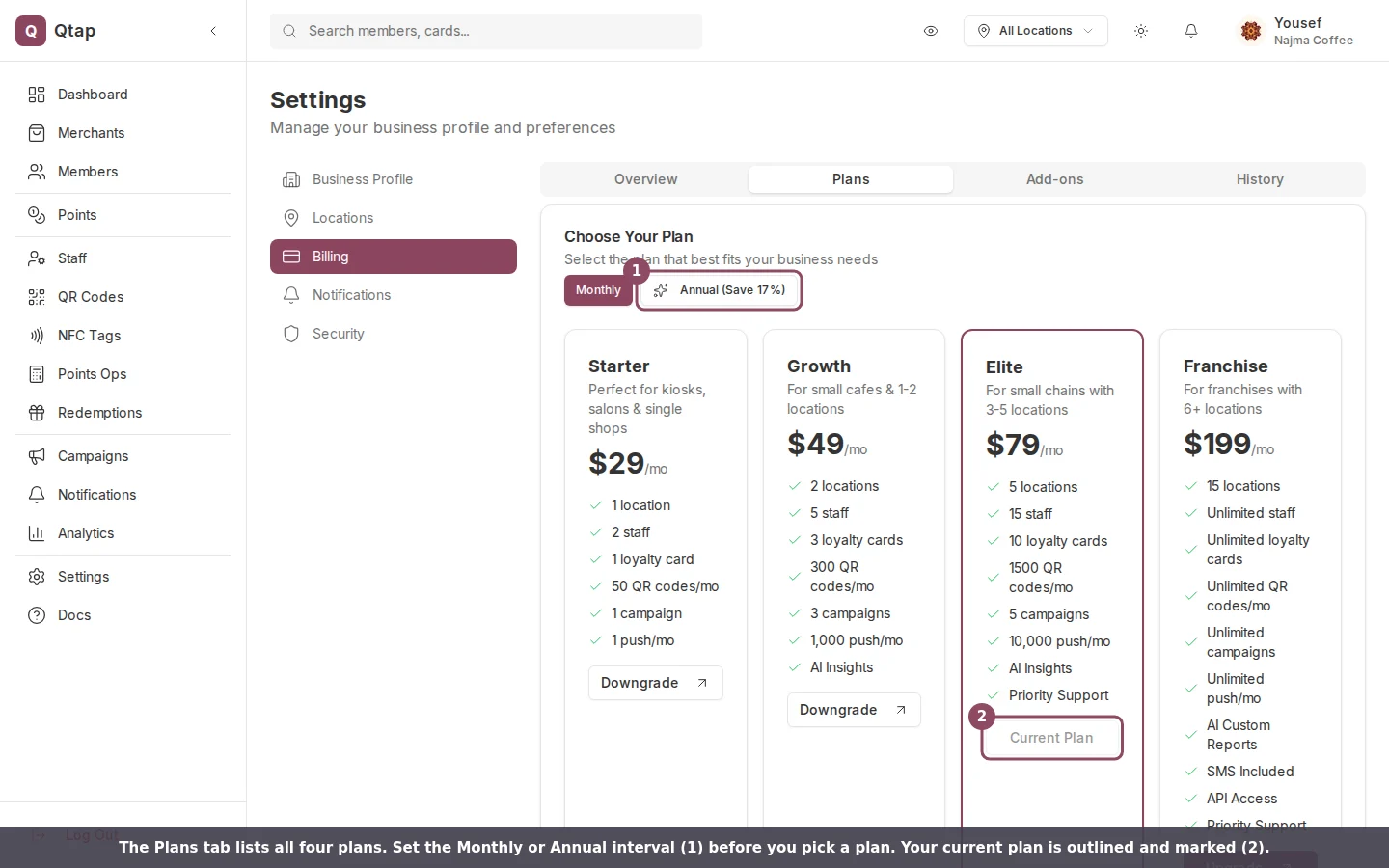
Qtap has four plans:
| Plan | Monthly | Annual (per month) |
| --------- | ------- | ------------------ |
| Starter | \$29 | \$24 |
| Growth | \$49 | \$39 |
| Elite | \$79 | \$65 |
| Franchise | \$199 | \$165 |
You can switch between monthly and annual billing when you upgrade. Annual billing is charged as a lump sum for 12 months.
## Usage
Below your current plan you'll see a usage breakdown showing how much of each limit you've used this billing period:
* **Locations** — active locations vs. your plan's location limit
* **Staff** — active staff accounts vs. your staff limit
* **Loyalty Cards** — active stamp cards and points programs combined
* **QR Codes** — QR codes generated this month vs. your monthly allowance
* **Campaigns** — total campaigns vs. your campaign limit
Each item shows a progress bar so you can see at a glance how close you are to each limit.
 ## Changing your plan
Click any plan card to upgrade or downgrade. Use the **Monthly / Annual** toggle to choose your billing interval before selecting a plan.
**Upgrading** moves you to the new plan immediately. You'll be sent to a Stripe checkout page to confirm payment.
**Downgrading** checks whether your current usage fits within the lower plan's limits before proceeding. If you have more locations, staff, or loyalty cards than the lower plan allows, you'll see a warning listing the conflicts. You'll need to reduce your usage before the downgrade can go through.
Downgrading doesn't automatically delete any data — you'll need to deactivate or remove the excess locations, staff, or loyalty cards yourself before the downgrade check will pass.
## Changing your plan
Click any plan card to upgrade or downgrade. Use the **Monthly / Annual** toggle to choose your billing interval before selecting a plan.
**Upgrading** moves you to the new plan immediately. You'll be sent to a Stripe checkout page to confirm payment.
**Downgrading** checks whether your current usage fits within the lower plan's limits before proceeding. If you have more locations, staff, or loyalty cards than the lower plan allows, you'll see a warning listing the conflicts. You'll need to reduce your usage before the downgrade can go through.
Downgrading doesn't automatically delete any data — you'll need to deactivate or remove the excess locations, staff, or loyalty cards yourself before the downgrade check will pass.
 ## Add-ons
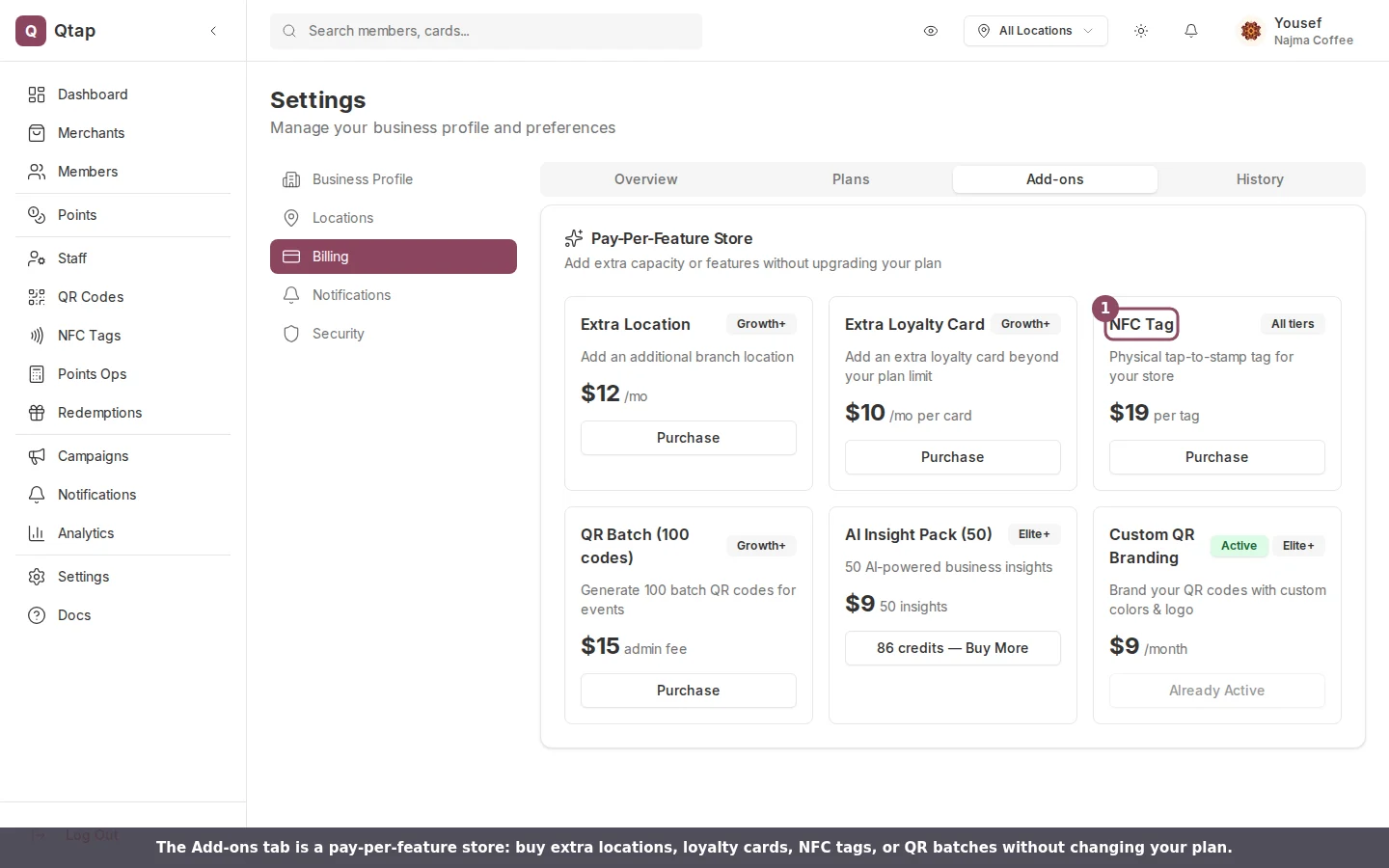
The Billing page includes a section for purchasing add-ons that work on top of your base plan:
| Add-on | Price | Available on |
| ----------------------------- | ------------------- | ---------------- |
| Extra Location | $15–$9/mo (by tier) | Growth and above |
| Extra Loyalty Card | \$10/mo per card | Growth and above |
| NFC Tag | \$19 per tag | All plans |
| Batch QR (100 codes) | \$15 admin fee | Growth and above |
| AI Insight Pack (50 insights) | \$9 | Elite and above |
| Custom QR Branding | \$9/mo | Elite and above |
Click **Buy** next to any add-on to go to a checkout page for that item. NFC tags are physical items — after purchasing, they ship to you separately. Once you receive them, register them under **NFC Tags** in the main navigation.
## Add-ons
The Billing page includes a section for purchasing add-ons that work on top of your base plan:
| Add-on | Price | Available on |
| ----------------------------- | ------------------- | ---------------- |
| Extra Location | $15–$9/mo (by tier) | Growth and above |
| Extra Loyalty Card | \$10/mo per card | Growth and above |
| NFC Tag | \$19 per tag | All plans |
| Batch QR (100 codes) | \$15 admin fee | Growth and above |
| AI Insight Pack (50 insights) | \$9 | Elite and above |
| Custom QR Branding | \$9/mo | Elite and above |
Click **Buy** next to any add-on to go to a checkout page for that item. NFC tags are physical items — after purchasing, they ship to you separately. Once you receive them, register them under **NFC Tags** in the main navigation.
 Add-on purchases go through Stripe checkout just like plan changes. You'll receive a receipt by email for each purchase.
## Payment method and invoices
The **Billing** tab inside the page shows your current payment method (card brand and last four digits) and a list of past invoices. Each invoice shows the date, amount, status (Paid / Open), and links to download the PDF or view it online.
To update your payment method, click **Manage Subscription** to open the Stripe billing portal. From there you can also view full billing history, update your card, and download all invoices.
The **Manage Subscription** button only appears if you have an active Stripe subscription. If you're still on a trial and haven't entered payment details yet, subscribe to a plan first.
## Canceling your plan
To cancel, scroll to the bottom of the Billing page and click **Cancel Plan**. You'll be asked to confirm and optionally provide a reason. Your plan stays active until the end of the current billing period — you won't be charged again after that.
Canceling your subscription doesn't delete your data, but your account will revert to trial limits once the period ends. Anything exceeding those limits will stop working (for example, extra locations won't be accessible to members).
Manage your physical locations and their settings
Register and manage NFC tags purchased through billing
Manage staff accounts and understand role-based access
Add-on purchases go through Stripe checkout just like plan changes. You'll receive a receipt by email for each purchase.
## Payment method and invoices
The **Billing** tab inside the page shows your current payment method (card brand and last four digits) and a list of past invoices. Each invoice shows the date, amount, status (Paid / Open), and links to download the PDF or view it online.
To update your payment method, click **Manage Subscription** to open the Stripe billing portal. From there you can also view full billing history, update your card, and download all invoices.
The **Manage Subscription** button only appears if you have an active Stripe subscription. If you're still on a trial and haven't entered payment details yet, subscribe to a plan first.
## Canceling your plan
To cancel, scroll to the bottom of the Billing page and click **Cancel Plan**. You'll be asked to confirm and optionally provide a reason. Your plan stays active until the end of the current billing period — you won't be charged again after that.
Canceling your subscription doesn't delete your data, but your account will revert to trial limits once the period ends. Anything exceeding those limits will stop working (for example, extra locations won't be accessible to members).
Manage your physical locations and their settings
Register and manage NFC tags purchased through billing
Manage staff accounts and understand role-based access