> ## Documentation Index
> Fetch the complete documentation index at: https://docs.qtap.qa/llms.txt
> Use this file to discover all available pages before exploring further.
# Turning off Qtap's marketing emails
> Stop trial guidance, feature spotlights, and the weekly digest without losing your receipts.
Qtap sends your business two kinds of email. Receipts, password resets, and billing notices go out whatever your settings say. Trial guidance and the weekly digest are optional, and one switch turns them off.
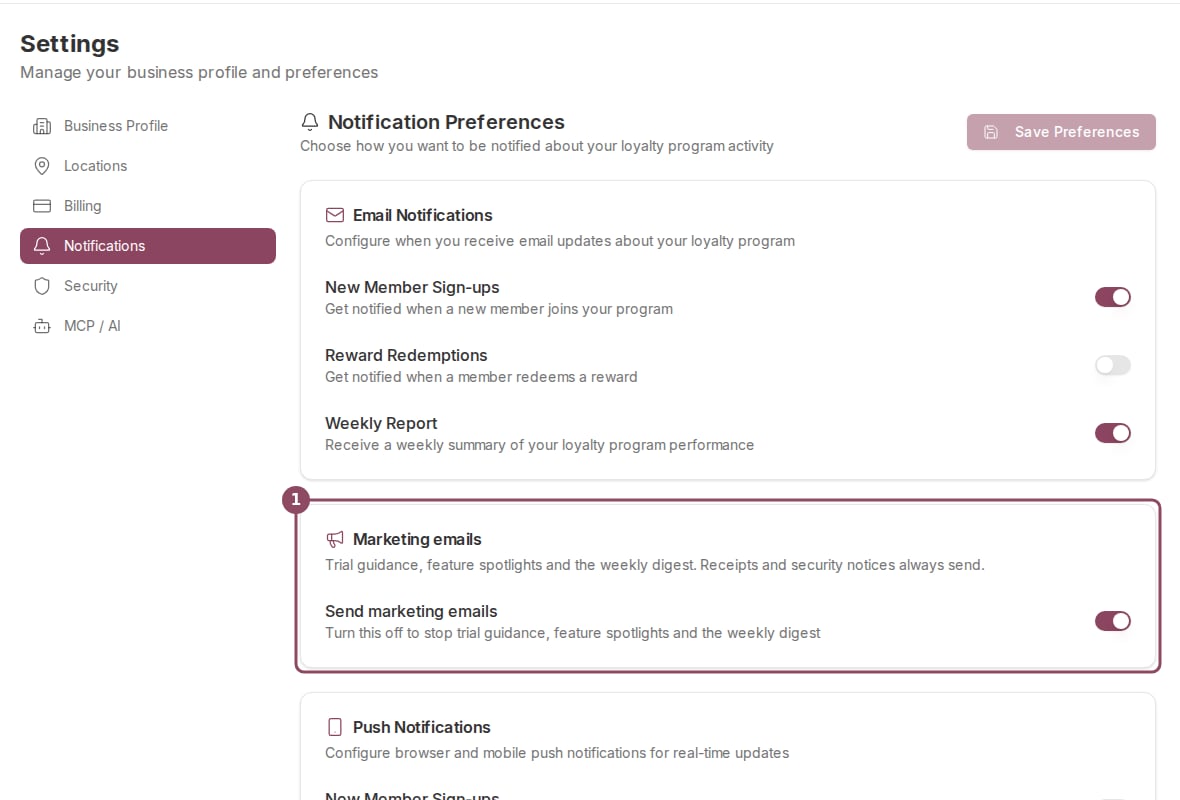
The switch lives on **Settings → Notifications**, below the email and push toggles.
 ## What the switch covers
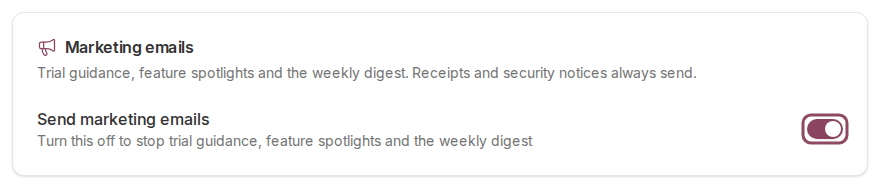
**Send marketing emails** is on for every account. Turning it off stops:
* The trial sequence: a welcome message on your first day, a progress note around day 7, and a reminder around day 12.
* Feature spotlights sent during a trial.
* The weekly digest, a Monday summary of your program that goes to Elite and Franchise accounts.
* The note that arrives when Qtap adds days to your trial. You still get the extra days; only the email stops.
## What the switch covers
**Send marketing emails** is on for every account. Turning it off stops:
* The trial sequence: a welcome message on your first day, a progress note around day 7, and a reminder around day 12.
* Feature spotlights sent during a trial.
* The weekly digest, a Monday summary of your program that goes to Elite and Franchise accounts.
* The note that arrives when Qtap adds days to your trial. You still get the extra days; only the email stops.
 These keep arriving with the switch off:
* Payment receipts and failed-payment warnings.
* Confirmation when you subscribe, upgrade, downgrade, or cancel.
* Add-on purchase confirmations.
* Password resets and staff invitations.
## Turning it off
Only the owner can open Settings. Managers and staff do not see it unless the owner gives them settings access.
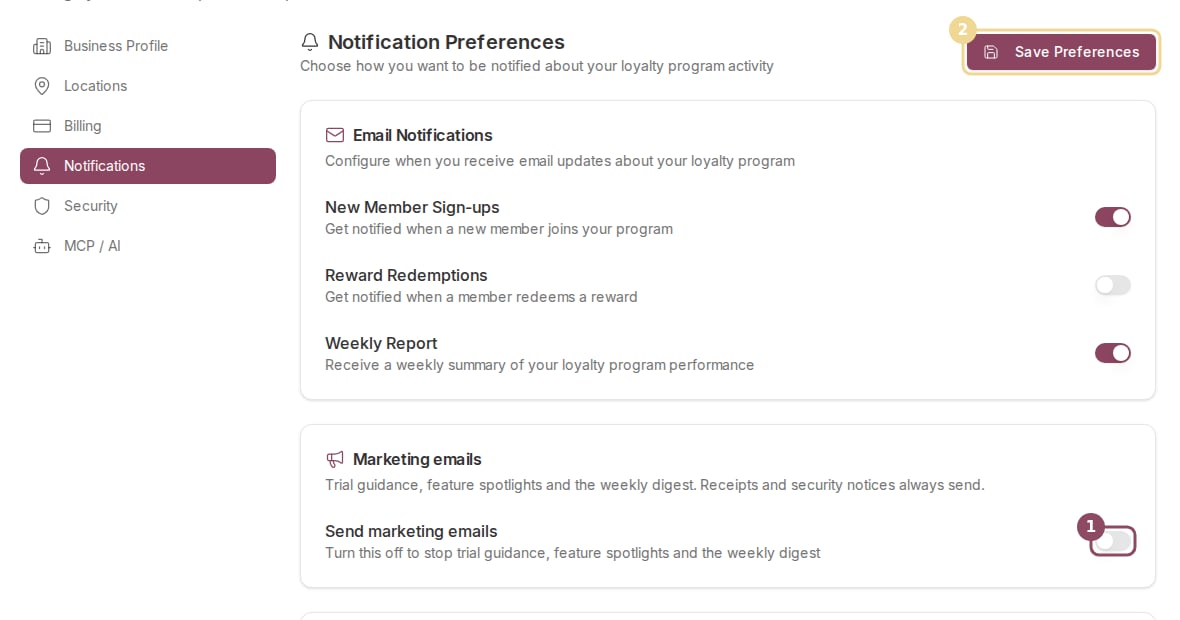
The **Save Preferences** button in the top right wakes up as soon as you change anything.
Nothing changes until you do. Leaving the page without saving keeps the old setting.
These keep arriving with the switch off:
* Payment receipts and failed-payment warnings.
* Confirmation when you subscribe, upgrade, downgrade, or cancel.
* Add-on purchase confirmations.
* Password resets and staff invitations.
## Turning it off
Only the owner can open Settings. Managers and staff do not see it unless the owner gives them settings access.
The **Save Preferences** button in the top right wakes up as soon as you change anything.
Nothing changes until you do. Leaving the page without saving keeps the old setting.
 ## The unsubscribe link in the email
Every marketing email carries **Manage email preferences or unsubscribe** at the bottom. The unsubscribe link asks you to confirm on a web page before it saves anything, so a mail app that quietly opens links in the background cannot unsubscribe you by mistake.
Confirming there does the same thing as the switch. To start receiving these emails again, turn the switch back on in Settings.
## The unsubscribe link in the email
Every marketing email carries **Manage email preferences or unsubscribe** at the bottom. The unsubscribe link asks you to confirm on a web page before it saves anything, so a mail app that quietly opens links in the background cannot unsubscribe you by mistake.
Confirming there does the same thing as the switch. To start receiving these emails again, turn the switch back on in Settings.
 One trial email ignores the switch. In your last three days of trial, Qtap emails you a daily countdown of how many days are left, and it sends whether marketing email is on or off. The message carries an unsubscribe link that will not stop it. Watch your trial end date on **Settings → Billing** instead of relying on that email.
## Who it applies to
The setting belongs to your business, not to one person. Qtap sends these emails to the owner's login address, so switching it off stops them for the account rather than for a single teammate.
The **Weekly Report** toggle in the Email Notifications card above is a separate control, and it is not the weekly digest this page describes. See [Notifications](/merchants/settings/notifications) for what those toggles cover.
## Related
The email and push toggles above this card.
Trial length, extra days, and what happens at the end.
This documentation is built and hosted on [Mintlify](https://mintlify.com), a developer documentation platform.
One trial email ignores the switch. In your last three days of trial, Qtap emails you a daily countdown of how many days are left, and it sends whether marketing email is on or off. The message carries an unsubscribe link that will not stop it. Watch your trial end date on **Settings → Billing** instead of relying on that email.
## Who it applies to
The setting belongs to your business, not to one person. Qtap sends these emails to the owner's login address, so switching it off stops them for the account rather than for a single teammate.
The **Weekly Report** toggle in the Email Notifications card above is a separate control, and it is not the weekly digest this page describes. See [Notifications](/merchants/settings/notifications) for what those toggles cover.
## Related
The email and push toggles above this card.
Trial length, extra days, and what happens at the end.
This documentation is built and hosted on [Mintlify](https://mintlify.com), a developer documentation platform.