> ## Documentation Index
> Fetch the complete documentation index at: https://docs.qtap.qa/llms.txt
> Use this file to discover all available pages before exploring further.
# Notifications
> Choose which events trigger email and push notifications for your loyalty program.
Qtap can notify you when members join, redeem rewards, or when stock is running low. You control which events send email notifications and which send push notifications separately.
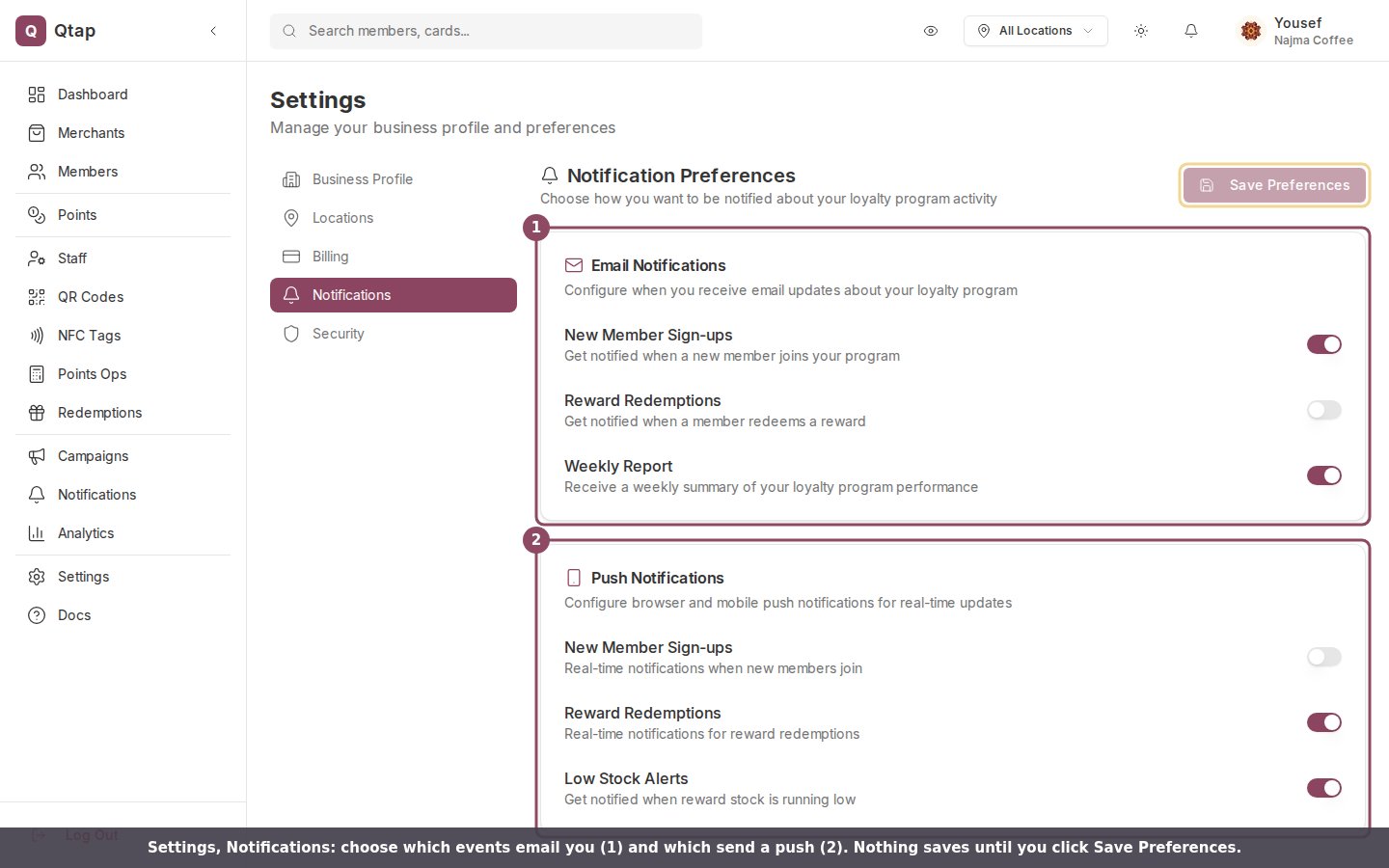 Changes don't save automatically. Click **Save Preferences** after making changes. The button stays grayed out until you've changed something.
## Email notifications
Go to **Settings → Notifications** to find the Email Notifications section.
Changes don't save automatically. Click **Save Preferences** after making changes. The button stays grayed out until you've changed something.
## Email notifications
Go to **Settings → Notifications** to find the Email Notifications section.
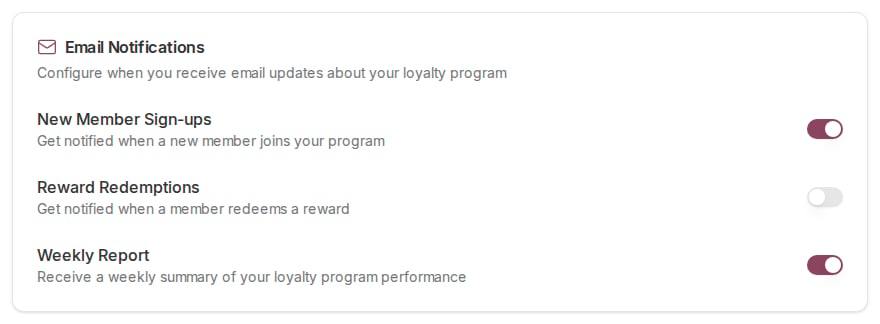 There are three email toggles:
**New Member Sign-ups** — sends an email each time a member joins your program. Off by default.
**Reward Redemptions** — sends an email when a member uses a reward. Off by default.
**Weekly Report** — sends a summary of your program's performance every week. On by default.
## Push notifications
Push notifications arrive in your browser or on your phone if you've allowed notifications for Qtap.
There are three email toggles:
**New Member Sign-ups** — sends an email each time a member joins your program. Off by default.
**Reward Redemptions** — sends an email when a member uses a reward. Off by default.
**Weekly Report** — sends a summary of your program's performance every week. On by default.
## Push notifications
Push notifications arrive in your browser or on your phone if you've allowed notifications for Qtap.
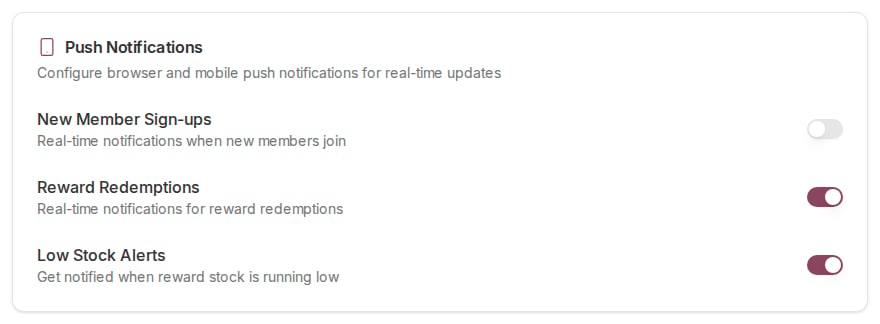 There are three push toggles:
**New Member Sign-ups** — notifies you as members join. Off by default.
**Reward Redemptions** — notifies you when a reward is redeemed. On by default.
**Low Stock Alerts** — notifies you when a reward's stock is getting low. On by default.
Your browser needs permission to show push notifications. If push alerts aren't arriving, check that you haven't blocked Qtap in your browser's notification settings.
## Save your preferences
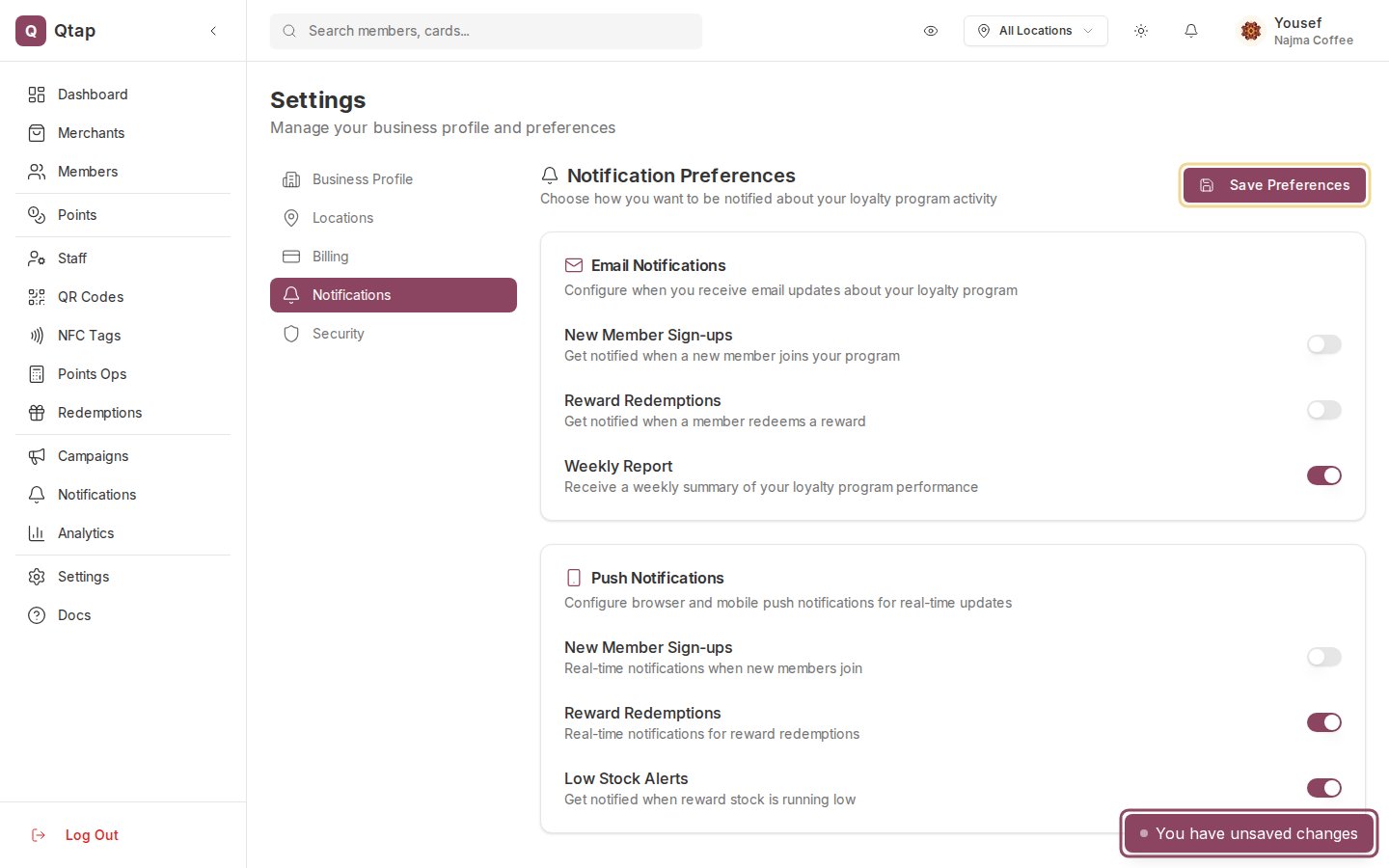
After changing any toggle, click **Save Preferences** in the top right. A small banner at the bottom of the screen appears while you have unsaved changes.
There are three push toggles:
**New Member Sign-ups** — notifies you as members join. Off by default.
**Reward Redemptions** — notifies you when a reward is redeemed. On by default.
**Low Stock Alerts** — notifies you when a reward's stock is getting low. On by default.
Your browser needs permission to show push notifications. If push alerts aren't arriving, check that you haven't blocked Qtap in your browser's notification settings.
## Save your preferences
After changing any toggle, click **Save Preferences** in the top right. A small banner at the bottom of the screen appears while you have unsaved changes.
 See how members are joining and engaging with your program.
Send automated messages to members instead of waiting for notifications.
See how members are joining and engaging with your program.
Send automated messages to members instead of waiting for notifications.