> ## Documentation Index
> Fetch the complete documentation index at: https://docs.qtap.qa/llms.txt
> Use this file to discover all available pages before exploring further.
# Location-based staff access
> Tie staff to the branches they work at, and see what changes for them when they issue stamps or points.
If your business runs more than one branch, you can tie each staff member to the branches they actually work at. They see stats for those branches and can issue stamps or points there, and nowhere else.
This setting applies to the **staff** role only. Owners and managers always see every branch, so there is nothing to set for them.
 ## Assign branches when you invite someone
Branch assignment is part of the invite. On the **Staff** page, choose **Invite Staff**, fill in the teammate's details, and find the **Assigned Locations** section.
**All Locations** is on by default, which lets the new teammate see and work at every branch. Turn it off to show your branch list, then tick the branches they should have.
## Assign branches when you invite someone
Branch assignment is part of the invite. On the **Staff** page, choose **Invite Staff**, fill in the teammate's details, and find the **Assigned Locations** section.
**All Locations** is on by default, which lets the new teammate see and work at every branch. Turn it off to show your branch list, then tick the branches they should have.
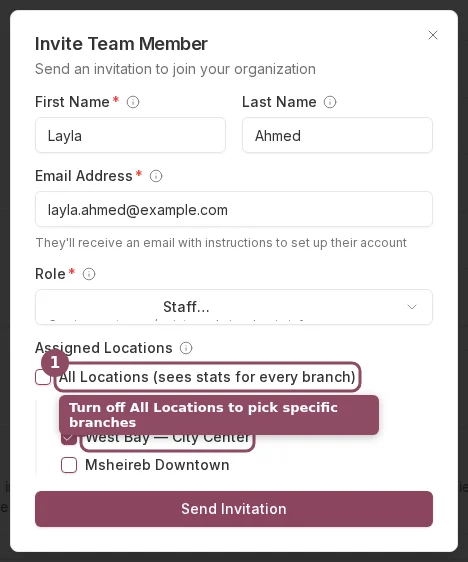 Once you turn off All Locations you need to pick at least one branch before you can send the invite.
## Change a teammate's branches later
You can adjust this any time. On the **Staff** page, open the menu on the teammate's row and choose **Edit Permissions**, then open the **Locations** tab. Turn off **Access to All Locations**, tick the branches they work at, and choose **Save Changes**.
Once you turn off All Locations you need to pick at least one branch before you can send the invite.
## Change a teammate's branches later
You can adjust this any time. On the **Staff** page, open the menu on the teammate's row and choose **Edit Permissions**, then open the **Locations** tab. Turn off **Access to All Locations**, tick the branches they work at, and choose **Save Changes**.
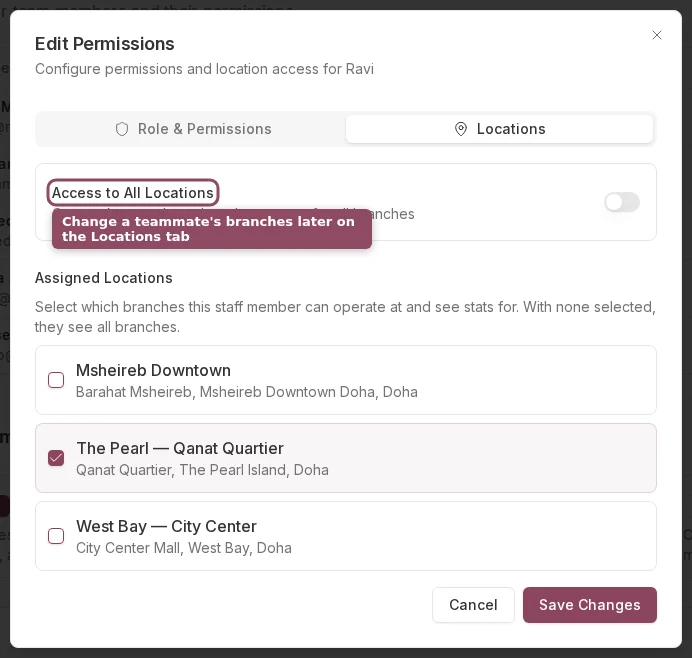 A manager sees a note on this tab explaining that location assignment only restricts the Staff role. You cannot narrow a manager's branch access.
## What multi-branch staff see when they issue
When a staff member is tied to two or more branches, Qtap asks them to pick where they are before they can issue anything. On the Stamp Operations or Points Operations screen a **Branch** field appears, prompting them to select the branch they are working at. Until they choose, the issue button stays greyed out and a line reads "Choose the branch you're working at to continue."
A manager sees a note on this tab explaining that location assignment only restricts the Staff role. You cannot narrow a manager's branch access.
## What multi-branch staff see when they issue
When a staff member is tied to two or more branches, Qtap asks them to pick where they are before they can issue anything. On the Stamp Operations or Points Operations screen a **Branch** field appears, prompting them to select the branch they are working at. Until they choose, the issue button stays greyed out and a line reads "Choose the branch you're working at to continue."
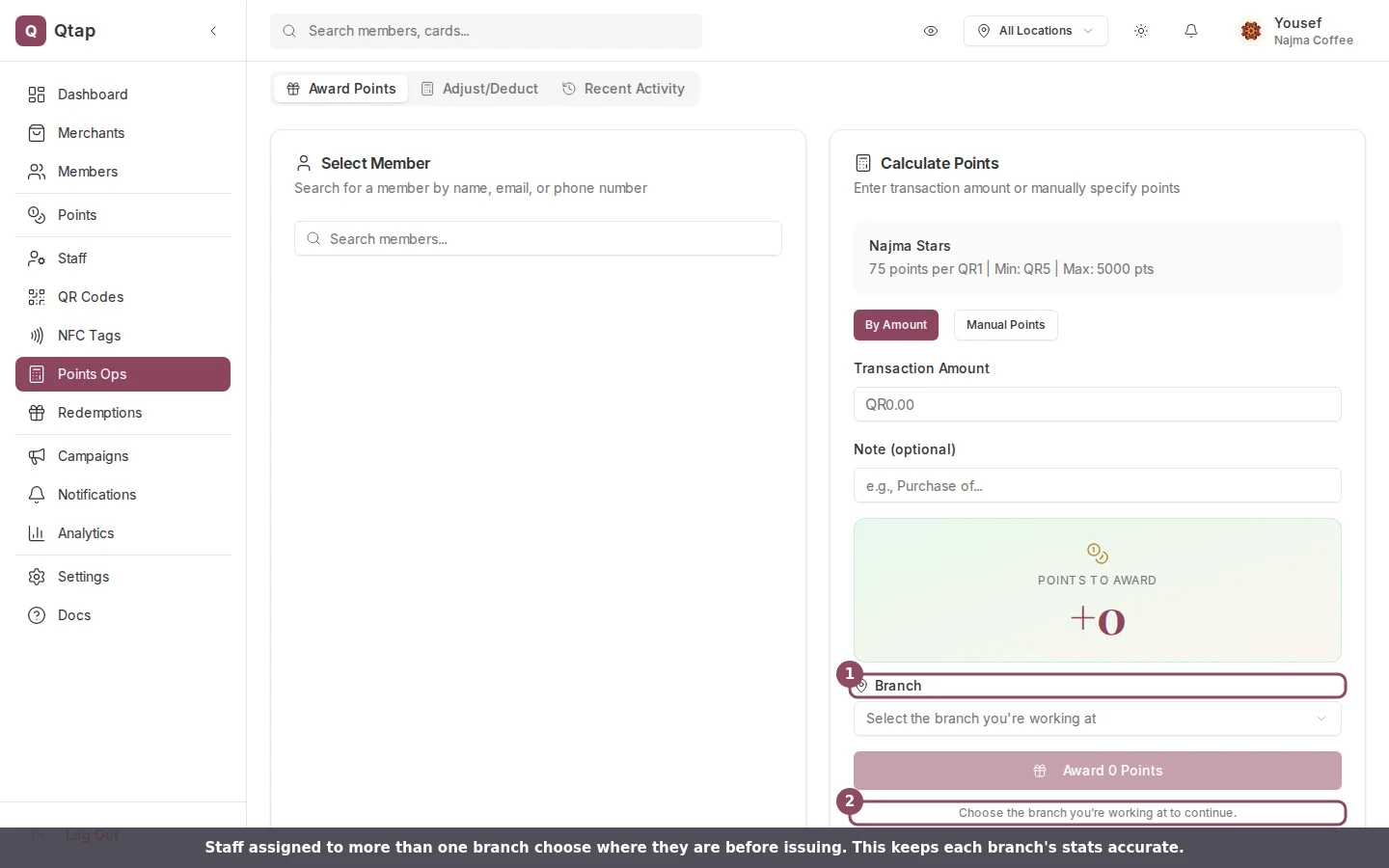 The branch they pick is what the stamp, point, or redemption is recorded against, so your per-branch and per-staff reports stay accurate. A teammate tied to a single branch skips this step, because Qtap picks it for them.
## Staff cannot open NFC Tags
The NFC Tags page is open to owners and managers only. A staff member cannot open it even if you give them QR code access through custom permissions. If a teammate needs to register or manage NFC tags, make them a manager.
What each role can do, and how to set custom permissions
The full invite journey from sending it to the teammate joining
The branch they pick is what the stamp, point, or redemption is recorded against, so your per-branch and per-staff reports stay accurate. A teammate tied to a single branch skips this step, because Qtap picks it for them.
## Staff cannot open NFC Tags
The NFC Tags page is open to owners and managers only. A staff member cannot open it even if you give them QR code access through custom permissions. If a teammate needs to register or manage NFC tags, make them a manager.
What each role can do, and how to set custom permissions
The full invite journey from sending it to the teammate joining