> ## Documentation Index
> Fetch the complete documentation index at: https://docs.qtap.qa/llms.txt
> Use this file to discover all available pages before exploring further.
# Roles and Permissions
> What the owner, manager, and staff roles can access, and how to set custom permissions for individual staff members.
Every staff member in Qtap has a role that controls which parts of the dashboard they can access. There are three built-in roles: **owner**, **manager**, and **staff**. You can also override the defaults with custom permissions for any individual.
## Built-in Roles
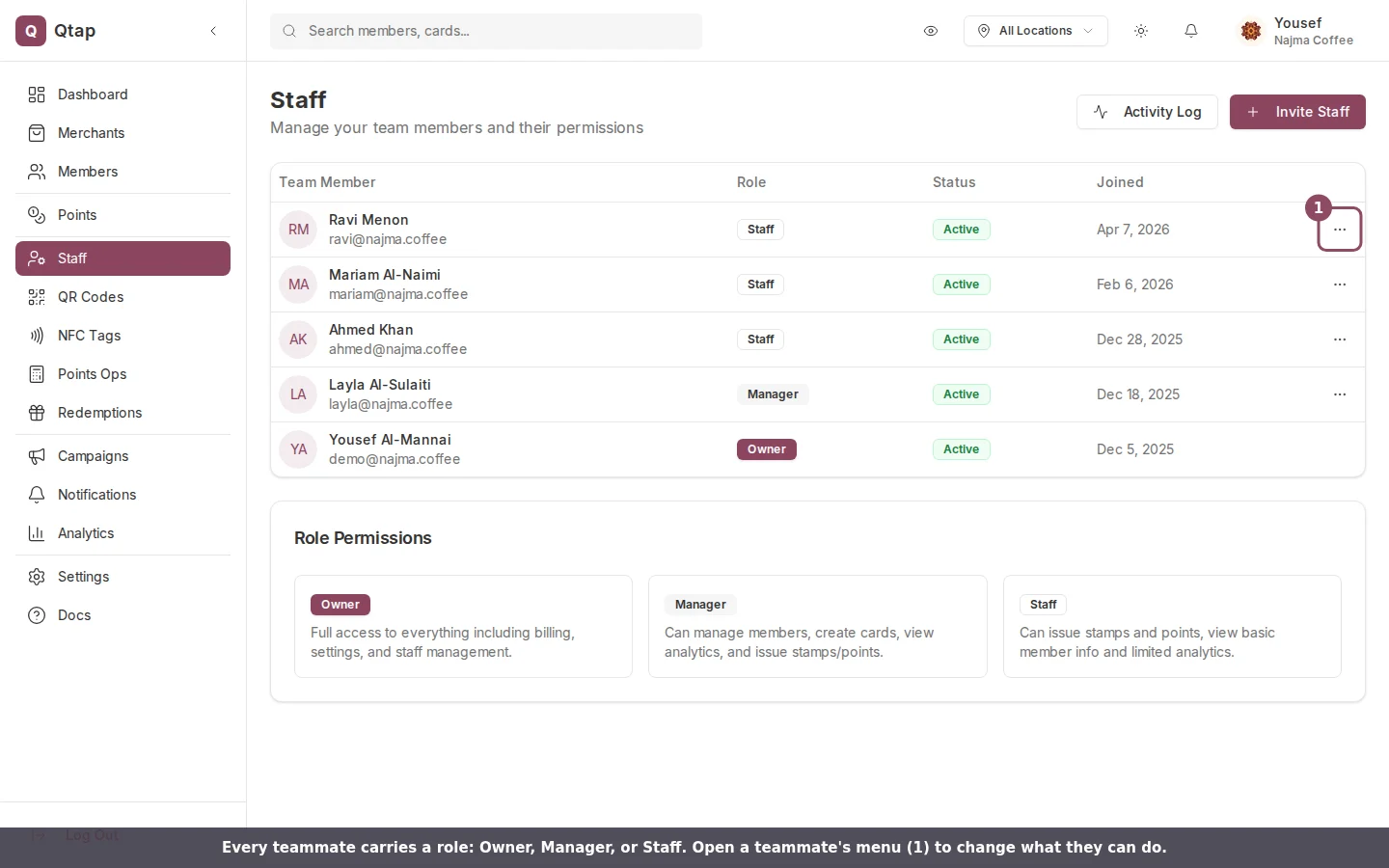
**Owner** has full access to everything — members, loyalty cards, QR codes, campaigns, analytics, staff management, billing, and settings. There is one owner per organization and the role cannot be changed or removed.
**Manager** can do most things except access billing and settings. Managers can view and edit members, issue stamps and points, create and edit stamp cards and points programs, generate QR codes, run campaigns, view analytics, and send notifications.
**Staff** has a more limited set of defaults. Staff can view members, issue stamps and points, process redemptions, view QR codes, and view analytics. They cannot create or edit loyalty cards, generate QR codes, manage campaigns, or access staff management.
 ## Custom Permissions
If the built-in roles do not fit a staff member's actual responsibilities, you can override their permissions individually.
Go to **Staff** in the sidebar.
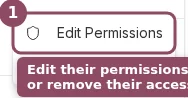
Click the menu icon on the staff member's row and select **Edit permissions**.
## Custom Permissions
If the built-in roles do not fit a staff member's actual responsibilities, you can override their permissions individually.
Go to **Staff** in the sidebar.
Click the menu icon on the staff member's row and select **Edit permissions**.
 Toggle on **Use custom permissions**. This unlocks a checklist organized into six categories: Members, Loyalty, Cards & Programs, QR & NFC, Analytics, and Notifications.
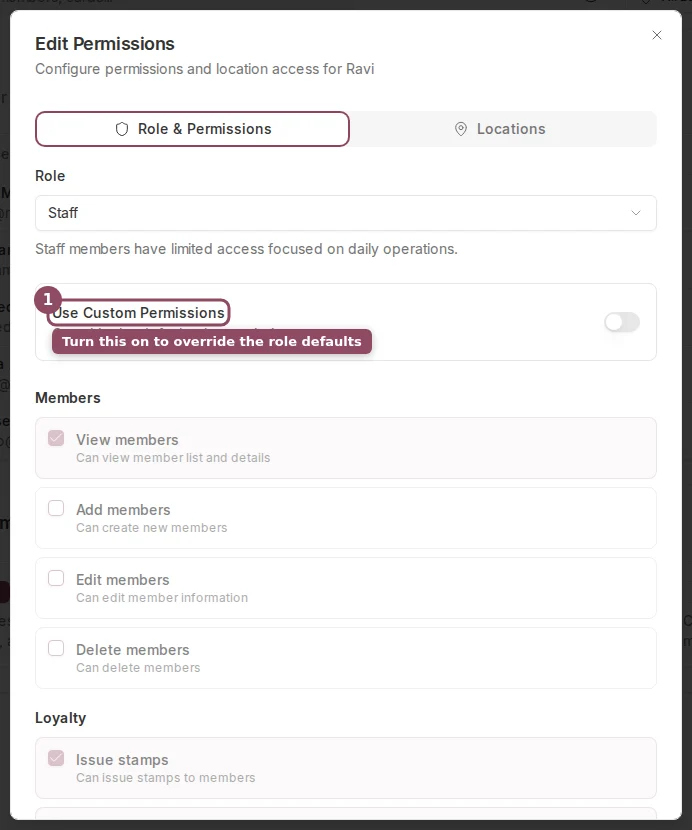 Check or uncheck individual permissions. Each item shows a short description of what it covers.
On the **Locations** tab in the same dialog, you can limit the staff member to specific locations. By default, staff can act on members from any location.
Check or uncheck individual permissions. Each item shows a short description of what it covers.
On the **Locations** tab in the same dialog, you can limit the staff member to specific locations. By default, staff can act on members from any location.
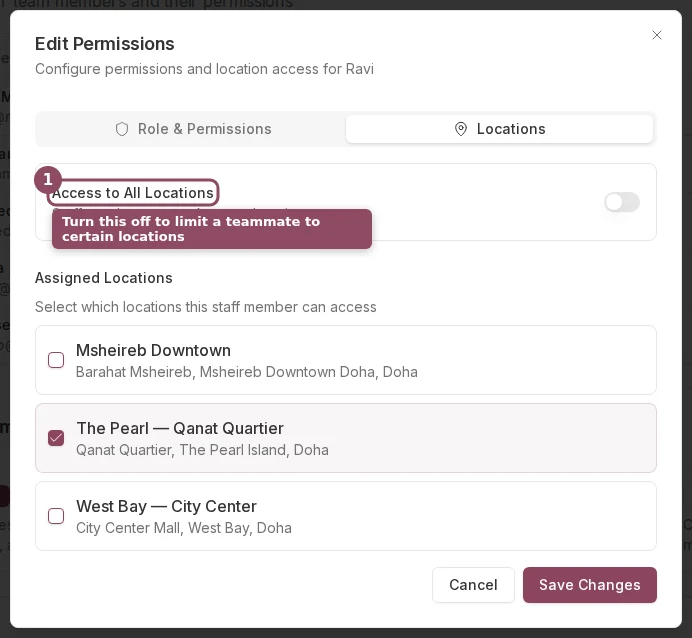 Click **Save changes**. The new permissions apply immediately.
If you change a staff member's role (for example, from staff to manager), their permissions reset to the defaults for the new role unless custom permissions are enabled.
Only owners can edit staff roles and permissions. Managers cannot change permissions for other staff members.
## Resending an Invitation
If a staff member did not receive or lost their invitation email, find them in the Staff table, click the menu icon on their row, and select **Resend invite**. They will receive a new invitation to the email address you originally entered.
Inviting staff and managing the team list
See a record of every action staff members have taken
Click **Save changes**. The new permissions apply immediately.
If you change a staff member's role (for example, from staff to manager), their permissions reset to the defaults for the new role unless custom permissions are enabled.
Only owners can edit staff roles and permissions. Managers cannot change permissions for other staff members.
## Resending an Invitation
If a staff member did not receive or lost their invitation email, find them in the Staff table, click the menu icon on their row, and select **Resend invite**. They will receive a new invitation to the email address you originally entered.
Inviting staff and managing the team list
See a record of every action staff members have taken