> ## Documentation Index
> Fetch the complete documentation index at: https://docs.qtap.qa/llms.txt
> Use this file to discover all available pages before exploring further.
# Cashier vs Manager: Recommended Staff Setup
> Two ready-made staff setups: a Cashier for the counter and a Manager who runs the day.
Most teams need two kinds of access: the person at the register who serves customers and stamps cards, and the shift lead who runs the floor when you are away. Qtap's two invite roles, Staff and Manager, cover both with no extra setup. Throughout this page, the Cashier setup means the Staff role, since that is the job it fits.
 ## The cashier setup
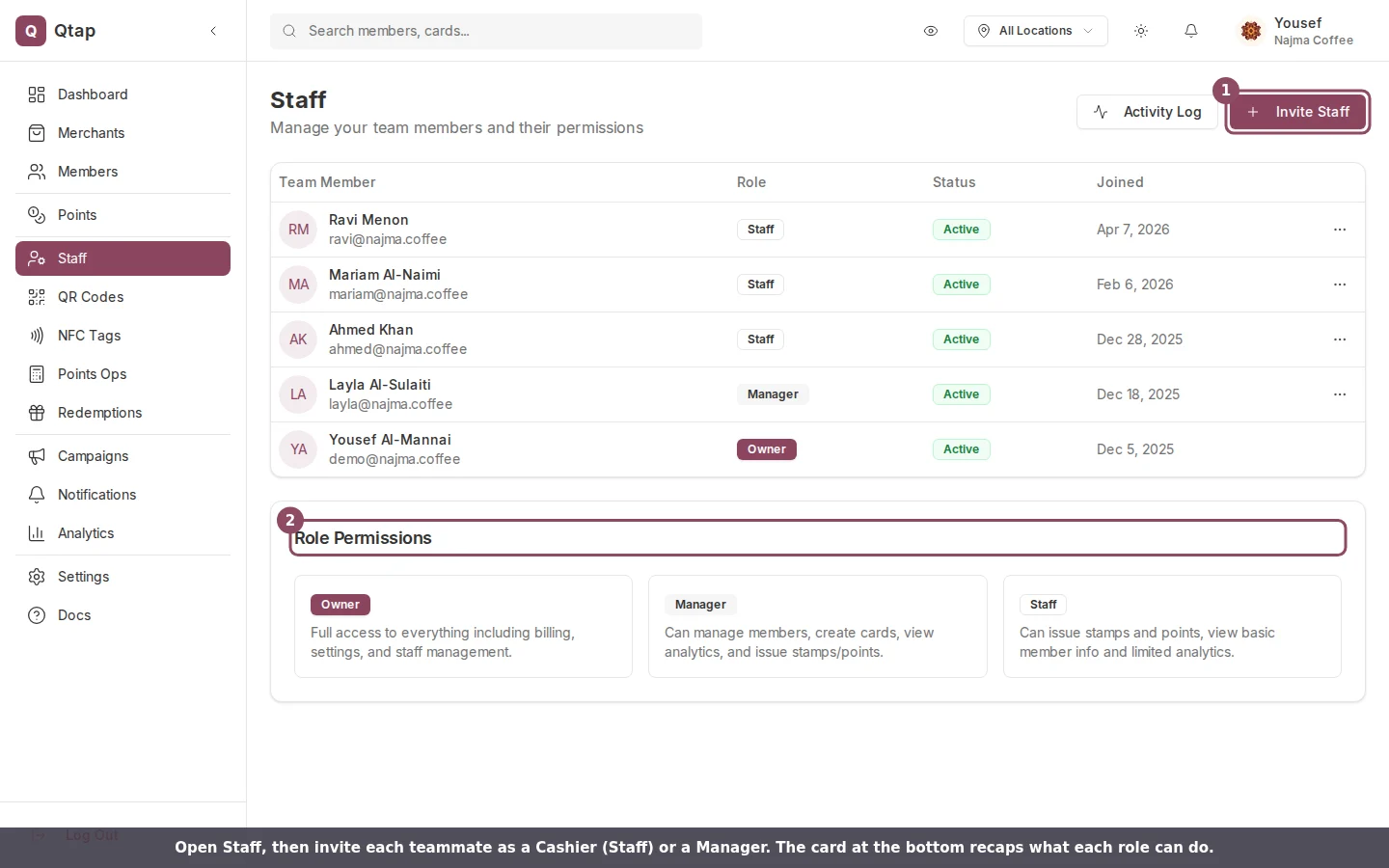
Use the **Staff** role for anyone working the counter. It is the default when you invite someone, so you can leave the Role field as it is.
## The cashier setup
Use the **Staff** role for anyone working the counter. It is the default when you invite someone, so you can leave the Role field as it is.
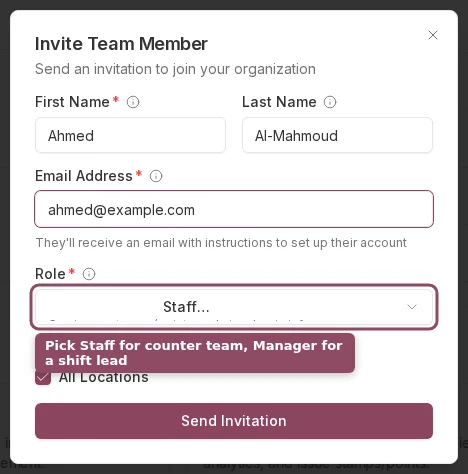 A cashier can look up a member, issue stamps, award points, and redeem rewards. That covers every job at the register. They cannot open Analytics, create or edit cards and programs, run campaigns, generate QR codes, or reach Settings and Billing.
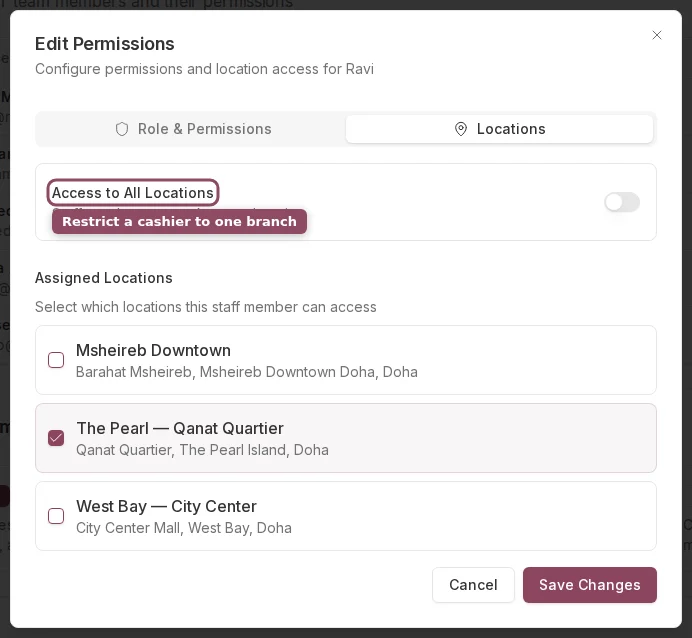
If you run more than one branch, restrict a cashier to the branch they work at. The Locations tab on their permissions handles this, covered below.
## The manager setup
Use the **Manager** role for an assistant manager or shift lead who keeps the day running. Open the Role list to see the difference between the two roles spelled out.
A cashier can look up a member, issue stamps, award points, and redeem rewards. That covers every job at the register. They cannot open Analytics, create or edit cards and programs, run campaigns, generate QR codes, or reach Settings and Billing.
If you run more than one branch, restrict a cashier to the branch they work at. The Locations tab on their permissions handles this, covered below.
## The manager setup
Use the **Manager** role for an assistant manager or shift lead who keeps the day running. Open the Role list to see the difference between the two roles spelled out.
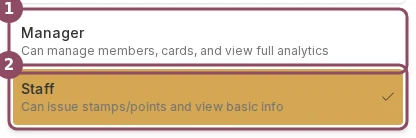 A manager can do everything a cashier can, plus manage members, create and edit stamp cards and points programs, run campaigns, generate QR codes, send notifications, and view full analytics. They can open the Staff page and see the team, but only you, the owner, can invite, edit, or remove staff. Managers cannot reach Settings or Billing, and Qtap assigns them to all locations when you invite them.
## What each role can do
| Task | Cashier (Staff) | Manager | Owner |
| ------------------------------------ | --------------- | ------- | ----- |
| Look up members | Yes | Yes | Yes |
| Issue stamps and award points | Yes | Yes | Yes |
| Redeem rewards | Yes | Yes | Yes |
| Create and edit cards and programs | No | Yes | Yes |
| Generate QR codes | No | Yes | Yes |
| Run campaigns and send notifications | No | Yes | Yes |
| View analytics | No | Yes | Yes |
| Manage the team | No | No | Yes |
| Billing and settings | No | No | Yes |
## When the defaults don't fit
If a teammate needs a different mix, override their permissions one at a time.
On the Staff page, click the menu icon at the end of their row, then choose **Edit Permissions**.
Switch on **Use Custom Permissions**. The checklist below it unlocks, grouped into Members, Loyalty, Cards & Programs, QR & NFC, Analytics, and Notifications.
Check or uncheck each item. For a senior cashier, start from the Staff role and add **Send notifications** so they can message members.
Click **Save Changes**. The new access applies the next time they load the dashboard.
A manager can do everything a cashier can, plus manage members, create and edit stamp cards and points programs, run campaigns, generate QR codes, send notifications, and view full analytics. They can open the Staff page and see the team, but only you, the owner, can invite, edit, or remove staff. Managers cannot reach Settings or Billing, and Qtap assigns them to all locations when you invite them.
## What each role can do
| Task | Cashier (Staff) | Manager | Owner |
| ------------------------------------ | --------------- | ------- | ----- |
| Look up members | Yes | Yes | Yes |
| Issue stamps and award points | Yes | Yes | Yes |
| Redeem rewards | Yes | Yes | Yes |
| Create and edit cards and programs | No | Yes | Yes |
| Generate QR codes | No | Yes | Yes |
| Run campaigns and send notifications | No | Yes | Yes |
| View analytics | No | Yes | Yes |
| Manage the team | No | No | Yes |
| Billing and settings | No | No | Yes |
## When the defaults don't fit
If a teammate needs a different mix, override their permissions one at a time.
On the Staff page, click the menu icon at the end of their row, then choose **Edit Permissions**.
Switch on **Use Custom Permissions**. The checklist below it unlocks, grouped into Members, Loyalty, Cards & Programs, QR & NFC, Analytics, and Notifications.
Check or uncheck each item. For a senior cashier, start from the Staff role and add **Send notifications** so they can message members.
Click **Save Changes**. The new access applies the next time they load the dashboard.
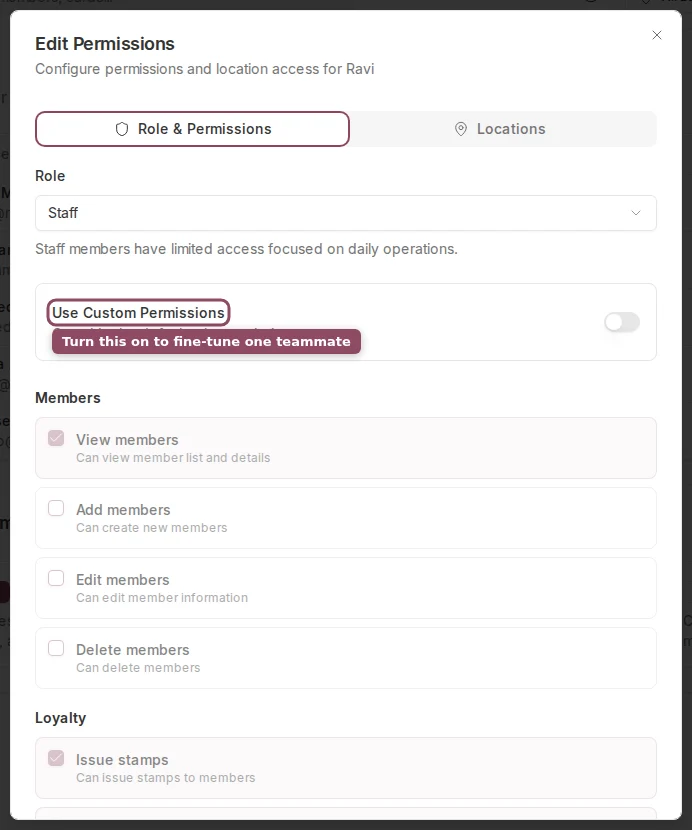 To limit where someone works, open the **Locations** tab in the same dialog, turn off **Access to All Locations**, then check the branches they cover.
 Changing someone's role resets their access to that role's defaults, unless Use Custom Permissions is on. Set custom permissions after you pick the role, not before.
Only the owner can invite, edit, or remove staff. Managers see the team list but cannot change it.
The full reference for every role and permission.
Inviting teammates and managing the team list.
Changing someone's role resets their access to that role's defaults, unless Use Custom Permissions is on. Set custom permissions after you pick the role, not before.
Only the owner can invite, edit, or remove staff. Managers see the team list but cannot change it.
The full reference for every role and permission.
Inviting teammates and managing the team list.