> ## Documentation Index
> Fetch the complete documentation index at: https://docs.qtap.qa/llms.txt
> Use this file to discover all available pages before exploring further.
# Stamp Card Advanced Settings
> Set stamping delays, daily caps, and multi-stamp rules to keep your stamp card fair.
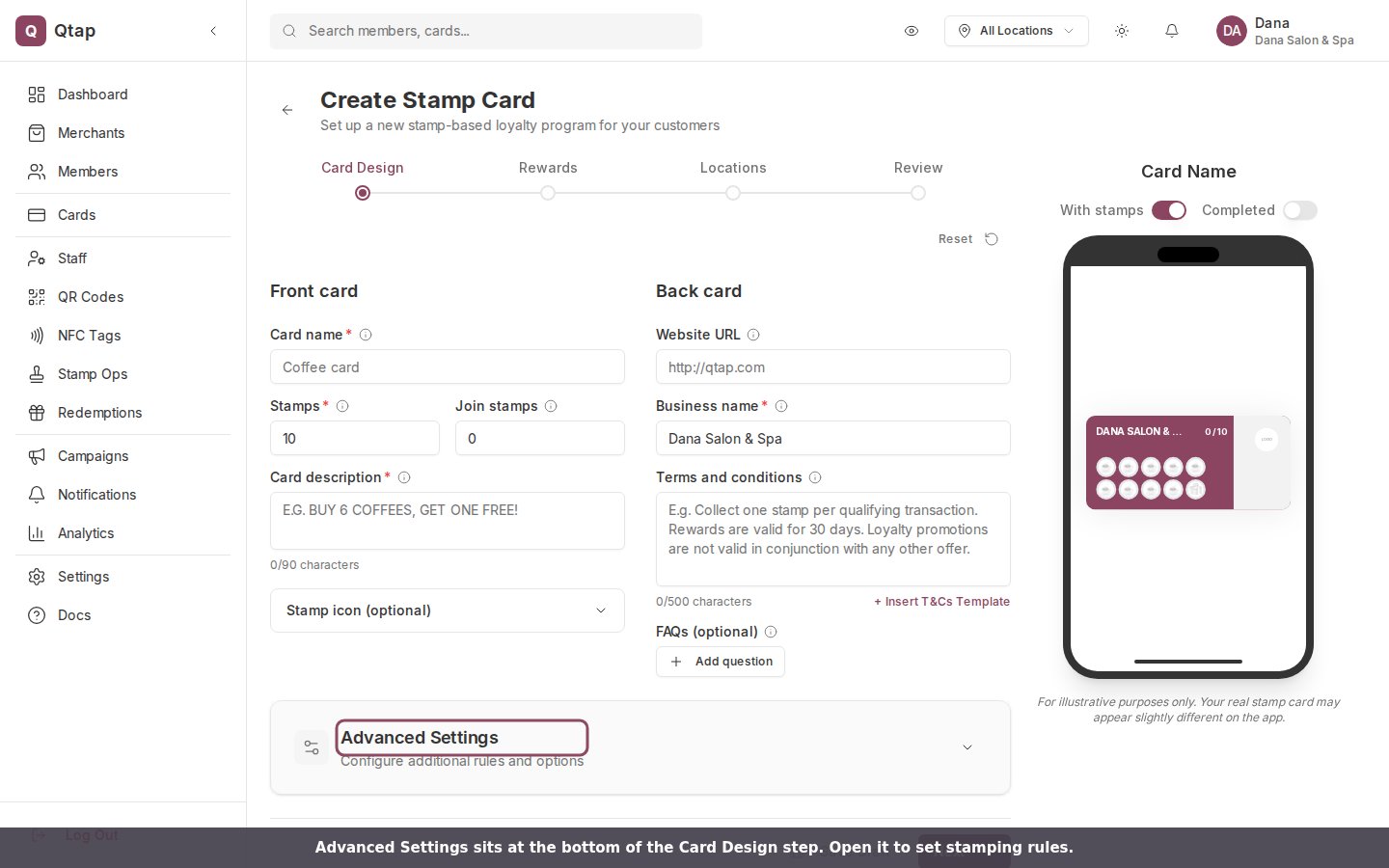
Every stamp card has an **Advanced Settings** panel for the rules that decide how fast and how often a customer can earn. You find it at the bottom of the **Card Design** step when you create or edit a stamp card. It stays closed until you open it, so it never gets in your way during setup.
 ## Stamping rules
Open the panel and the first group is **Stamping Rules**. Two of these guard against one customer collecting a pile of stamps in a single moment.
## Stamping rules
Open the panel and the first group is **Stamping Rules**. Two of these guard against one customer collecting a pile of stamps in a single moment.
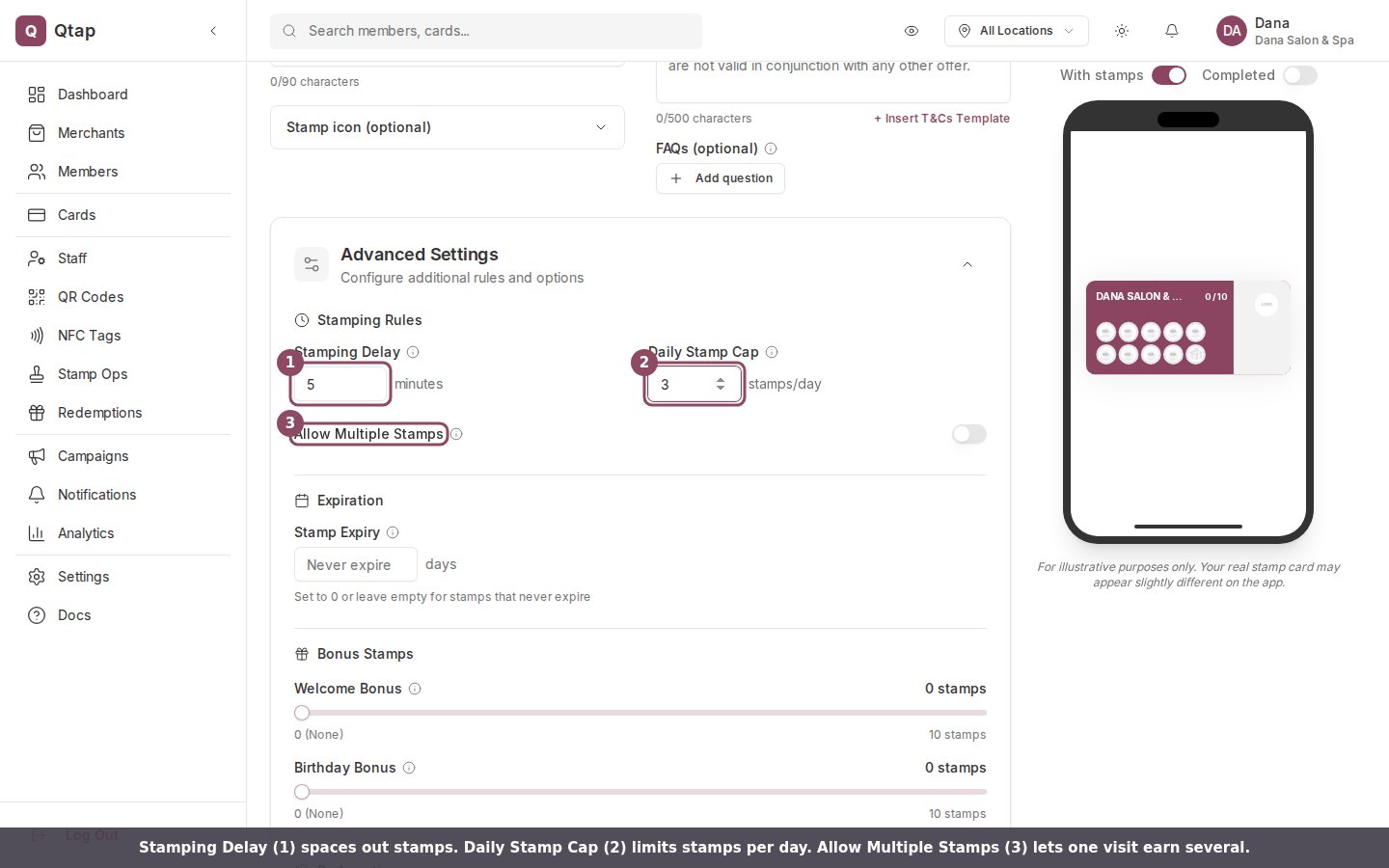 * **Stamping Delay** is the shortest time, in minutes, between two stamps for the same customer. Set it to 5 and a customer who just earned a stamp has to wait 5 minutes for the next one. If they scan again too soon, Qtap asks them to wait a few more minutes before collecting another stamp. Leave it at 0 for no delay.
* **Daily Stamp Cap** is the most stamps one customer can earn in a day. Set it to 3 and the fourth scan that day is turned away with "Daily stamp limit reached (3 per day)." Leave it empty for no daily limit.
* **Allow Multiple Stamps** is for shops where one visit is worth more than one stamp, like a stamp per item bought. Turn it on for those cards. Your staff add the count on the Stamp Operations screen.
These two limits, the delay and the daily cap, apply when a customer earns a stamp by scanning your QR code or tapping an NFC tag. They keep self-scanning honest.
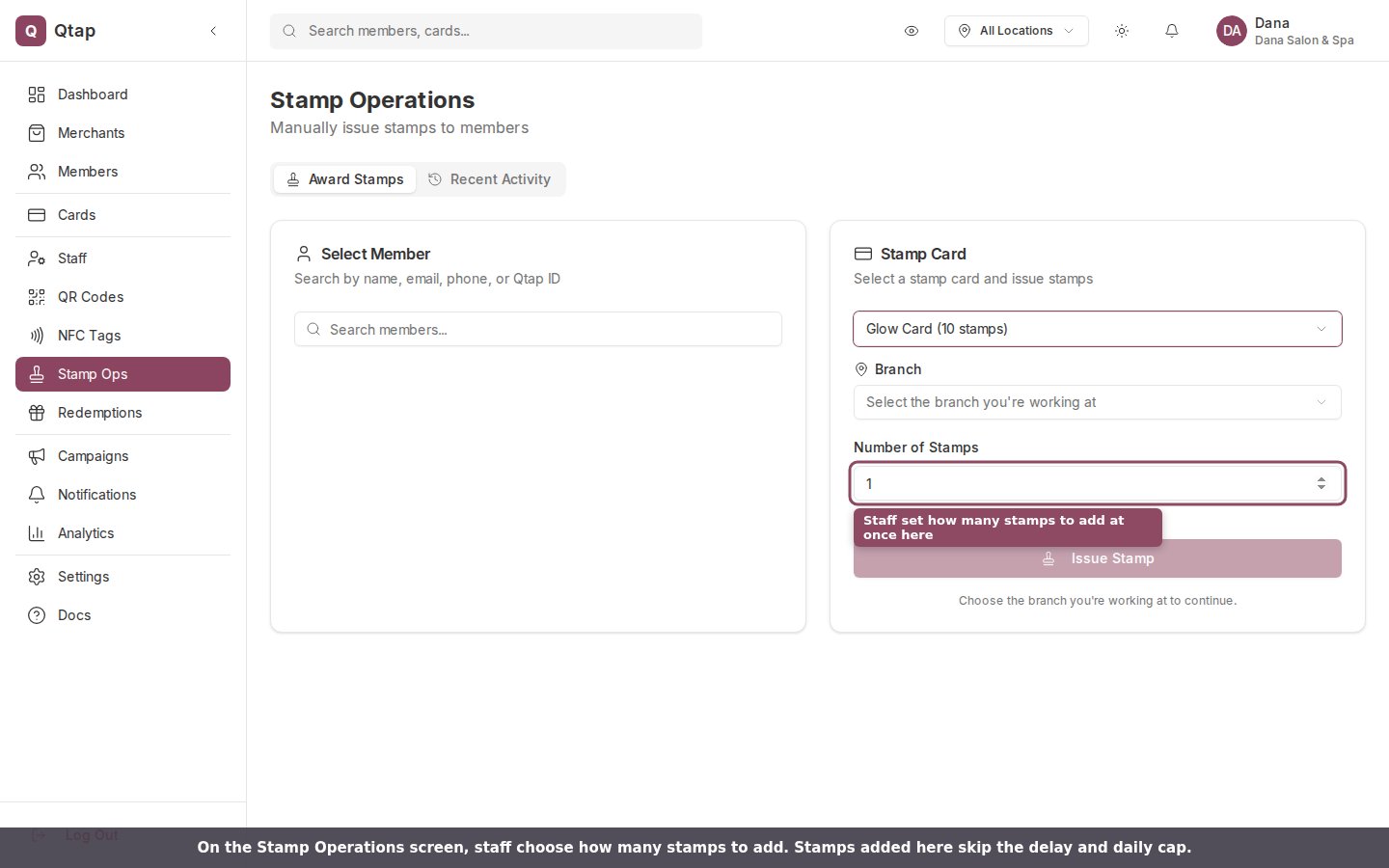
Stamps your staff add by hand on the **Stamp Operations** screen skip the delay and the daily cap. The limits protect customer self-scanning, not stamps you enter at the counter, so a staff member can always add a stamp when someone genuinely earned one.
When a staff member issues stamps from Stamp Operations, the **Number of Stamps** field is where they choose how many to add at once.
* **Stamping Delay** is the shortest time, in minutes, between two stamps for the same customer. Set it to 5 and a customer who just earned a stamp has to wait 5 minutes for the next one. If they scan again too soon, Qtap asks them to wait a few more minutes before collecting another stamp. Leave it at 0 for no delay.
* **Daily Stamp Cap** is the most stamps one customer can earn in a day. Set it to 3 and the fourth scan that day is turned away with "Daily stamp limit reached (3 per day)." Leave it empty for no daily limit.
* **Allow Multiple Stamps** is for shops where one visit is worth more than one stamp, like a stamp per item bought. Turn it on for those cards. Your staff add the count on the Stamp Operations screen.
These two limits, the delay and the daily cap, apply when a customer earns a stamp by scanning your QR code or tapping an NFC tag. They keep self-scanning honest.
Stamps your staff add by hand on the **Stamp Operations** screen skip the delay and the daily cap. The limits protect customer self-scanning, not stamps you enter at the counter, so a staff member can always add a stamp when someone genuinely earned one.
When a staff member issues stamps from Stamp Operations, the **Number of Stamps** field is where they choose how many to add at once.
 ## The rest of the panel
Below Stamping Rules, the same panel holds a few more options:
* **Stamp Expiry**, under Expiration, sets a lifespan in days for stamps, from 1 to 365. Leave it empty, or set it to 0, for stamps that never expire. The value you choose also shows on the customer's card.
* **Welcome Bonus** and **Birthday Bonus** are free stamps. The welcome bonus is added when a customer first joins the card. The birthday bonus needs a birthday saved on the customer's profile. Both go from 0 to 10 stamps.
* **Allow Partial Redemption** lets a customer claim a reward before they finish the whole card, which only applies to milestone rewards. See [Stamp Card Rewards](/merchants/stamp-cards/rewards) for how those work.
## Saving your settings
Advanced Settings save together with the rest of the card. Move on to the **Review** step and publish the card, or save it as a draft, and your rules go live with it. You can reopen the card any time to change them.
## The rest of the panel
Below Stamping Rules, the same panel holds a few more options:
* **Stamp Expiry**, under Expiration, sets a lifespan in days for stamps, from 1 to 365. Leave it empty, or set it to 0, for stamps that never expire. The value you choose also shows on the customer's card.
* **Welcome Bonus** and **Birthday Bonus** are free stamps. The welcome bonus is added when a customer first joins the card. The birthday bonus needs a birthday saved on the customer's profile. Both go from 0 to 10 stamps.
* **Allow Partial Redemption** lets a customer claim a reward before they finish the whole card, which only applies to milestone rewards. See [Stamp Card Rewards](/merchants/stamp-cards/rewards) for how those work.
## Saving your settings
Advanced Settings save together with the rest of the card. Move on to the **Review** step and publish the card, or save it as a draft, and your rules go live with it. You can reopen the card any time to change them.