> ## Documentation Index
> Fetch the complete documentation index at: https://docs.qtap.qa/llms.txt
> Use this file to discover all available pages before exploring further.
# Editing a Stamp Card
> Change a stamp card after you create it, and understand what happens to its rewards when you save.
You can change a stamp card after you create it, whether it's still a draft or already live. The edit screen is the same four-step wizard you used to build the card, opened with your current settings filled in.
## Opening a card to edit
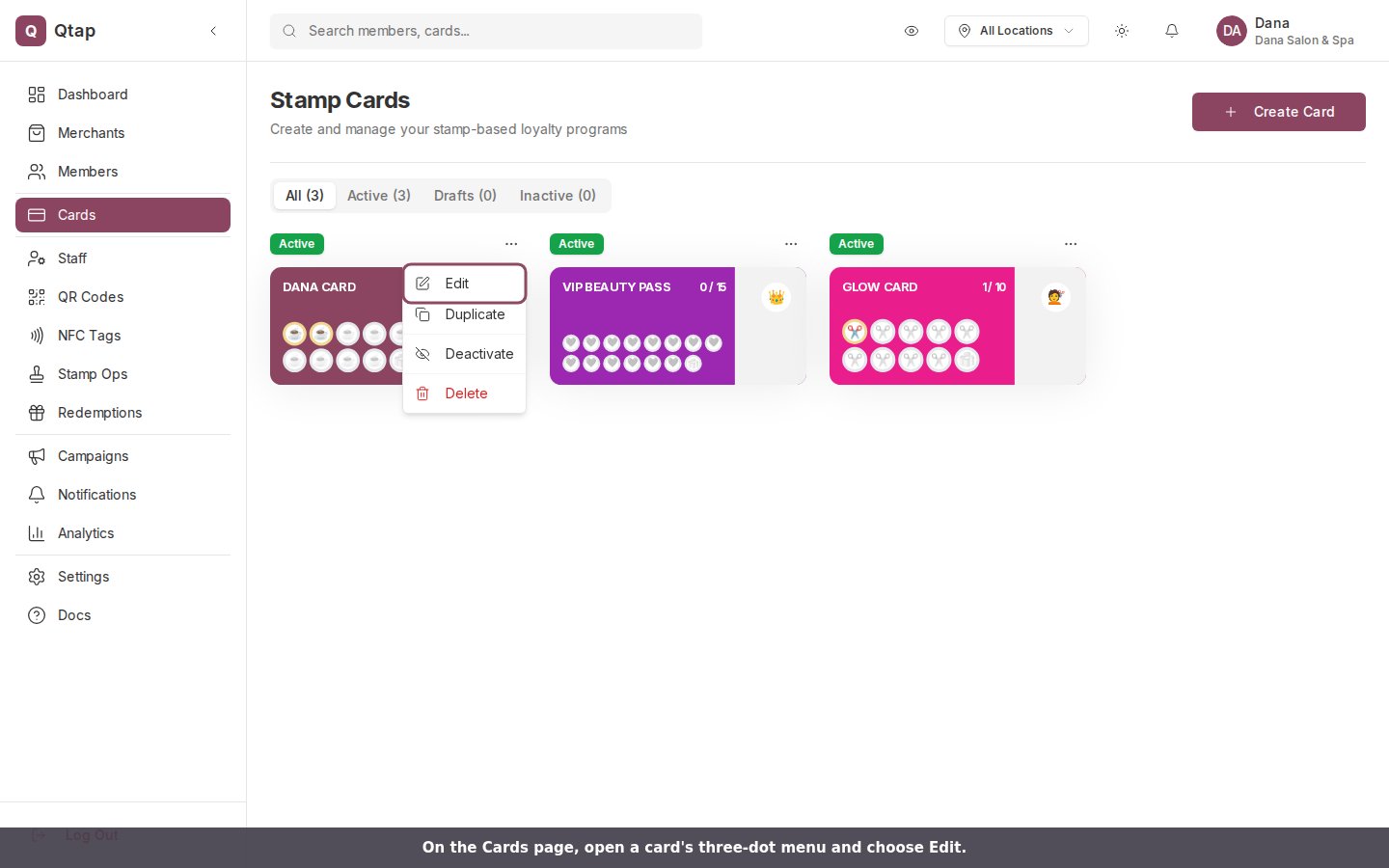
Go to **Cards** in the sidebar. Find the card you want to change, open its three-dot menu, and choose **Edit**. Clicking the card's name opens the same screen.
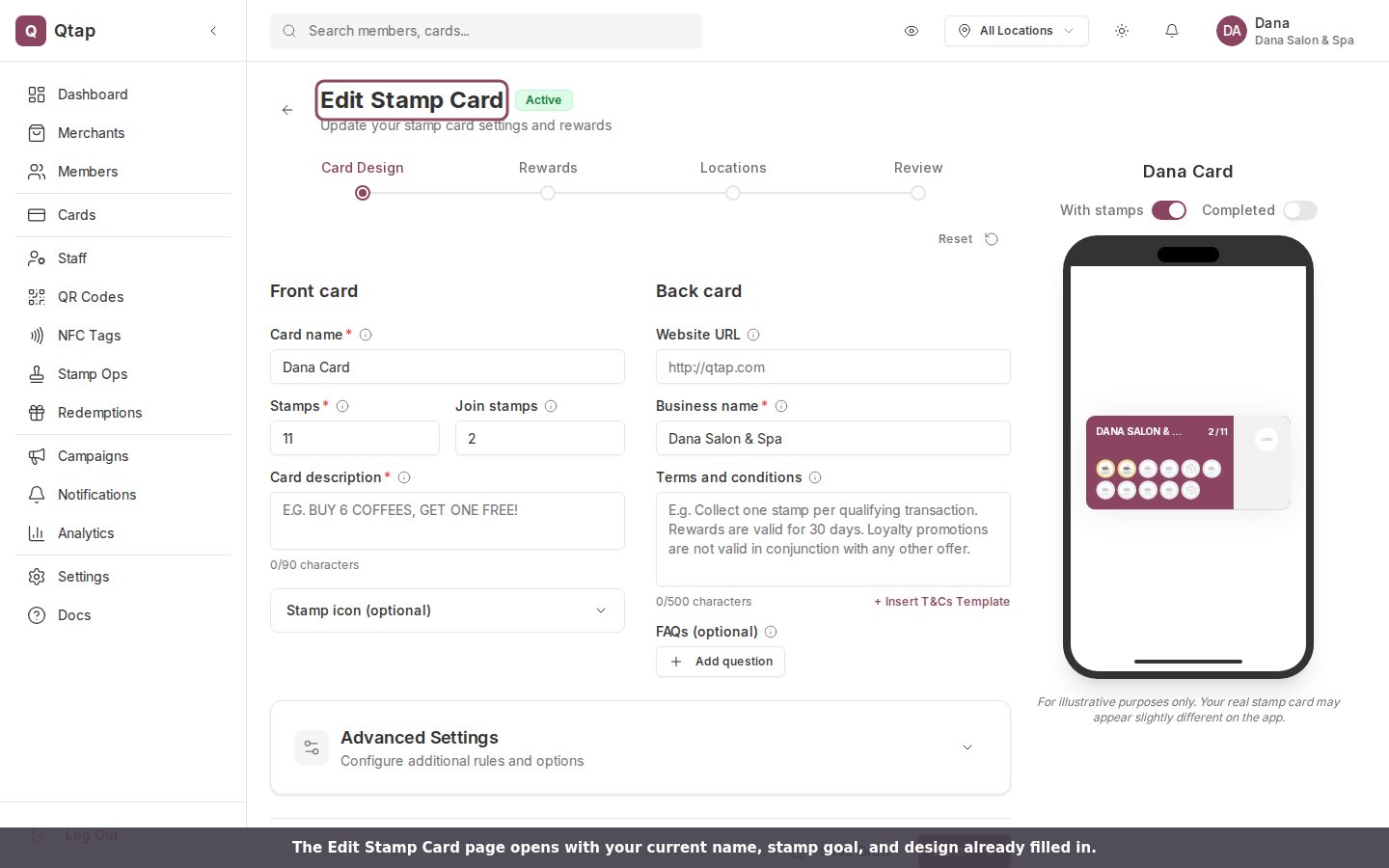
 The page is titled **Edit Stamp Card** and shows a status badge: **Active**, **Inactive**, or **Draft**. The four steps along the top are Card Design, Rewards, Locations, and Review, and the live preview on the right updates as you type.
 ## What you can change
Everything stays editable after a card goes live. You can rename it, change its colors and stamp icon, move the stamp goal up or down, add or remove rewards, and change which locations it belongs to. Nothing locks once the card is Active.
Changing the **stamp goal** changes it for everyone on the card, including customers who are partway through. Raise a 10-stamp card to 12 and a customer sitting at 9 of 10 now reads 9 of 12. Move the goal only when you mean to reset the finish line for every member.
## Rewards are rewritten when you save
Each time you save the card, Qtap clears the card's rewards and re-adds the ones in your list at that moment. The list on the Rewards step is exactly what the card keeps. Remove a reward from the list and save, and it's gone.
## What you can change
Everything stays editable after a card goes live. You can rename it, change its colors and stamp icon, move the stamp goal up or down, add or remove rewards, and change which locations it belongs to. Nothing locks once the card is Active.
Changing the **stamp goal** changes it for everyone on the card, including customers who are partway through. Raise a 10-stamp card to 12 and a customer sitting at 9 of 10 now reads 9 of 12. Move the goal only when you mean to reset the finish line for every member.
## Rewards are rewritten when you save
Each time you save the card, Qtap clears the card's rewards and re-adds the ones in your list at that moment. The list on the Rewards step is exactly what the card keeps. Remove a reward from the list and save, and it's gone.
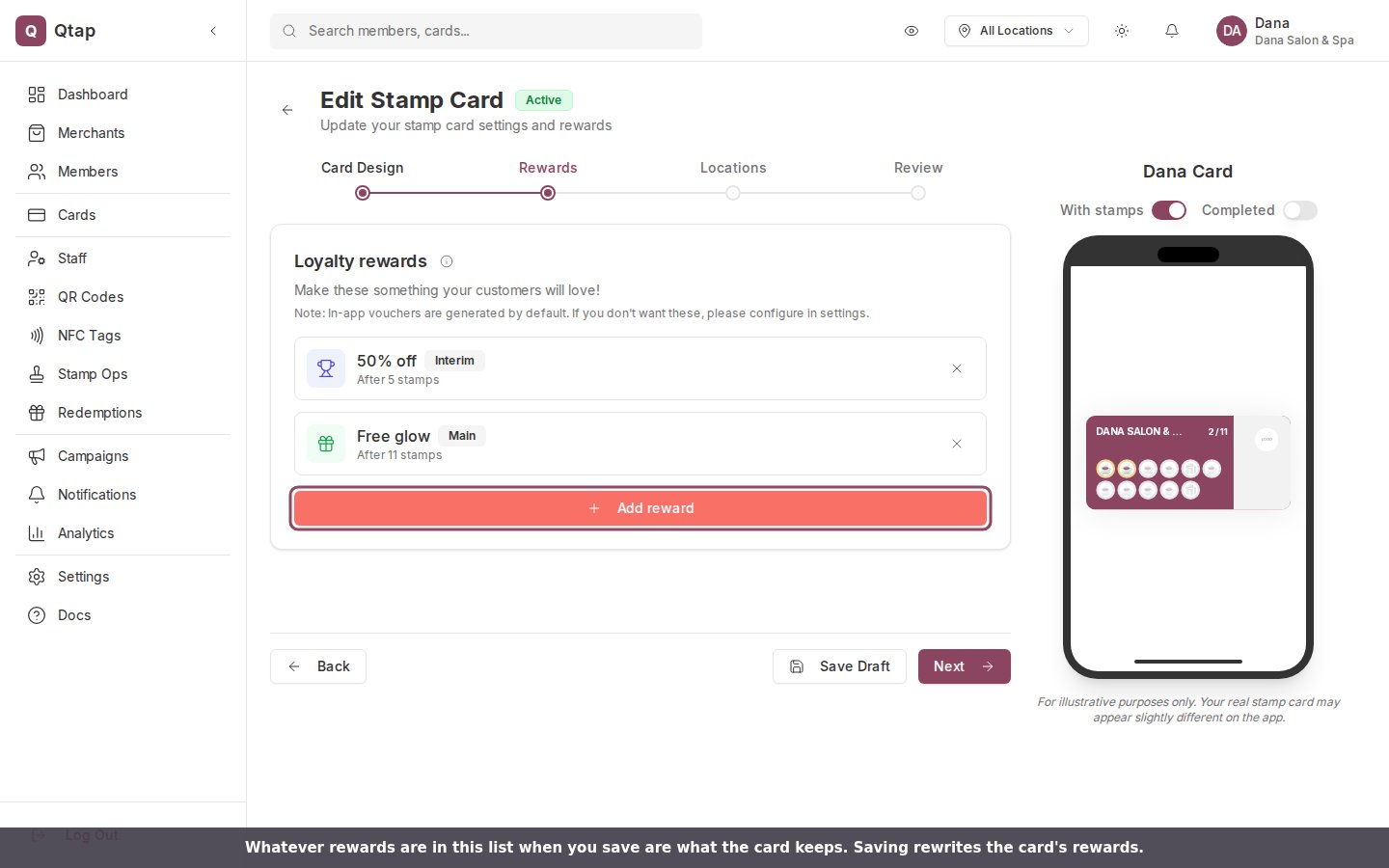 Because Qtap rebuilds the reward list on every save, make all your reward changes in one pass before you save, rather than saving between each edit.
## Saving your changes
The Review step has two ways to save:
* **Publish Card** saves the card and keeps it live. Use this to save changes to a card customers are already collecting. Publishing needs a name, a stamp goal, at least one **Main** reward, and a valid location.
* **Save as Draft** saves your changes but sets the card back to **Draft**, which takes it offline.
Because Qtap rebuilds the reward list on every save, make all your reward changes in one pass before you save, rather than saving between each edit.
## Saving your changes
The Review step has two ways to save:
* **Publish Card** saves the card and keeps it live. Use this to save changes to a card customers are already collecting. Publishing needs a name, a stamp goal, at least one **Main** reward, and a valid location.
* **Save as Draft** saves your changes but sets the card back to **Draft**, which takes it offline.
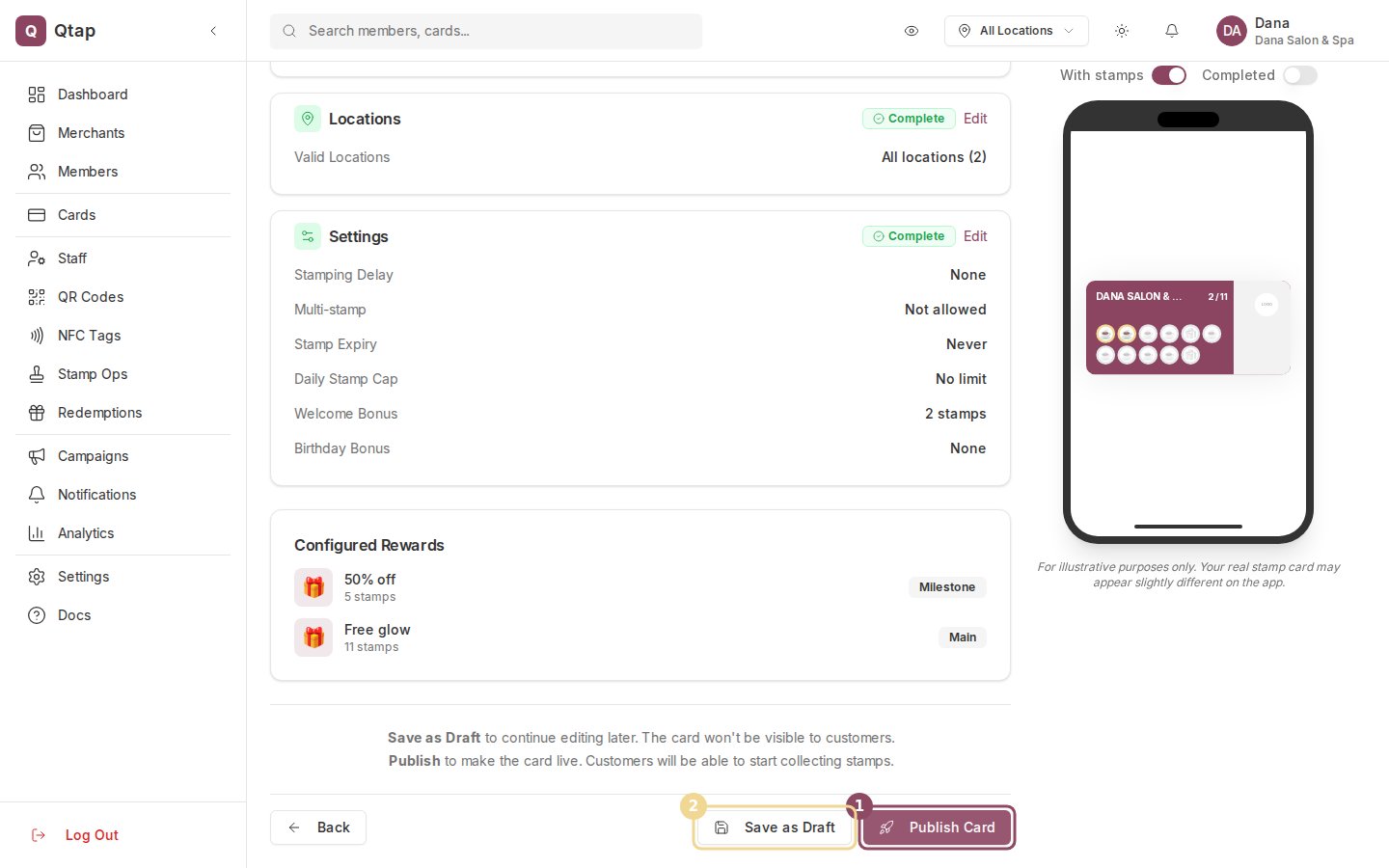 On a live card, save with **Publish Card**. **Save as Draft** returns the card to Draft and hides it from customers until you publish it again.
Editing stamp cards is open to owners and managers. Staff don't have stamp-card access by default.
The full walkthrough for building a card from scratch.
How Main, Sign Up, and Interim rewards work.
Stamping delays, daily caps, and bonus stamps.
Manage your card list, duplicate, and deactivate.
On a live card, save with **Publish Card**. **Save as Draft** returns the card to Draft and hides it from customers until you publish it again.
Editing stamp cards is open to owners and managers. Staff don't have stamp-card access by default.
The full walkthrough for building a card from scratch.
How Main, Sign Up, and Interim rewards work.
Stamping delays, daily caps, and bonus stamps.
Manage your card list, duplicate, and deactivate.