> ## Documentation Index
> Fetch the complete documentation index at: https://docs.qtap.qa/llms.txt
> Use this file to discover all available pages before exploring further.
# Issuing Stamps Manually
> Award stamps to a member at the counter when they don't have their app or QR code ready.
Stamp Operations lets staff award stamps directly from the dashboard without a QR scan or NFC tap. Use it when a customer forgot their phone, the QR code didn't scan, or you need to add a stamp from a previous visit.
 ## Issue a stamp
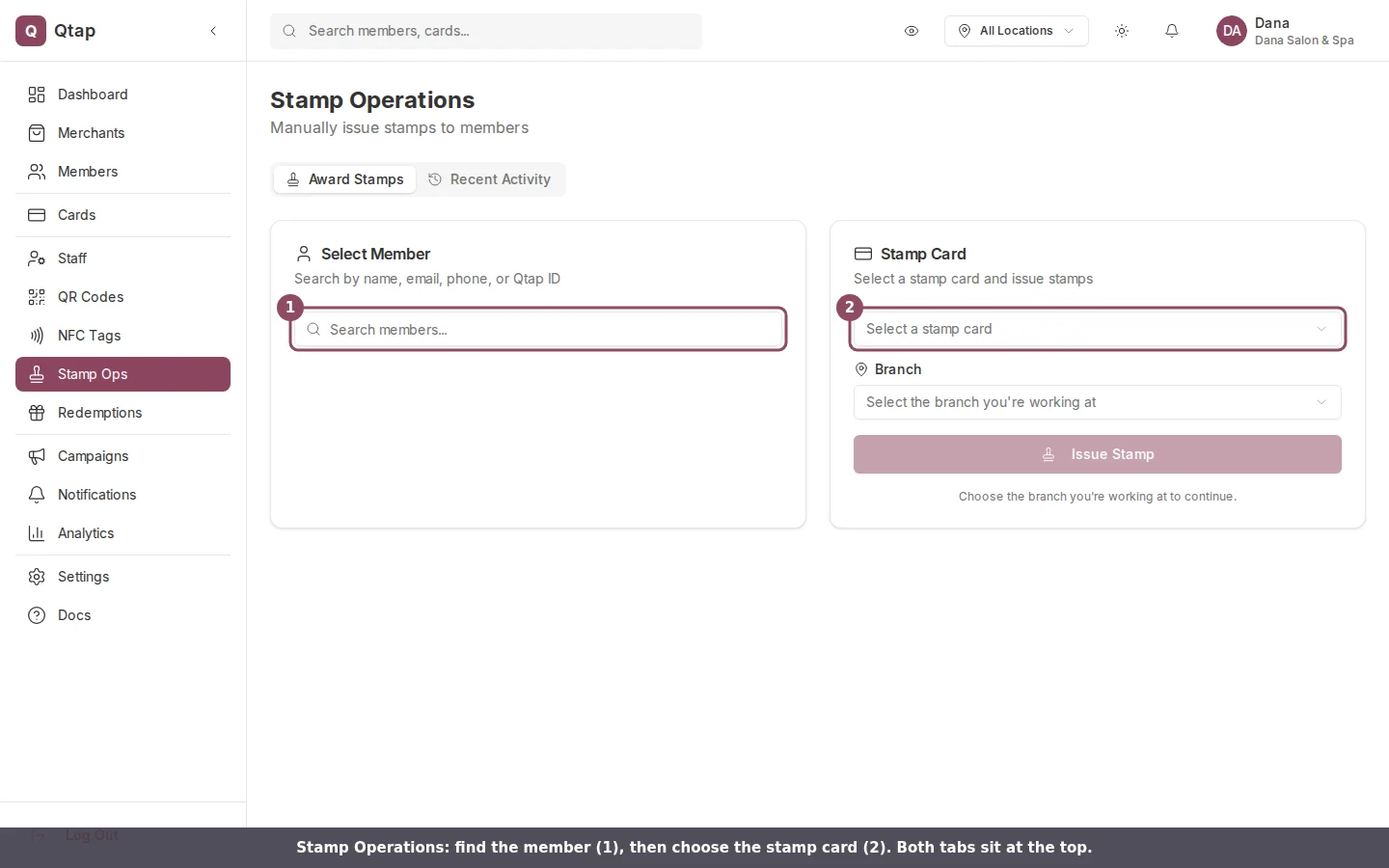
1. Go to **Stamp Operations** in the left sidebar.
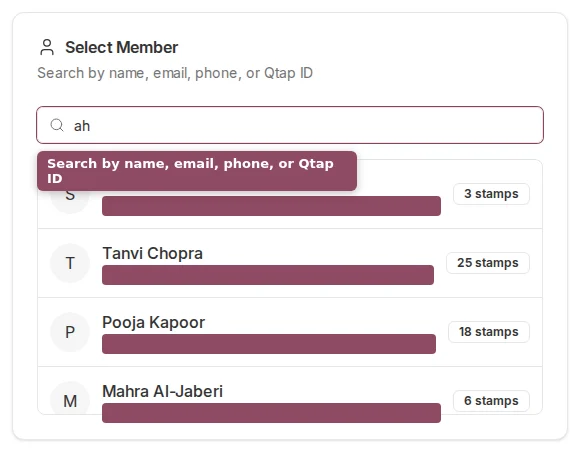
2. On the **Issue Stamp** tab, type the member's name, email, or phone number into the search field and select them from the results. Each result shows the member's name, contact info, and total stamps earned.
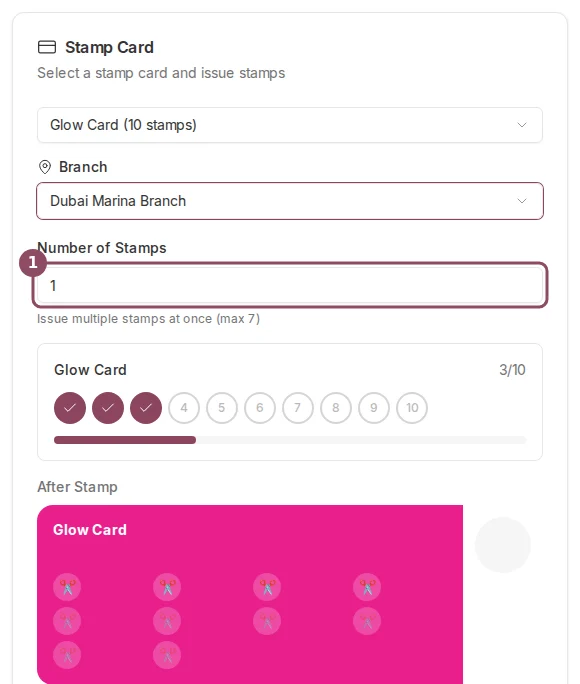
3. Choose the **Stamp Card** from the dropdown on the right.
4. Set the stamp quantity. The default is 1. To award more than one stamp, change the number — the field shows the maximum you can add before the card reaches its goal.
5. Click **Issue Stamp** and confirm.
## Issue a stamp
1. Go to **Stamp Operations** in the left sidebar.
2. On the **Issue Stamp** tab, type the member's name, email, or phone number into the search field and select them from the results. Each result shows the member's name, contact info, and total stamps earned.
3. Choose the **Stamp Card** from the dropdown on the right.
4. Set the stamp quantity. The default is 1. To award more than one stamp, change the number — the field shows the maximum you can add before the card reaches its goal.
5. Click **Issue Stamp** and confirm.
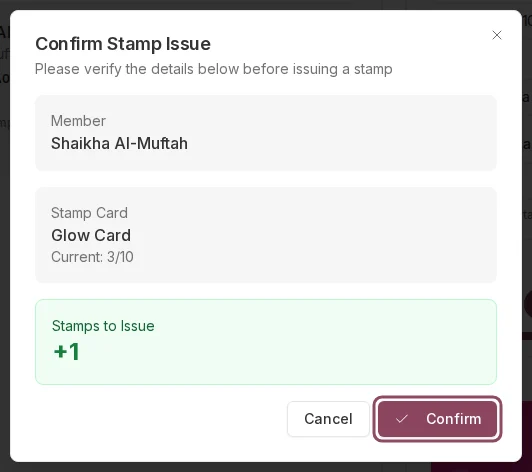 Stamps are added to the member's total immediately. A confirmation screen shows how many were issued, the member's new stamp count, and whether completing the card triggered a reward.
When the quantity you enter would complete the card, a "Card Complete!" indicator appears before you confirm. The reward is issued automatically when you click through.
## Member not enrolled in the card
If you select a member who is not yet enrolled in the chosen stamp card, an amber notice appears next to the card selector. Confirming the stamp auto-enrolls them in the card first, then issues the stamp — both happen in one step, so you don't need to ask the customer to enroll in the app separately.
## Recent stamp transactions
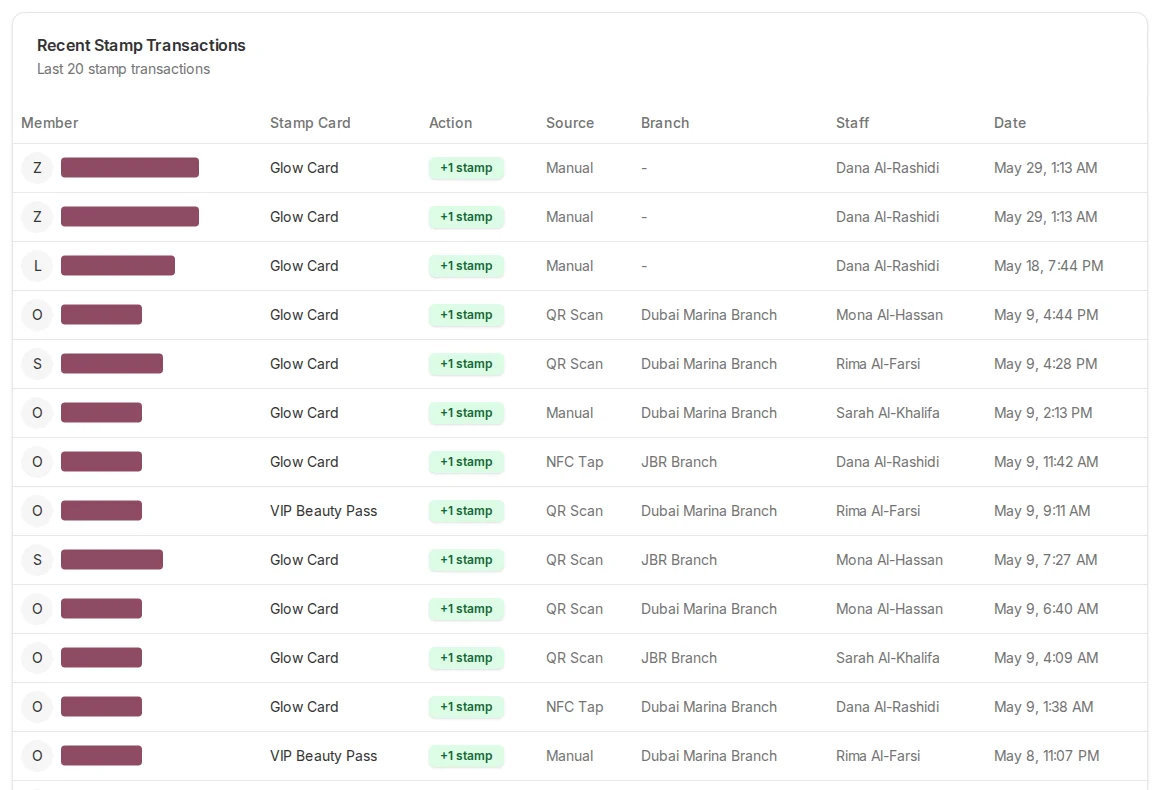
The bottom of the Stamp Operations page shows the last 20 stamp transactions. Each row shows the member name, stamps issued, card name, and timestamp. Use this to confirm a recent stamp went through or to check that the correct member was selected.
Stamps are added to the member's total immediately. A confirmation screen shows how many were issued, the member's new stamp count, and whether completing the card triggered a reward.
When the quantity you enter would complete the card, a "Card Complete!" indicator appears before you confirm. The reward is issued automatically when you click through.
## Member not enrolled in the card
If you select a member who is not yet enrolled in the chosen stamp card, an amber notice appears next to the card selector. Confirming the stamp auto-enrolls them in the card first, then issues the stamp — both happen in one step, so you don't need to ask the customer to enroll in the app separately.
## Recent stamp transactions
The bottom of the Stamp Operations page shows the last 20 stamp transactions. Each row shows the member name, stamps issued, card name, and timestamp. Use this to confirm a recent stamp went through or to check that the correct member was selected.
 How stamp cards work and what members see in the app.
Set up a new stamp card with rewards and locations.
How stamp cards work and what members see in the app.
Set up a new stamp card with rewards and locations.