> ## Documentation Index
> Fetch the complete documentation index at: https://docs.qtap.qa/llms.txt
> Use this file to discover all available pages before exploring further.
# Stamp Cards Overview
> How stamp cards work in Qtap and what you can configure.
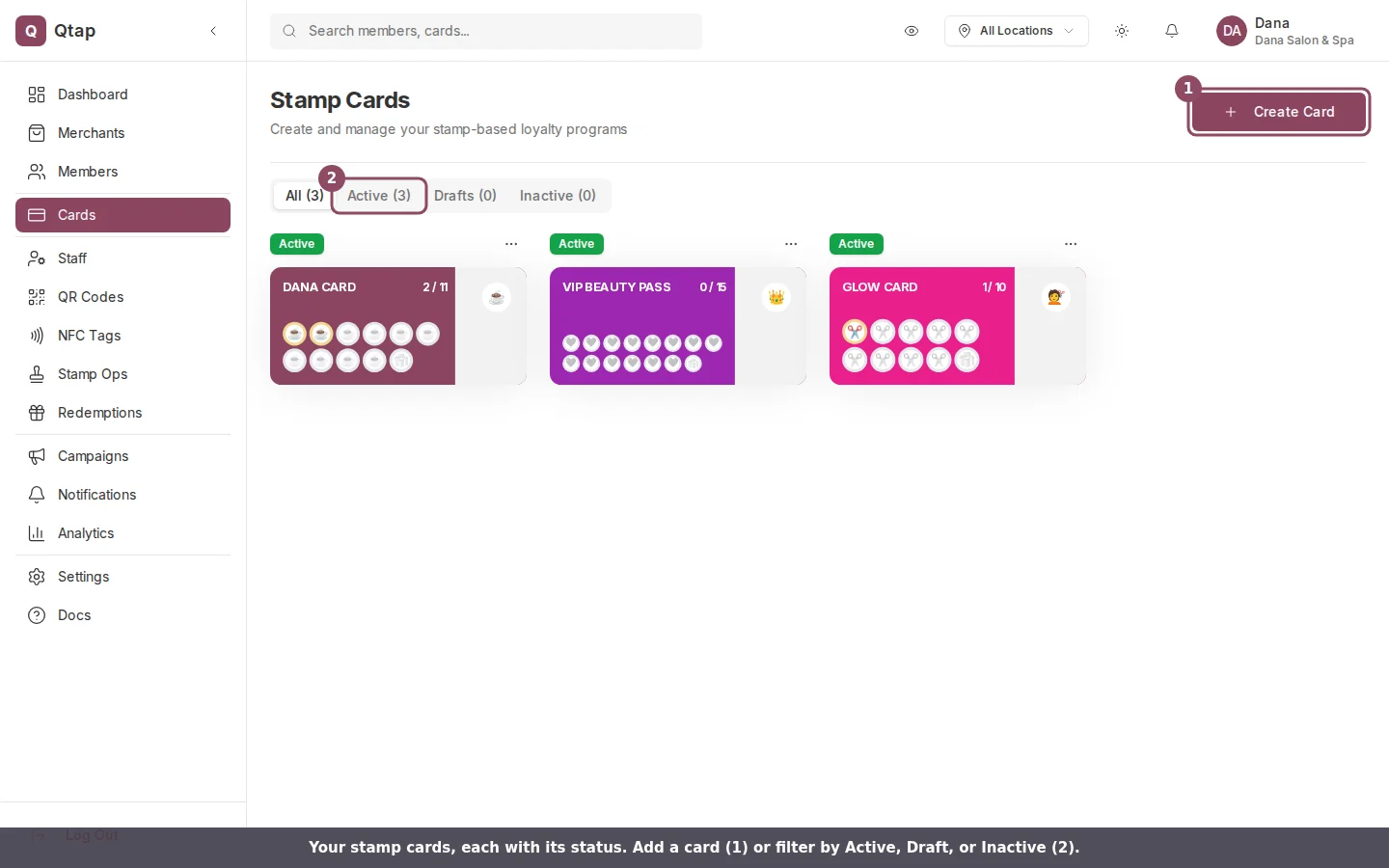
Stamp cards track customer visits and issue a reward when a member reaches your stamp goal. You set the stamp goal, choose a reward, and design how the card looks. Qtap handles issuing stamps and triggering rewards automatically.
 ## How stamp cards work
When a customer earns stamps, Qtap records each one against their account. When their total reaches the stamp goal you've set, they receive the reward automatically. Staff issue stamps by scanning the customer's QR code with the mobile app, or you can issue them manually from the dashboard.
## What you can configure
Each stamp card has these settings:
**Basic details**
* **Card Name** — what the card is called (shown to customers)
* **Description** — a short line displayed on the card in the member app
* **Stamp Goal** — the number of stamps required to earn the reward
**Design**
* **Card Color** — the background color of the stamp card
* **Card Icon** — an emoji shown on the card
* **Stamp Icon** — the emoji used to represent each individual stamp
**Rewards**
You can add one or more rewards to a card. Each reward triggers at a specific stamp count. For example, a free coffee at 10 stamps, and a free cake at 20 stamps.
**Join Stamps**
You can give new members a head start by assigning stamps when they join. This appears as the **Join Stamps** field when creating the card.
**Valid Locations**
You can restrict a stamp card to specific locations. If you don't select any, the card is valid at all your locations.
**Terms and Conditions**
Optional text displayed on the back of the card in the member app.
## Card statuses
A stamp card can be in one of three states:
* **Draft** — created but not visible to new members yet
* **Active** — live and available for members to join
* **Inactive** — no longer accepting new members or stamps
Existing members keep their stamp progress when you deactivate a card. They can still redeem earned rewards, but new stamps cannot be issued against an inactive card.
## Duplicating a card
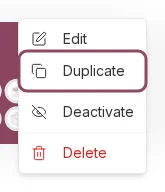
On the Stamp Cards list page, click the three-dot menu next to any card and select **Duplicate**. This creates a draft copy with all the same settings, which you can then edit before activating.
## How stamp cards work
When a customer earns stamps, Qtap records each one against their account. When their total reaches the stamp goal you've set, they receive the reward automatically. Staff issue stamps by scanning the customer's QR code with the mobile app, or you can issue them manually from the dashboard.
## What you can configure
Each stamp card has these settings:
**Basic details**
* **Card Name** — what the card is called (shown to customers)
* **Description** — a short line displayed on the card in the member app
* **Stamp Goal** — the number of stamps required to earn the reward
**Design**
* **Card Color** — the background color of the stamp card
* **Card Icon** — an emoji shown on the card
* **Stamp Icon** — the emoji used to represent each individual stamp
**Rewards**
You can add one or more rewards to a card. Each reward triggers at a specific stamp count. For example, a free coffee at 10 stamps, and a free cake at 20 stamps.
**Join Stamps**
You can give new members a head start by assigning stamps when they join. This appears as the **Join Stamps** field when creating the card.
**Valid Locations**
You can restrict a stamp card to specific locations. If you don't select any, the card is valid at all your locations.
**Terms and Conditions**
Optional text displayed on the back of the card in the member app.
## Card statuses
A stamp card can be in one of three states:
* **Draft** — created but not visible to new members yet
* **Active** — live and available for members to join
* **Inactive** — no longer accepting new members or stamps
Existing members keep their stamp progress when you deactivate a card. They can still redeem earned rewards, but new stamps cannot be issued against an inactive card.
## Duplicating a card
On the Stamp Cards list page, click the three-dot menu next to any card and select **Duplicate**. This creates a draft copy with all the same settings, which you can then edit before activating.
 ## Plan limits
Your plan determines how many active stamp cards you can have at once. If you've reached the limit, you'll see a message with a link to **Settings > Billing** to upgrade.
Step-by-step instructions for creating a new stamp card.
How to customize colors, icons, and the card's appearance.
## Plan limits
Your plan determines how many active stamp cards you can have at once. If you've reached the limit, you'll see a message with a link to **Settings > Billing** to upgrade.
Step-by-step instructions for creating a new stamp card.
How to customize colors, icons, and the card's appearance.