> ## Documentation Index
> Fetch the complete documentation index at: https://docs.qtap.qa/llms.txt
> Use this file to discover all available pages before exploring further.
# Stamp Card Rewards
> How the three reward types work and how to configure each one.
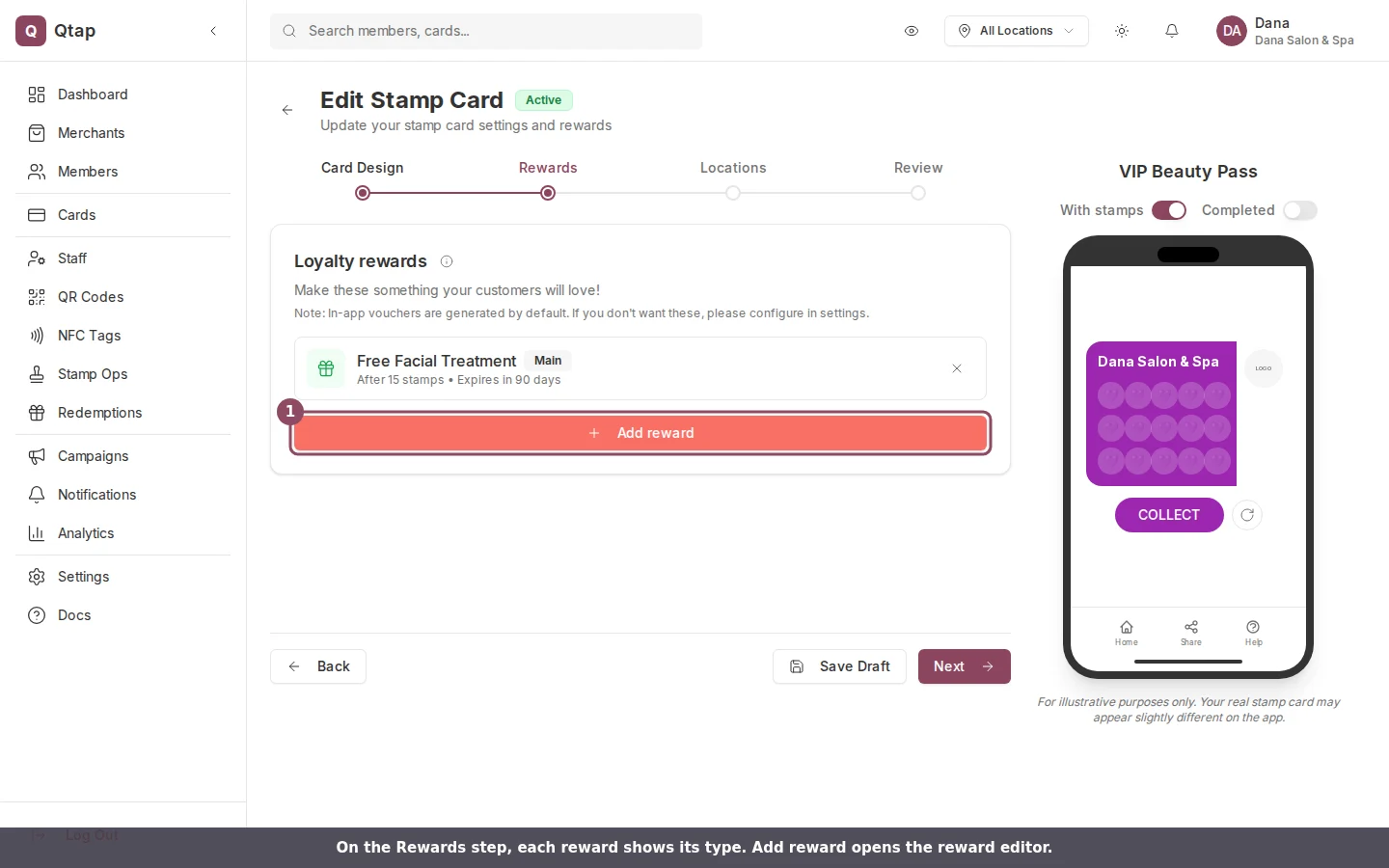
Stamp card rewards are issued automatically by Qtap based on conditions you set. There are three reward types: Main, Sign Up, and Interim. You add rewards during the card setup wizard on the Rewards step, or from the edit page of an existing card.
 ## Reward Types
**Main** is the primary reward. It issues automatically when a member reaches the stamp goal. Every stamp card must have exactly one Main reward before it can be published. The trigger value for a Main reward is always equal to the stamp goal.
**Sign Up** issues automatically when a customer joins the card for the first time. Use this for a welcome offer — for example, "10% off your next visit." A card can have one Sign Up reward.
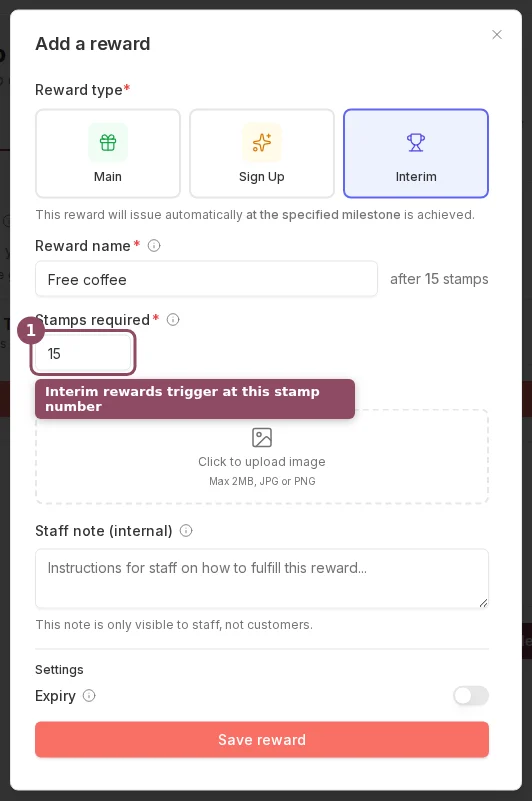
**Interim** issues at a specific stamp milestone before the stamp goal. For example, on a 10-stamp card, you could add an Interim reward at stamp 5 for a free upgrade. A card can have multiple Interim rewards, each at a different stamp number.
## Reward Types
**Main** is the primary reward. It issues automatically when a member reaches the stamp goal. Every stamp card must have exactly one Main reward before it can be published. The trigger value for a Main reward is always equal to the stamp goal.
**Sign Up** issues automatically when a customer joins the card for the first time. Use this for a welcome offer — for example, "10% off your next visit." A card can have one Sign Up reward.
**Interim** issues at a specific stamp milestone before the stamp goal. For example, on a 10-stamp card, you could add an Interim reward at stamp 5 for a free upgrade. A card can have multiple Interim rewards, each at a different stamp number.
 ## Adding a Reward
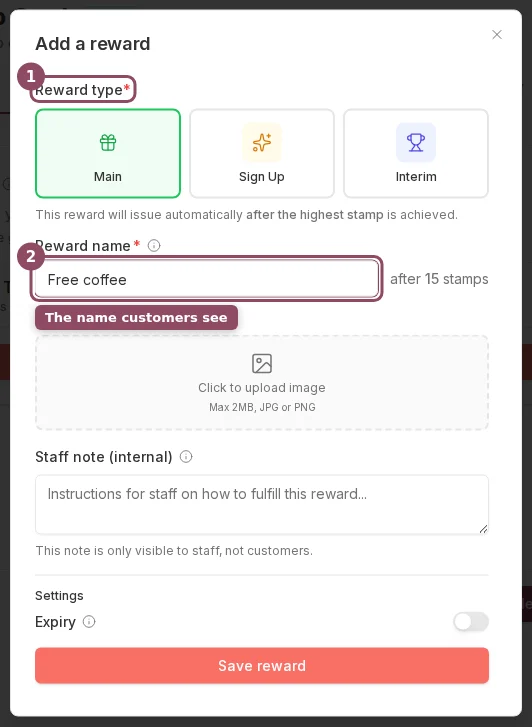
Click **Add Reward** on the Rewards step to open the reward editor. Fill in:
* **Reward Type** — Main, Sign Up, or Interim
* **Reward Name** — the name of the reward the member sees (e.g., "Free Coffee")
* **Trigger Value** — for Interim rewards, the stamp number that triggers it; for Main rewards, auto-set to the stamp goal
* **Expiry** — toggle on and enter a number of days to set an expiry period after the reward is issued
* **Reward Image** — optional PNG or JPEG up to 2MB, shown with the reward in the app
* **Staff Note** — optional internal note shown to staff at the point of redemption
Click **Save Reward** to add it to the card.
## Adding a Reward
Click **Add Reward** on the Rewards step to open the reward editor. Fill in:
* **Reward Type** — Main, Sign Up, or Interim
* **Reward Name** — the name of the reward the member sees (e.g., "Free Coffee")
* **Trigger Value** — for Interim rewards, the stamp number that triggers it; for Main rewards, auto-set to the stamp goal
* **Expiry** — toggle on and enter a number of days to set an expiry period after the reward is issued
* **Reward Image** — optional PNG or JPEG up to 2MB, shown with the reward in the app
* **Staff Note** — optional internal note shown to staff at the point of redemption
Click **Save Reward** to add it to the card.
 ## Reward Expiry
If you enable expiry, the clock starts when the reward is issued, not when the member earns their last stamp. A member who earns a reward and doesn't redeem it within the expiry window loses the reward.
Expired rewards cannot be restored from the dashboard. If a member's reward expires and you want to re-issue it, you must manually add stamps or contact support.
If you leave expiry off, the reward stays valid indefinitely until the member redeems it.
## Editing Rewards on an Existing Card
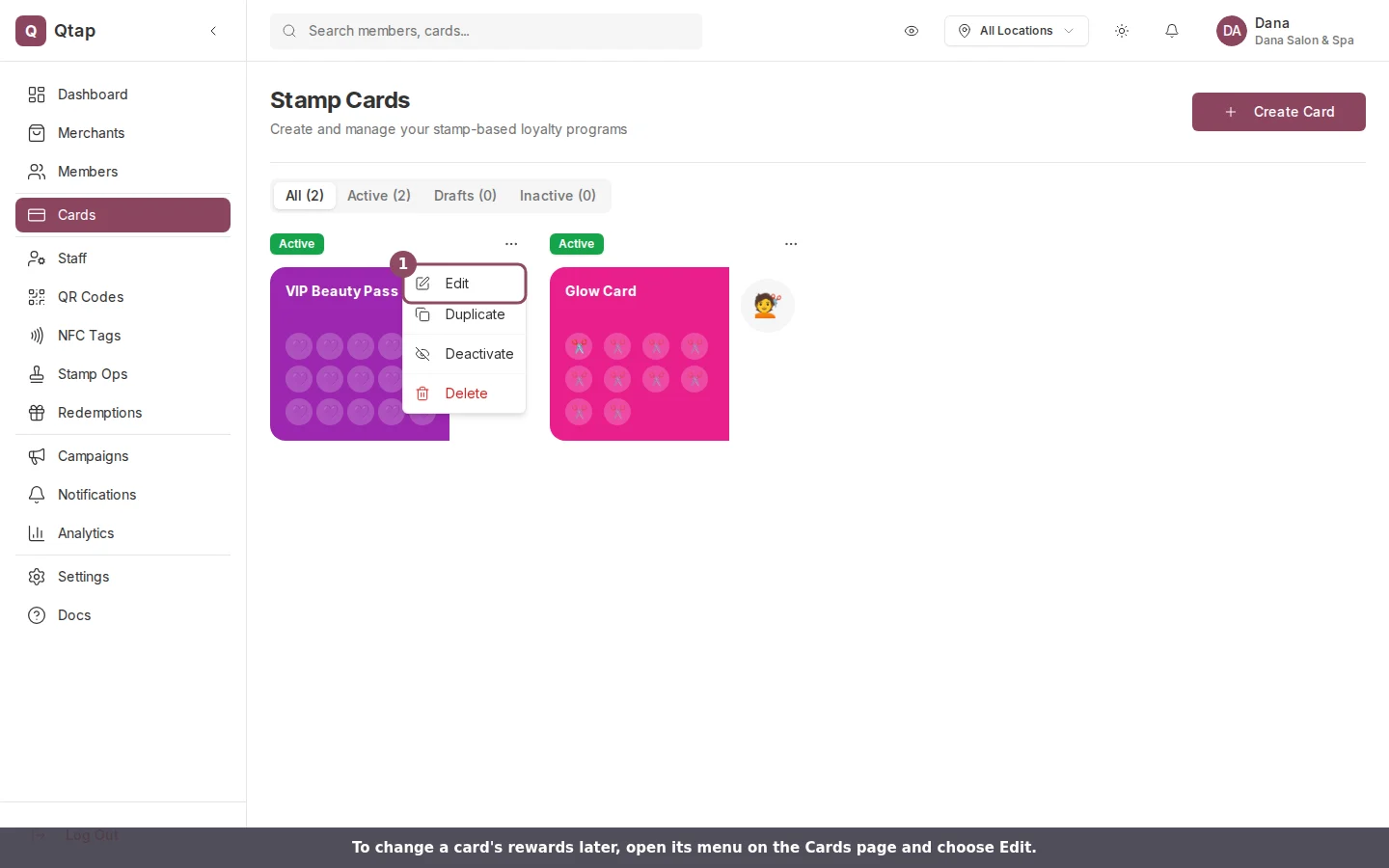
Go to **Cards**, click the three-dot menu on the card, and select **Edit**. Navigate to the Rewards step to add, edit, or remove rewards.
## Reward Expiry
If you enable expiry, the clock starts when the reward is issued, not when the member earns their last stamp. A member who earns a reward and doesn't redeem it within the expiry window loses the reward.
Expired rewards cannot be restored from the dashboard. If a member's reward expires and you want to re-issue it, you must manually add stamps or contact support.
If you leave expiry off, the reward stays valid indefinitely until the member redeems it.
## Editing Rewards on an Existing Card
Go to **Cards**, click the three-dot menu on the card, and select **Edit**. Navigate to the Rewards step to add, edit, or remove rewards.
 Removing a reward from a card does not affect rewards already issued to members. If a member already received the reward, it stays in their wallet until they redeem or it expires.
## How Redemption Works
When a member has a reward available, they show it to staff in the app. Staff scan the QR code or confirm the redemption on the **Stamp Operations** screen. Once confirmed, the reward is marked as used and removed from the member's wallet.
Full walkthrough of the card setup wizard including the Rewards step
How to view and manage redemptions for your members
How staff use QR codes to stamp cards and process redemptions
Removing a reward from a card does not affect rewards already issued to members. If a member already received the reward, it stays in their wallet until they redeem or it expires.
## How Redemption Works
When a member has a reward available, they show it to staff in the app. Staff scan the QR code or confirm the redemption on the **Stamp Operations** screen. Once confirmed, the reward is marked as used and removed from the member's wallet.
Full walkthrough of the card setup wizard including the Rewards step
How to view and manage redemptions for your members
How staff use QR codes to stamp cards and process redemptions