> ## Documentation Index
> Fetch the complete documentation index at: https://docs.qtap.qa/llms.txt
> Use this file to discover all available pages before exploring further.
# Welcome to Qtap
> Get your loyalty program running in the Qtap merchant dashboard.
Qtap runs your loyalty program from a single dashboard. You can create stamp cards or a points program, generate QR codes for your locations, send campaigns to your members, and track everything from one place.
## What you'll do first
When you sign up, a Getting Started checklist appears at the top of the dashboard. It shows your progress through five setup tasks:
1. Create your first stamp card or points program
2. Generate a QR code
3. Invite a staff member
4. Add your first member
5. Create a campaign
Each task has an arrow icon you can click to go directly to that section. Once a task is done, it gets a green checkmark and moves out of the way.
You can dismiss the checklist at any time with the **Skip** button or the X in the top corner. The checklist also disappears automatically once all tasks are complete.
If your account is on a trial, each checklist task shows a bonus day reward you can claim after completing it. Click **Claim +Xd** next to a completed task to add those days to your trial. Rewards do not claim themselves — you have to click the button.
## How the dashboard is organized
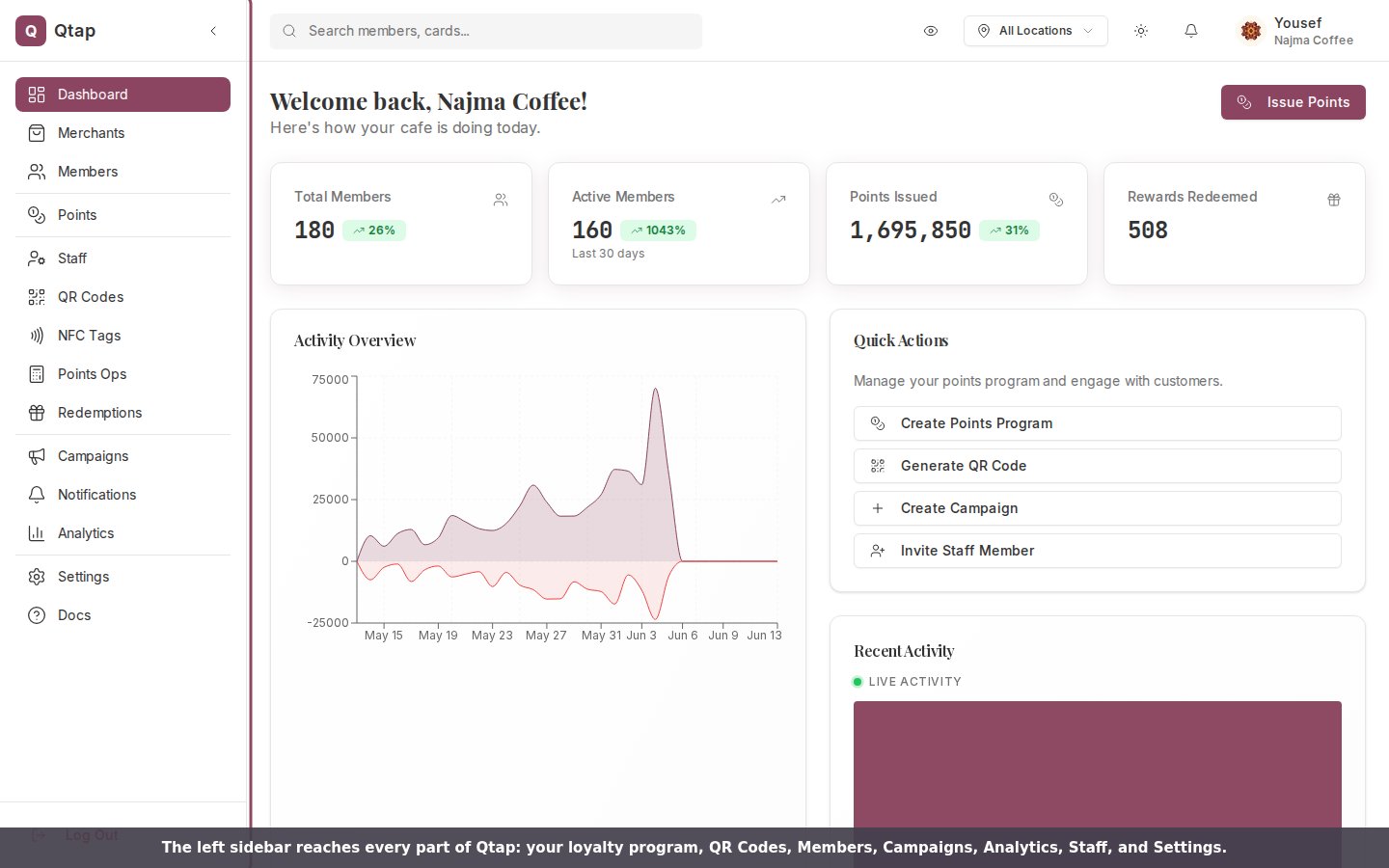
The left sidebar gives you access to everything:
* **Stamp Cards** or **Points** — where you create and manage your loyalty program
* **QR Codes** — generate and manage the scannable codes your customers use to earn stamps or points
* **Campaigns** — automated messages triggered by customer behavior
* **Members** — the list of everyone enrolled in your program
* **Analytics** — data on stamps, points, redemptions, and member activity
* **Staff** — invite and manage the people who work in your locations
* **Settings** — billing, locations, notifications, and your merchant page
 ## Stamp cards vs. points programs
When you sign up, you choose between two loyalty types. Each works differently:
**Stamp cards** give customers one stamp per visit (or transaction). When they hit your stamp goal, they earn a reward. Simple, visual, and familiar to most customers.
**Points programs** assign a points value to purchases. Customers accumulate points and redeem them for rewards. Better for businesses where customers spend different amounts each visit.
You cannot switch between stamps and points after your program is set up. If you're unsure which to use, contact Qtap support before completing onboarding.
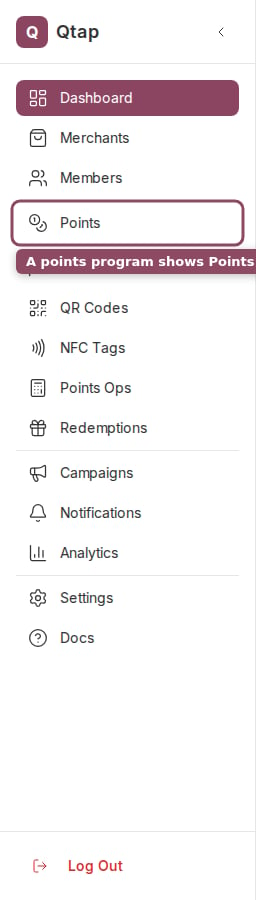
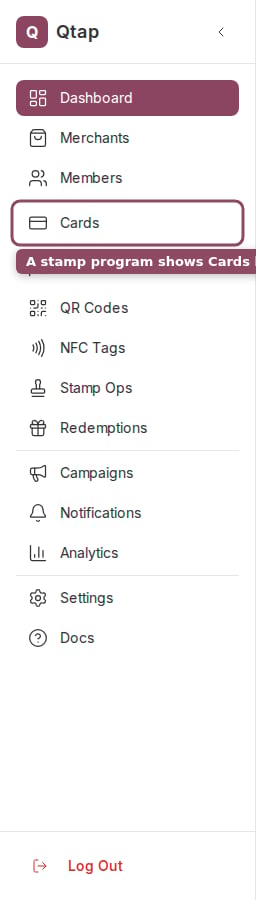
Your dashboard shows different options depending on which loyalty type you chose. If you see "Stamp Cards" in the sidebar, you're on the stamps program. If you see "Points," you're on the points program.
## Stamp cards vs. points programs
When you sign up, you choose between two loyalty types. Each works differently:
**Stamp cards** give customers one stamp per visit (or transaction). When they hit your stamp goal, they earn a reward. Simple, visual, and familiar to most customers.
**Points programs** assign a points value to purchases. Customers accumulate points and redeem them for rewards. Better for businesses where customers spend different amounts each visit.
You cannot switch between stamps and points after your program is set up. If you're unsure which to use, contact Qtap support before completing onboarding.
Your dashboard shows different options depending on which loyalty type you chose. If you see "Stamp Cards" in the sidebar, you're on the stamps program. If you see "Points," you're on the points program.
 Learn what each section of the main dashboard shows you.
Create your first stamp card or points program step by step.
Learn what each section of the main dashboard shows you.
Create your first stamp card or points program step by step.