

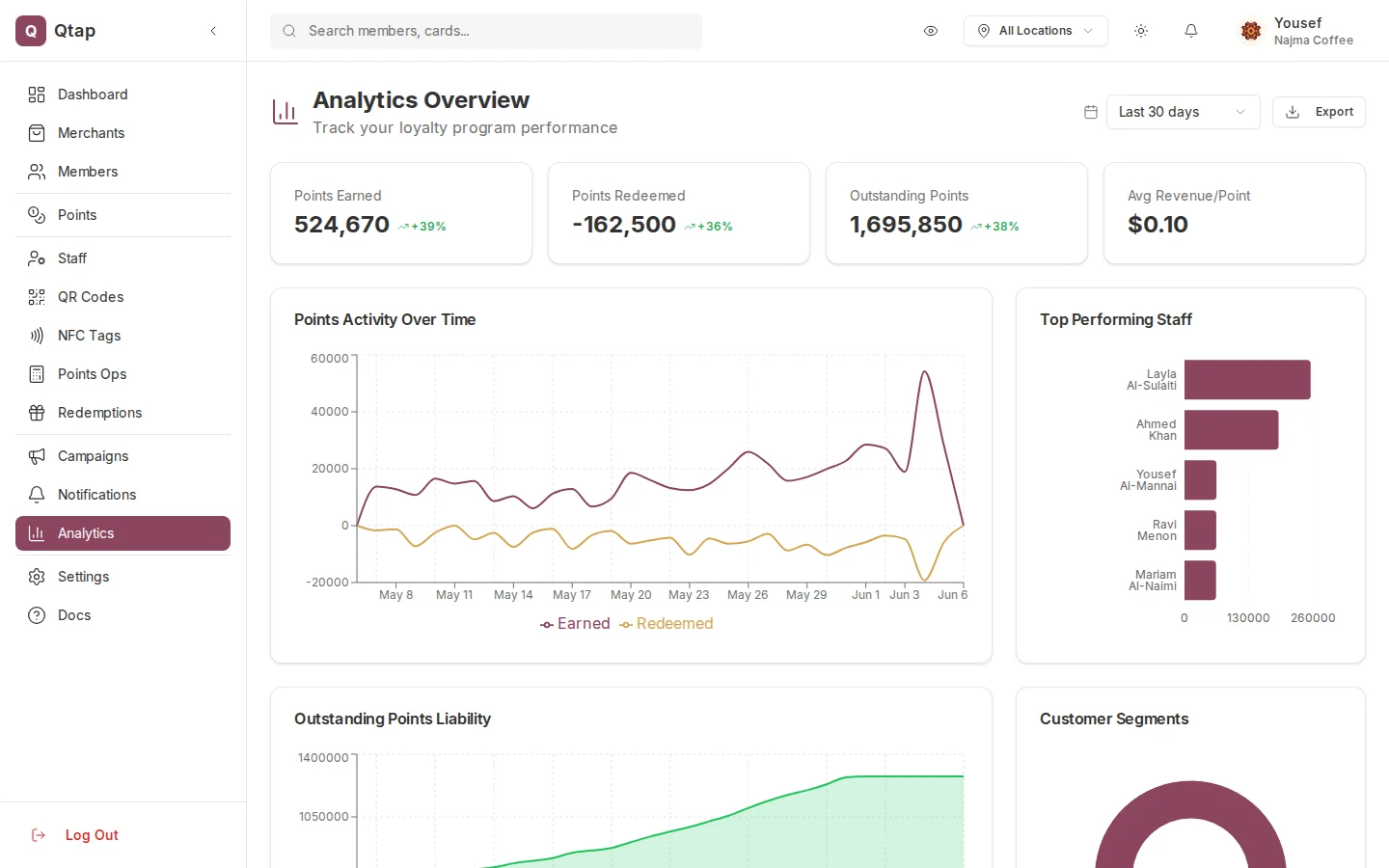
The Analytics Overview page with key metrics, the activity-over-time chart, and top performing staff. A points program is shown here; stamp card programs show the equivalent stamp metrics.
Time Period Selector
At the top right of the Analytics page, select how far back you want to look. The options are 7 days, 30 days, 90 days, and 12 months. All charts and metrics on the page update when you change this.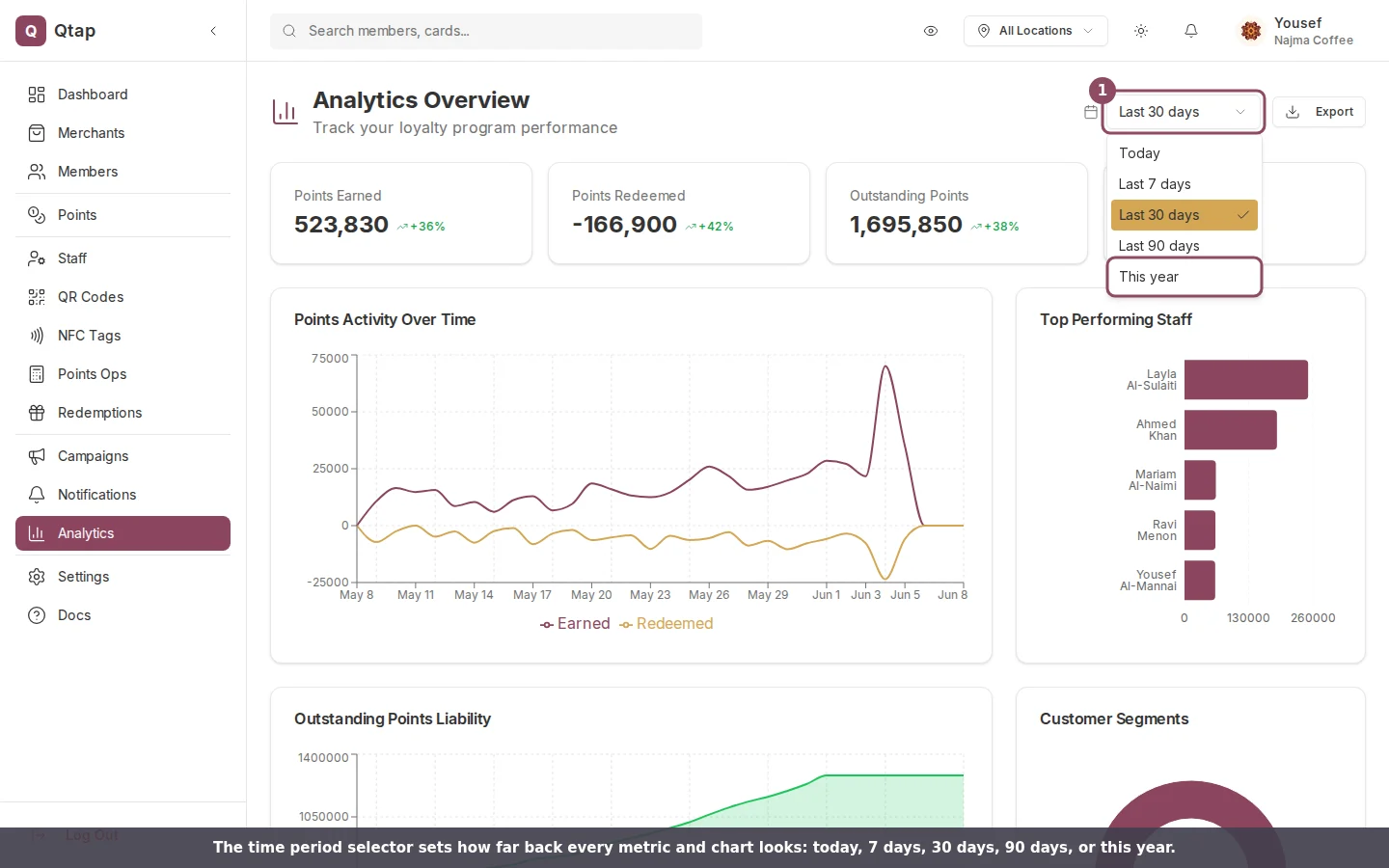
Open the time period selector at the top right to switch the whole page between today, the last 7, 30, or 90 days, or this year.
Stamp Card Analytics
If your program uses stamp cards, the analytics page shows:- Total stamps issued and the change compared to the previous period
- Total redemptions and redemption rate
- Active members — members who scanned at least once in the selected period
- New members joined in the period
- A Stamps over time line chart showing daily or weekly stamp volume
- A Staff performance bar chart showing how many stamps each staff member issued
- A Customer segments donut chart breaking members into groups such as “loyal”, “at risk”, and “new”
- A Peak hours heatmap showing which days and times are busiest
Points Program Analytics
If your program uses points, the analytics page shows:- Points issued and points redeemed totals
- Outstanding balance — points that have been issued but not yet spent
- A Points over time line chart
- A Points balance trend showing how the total outstanding balance is changing
- A Points expiry forecast — how many points are scheduled to expire in the coming months
- Top points earners — the members who have earned the most points over their whole history
- Reward popularity — meant to rank your most redeemed rewards, but the card does not fill in yet
These last three cards read differently from the rest of the page, and one of them is currently broken. The points panels on your analytics page explains what each one counts.
Below the charts is a card called Insights, which writes up to three short observations about your member list on every plan. The Insights panel explains what each line counts. A second card, AI Insights, writes a fresh read of your data each time and is part of the Elite and Franchise plans, so it does not appear on the other plans.
Exporting Analytics
Click Export at the top right to download your analytics data. You can export as:- CSV — a spreadsheet with the raw data for the selected period and sections
- PDF — a formatted report
- Instagram Story — a branded image summarizing your key metrics, sized for sharing
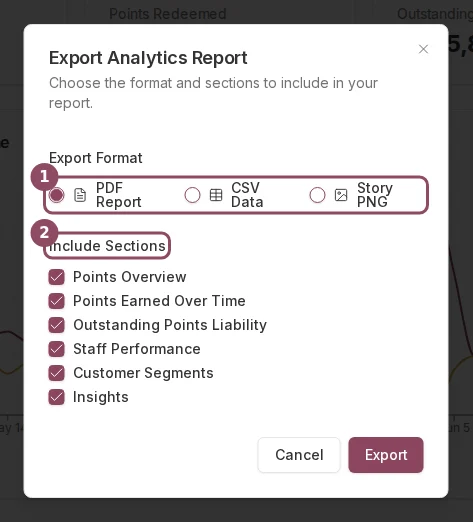
The export dialog: pick a format (1), then choose which sections to include (2) before downloading.
Staff Performance
See how many stamps or points each staff member has issued
Location Comparison
Compare activity across your different locations