

Export your members to a spreadsheet
Click Export CSV at the top right of the Members page. Qtap builds a.csv file of every member in your organization, across all pages, and downloads it to your computer as members- plus today’s date.
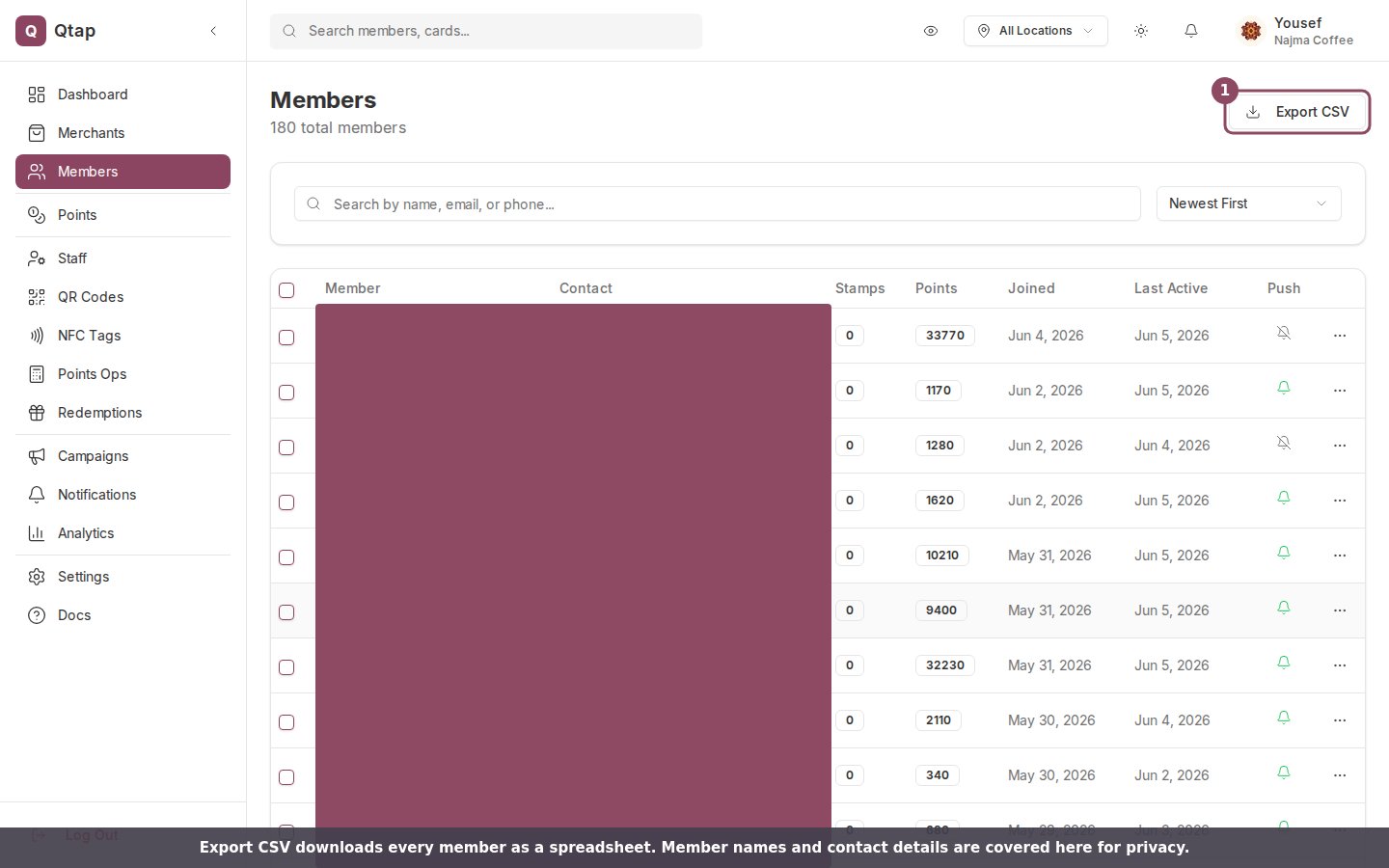
The Export CSV button downloads your whole member list. Member names and contact details are covered here for privacy.
The two points columns answer different questions, so read them together. A regular who redeems often can sit near zero on the balance column while the lifetime column runs into the thousands.
Only owners and managers can export. A team member on the Staff role does not see the Export button.
Export only some members
To save a smaller list, tick the checkbox on each member’s row. A toolbar appears with Export Selected, which downloads only the rows you picked asselected-members- plus today’s date.
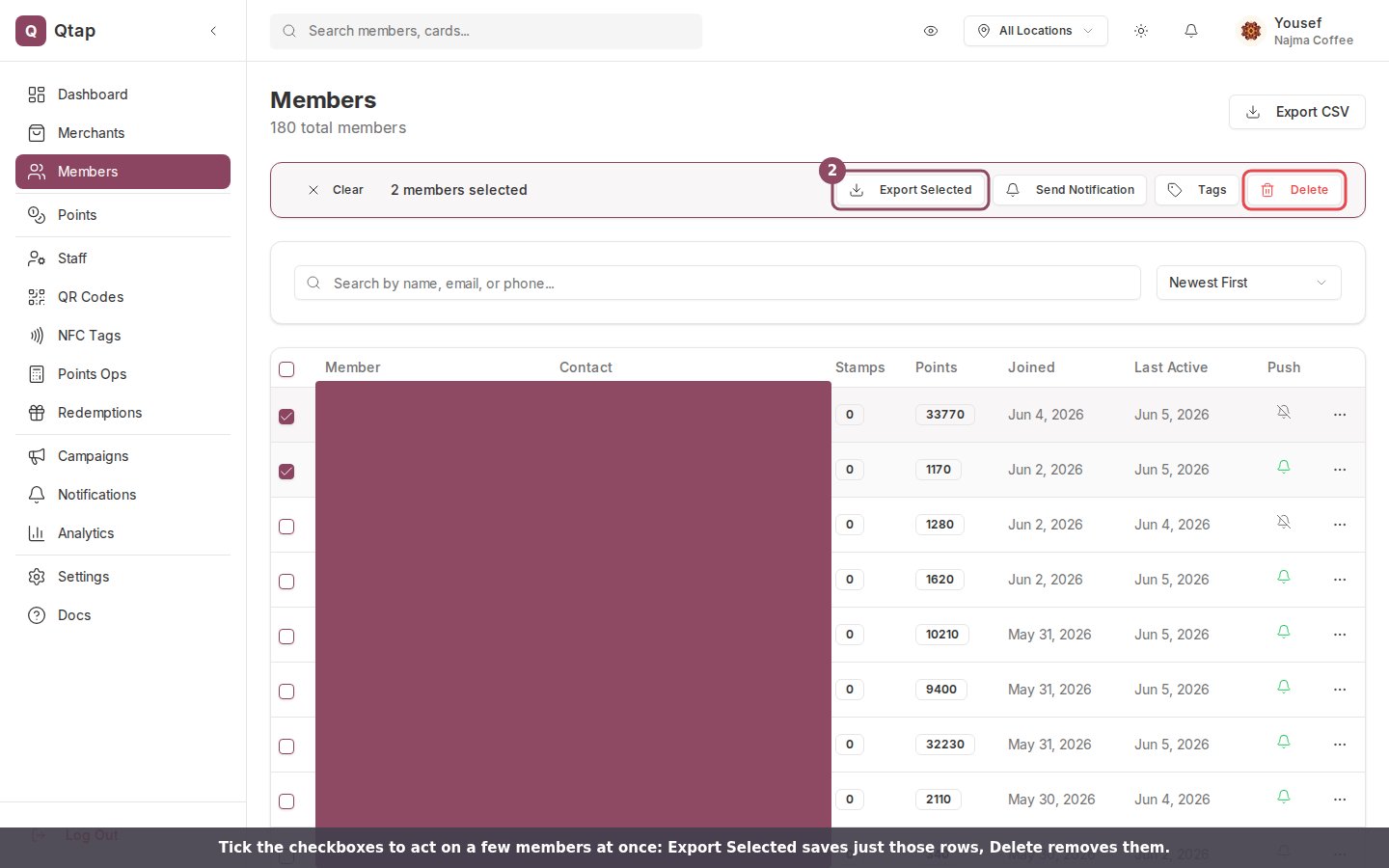
Select a few members to export or act on just those rows.
Delete members
Deleting takes a member off your program. You can remove one member or several at once:- One member: open the three-dot menu at the end of their row and choose Delete Member.
- Several members: tick their checkboxes, then click Delete in the toolbar that appears.
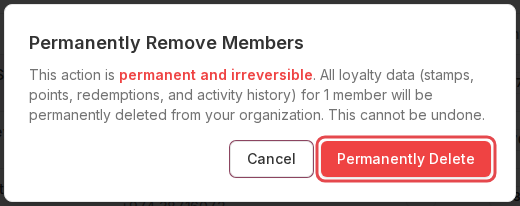
The confirmation step before any member is removed.
Members you cannot remove
One kind of member sits outside all of this. When a customer asks Qtap to delete their account from inside the app, their row on your list changes: the name becomes Deleted member, a grey Deleted badge appears next to it, and the contact column goes blank. Those rows are locked. The checkbox at the start of the row is greyed out, so you cannot tick it on its own and the header checkbox skips it when you select the page. Their three-dot menu carries View Profile and nothing else, so there is no Delete Member to click either.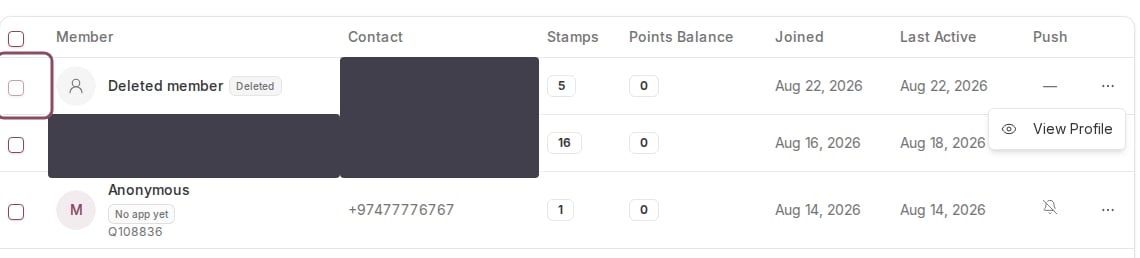
A deleted member's row. The checkbox is greyed out and the row menu offers only View Profile. The row below is covered here for privacy.